

July 14, 2025 • Proven Solutions
Periscope is a live‑streaming platform for Android and iOS that was acquired by Twitter in 2015. It lets users broadcast directly to their Twitter followers, enabling real‑time interaction through comments, hearts, and live chats.
This guide walks you through every step of creating a Periscope broadcast, answers common questions, and offers tips for a smoother streaming experience.
- Part 1: How to Do Live Streaming on Periscope
- Part 2: FAQ on Live Streaming
- Part 3: Tips for a Better Broadcast Experience
Part 1: How to Do Live Streaming on Periscope
Before you start, ensure your device’s battery is fully charged and the operating system is up to date. The following steps assume you have the latest version of the Periscope app installed.
- Open the app and log in or create a new account.
- Access the broadcast preview:
- iOS: Tap the “Broadcast” tab at the bottom.
- Android: Tap the “Camera” icon at the bottom.
- Enter a concise caption that describes the stream’s focus. Choose who can view the broadcast, then tap “Go LIVE.”
Optional settings: You can enable location sharing, limit chat to certain users, or tweet the stream’s URL.
- To end the broadcast, swipe down on the screen and tap “Stop Broadcast.”

Part 2: FAQ on Live Streaming
1. How can I grow my Periscope audience?
Success on Periscope comes from strategic promotion and engaging content:
- Schedule broadcasts ahead of major events and tease them on Twitter.
- Invite followers to share your stream, expanding reach organically.
- Use relevant hashtags to increase discoverability worldwide.
- Provide eye‑catching visuals that spark curiosity.
- Encourage viewers to invite their own followers, creating a ripple effect.
2. How do I tweet a Periscope broadcast?
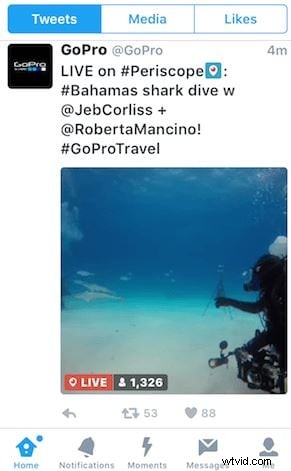
Before launching a public stream, tap the Twitter icon inside the app. Keep the stream title short to fit within Twitter’s character limit. The app will automatically tweet the stream’s URL to your account. If the tweet doesn’t appear, sign out and back in, then try again.
3. How do I share my location?
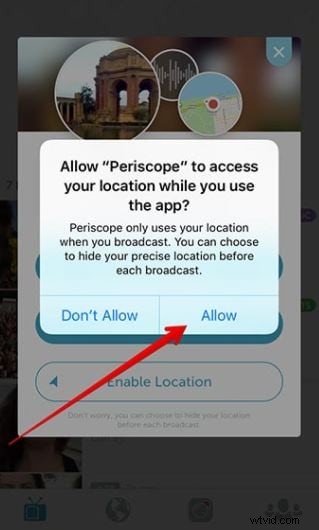
Turning on location sharing makes your stream searchable on Periscope’s map, helping local viewers find you.
- Go to the Broadcast tab and tap the compass icon to enable location.
Part 3: Tips for a Better Broadcast Experience
Selfie Stick
A selfie stick stabilizes your device, ensuring smooth, high‑angle shots even during crowded events.
Interact with Your Audience
Engage viewers by responding to comments, conducting Q&A sessions, or hosting live chat. Interaction builds trust and encourages return viewership.

Set Clear Goals
Define objectives before broadcasting: research the venue, test connectivity, and prepare backup plans. Promote the stream well in advance across social channels to maximize attendance.
Final Verdict
Periscope remains a powerful tool for brands and creators looking to connect instantly with audiences. Whether you’re gathering live feedback or simply amplifying your reach, mastering the platform’s features can elevate your content strategy. Give it a try and unlock its potential.
Images sourced from the Internet
Ollie Mattison
Ollie Mattison is a writer and a lover of all things video.
Follow @Ollie Mattison