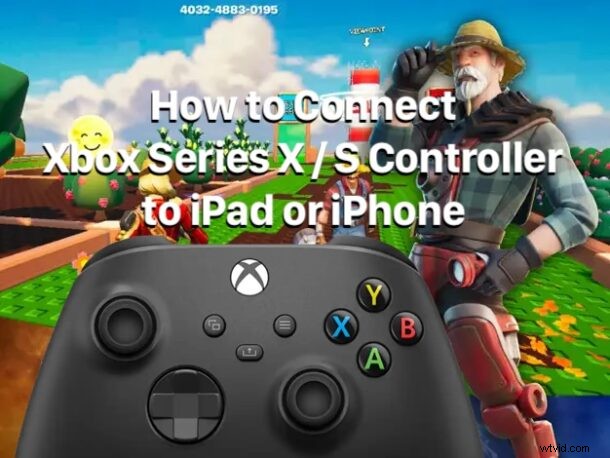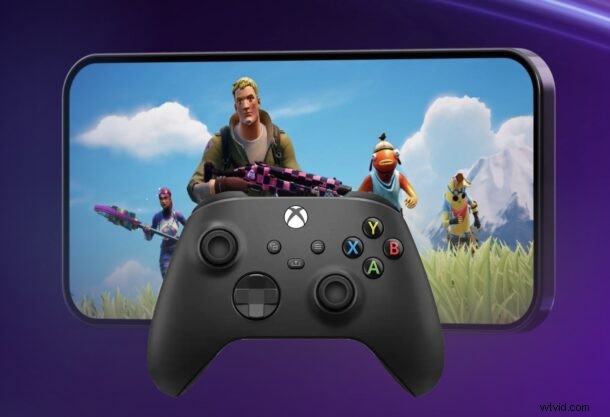
Enhancing your iOS gaming experience is simple with a physical controller. Both iPhone and iPad support the latest Xbox Series X controller via Bluetooth, giving you a console‑like feel for titles such as Fortnite, Call of Duty, Minecraft, and many Apple Arcade games.
If you’re ready to switch from touch to a true gamepad, follow this straightforward setup guide to pair your Xbox Series X (or Series S) controller with your iPad or iPhone.
How to Connect & Use Xbox Series X Controller with iPhone or iPad
- Open the Settings app, tap Bluetooth, and make sure Bluetooth is turned on.
- Put the controller into pairing mode: press and hold the small sync button on the top of the controller for about 5 seconds until the Xbox logo begins to flash.
- Back in the Bluetooth menu, look for Xbox Wireless Controller under Other Devices and tap it to complete the pairing. The logo will stop flashing and remain lit.
Once paired, the controller can also be used to navigate the iPad Home Screen and launch apps—an unexpected but handy feature.
Using the Xbox Controller for Gaming on iPad and iPhone
After pairing, launch any game that lists controller support. Most popular titles, including Fortnite, Minecraft, Call of Duty, and a wide range of Apple Arcade games, will recognize the controller automatically. For finer control, many games allow you to remap buttons or adjust sensitivity within their own settings menus.
How to Disconnect or Unpair the Xbox Series X Controller from iOS / iPadOS
- Temporarily disconnect: Turn off the controller by holding the Xbox button until it powers down.
- Fully remove: In Settings > Bluetooth, tap the
iicon next to the controller, then select Disconnect & Forget. Re‑pairing will require repeating the steps above.
There’s usually no need to manually disconnect; the controller will power down automatically when idle.
Troubleshooting Connection & Pairing Issues
- Ensure the controller’s battery is charged—low power often causes sudden disconnects.
- Toggle Bluetooth off and back on in Settings > Bluetooth.
- Restart your iPhone or iPad.
- After a restart, re‑pair the controller if issues persist.
- Avoid interference from other wireless devices or long distances when the controller is connected to a TV or external display.
- Verify that the game itself supports controllers; some titles like PUBG do not.
Pairing an Xbox Series X (or Series S) controller with an iPad or iPhone transforms the mobile gaming experience, offering precision and comfort that touch controls can’t match—especially on the iPad’s larger screen.
Besides Xbox controllers, iOS also supports Xbox One, PlayStation 5, PlayStation 4, and many third‑party Bluetooth gamepads. If you’ve already paired a controller, share your experience and favorite games in the comments below.