
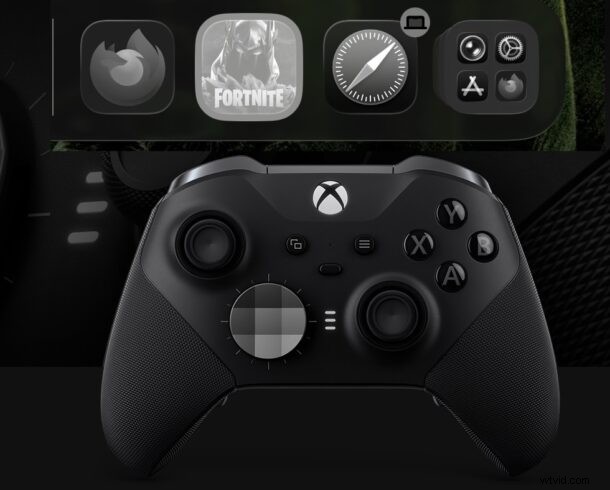
While most people associate game controllers with gaming only, the latest iPadOS versions empower you to use a Bluetooth controller for full system navigation. This means you can traverse the Home Screen, select app icons, and launch games or media apps—all with the comfort of a controller. It’s an excellent feature for gamers who want a console‑like experience on their iPad or for anyone who uses the device as a media hub.
Any Bluetooth‑enabled controller will work, whether it’s a Sony PlayStation, Microsoft Xbox, or Nintendo Switch Pro controller. Once paired, you can move between app icons, open applications, and perform basic navigation without touching the screen.
How to Use a Bluetooth Controller to Navigate Your iPad and Launch Apps
Start by pairing a compatible controller with your iPad:
- Open Settings → Bluetooth.
- Enter pairing mode on your controller (usually by holding the PS/Xbox/center button).
- Select the controller from the list to complete the connection.
Once connected, the controller will work in supported games immediately and also allow you to navigate the Home Screen:
- From the Home Screen, use the left analog stick or D‑pad to move the highlight across app icons.
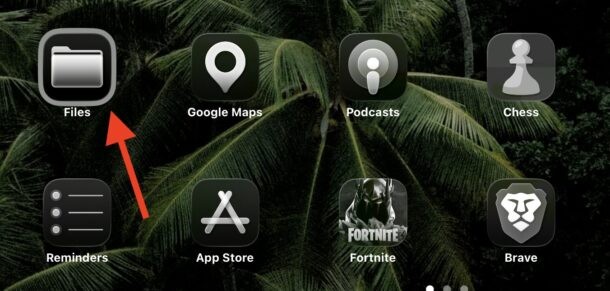
- Press A on Xbox or X on PlayStation to launch the highlighted app or game.
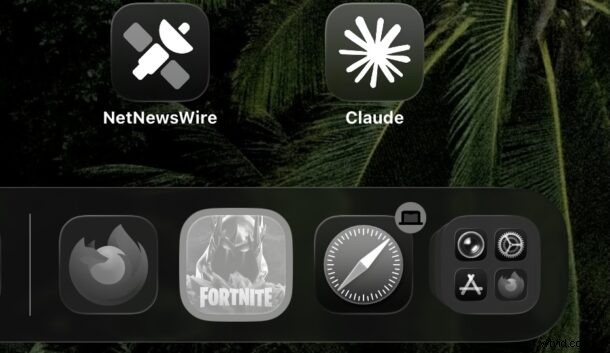
- Continue using the controller within the app or game as usual.
Using a controller for navigation is especially useful when:
- You want to keep your hands on a controller for a fully console‑like experience.
- The iPad is connected to an external display via AirPlay, HDMI, or USB‑C.
- You prefer a hands‑free method to launch games or media apps.
Note that this feature does not replace the touch interface or provide a mouse cursor; it’s a distinct navigation mode similar to the Apple TV remote. Nonetheless, it adds a layer of flexibility for power users and gamers alike.
Have you explored using a game controller to navigate your iPad? Share your experiences, tips, or any additional insights in the comments below!