
Restore Call Volume on iPhone: Expert Fixes for Unresponsive Buttons
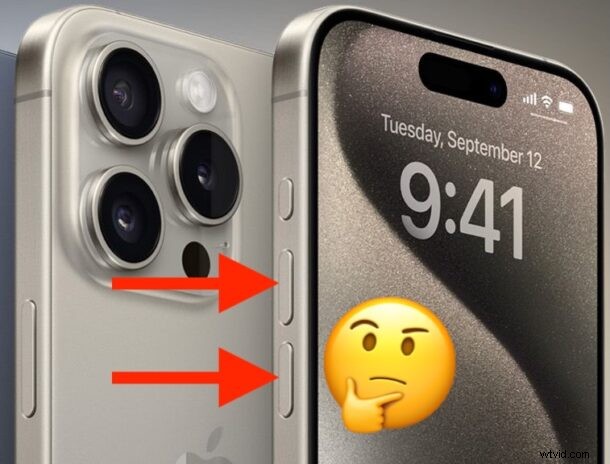
If you’re on a call and the volume buttons on your iPhone refuse to respond, you’re not alone. This common issue can make it impossible to adjust call volume while still working fine for music, videos, or notifications.
You’ll notice it when pressing either button during a call doesn’t change the volume or the on‑screen slider fails to appear. The frustration is real, but the fix is usually straightforward.
How to Fix Unresponsive iPhone Volume Buttons During Calls
Follow these steps in order; many users find a quick resolution with the first or second method.
1. Toggle the On‑Screen Mute Button
Tap the mute icon on the call screen to turn it off, then tap it again to re‑enable. This simple action often restores button functionality immediately.
2. Switch Call Audio Output
iPhones may misroute audio, rendering the volume keys inactive. While on the call, try switching between speaker, Bluetooth headphones, wired earphones, or even CarPlay. Switching back and forth can reset the routing logic and re‑enable the buttons.
3. Disable and Re‑Enable “Change with Buttons”
- Open Settings.
- Tap Sounds & Haptics.
- Toggle Change with Buttons off, wait a few seconds, then toggle it back on.
Enabling this feature ensures the hardware buttons control volume during calls.
4. Inspect and Clean the Physical Buttons
Debris or moisture can prevent proper contact. Gently clean around the volume keys with a dry microfiber cloth and check for any sticky residue. A small burst of compressed air can also help dislodge hidden particles.
5. Restart Your iPhone
Restarting clears temporary glitches. If you’re not in a call, simply turn the device off, wait 10 seconds, and power it back on. For a forced restart: press Volume Up, then Volume Down, and hold the Power/Lock button until the Apple logo appears.
6. Install the Latest iOS Update
Apple frequently addresses hardware quirks in software releases. Go to Settings > General > Software Update and install any available updates. This may permanently resolve the volume‑button bug.
These steps cover the most common causes and remedies. If the problem persists, consider contacting Apple Support or visiting an Apple Store for a hardware inspection.
Share your experience in the comments—what worked for you?