
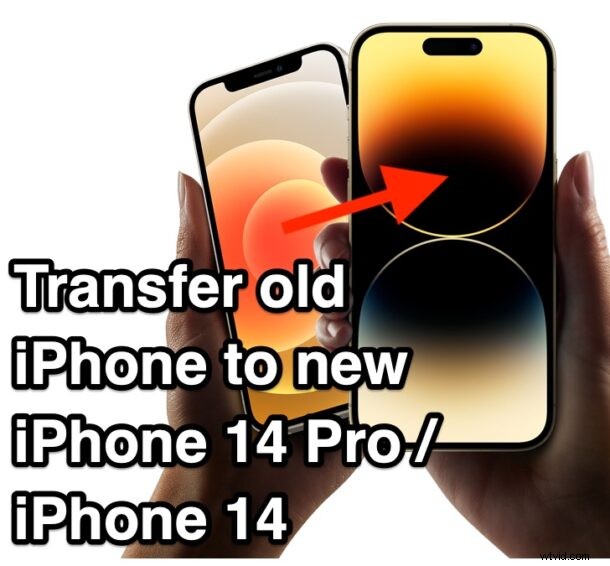
If you just got a brand new iPhone 14 Pro, iPhone 14 Pro Max, iPhone 14, or iPhone 14 Plus, you’re probably pretty excited to get it setup and working, with all of your data and stuff from your prior iPhone onto the new device.
Apple has made transferring data from an old iPhone to a new iPhone super easy, and it’s no exception with the iPhone 14 series. Let’s dive in so that you can have your new iPhone 14 series device setup with all your stuff from your older iPhone model.
You’ll want to make sure both iPhones are fully charged, or at least plugged into power so they can continue through the transfer process uninterrupted. You will also need to make sure both the old iPhone and new iPhone 14 Pro / iPhone 14 are on the same wi-fi network.
How to Migrate from Old iPhone to iPhone 14 Pro, iPhone 14
Here’s how the Quick Start migration feature works to get your new iPhone setup easily:
- Turn on the old iPhone and have it placed next to the new iPhone 14 Pro
- On the old iPhone, go to Settings > General > Transfer or Reset iPhone > then tap on “Get Started”
- Now turn on the new iPhone 14 Pro / iPhone 14 if you haven’t done so yet (it may ask you to update to a new version of iOS first) and stop at the Quick Start screen
- You should soon the Set Up New iPhone screens, where you can confirm the Apple ID is the same for both devices, and then walk through the onscreen instructions to transfer the old iPhone data to the new iPhone 14 / iPhone 14 Pro
- Choose the “Transfer from iPhone” option to create an ad-hoc network between the devices
- Both iPhone screens will show a data transfer screen with an estimated time to completion, do not interrupt this process on either iPhone 14 Pro or the old iPhone
When the process completes, you’ll have everything on your new iPhone 14 Pro, iPhone 14 Pro Max, iPhone 14, or iPhone 14 Plus.
It’s a good idea to check through your notes, photos, etc to make sure it all transferred over successfully, especially before giving up, trading in, or resetting your old iPhone.
That’s it, your new iPhone 14 Pro / iPhone 14 is setup with all of the stuff from your old iPhone. Is that easy or what?
You can also use alternate data transfer methods, like restoring from a backup via iCloud, Finder, or iTunes, but the Quick Start method is by far the simplest and easiest way to go when setting up a new iPhone. Enjoy your new device.