
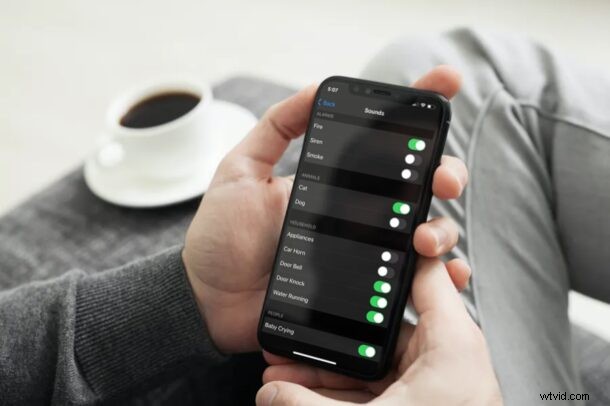
What if we told you that your iPhone or iPad can listen for sounds such as doorbells, fire alarms, car horns, dogs, cats, sirens, door knocks, water running, babies crying, and more? Whether you have any sort of hearing impairment, or perhaps just a device sitting in another room or part of the house, you may have trouble listening to the sounds around the home.
With the iOS 14 / iPadOS 14 update, Apple has introduced an all-new accessibility feature called Sound Recognition to assist people who are deaf or hard of hearing, but it’s obviously useful for other purposes too. As the name suggests, the iPhone can listen and recognize certain sounds using its microphone and send notifications letting you know exactly what it has heard. More importantly, you can choose what sounds you want alerts for, based on your priorities or what sounds you want to be notified of.
Interested in setting up this feature on your iOS device? We’re here to help. In this article, we’ll be discussing exactly how you can use sound recognition alerts on both your iPhone and iPad.
How to Use Sound Recognition Alerts on iPhone & iPad
It goes without saying that your device must be running iOS 14/iPadOS 14 or later, since this accessibility feature isn’t available on older versions. Now, without further ado, let’s get started.
- Head over to “Settings” from the home screen of your iPhone or iPad.

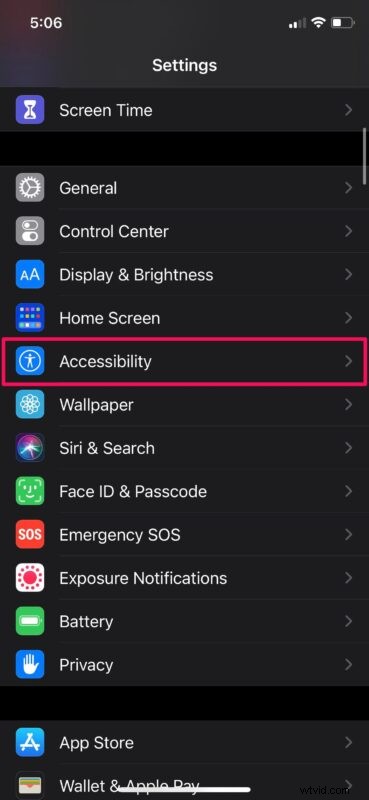
- In the settings menu, scroll down and tap on “Accessibility”.
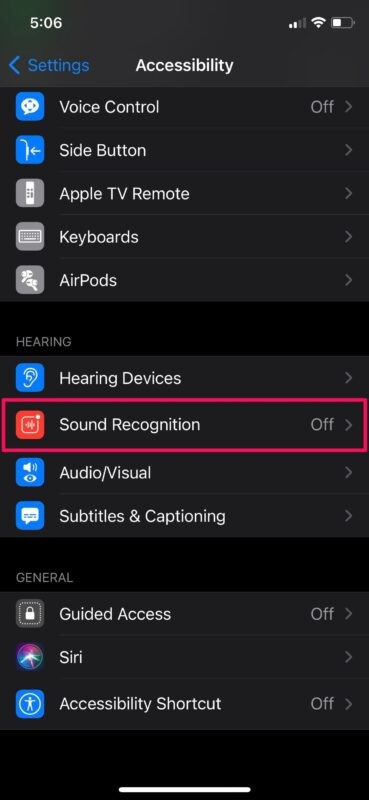
- In the Accessibility section, scroll down to the “Hearing” category and tap on “Sound Recognition” to proceed further.
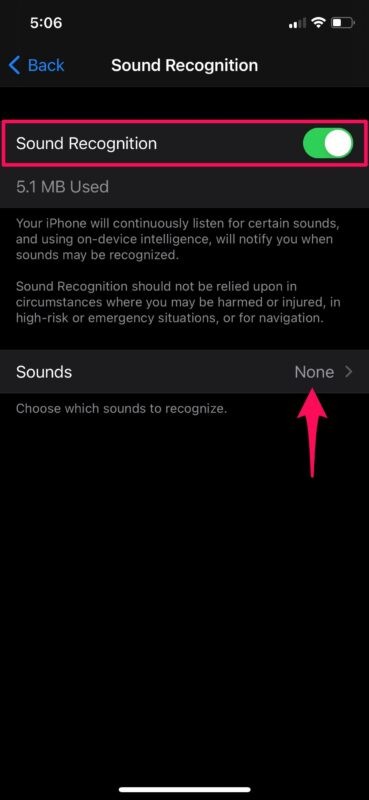
- Now, use the toggle to turn this feature on. However, that’s not enough as you’ll need to manually select the sounds you need alerts for. To set this up, tap on “Sounds”.
- Here, use the toggle to enable the sounds you need for Sound Recognition alerts.
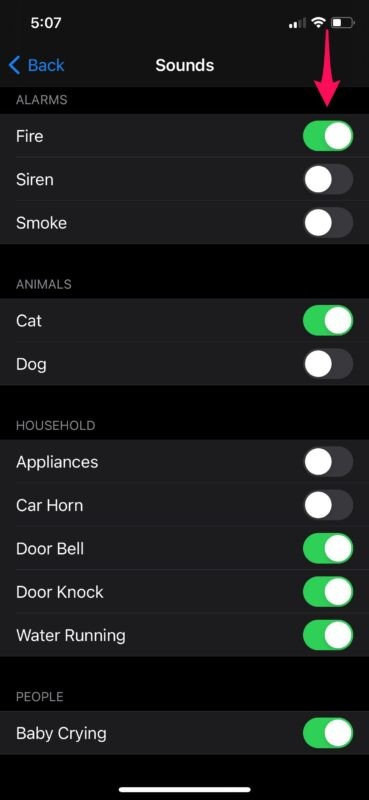
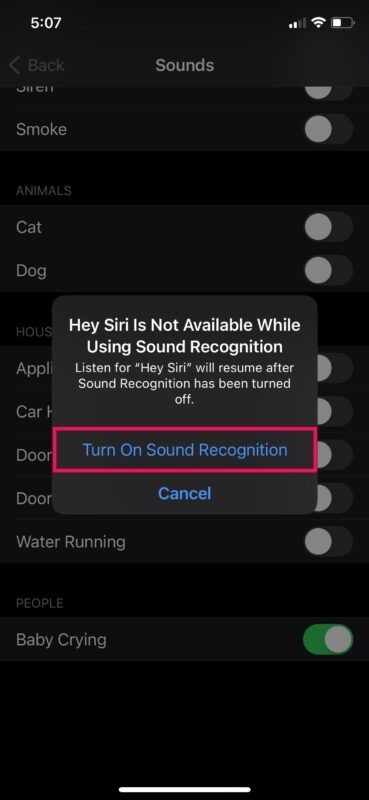
- When you enable sound alerts for the first time, you’ll be warned that “Hey Siri” will be disabled as long as this feature is enabled. Choose “Turn On Sound Recognition” and continue selecting the sounds you need.
That’s pretty much all there is to it. Your iPhone or iPad is now ready to listen and alert you for the selected sounds.
It’s worth pointing out that all this listening and sound recognition happens on-device and requires no internet connectivity. So if you’re a privacy buff, you don’t need to worry about sending any of the listening data to Apple’s servers.
Notifications for Sound Recognition will be delivered to the lock screen, home screen, or top of your screen as a banner if you’re actively using an app or navigating through the menu.
Apple has however warned its users not to rely on Sound Recognition alerts in circumstances where they may be injured or harmed, in high-risk or emergency situations, or for navigation. The feature is targeted towards people who’re likely staying home and have trouble listening to what’s going around in the house.
Sound Recognition isn’t the only new accessibility feature that Apple has introduced with iOS 14. Back Tap is another accessibility feature that allows you to quickly perform certain actions on your iPhone by simply double-tapping or triple-tapping on its back. You can use this to access app switcher, run shortcuts, activate other accessibility features, and more. And of course there are many other great tips for iOS 14 and iPadOS 14, you can check out just a few here to get started if you’re interested.
We hope you were able to put the Sound Recognition feature to good use on your iPhone and iPad. Did the notifications show up accurately so far? Have you been enjoying the other changes in the iOS 14 update? Do share your valuable thoughts and opinions in the comments section down below.