
When you try to play a video file, you may encounter 0xc10100be error. What are the main causes of the error code 0xc10100be? How to fix it? This post will tell you everything you want. To edit or convert video, try MiniTool MovieMaker.
Why the error code 0xc10100be occurs? The main causes are:
- File type not supported.
- File extension is wrong.
- The video file is corrupt.
- Copy protection feature of Windows Media Player is on.
So how to fix 0xc10100be error? Continue to read this post.
How to Fix Video Error Code 0xc10100be
This part provides 4 methods to fix video error code 0xc10100be.
Method 1. Play video in another video player
If the video file type is not supported by the video player, the 0xc10100be error will occur. In this case, the most simple method is using another video player to play the video file. Here recommend Pot Player, Windows Media Player, QuickTime, etc.
Method 2. Convert video to another video format
Changing the video format is another method to fix error code 0xc10100be. MiniTool MovieMaker is most recommended. It’s a video converter and video editor with no watermarks, no bundles and no viruses. More importantly, it’s 100% free and safe.
Here’s how:
Step 1. Download and install MiniTool MovieMaker.
Step 2. Launch it and import the problematic video.
Step 3. Click on Export and select a video format in the Format box.
Step 4. Then export the video.
Method 3. Use VLC Media Player
If the above methods still can’t solve this problem, you can try VLC Media Player to repair the corrupt video file. Below are the detailed steps on how to fix 0xc10100be error.
Step 1. Make a copy of your video file.
Step 2. Right-click on the video and rename it to .avi format.
Step 3. Open VLC Media Player after installing.
Step 4. Click on Tools in the menu bar and select the Preferences option from the drop-down list.
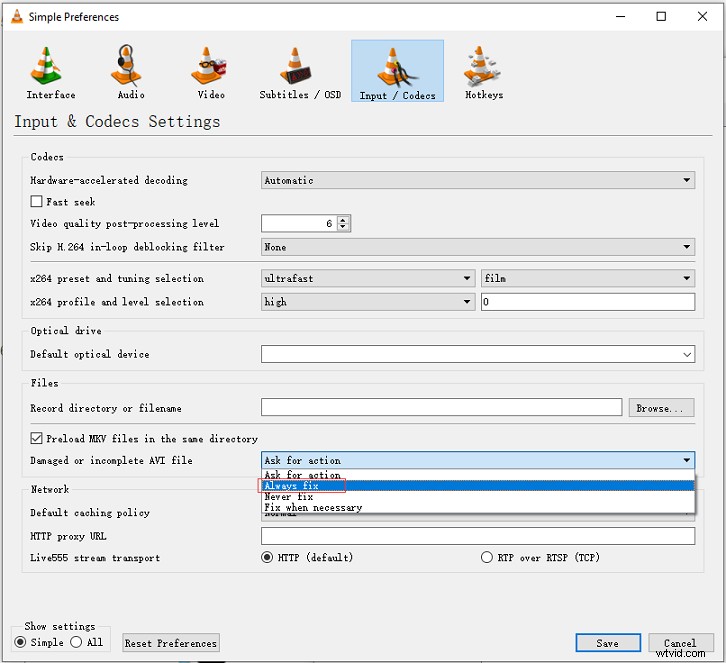
Step 5. In the Preferences window, you need to switch to the Input / Codecs tab.
Step 6. Then choose the Always fix option in the Damaged or incomplete AVI file box and save the changes.
You might be interested in this post: How to Recover and Repair Corrupt MP4 Video Files PC/Mac.
Method 4. Disable copy protection feature in Windows Media Player
Sometimes, the copy protection feature of Windows Media Player could result in the video playback error code 0xc10100be. To solve this issue, just disable the copy protection feature in Window Media Player.
Follow the steps to turn of the copy protection feature.
Step 1. Open Windows Media Player.
Step 2. Tap on Organize and choose Options….
Step 3. In the Options window, switch to the Rip Music tab.
Step 4. Uncheck the Copy protect music option below the Format box.
Step 5. Afterward, click OK.
Conclusion
This post explains the four causes of 0xc10100be error and offers you 4 methods to fix it. Hope this post is helpful to you!