How to fix overexposed video online
The camera sensors just can't cope with the amount of light and you want to delete the video because it's not pleasant to watch. But it's easy to turn it into something worthy of your library with a special tool by Clideo.
It allows you to adjust the brightness, contrast, saturation and other settings of your recording as you want. It’s completely online and works on any device including Mac, Windows, Android and iPhone.
It is free for all the files that are less than 500 MB. The size is usually enough but if your video turned out to be bigger, no worries — you can subscribe to the Pro version!
Selecting a clip
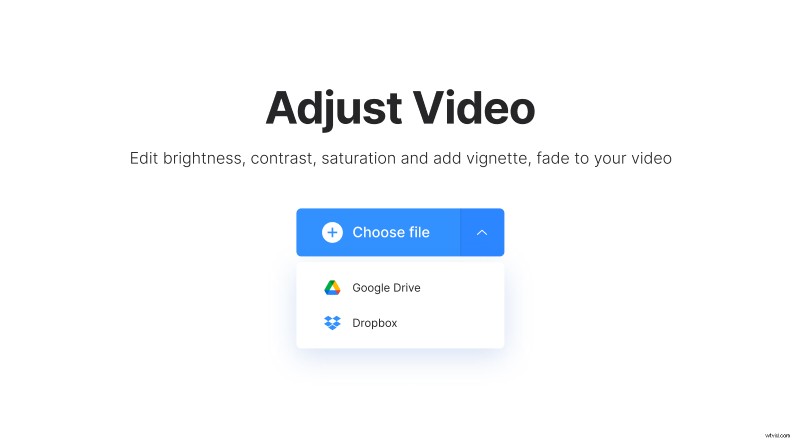
Open the Clideo’s brightness editor. Upload the clip directly from your device or cloud storage.
Fixing overexposed video
Once the file is uploaded, you can see it in the preview window. Underneath, you can mute the audio if you want to continue editing without it.
You can adjust the following image settings:
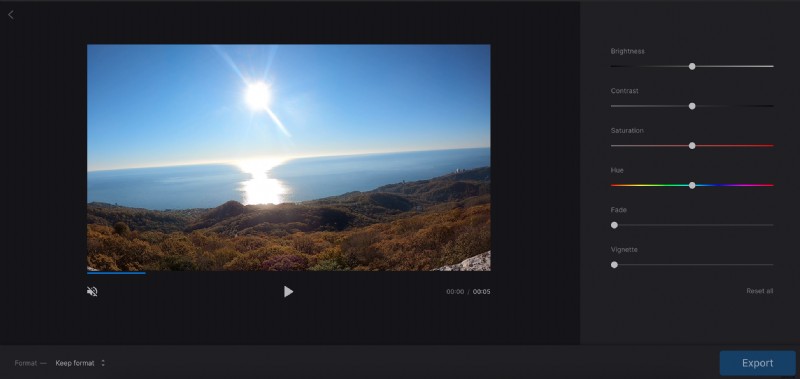
- Brightness — changes the amount of light.
- Contrast — makes dark areas darker and light areas lighter.
- Saturation — if colors in your video are muted, you can make them brighter and vice versa.
- Hue — changes the color spectrum.
- Fade — gives the clip an "erased" effect.
- Vignette — creates a "photo frame" effect with which the edges of the video become darker.
Each effect can enhance the image, we recommend that you spend some time experimenting with all six to get the best result. For overexposed videos, pay special attention to brightness and contrast.
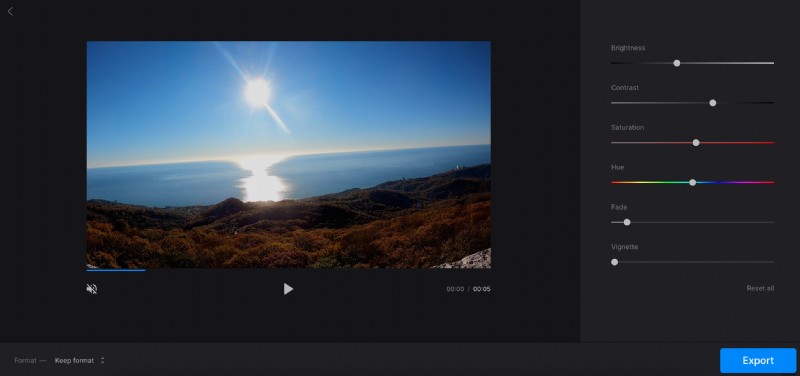
If you want to undo all the changes you've made, just press "Reset all" and the settings will revert to the original version.
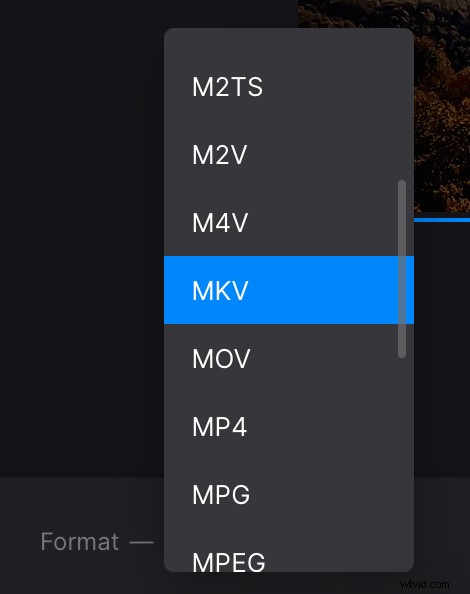
At the very bottom of the screen, you can change the file format. If you are going to upload it to social media, we recommend selecting MP4. Click "Export" when you're ready.
Preview and save your content
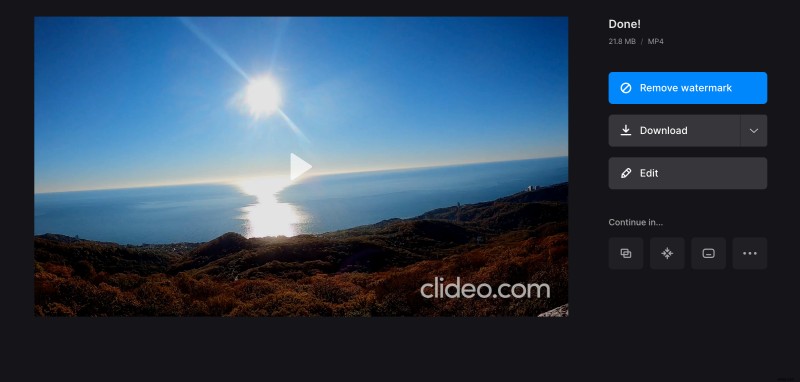
The "Download" button allows exporting the result to your device. Alternatively, tap on the small arrow to save to Dropbox or Google Drive.
If you want to make additional changes, you don't need to start from the beginning, just click "Edit".