
How to put a video on top of another video
To put a video in the corner of another video, you'll need special software. Luckily, where there's demand, there's supply, so the market is full of various apps and programs. But we have something better for you!
Clideo offers a full range of editing tools, including the "one-in-all" video editor. All our services work online and are free as long as the uploaded files don't exceed 500MB. An important note: not the whole project, just every particular file! And you can upload as many visuals to the tool as you want.
Read on and get to know how to make a video overlay in three easy steps.
Upload both videos to the tool
Open Clideo's Video Editor in any browser, and hit the "Get started" button.
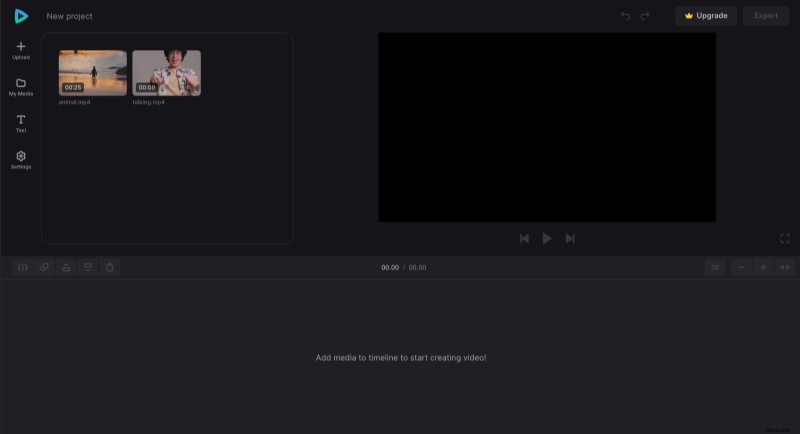
 Then, upload files from your device, Google Drive, or Dropbox.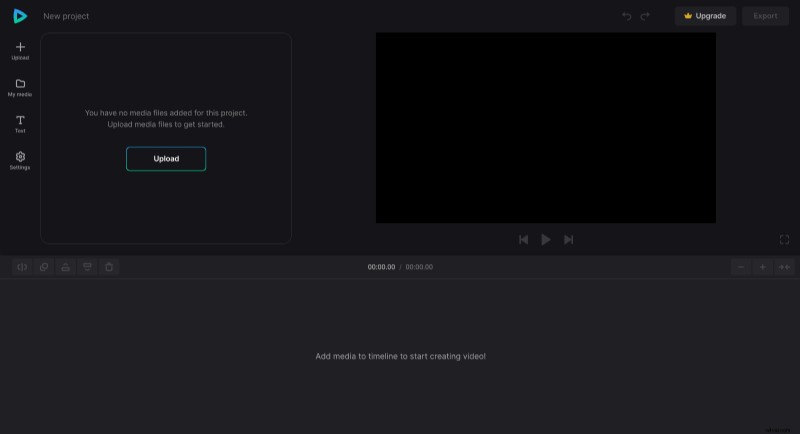
To start the project, drag the files from the "My Media" section to the preview canvas and get ready for further editing.
Put one video over another one
If you need your video to have some specific size, then, in the "Settings" tab, you can define the aspect ratio for the whole project. If you want to post it on social media, check their aspect ratio requirements in this guide.
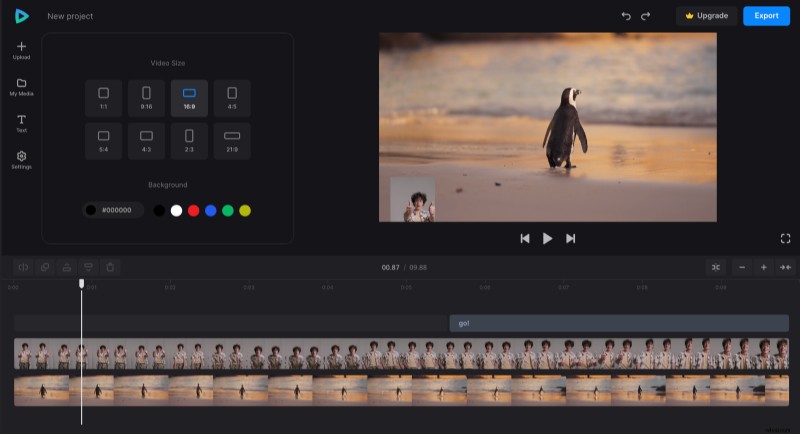
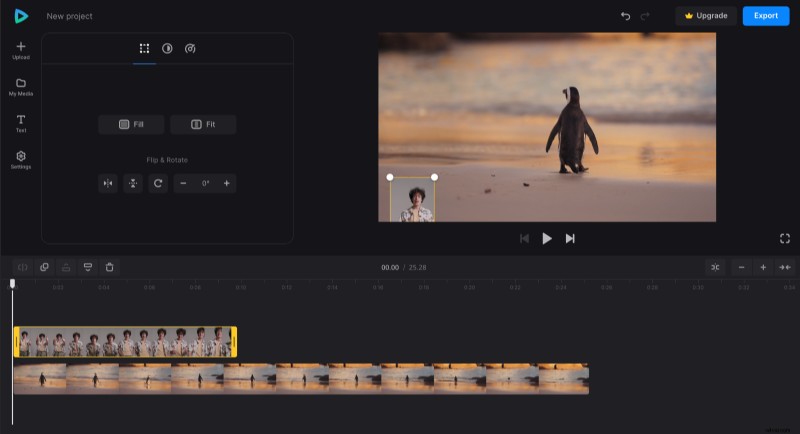
Resize the video, which should be superimposed by dragging its corner and ensuring it is above the main one in the timeline. You can also edit the file on the timeline: cut or duplicate. Select a video and change its speed, adjust brightness or volume, etc.
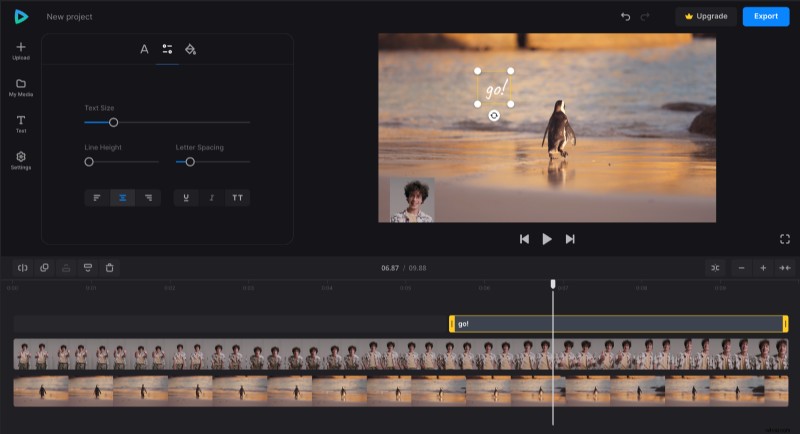
You can also create a text overlay on the video: go to the "Text" tab and choose the style of the captions you need.
Save the project
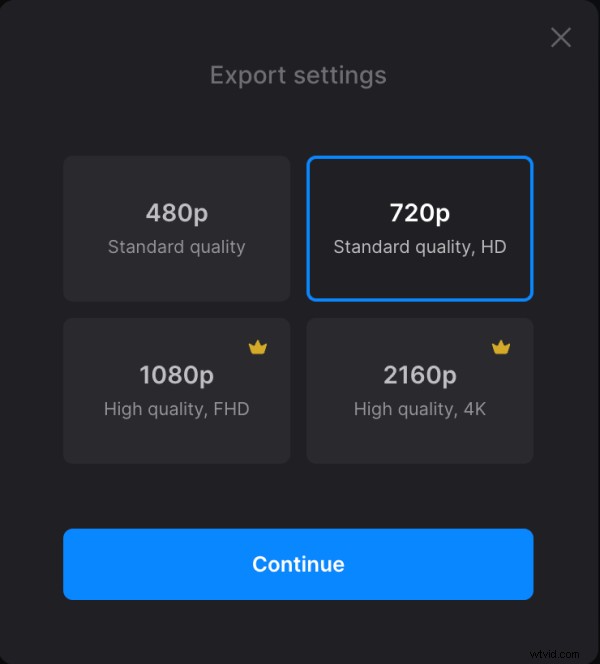
When you like what you see, hit the "Export" button and choose the resolution. To get access to the highest resolutions and get rid of the watermark on the video, upgrade your account to the Clideo Pro.
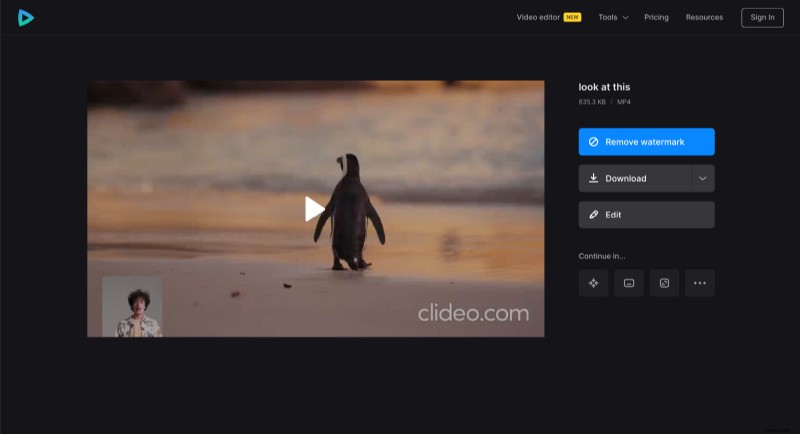
When the file is processed, save it to your device or cloud storage account.
Other all-in-one video editor options and features are described in the Video Editor Help Center.