
You open the Instagram app and refresh your home page as usual. However, it says “Couldn’t Refresh Feed”. You keep refreshing the home page, and still can’t see the latest Instagram posts. In this post, I’ll explain why Instagram can’t refresh feed to you and tell you how to fix it.
When using Instagram, you may face all kinds of problems such as Instagram video won’t play, Instagram couldn’t refresh feed, etc. This post is going to tell you how to fix the Instagram error “Couldn’t Refresh Feed” and its main causes. (Are you interested in making an Instagram photo slideshow? Try MiniTool MovieMaker!)
Why Instagram Couldn't Refresh Feed
“My Instagram isn’t working now. It is showing Couldn’t Refresh Feed.” “Instagram feed not updating, and I couldn’t refresh my feed.” “Is Instagram down? It keeps saying Couldn’t Refresh Feed.”
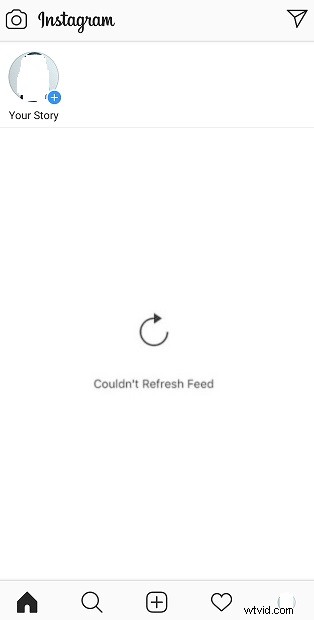
Have you encountered the same error when browsing Instagram feed? Do you want to know why we get this error message? Here are:
- The network is unstable.
- Your version of the Instagram app is out of date.
- Other technical problems like app bugs or Instagram down.
How to Fix Instagram Couldn't Refresh Feed
Now, let’s see how to fix the error message “Couldn’t refresh feed” or “Instagram feed not updating”.
How to Fix Instagram Couldn’t Refresh Feed
- Check the internet connection
- Clear caches
- Restart your phone
- Update Instagram
- Reinstall Instagram
- Report the technical problems on Instagram
Method 1. Check the internet connection
Firstly, you should check the internet connection of your phone and restart the internet connection. If the Instagram feed is still not updating, try to connect Wi-Fi instead of using mobile data.
Method 2. Clear caches
Another method to fix “Instagram couldn’t refresh feed” is to clear caches. It’s the most used method when you encounter issues like “Facebook video not playing” “Instagram video won’t play” and so on.
Here’s how to clear caches:
- Go to Settings > Apps.
- Find the Instagram app and click on it.
- Click on Storage and you can clear caches and cookies by pressing the Cache
- Reopen the Instagram app.
Method 3. Restart your phone
The third method is to restart your phone. Here’s how:
For iPhone users:
- Press and hold the side button and either volume button until the slider appears.
- Drag the slider to turn off the phone.
- Press and hold the side button to turn on the phone.
For Android users:
- Press the Power button until the Restart option shows.
- Tap on the Restart option to boot the phone.
Method 4. Update Instagram
The outdated version of Instagram could lead to the issue of Instagram not refreshing. To fix this Instagram error, you can update the Instagram app. Here’s how:
- Open Google Play.
- Find the Instagram app and choose Update.
- After the installation, open Instagram, and check if the issue is solved or not.
Method 5. Reinstall Instagram
If the above methods are not working, you can reinstall the Instagram app. First, uninstall Instagram. Next, search for the Instagram app in Apple Store or Google Play. Then download and install it on the phone.
Method 6. Report the technical problems on Instagram
If you’ve tried the above methods and find there is no way to fix this issue, you can report this error on Instagram. Follow the below steps:
- Go to your profile and tap on the menu button.
- Click on Settings and navigate to Help > Report a Problem.
- Then follow the guidance to continue.
Conclusion
In this post, I’ve covered all the solutions to fix the “Instagram Couldn’t Refresh” issue. If you have any good ideas about this post, please share them in the comment section!