
M4V is a video format developed by Apple. You have some M4V videos on your computer and want to create GIFs from the most interesting parts of these videos. This post will offer you the 2 best methods to convert M4V to GIF for free. (MiniTool MovieMaker can make a GIF from a video without watermarks.)
Method 1. Convert M4V to GIF on Mac
The easiest way to convert M4V to GIF is using an online converter. There are lots of online converters on the web that supports M4V to GIF conversions. Here, I strongly suggest you use Convertio. This free online converter can convert videos in any video format to GIF on macOS and Windows without the need to install third-party programs.
Here’s how to convert M4V to GIF online.
Step 1. Open your web browser and go to the Convertio website: https://convertio.co.
Step 2. Click the down arrow icon next to Convert and choose Video Converter.
Step 3. Tap on Choose Files to upload the M4V file from your computer. Or load the M4V file from Google Drive and Dropbox.
Step 4. Click the down arrow icon to get the output format window and go to Image > GIF.
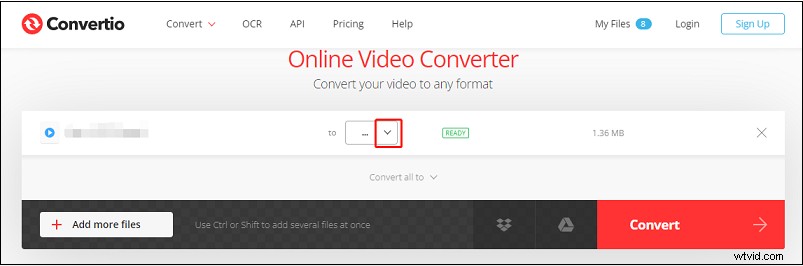
Step 5. Click the Convert button to convert the M4V video to GIF. Once the conversion is done, download the GIF to your computer.
To learn more about GIF converter, see this post: GIF Converter – Convert GIF to Any Format and Vice Versa
Method 2. Convert M4V to GIF on Windows
If you want to edit the M4V file before converting it to GIF, you’ll need to convert M4V to MP4 and then use a GIF maker to turn the video file into a GIF because some GIF makers don’t support M4V format.
Convert M4V to MP4
MiniTool Video Converter is a handy video editing tool that supports a wide range of video and audio formats. It can convert multiple M4V videos to MP4 at once.
Here’s how:
Step 1. Download, install and launch MiniTool Video Converter.
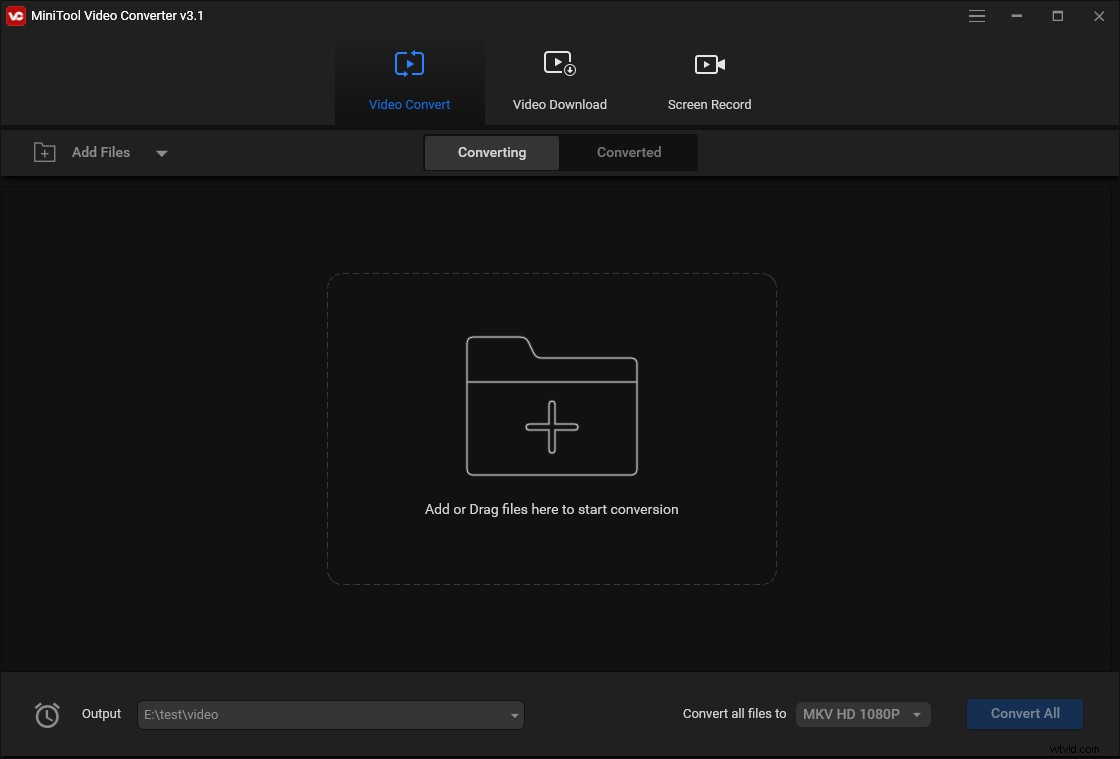
Step 2. In the main interface of MiniTool Video Converter, click Add Files to add the M4V file.
Step 3. Click the diagonal icon to open the output format window. Switch to the Video tab and choose MP4. Then select the desired video quality.
Step 4. Press the Convert button to start the conversion. After the process is complete, you can find the converted file in the Converted section. Tap on Show in folder to check the MP4 video.
Convert MP4 to GIF
MiniTool MovieMaker, a video & GIF maker and editor, allows you to make a GIF from a video and edit videos & GIFs. It’s free to use without watermarks.
Step 1. Open MiniTool MovieMaker after installing it on your computer.
Step 2. Click Import Media Files to import the MP4 video and tap the plus icon on the video thumbnail to add it to the timeline.
Step 3. Now, you can edit this video as you like.
Step 4. When you are done, click the Export button.
Step 5. In the Export window, expand the Format list and select GIF.
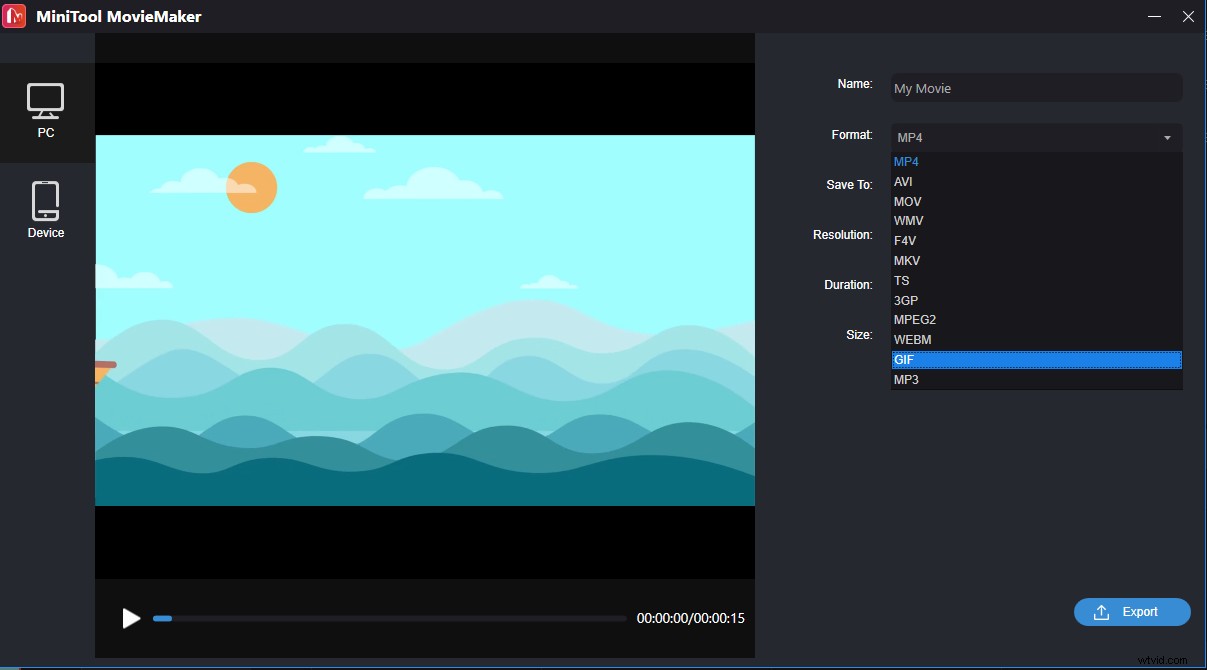
Step 6. Click Export to save MP4 in GIF format.
Conclusion
Want to convert M4V to GIF? Try the above methods!