
GIFs are now frequently used to convey feelings and emotions on social media platforms. Do you want to send GIFs in Slack? You can add Giphy in Slack. This post will tell you how to use Giphy in Slack and another way to send GIFs in Slack.
Slack is a popular business communication platform where users can send private messages, have private conversations, etc. Besides, users can send GIFs, emojis, and photos in Slack. How to send Giphy GIFs in Slack? Let’s take a look at this post to learn how to use the Giphy app in Slack.
Want to make your own GIFs? Try this free GIF maker – MiniTool MovieMaker.
How to Add Giphy to Slack
Slack can integrate with the Giphy app. Here’s how to add Giphy to Slack step by step.
Step 1. Open Slack and log in to your Slack account.
Step 2. Click Apps in the upper left of the app.
Step 3. Type “Giphy” in the search field and hit the Enter key.
Step 4. When the Giphy app shows in the results, click Add. Then Slack will take you to the Slack App Directory.
Step 5. Click the Add to Slack button and tap on Add Giphy Integration.
Step 6. Then adjust the integration settings as needed and save the changes by clicking Save Integration.
Related article: Top 9 Best GIF Finders & Websites
How to Use Giphy in Slack
After you set up Giphy integration in Slack, you can send GIFs in Slack now. This part is about how to use Giphy in Slack.
How to Send GIF in Slack
- Go to a conversation that you want to send a GIF.
- Type “/giphy + a word or phrase”, such as “/giphy funny”.
- Then you will see a random GIF. Click Send to post the GIF. If you don’t like it, click Shuffle to find another one.
How to Manage Giphy in Slack
Take the steps below to manage Giphy in Slack.
Step 1. Click the down arrow icon next to your workspace name at the top left of the left sidebar.
Step 2. Choose Settings & administrations > Manage apps.
Step 3. Select Giphy to adjust its settings.
Step 4. Click Disable or Remove if you don’t want to use Giphy.
Step 5. If you don’t want to see Giphy GIF before posting it, uncheck the option Enable Giphy previews under the Integration Settings.
Step 6. In the end, click Save Integration.
Another Way to Send GIFs on Slack
If you want to post a specific GIF in Slack, you can follow these steps:
Step 1. Go to the Giphy website.
Step 2. Find the GIF you want to send and tap Share. Then click Copy GIF Link.
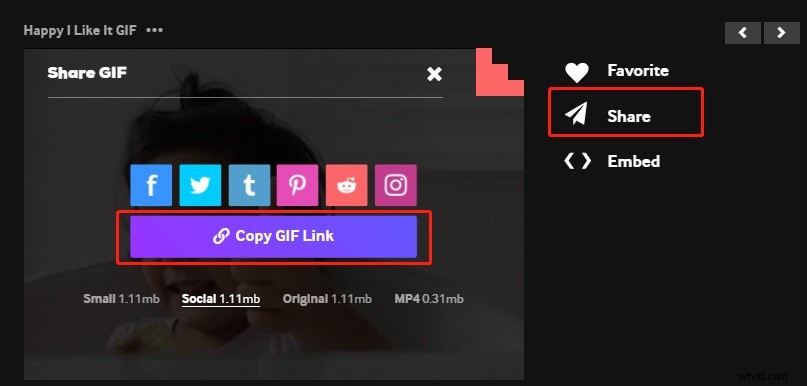
Step 3. Open the channel and paste the link to share the GIF in Slack.
Best GIF Maker App to Create a GIF from a Video – MiniTool MovieMaker
MiniTool MovieMaker is a video editor that allows you to edit videos and GIFs. You can use it to create a GIF from a video or photos and add text & effect, change speed, split, trim, etc.
Conclusion
GIFs are a fun way to express what we think and what we feel. This post introduced how to use Giphy in Slack. Now, send GIFs in Slack to add some fun to your workplace.