
Preparation
Before you begin, ensure you have the following:
- A Windows or macOS computer
- Your source video files
- The latest version of Filmora installed
Step 1: Set Up Your Project for Speed Ramping
Creating Cinematic Effects by Speed Ramping
Launch Filmora and import your footage. To achieve the best results, go to File > Project Settings and set the frame rate to 60 fps. Speed ramps work most smoothly when the footage’s frame rate is equal to or higher than the project’s frame rate.
Speed ramping is a versatile transition that can cover scene changes or emphasize a dramatic moment. It’s widely used in feature films and can be added quickly in Filmora without manual keyframing.

Step 2: Apply a Basic Speed Ramp
Speed Ramping a Clip
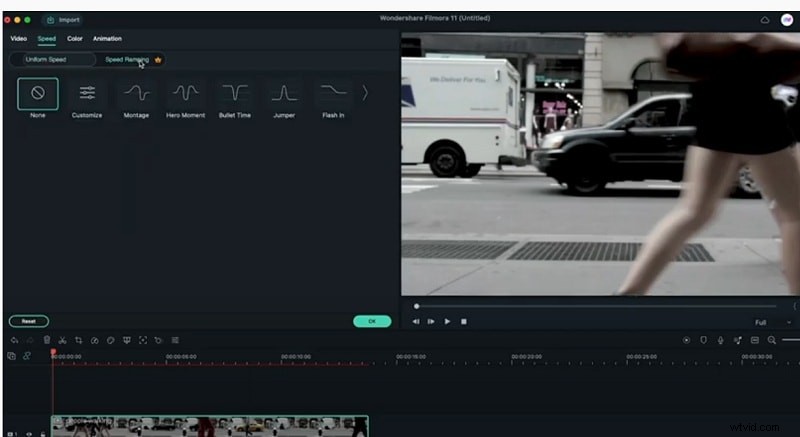
Drag the clip you want to modify onto the timeline. Click the + Add Keyframes button above the timeline to place keyframes at the start and end of the clip. Double‑click the clip, switch to the Speed tab, and select the Speed Ramping category. Choose the Montage preset for a smooth acceleration or deceleration. Render the clip to preview the effect.
Step 3: Create a Hero Moment
Using the Hero Moment Preset
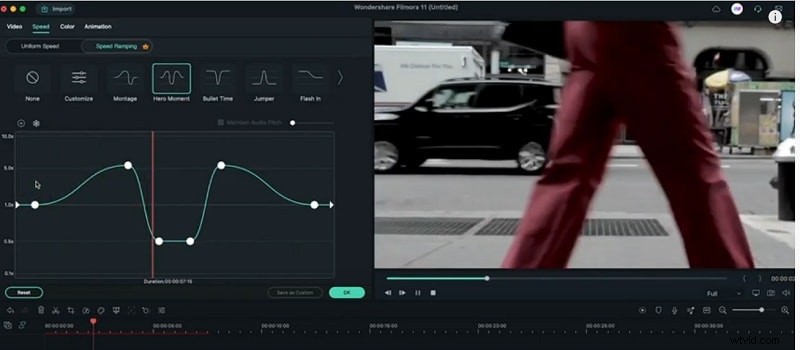
In the Speed Ramping panel, switch to Hero Moment to give a single moment a dramatic speed change. This preset is ideal for action sequences or key narrative beats.
Step 4: Build a Custom Speed Ramp
Fine‑Tuning Your Ramp
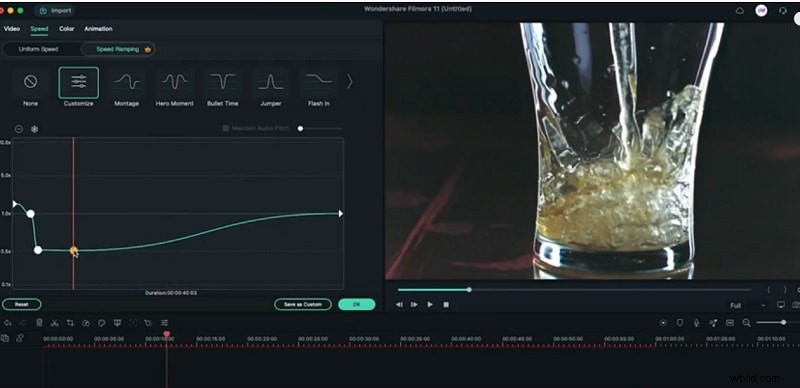
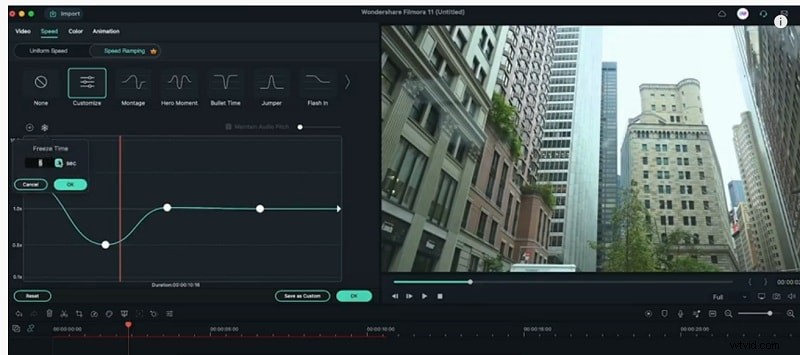
Select the clip, open the Speed Ramping option, and choose the Custom mode. Set your desired ramp‑up and ramp‑down speeds, then drag the handles to define where the ramp starts and ends. Click OK to apply the custom ramp.
Step 5: Add Additional Keyframes for Precision
Creating New Points
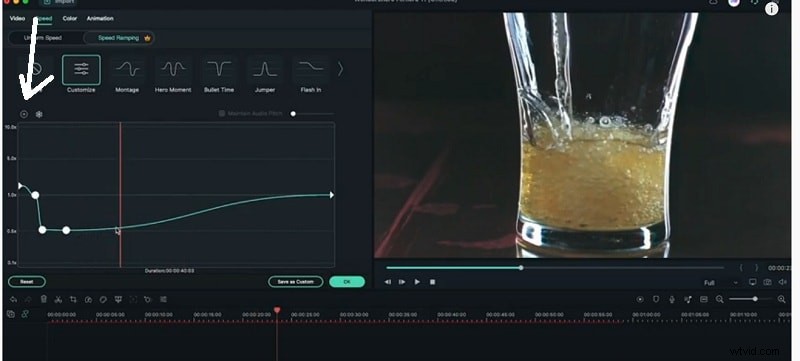
To adjust the speed curve further, click the Speed Ramping icon in the toolbar, then drag the icon to your chosen timeline position. Click the + Add Point button to insert a new keyframe. Keep keyframes on the middle line for neutral speed, and move them above or below to accelerate or decelerate.
Step 6: Enhance with a Freeze‑Frame Effect
Adding a Freeze‑Frame
Choose the clip, navigate to the Effects panel, and search for “freeze‑frame.” Drag the effect onto the clip. Open the effect settings by clicking the pencil icon. Select the frame to freeze, set the duration, and toggle optional borders or drop shadows for a polished look.
What You’ve Learned
- Speed ramping can create seamless transitions and dramatic moments.
- Filmora offers preset ramps (Montage, Hero Moment) and custom curves.
- Keyframes give precise control over acceleration and deceleration.
- Freeze‑frame effects add emphasis and visual interest.