
When you visit a visit, you may find there is an icon displayed on the tab. This is called favicon. In this post, I will teach you how to make a favicon in Photoshop and GIMP and give you a list of 5 favicon generators to create a favicon quickly.
What is a favicon? A favicon stands for favorite icon, also known as the website icon. It’s an icon displayed in the browser’s address bar, browser tab, bookmarks, search bar, etc., which helps you recognize websites. Favicon files are often stored in ICO format and the optimal size for favicons is 16 x16 pixels.
So how do you make a favicon? Below are the step-by-step guides on how to make a favicon in Photoshop and GIMP. (How to make an intro video for your website? Try MiniTool MovieMaker.)
How to Make a Favicon in Photoshop
Photoshop is the best graphics editor and favicon maker, but it doesn’t support ICO format. So how to use Photoshop to make a favicon for bloggers or websites? Don’t worry, you can use a third-party plugin. With it, you can save your favicon in ICO format.
Let’s see how to make a favicon in Photoshop.
Step 1. Download the plugin from the website (http://telegraphics.com.au/sw/).
Step 2. Extract the file and paste the ICOFormat.plugin file in:
Applications/Adobe Photoshop CC/Plug-Ins/File Formats
Step 3. Launch the Photoshop app, import an image, and edit it.
Step 4. Click Image > Image Size and enter 16 in the Width and Height boxes.
Step 5. Click File > Save As. Then choose ICO (Windows Icon) as the output format.
Related article: Solved – How to Convert ICO to PNG Free Online?
How to Make a Favicon in GIMP
Another favicon maker is GIMP. This is a free and open-source program used for image editing and works on Windows, macOS, and Linux. It supports importing and exporting formats such as ICO, BMP, PNG, GIF, TIFF, JPEG, HEIF, etc.
Here’s how to make a favicon in GIMP.
Step 1. Download and install GIMP on your computer.
Step 2. Click File > Open to open an image file.
Step 3. After importing the image, head to Image > Scale Image to change the image size. Input the values for Image Size and tap on Scale.
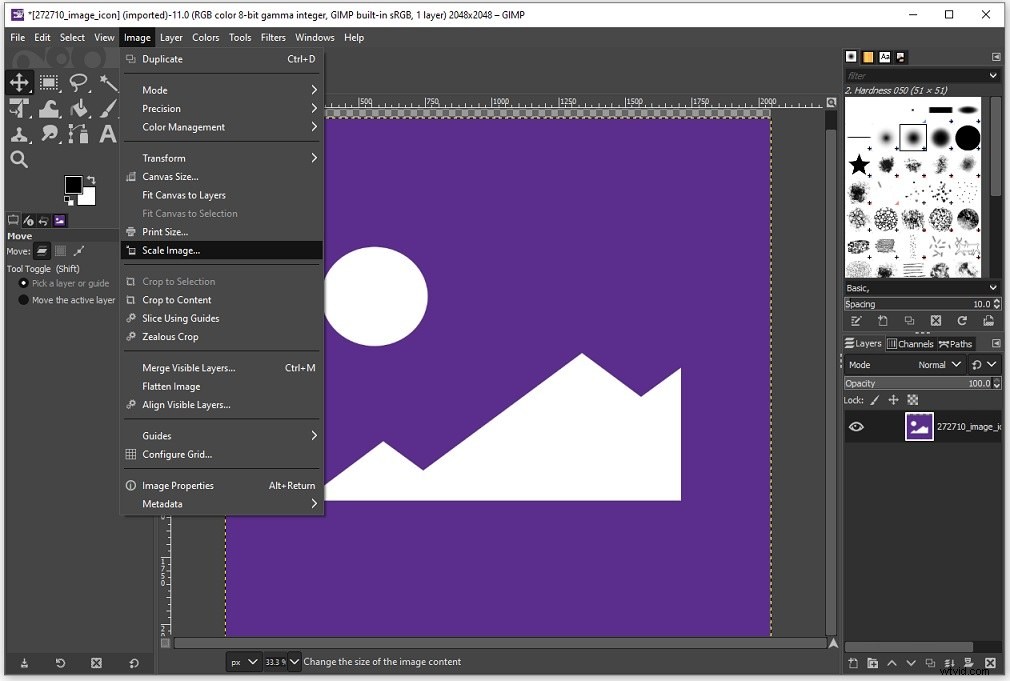
Step 4. In the end, navigate to File > Export As. Expand the Select File Type (By Extension) list and choose Microsoft Windows Icon. Click the Export button to save your favicon.
Favicon Generator
Do you want to make a favicon without effort? Try the following favicon generators! They are free to use and web-based. You can make favicons on your computer without installing any software.
- Favicon.io: https://favicon.io/
- Favicon Generator: https://www.favicon-generator.org/
- Favicon.cc: https://www.favicon.cc/
- Faviconmatic: https://favicomatic.com/
- Genfavicon: https://genfavicon.com/
Conclusion
Now, you must know how to make a favicon in Photoshop and GIMP. If you want to create a favicon online, you can also choose the above free favicon generators. They are simple to use.
If you want to share other favicon generators with us, leave a reply!