
How to Add Sports Scoreboard to Video?
Preparation
What you need to prepare:
- A computer (Windows or macOS)
- Your video materials.
- A Scoreboard video editor
Step 1
Initiate Project on Filmora
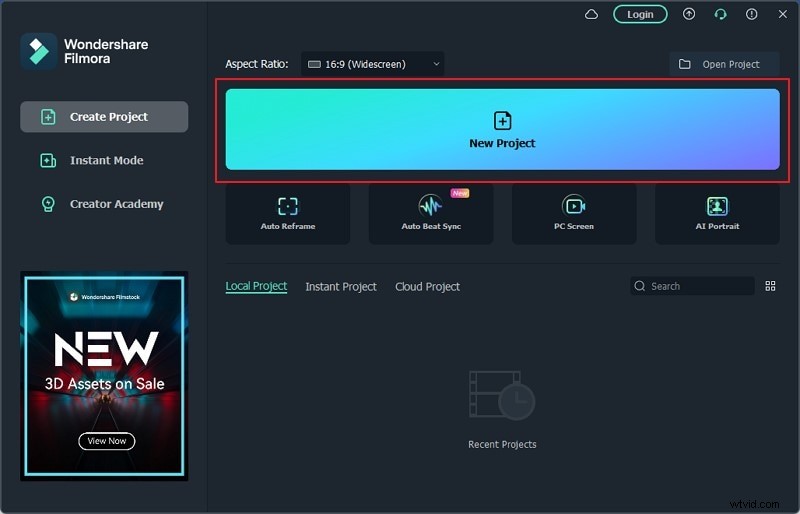
To add scoreboard overlay for videos, you need to have it installed across your desktop. Make sure that it is installed correctly. Once done, launch the platform and select "New Project" from the available options. This will open a new project to help you make a sports scoreboard from scratch.
Step 2
Add Videos on Timeline
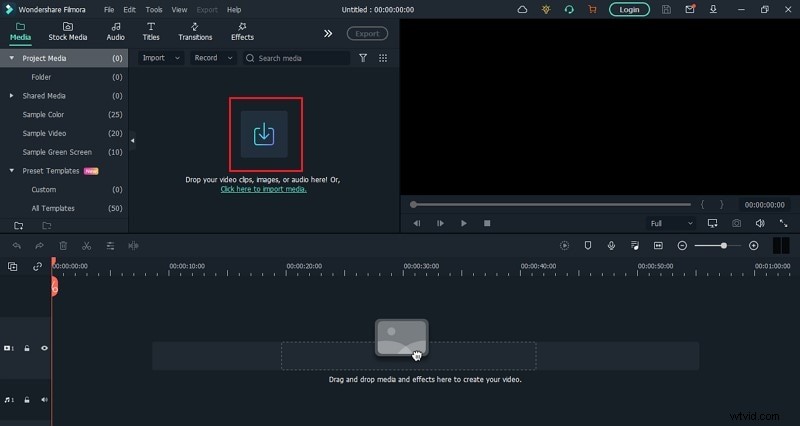
As the new window opens up, access the "Media" tab, and click on the "Arrow Head" icon to import the videos that will be used across the scoreboard. The nature of the video can range according to your requirement. Once done, you need to drag down the videos across the timeline in the order you wish them to be.
Step 3
Find the Scoreboard Title
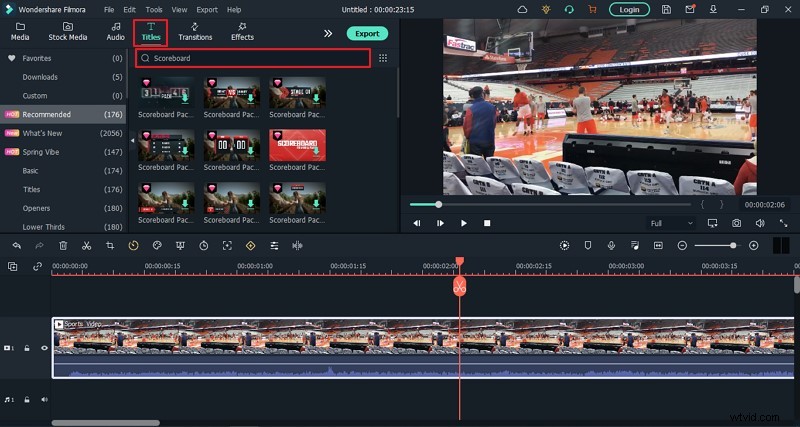
After adding the videos across the timeline, it is time to add the scoreboards. For that, you need to proceed into the "Titles" section. This would be used over the videos you've added, with all the information amended accordingly. Search for "Scoreboard" across the bar provided on the top. You will find a list of different scoreboards you can add across the video. Select an appropriate one for your video and drag it across the timeline.
Step 4
Change Properties of the Title Pack
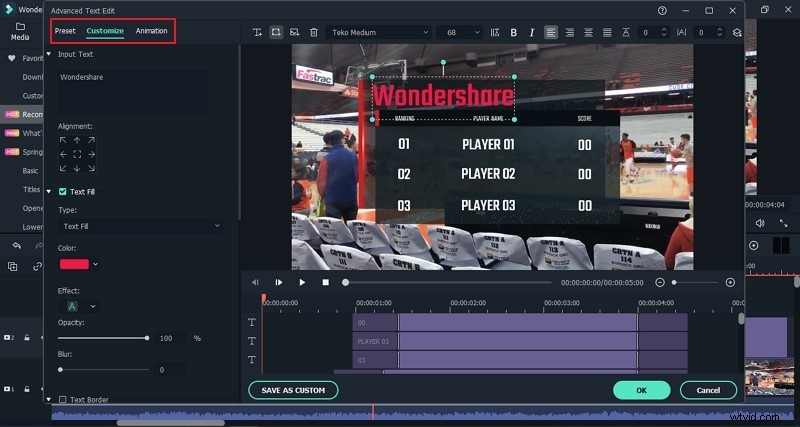
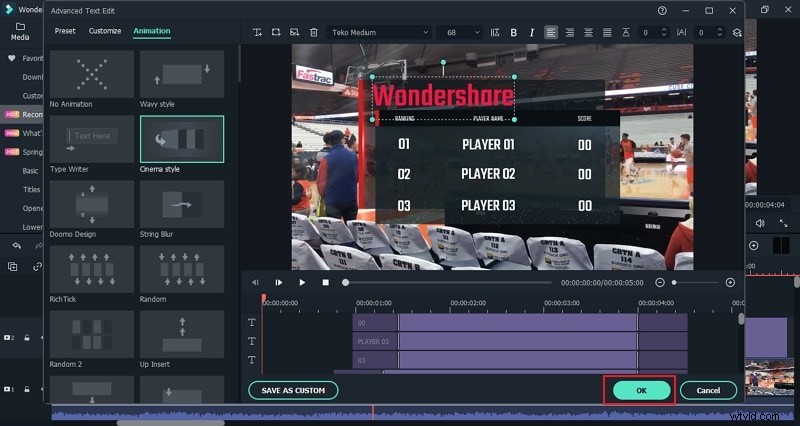
The complete pack added across the video timeline can be amended according to the requirements. Double-tap on the added pack to open the set of options across the menu. You can make some primary changes across it as desired. Proceed to click “Advanced” to open the detailed overview of the pack that can be amended accordingly. Change the text used across the pack frame by frame. You can also add different animations and effects as desired.
Step 5
Finalize the Changes
As you are done changing the titles added across the video for the sports scoreboard, you can finalize the process by tapping on “OK.”
Step 6
Add Lower Thirds
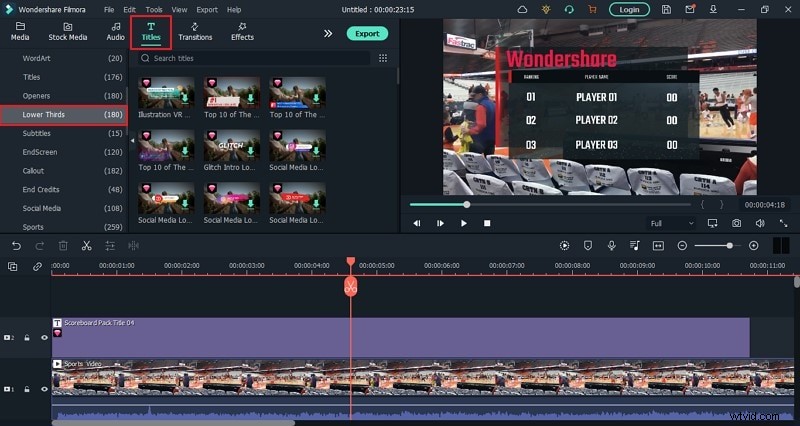
Filmora even allows you to add lower thirds as the other option for your scoreboard design. You can find the option of "Lower Thirds" across the "Titles" tab on the left-hand panel. Select any appropriate lower third from the provided options for your scoreboard. You can make similar changes across it, like the prior title pack for your sports video.
Step 7
Export Finalized Video
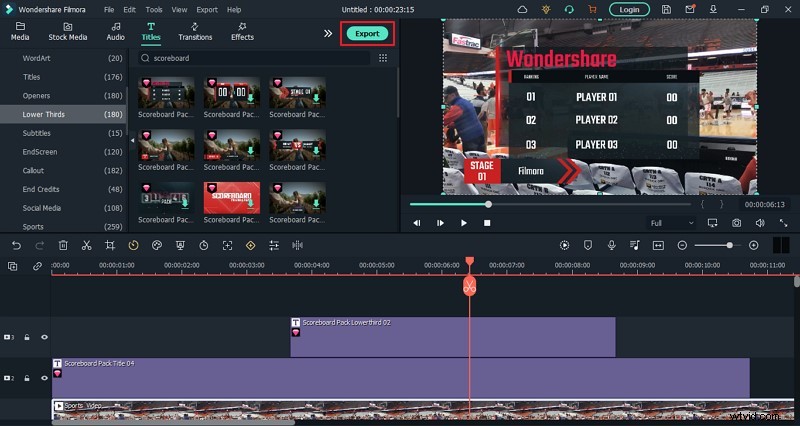
As you are done editing the video and making appropriate changes to show the real data, click on “Export” to export the edited video across your desktop to conclude the process.
These steps, if followed correctly for Wondershare Filmora, will educate you on how to build a scoreboard perfectly with the right elements at hand.
Related Templates For You to Try
Summary
What you've learned:
- Add scoreboards to personalize your sports video.
- Customize the scoreboards of your sports videos.