
Preparation
What you need to prepare:
- A computer (Windows or macOS)
- Your video materials.
- Filmora video editor
Step 1
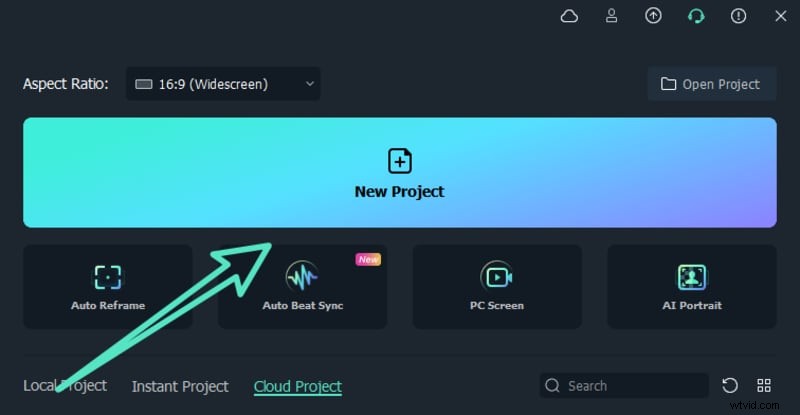
Download and install Filmora. Launch it and click on New Project from the interface.
Step 2
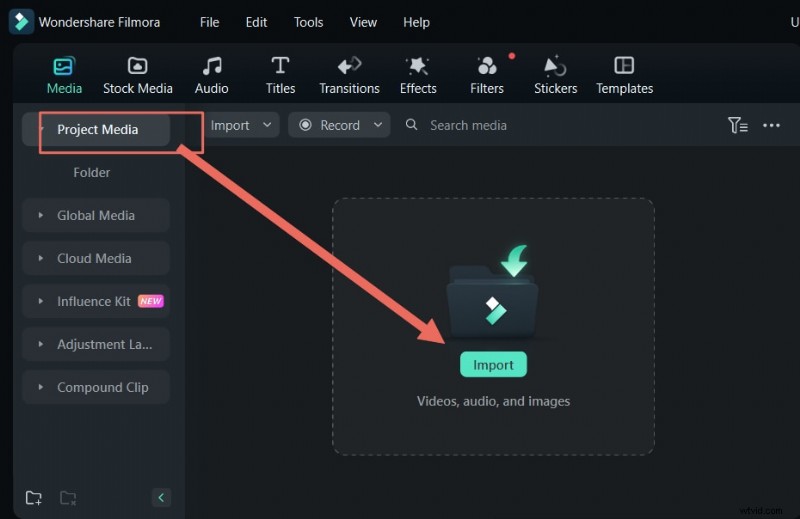
Drag and drop the raw video file from your hard drive to Project Media folder, including the backgroud, the TV screen, green screen video.
Step 3
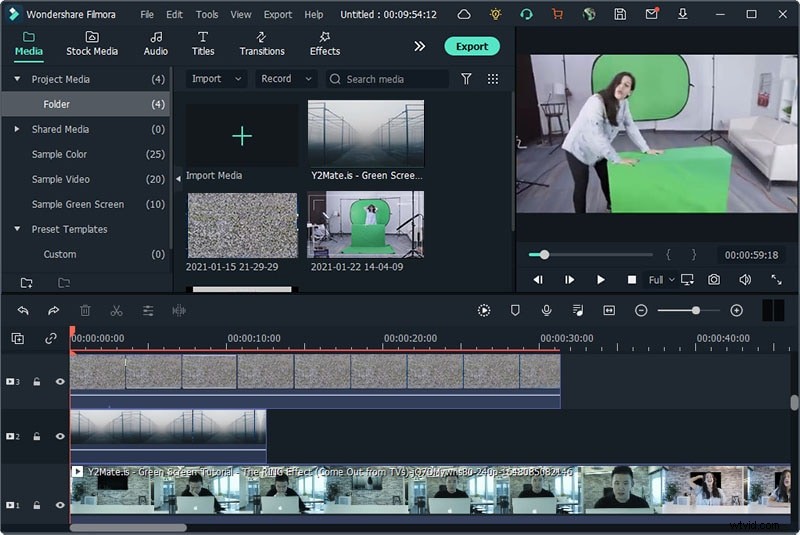
Drag and drop the imported file on the video Timeline. You can adjust the length of the video by dragging to left and right.
Step 4
You should have a background image ready where there is a real wall with a real TV. We will be replacing the video playing on the TV to you coming out of the TV. Drag and drop the background image of the timeline and make sure it is as long on the timeline as the image.
Step 5
You have to put a background video on the TV which is currently blacked out. You can add a background element directly from Filmora. Go to Elements and select anything appropriate. Similarly, you can go to Stock Media and select an image or video that you can play on the TV.
Drag and drop the element on top of the background image that is already present in the Timeline. Resize the element to make it fit the black area(screen) of the TV only. Make sure the element goes in the time as long as the background image goes.
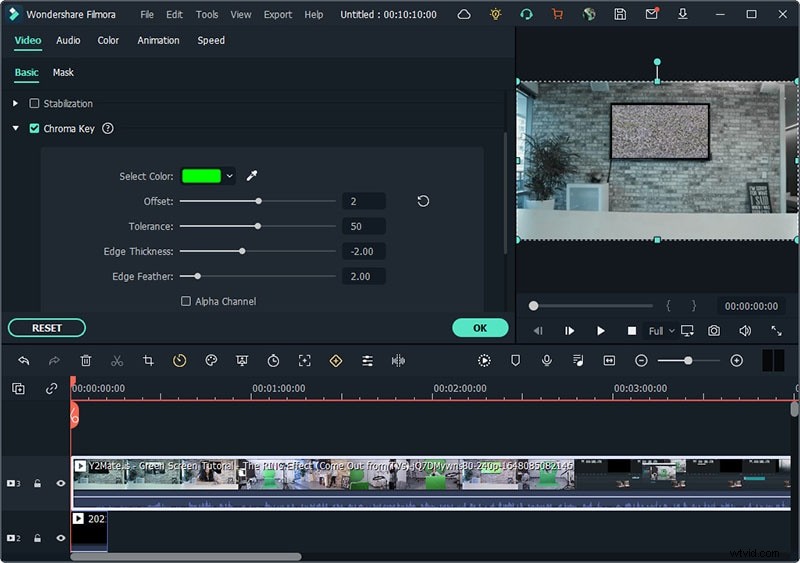
Step 6
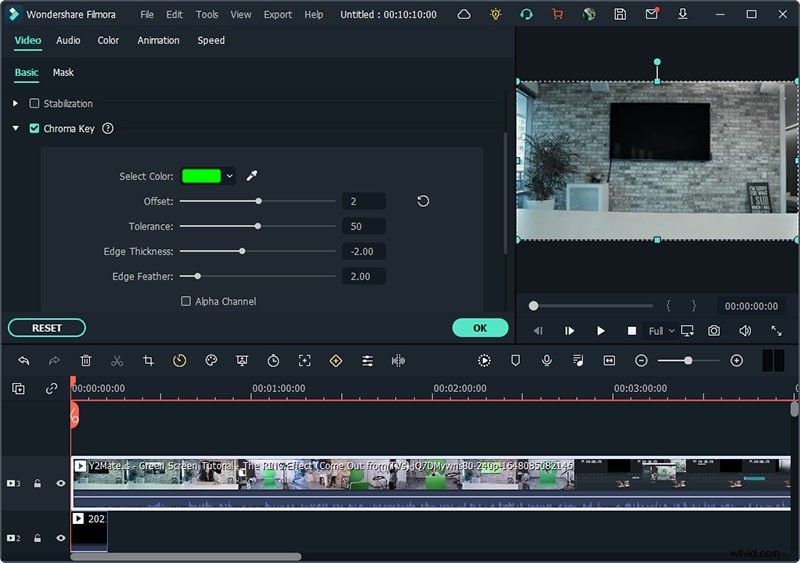
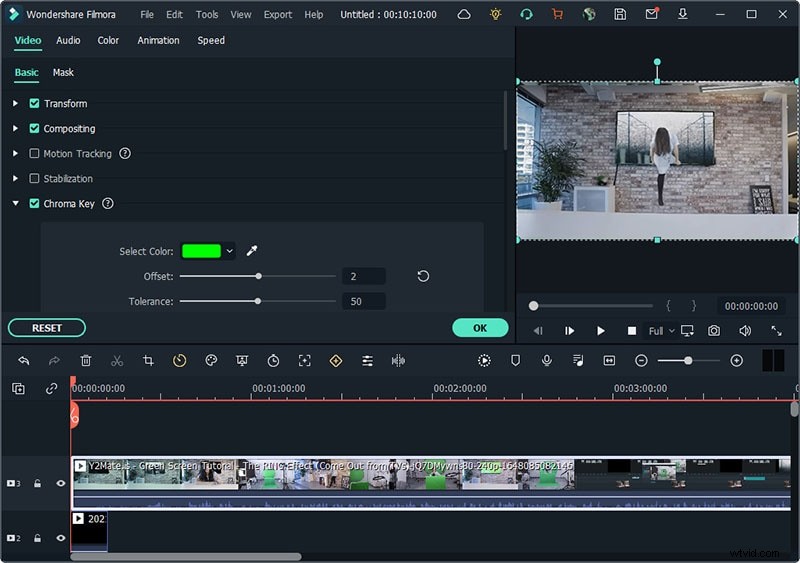
Just to sum it up, on the video timeline, you have your raw green screen video at the bottom. Above that, you have the background wall with TV image. At the very top, you have the image or video that you want to play on the TV. Now, it is time to edit your raw video so that the green screen disappears and you come out of the green screen setup looks like you are coming out of the TV.
Summary
What you've learned:
- You can change any background in video with green screen.
- When you want to make magic videos, green screen effect can be the first choice.
- You can use the method above to make a ghost, movie character and more things come out from TV.