
Have you ever wished your photos could look like hand-drawn art? AI can transform images into stunning sketches like an expert chef. Although the video to sketch transformation seems simple, it enhances depth, making your ordinary pictures or videos stand out due to their uniqueness.
It has become quite a popular type of art used to create eye-catching visuals for social media marketing and personalized gifts. Moreover, the sketch effect gives a nostalgic feel and brings out artistic details in your images and videos. This article will explore the resources required to turn your content into sketches to reimagine reality and a top video to sketch converter.
In this article
-
- Photofunia [iOS/Android]
- LunaPic
- BeFunky [iOS/Android]
-
- Steps on How to Add Sketch Effect Using Filmora on Desktop
- Step-By-Step Guide on How to Use Filmora App
Part 1. What Is Sketch Effect in Photo/Video Editing?
This is a type of effect that changes your video or image into pencil or charcoal sketches. It can turn video into drawing, specify colors and details, focusing on outlines, shading, and textures to give an artistic look. This effect is widely used in graphic design, animation, and social media to add a vintage, creative, or dramatic touch. You can add a dedicated sketch effect using AI-powered tools and software.
Part 2. Top 3 Tools to Turn Photos/Videos into Sketch
Having understood the sketch effect, let us explore the tools required to edit your footage, like a graphic novel or animated film scene.
1. Photofunia [iOS/Android]
Several applications excel at offering the turn video into drawing feature but lack the creativity when it comes to pictures. It provides a variety of artistic styles, including pencil, charcoal, and ink sketches, with AI-powered precision for realistic results. Photofunia is a perfect fit for adding sketch effects to your photos, and here’s how to do it step-by-step:
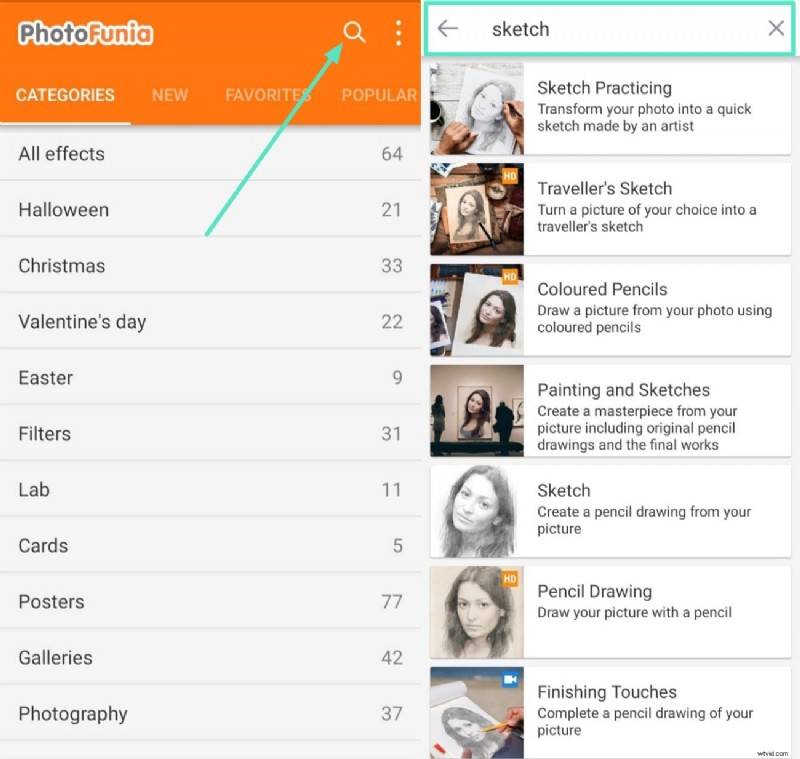
Step 1. Access Photofunia on your phone and access the search bar from the homepage. Next, type “Sketch” in the search bar to get different templates.
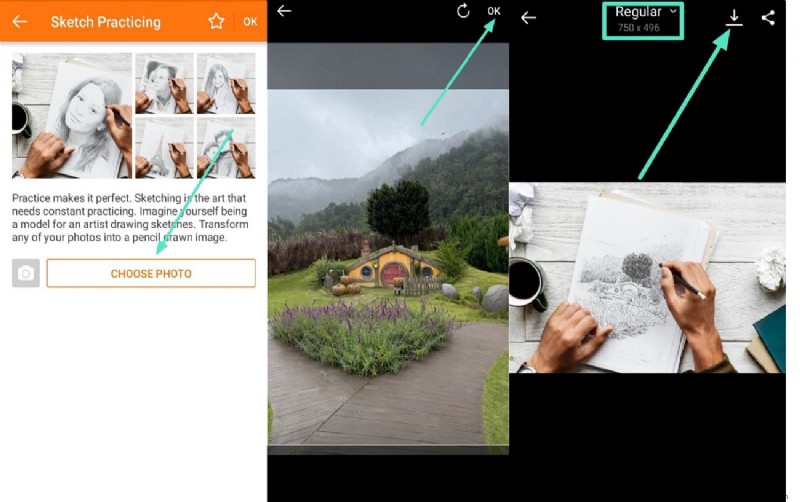
Step 2. On the next screen, tap “Choose Photo” to add a picture, and once it loads, adjust the frame to create a perfect edit and click “OK.” Finally, select the image size by expanding the “Regular” option, and afterward, click on the “Download” button to save your generated image.
2. LunaPic
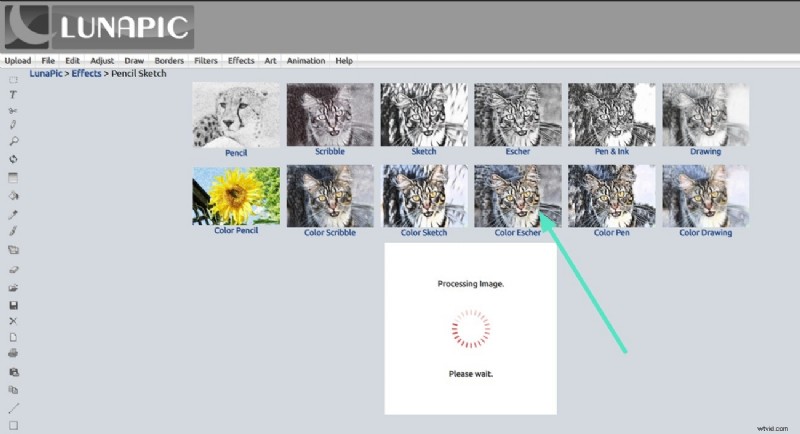
When looking for a completely free online video sketch effect platform, try LunaPic and edit your content. Users can adjust edge strength, contrast, and shading to create a customized look. Neither do you need to sign up, log in, or install it on your device, so follow these steps to edit your videos and photos with this tool:
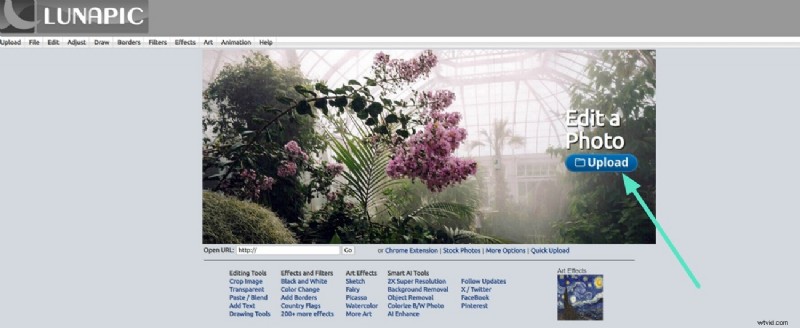
Step 1. Open LunaPic on Chrome and use the “Upload” button to add your video.
Step 2. Once it uploads, click the “Effects” option from the above bar and choose the “Colour Pencil Sketch” effect.

Step 3. Next, specify the attributes such as width, crop video, and colouring effect and wait for the image to process.
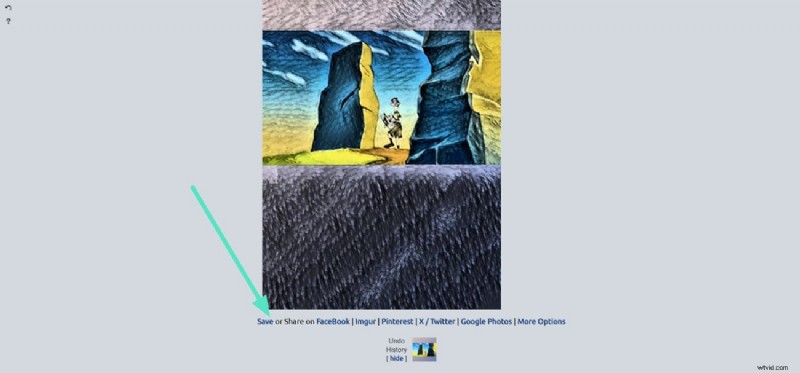
Step 4. After generating the results, tap the “Save” button located below your video to download the video.
3. BeFunky [iOS/Android]
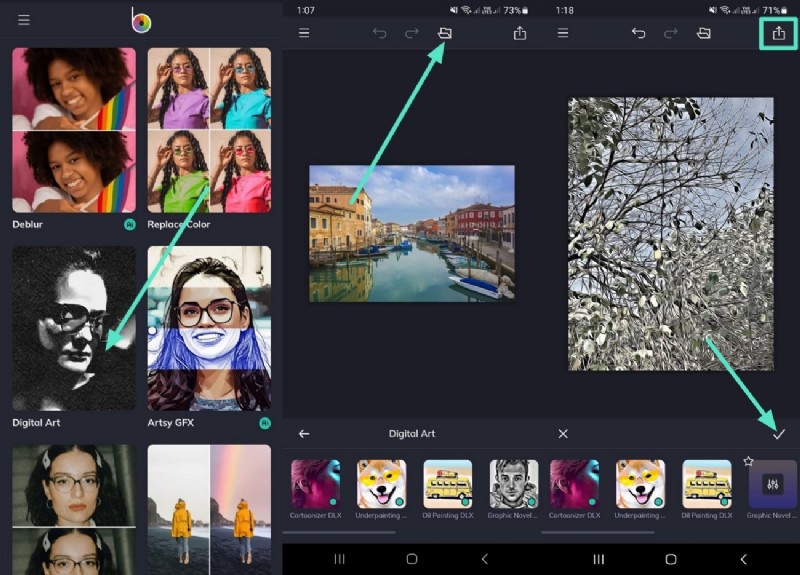
BeFunky is an application that caters to the demands of users planning to try multiple sketch styles such as pencil, ink, and cartoon effects. With an easy drag-and-drop interface and cloud storage integration, BeFunky allows quick and high-quality edits. Let’s learn to transform your photos into artistic sketches through these simple instructions:
- Instructions. Head to the BeFunky app, scroll through the available templates on the homepage, and click “Digital Art” to get started. Tap the “Folder” icon from the above bar and click to upload an image from your phone and select a digital art template. Tap the “Tick” icon to generate results. Finally, hit the “Arrow” icon to download your image.
Part 3. How to Add Sketch Effect to a Video?
Do you want to give certain clips of your travel vlog with friends a hand-drawn artistic touch? Instead of using software that requires learning advanced editing skills, use Wondershare Filmora, a user-friendly tool, and apply a sketch filter to your video. Particularly, the best part that makes it stand out is its availability both as a desktop and mobile application, the Filmora App [iOS/Android].
 Secure Download
Therefore, with a few clicks, you can convert your video to sketch and turn it into an animated drawing. Filmora App’s editing features such as a wide range of effects, transitions, AI-powered tools, and multiple export formats make it accessible to everyone. In the next section, we’ll discuss the steps to use Filmora both through desktop and mobile app.
Steps on How to Add Sketch Effect Using Filmora on Desktop
Ready to achieve high-quality results by putting minimal effort into editing? Follow this guide to use Filmora on your desktop and let the editing game begin:
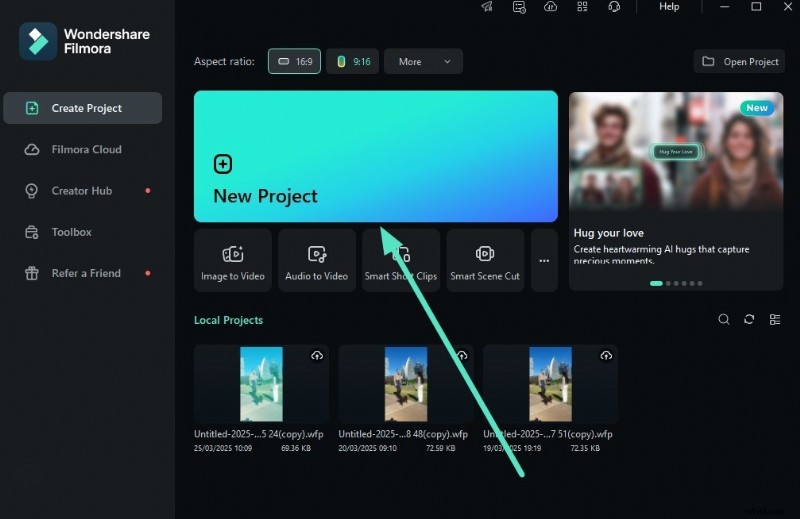
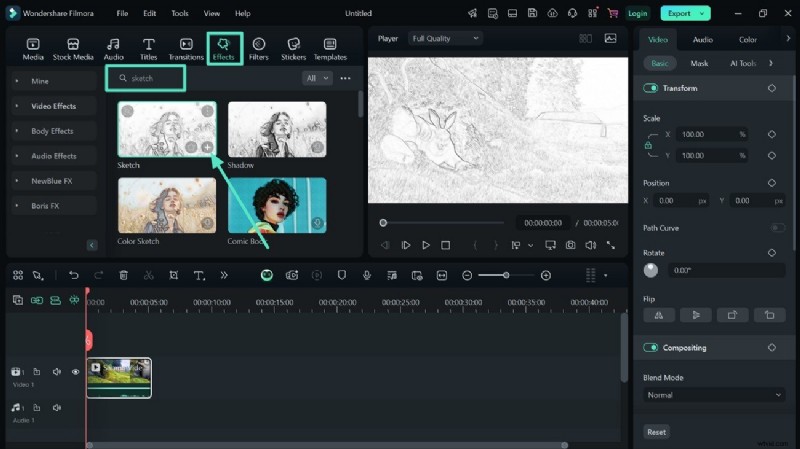
Step 1. Launch Filmora and Import Your Video. To initiate, launch Filmora, import your desired video, and click on the “New Project” option. Next, import your video from your device’s storage by pressing the “Import” button.
Step 2. Access the Effects Option. When your video has successfully uploaded, head to the “Effects” option from the toolbar above and type “Sketch” in the search bar. Scroll through the available templates to find a perfect fit and click on the “+” icon to add the effect to your video. While you turn video to sketch, ensure it looks visually perfect.
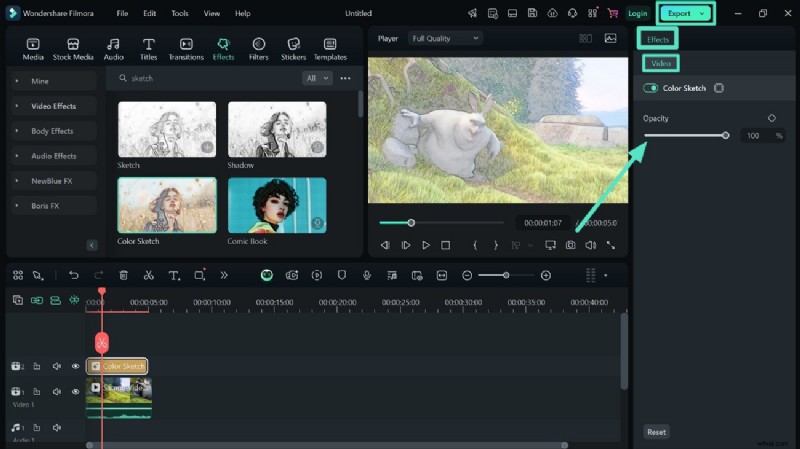
Step 3. Adjust Opacity and Color and Export. Afterward, adjust “Opacity” and “Color Sketch” from the right side “Effects” panel under the “Video” section. Finally, hit “Export” button located at the top right corner to save the video to your device.
Step-By-Step Guide on How to Use Filmora App
Want to edit your video using Filmora App’s built-in templates? Here is a step-by-step guide to kickstart adding sketch effects to your video:
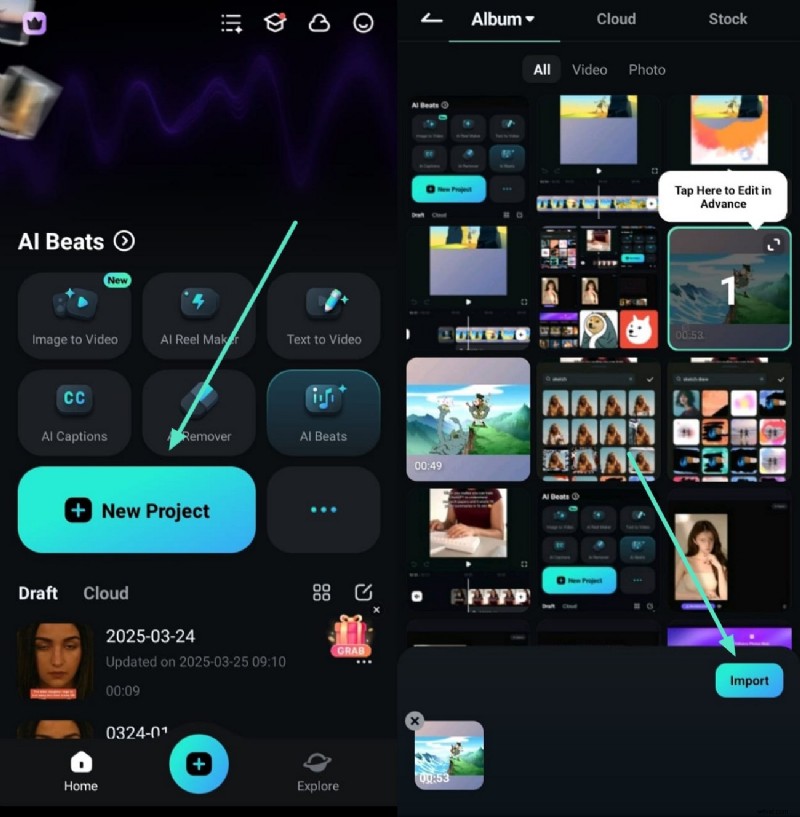
Step 1. Create a New Project and Import Video. To begin, open Filmora App on your phone and tap “New Project” from the homepage. Then, “Import” a video from your gallery to get started using the “Import” button.
Step 2. Choose the Effects Option. Go for the “Effects” option from the below bar and enter “Sketch” in the search bar to get the available templates. Surf the available templates to pick one that goes with your video and tap on “Tick.”
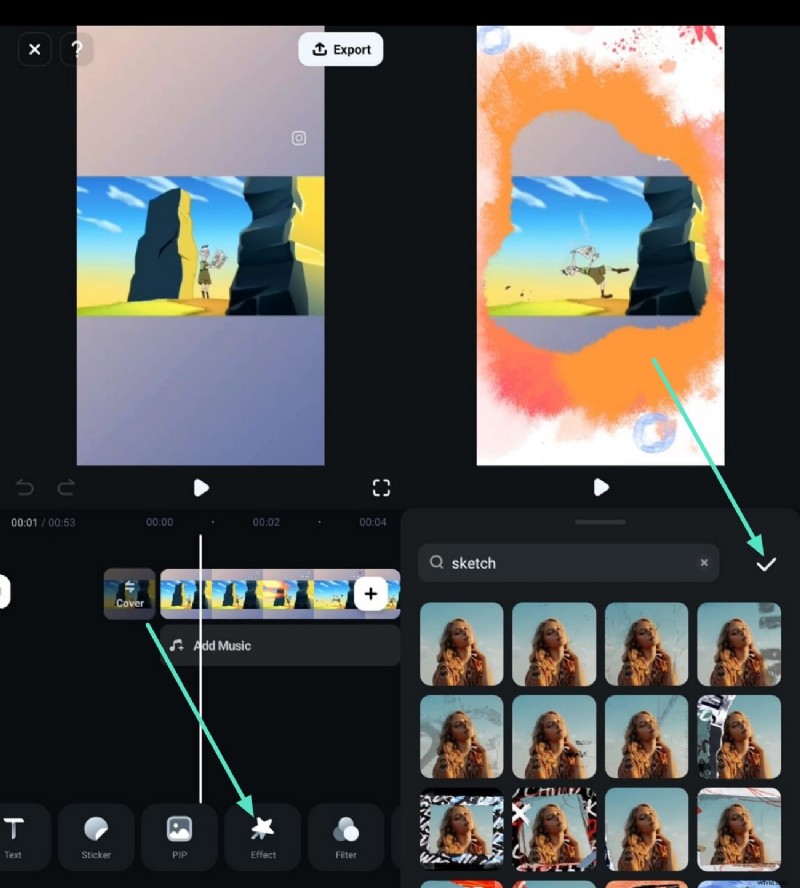
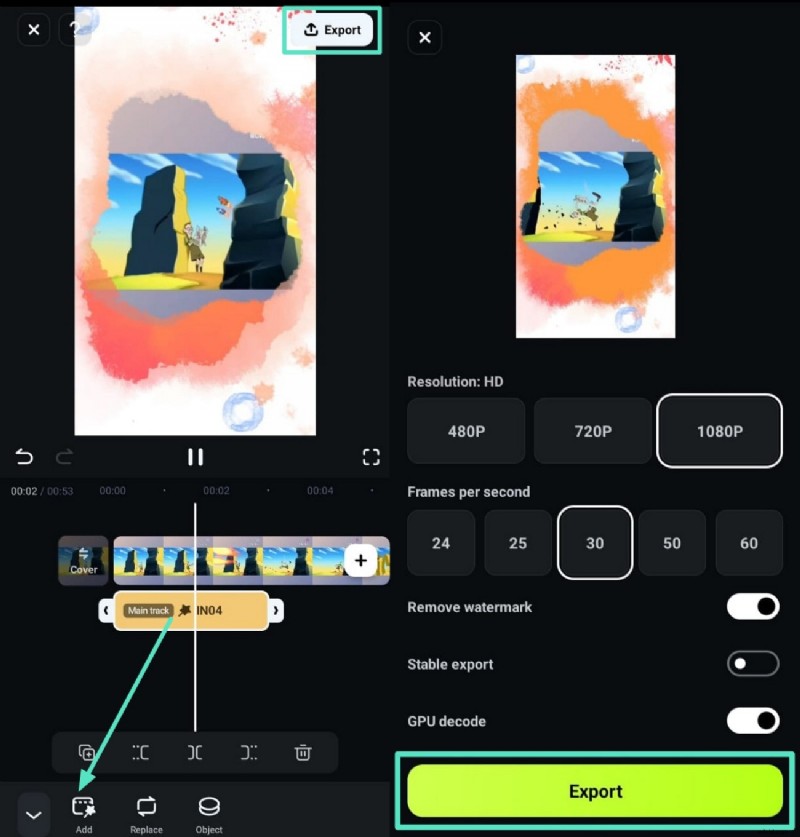
Step 3. Adjust Settings and Export. In case you want to add another effect, hit the “Add” button from the bottom left corner. Replay your video to check the generated results and use the “Export” icon from the right above to make final adjustments. Finally, tap “Export” in the following interface to save it to your gallery.

Filmora
AI Video Editing App & Software
Best tool for making videos anywhere for all creators!
ETurn your videos into hand-drawn masterpieces with Filmora's Sketch Effect – creative, fun, and effortlessly artistic!
Conclusion
To summarize, this article discusses the best tools that come in handy when you need to turn your images and videos into sketches with ease. One such video to sketch converter is the Filmora App, which lets you generate eye-catching content containing a sketch effect that stops the scroll. With its help, you can add your desired kind of touch in seconds, and that too without learning advanced editing skills.