
In today’s digital age, sharing creative ideas through video is easier than ever. Apple’s iMovie lets you craft polished videos and share them with friends, colleagues, and family, or transfer them to other devices to keep your storage free.
Follow this step‑by‑step guide to export your iMovie projects from iPhone or Mac, share them via email, AirDrop, or social media, and discover a powerful alternative for Mac users.
In this article
- Exporting iMovie videos from iPhone
- Exporting iMovie videos from Mac
- Best iMovie alternative for Mac
Exporting iMovie Videos from iPhone
Once your story is complete, it’s time to share it. iMovie on iPhone offers several convenient export options.
1. Send via Email or Text
Use the share button to attach your video directly to an email or message.
- Tap the project you want to share.
- Tap the Share icon.
- Choose Email or Messages.
- Enter the recipient and tap Send.
2. Transfer to Another Device with AirDrop
AirDrop is the fastest way to move your video without draining storage.
- Open the project in the Projects list.
- Tap Share and select AirDrop.
- Choose the target device.
- Accept the transfer on the receiving device.
Ensure AirDrop is enabled on both devices.
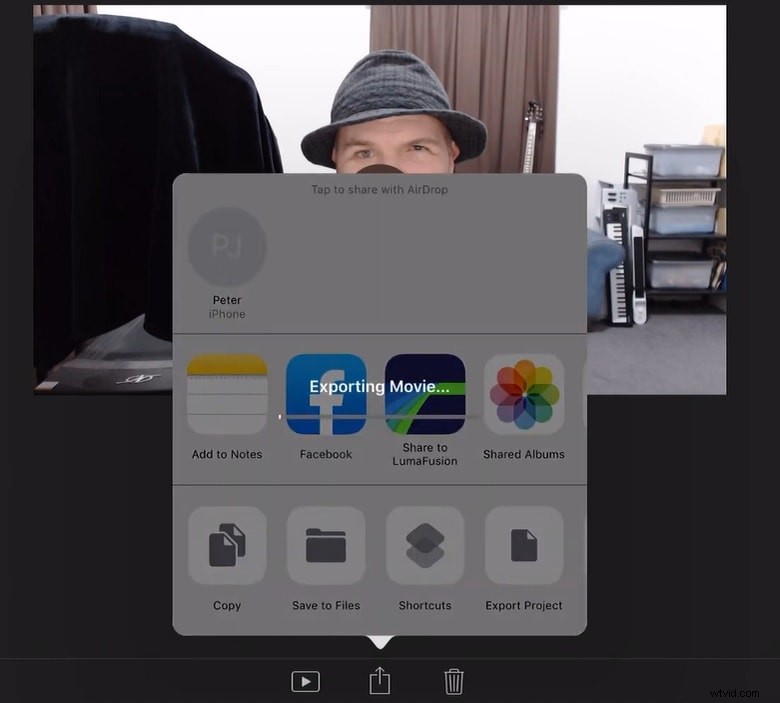
3. Upload Directly to Social Media
iMovie lets you publish your video to platforms like YouTube, Facebook, or Instagram right from the app.
- Tap the project, then Share.
- Select the desired social network.
- Follow the on‑screen prompts to publish.
Exporting iMovie Videos from Mac
Exporting from a Mac gives you more control over resolution and file format.
1. Send via Email
Export the video to a folder, then attach it to an email.
- Open your project and click File > Share > File.
- Choose the resolution and format you prefer.
- Click Next and save the file to your Desktop.
- Open Mail, compose a new message, and attach the exported file.
- Send to your recipients.
2. Add to Photos Library
Storing videos in Photos keeps them organized and accessible.
- Export the project to a folder (as above).
- Open Photos, drag the file into the library, or use File > Import.
3. Share Directly to the Web
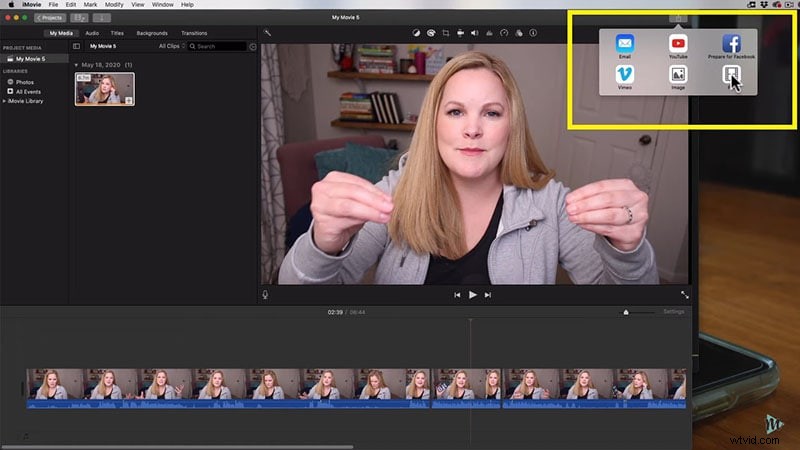
Publish your video to social platforms from the Mac app.
- In iMovie, select the project.
- Click Share and choose the platform (e.g., YouTube, Vimeo).
- Follow the login and upload steps.
Best iMovie Alternative for Mac: Filmora
If you need more advanced editing tools or a different workflow, Filmora is a top choice for Mac users.
Filmora offers:
- Intuitive drag‑and‑drop interface
- Wide range of transitions, effects, and titles
- Multi‑track editing for complex projects
- Built‑in royalty‑free music and sound effects
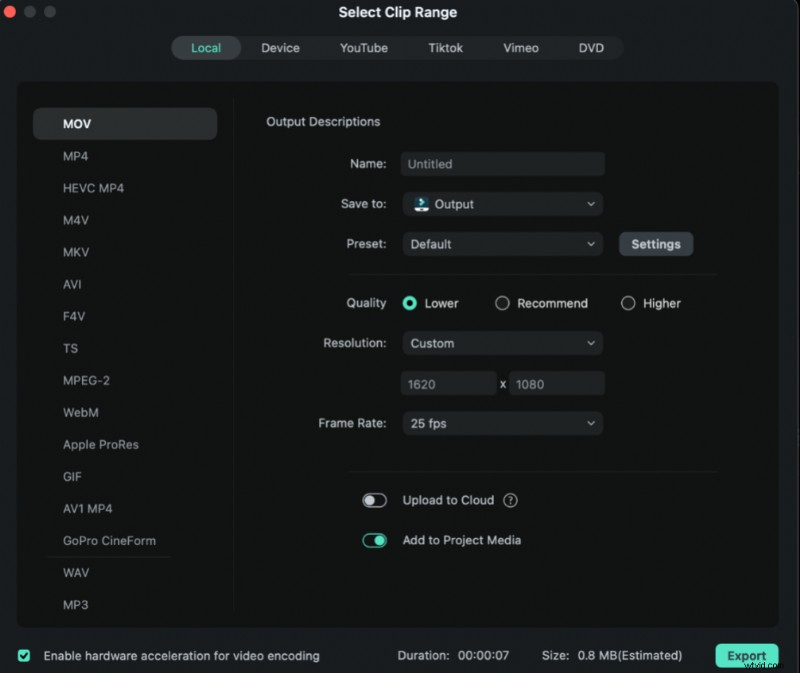
- Export options in HD, 4K, and various codecs
It’s suitable for beginners and professionals alike, especially for YouTube creators and educators.
Conclusion
Apple’s iMovie remains a powerful, user‑friendly tool for creating and sharing videos across devices. Whether you’re exporting from an iPhone, a Mac, or exploring alternatives like Filmora, the process is straightforward and flexible. Harness iMovie’s features to bring your stories to life and reach audiences worldwide.