
Creating striking typography in a fraction of the time is possible with the right text presets. For motion designers, Adobe After Effects remains the industry standard, offering instant access to a vast library of text effects—both static and animated—that elevate any video project.
While After Effects ships with a solid set of built‑in presets, the best results come from a curated collection of high‑quality packs, both free and premium. Below we highlight the ten most powerful text presets that will make your titles pop, followed by a concise guide on how to apply them and an alternative solution for those who prefer a more user‑friendly editor.
In this article
- Glitch Text Effects
- Motion Type Text Animation Preset
- Typominal Typewriter Effect Preset
- Tapered Stroke Preset
- Stranger Things Text Preset
- Text Styles Preset
- Text Animation Bundle
- Kinetic Text Animation
- 30 Universal Text Animation
- Text Animation Lower Third
Part 1. The Top 10 Text Presets for After Effects
Choosing the right preset can feel overwhelming—especially for newcomers. Below is a hand‑picked list of the most versatile, high‑impact presets available in both free and premium collections.
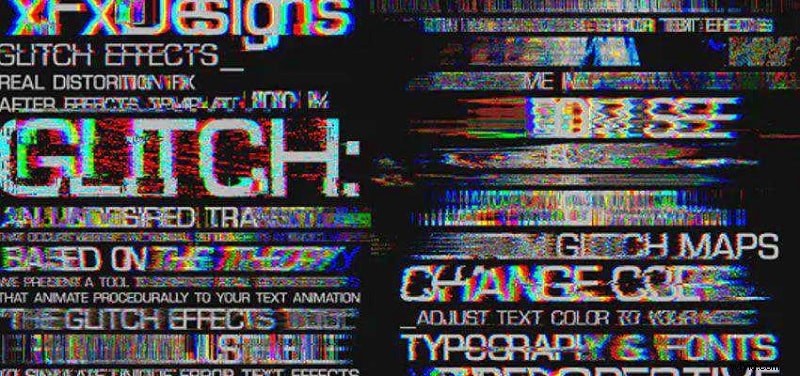
1. Glitch Text Effects
This pack delivers 30 distinct glitch animations and 32 glitch maps, giving you endless creative options for titles and in‑body text. The retro vibe instantly captures attention and feels fresh on any platform.
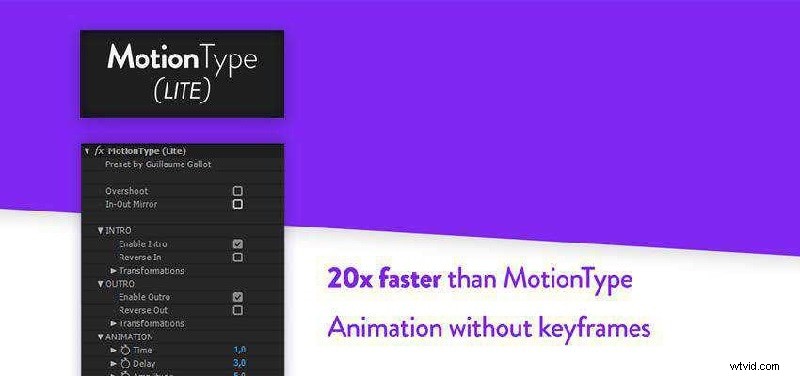
2. Motion Type Text Animation Preset
Ideal for clear communication, this set offers a mix of motion text effects with and without keyframes. Adjustable parameters such as in‑out mirror, reverse in/out, and overshoot let you fine‑tune each animation to match your narrative flow.
3. Typominal Typewriter Effect Preset
Featuring two .ffx files, this collection reproduces classic typewriter motion alongside a nostalgic low‑resolution monitor look—perfect for retro or cinematic projects.

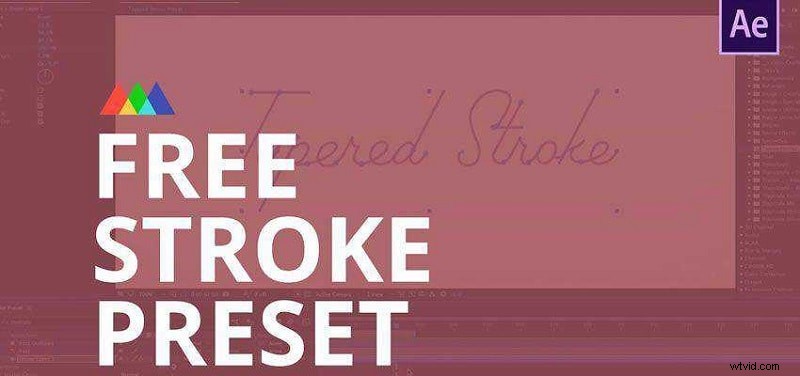
4. Tapered Stroke Preset
Go beyond a simple stroke with this customizable preset. Control thickness, roundness, and tapering to craft eye‑loving, dynamic outlines that enhance any text layer.
5. Stranger Things Text Preset
In one click, the text transitions from white to a deep red fade‑in, instantly drawing viewers’ focus. No keyframes are required—just adjust color and fade‑in duration to fit your scene.

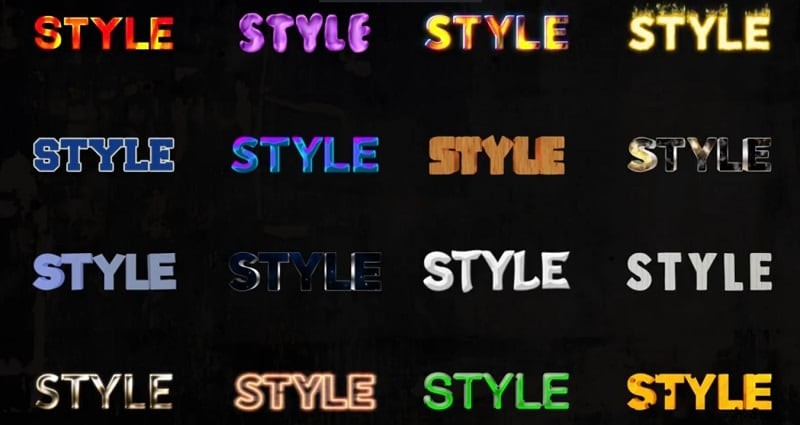
6. Text Styles Preset
With 16 vibrant styles ranging from fiery neon to layered 3D, this pack instantly refreshes your typography. Combine any style with your preferred animation for a polished result.
7. Text Animation Bundle
80 studio‑quality animations await you in this bundle. From conventional text fades to creative, randomized motions, every preset is fully customizable, ensuring each title feels unique.
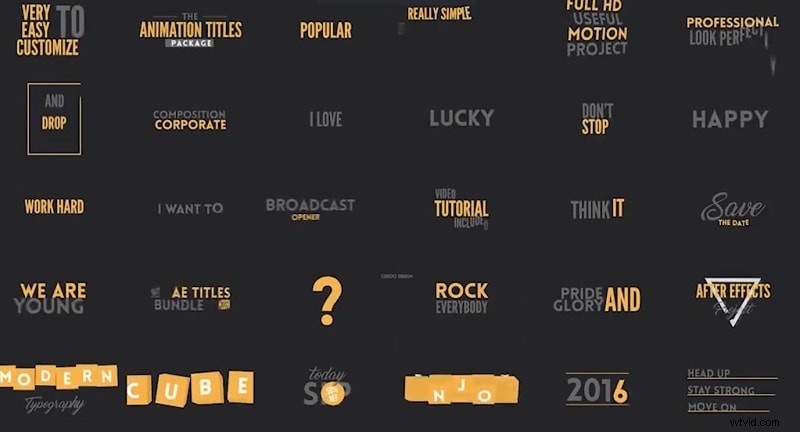
8. Kinetic Text Animation
Designed for high‑energy visuals, this pack offers 56 HD presets that deliver punchy, engaging motion. Whether you need a subtle slide or a bold bounce, the options here keep your audience hooked.
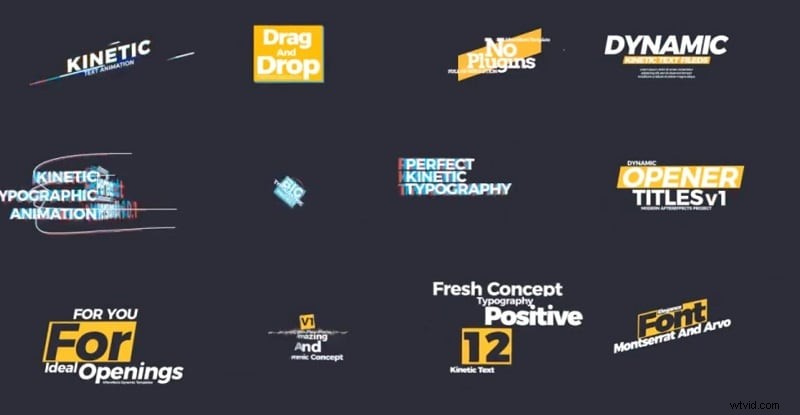
9. 30 Universal Text Animation
Ideal for designers who want simplicity without sacrificing style, this collection provides 30 geometric‑inspired animations. Each preset’s timing, duration, and size are fully adjustable.
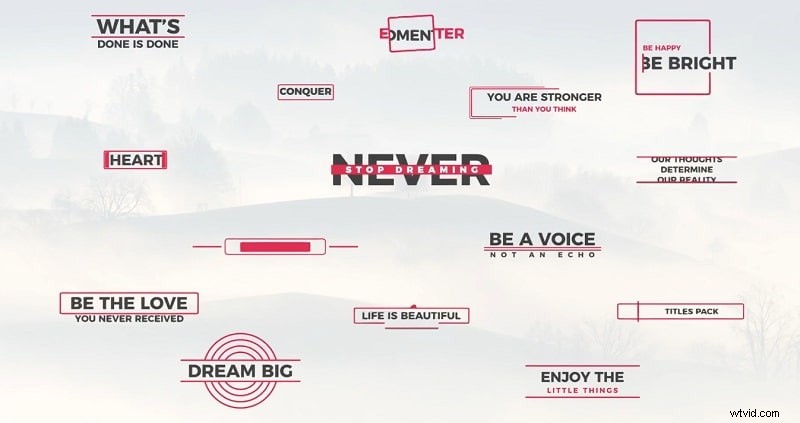
10. Text Animation Lower Third
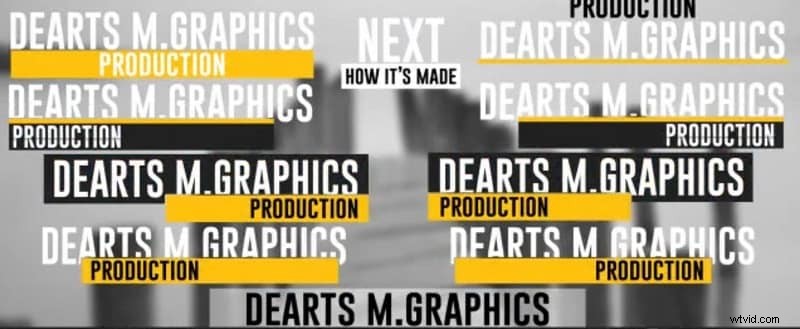
Lower thirds are essential for modern video storytelling. This dynamic pack offers a range of titles, headlines, and quote animations, all fully tweakable to match your brand voice.
Part 2. How to Add Text Presets in After Effects
Follow these clear steps to apply any preset—built‑in or downloaded—to your text layers.
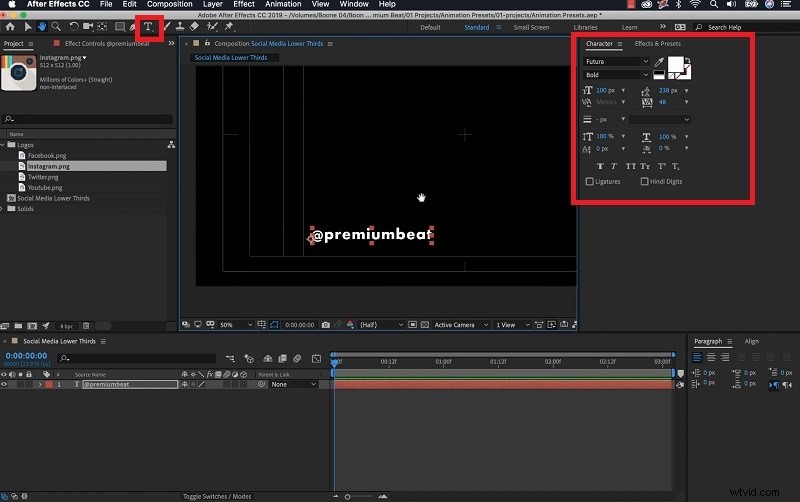
- In your project, select the Type tool and type your text in the composition panel. Style the characters in the Characters tab.
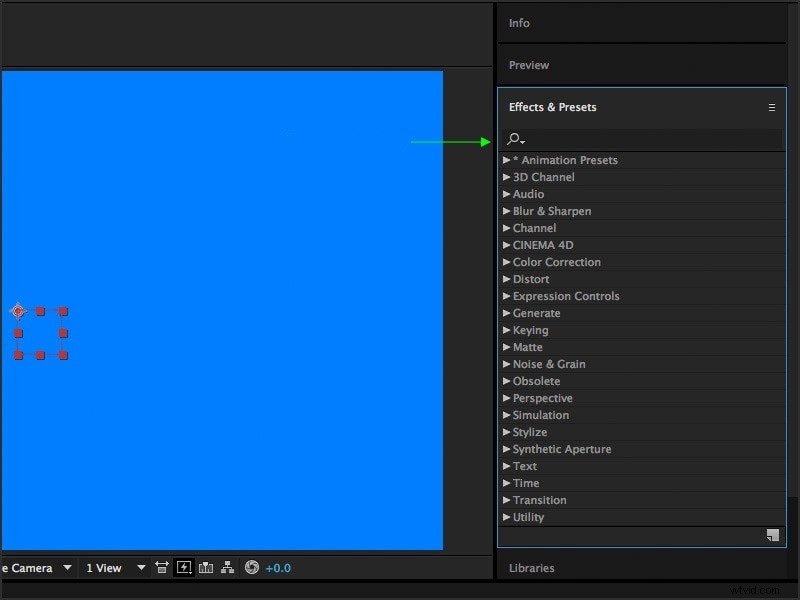
- Open the Effects & Presets panel, search for the desired preset, and drag it onto the text layer.
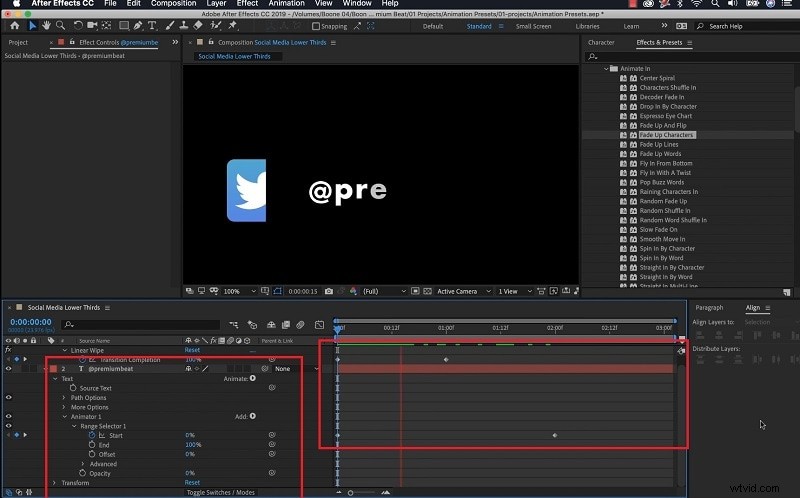
- Expand the text layer to reveal all adjustable parameters. Fine‑tune keyframes and settings to align the animation with your timing.
Part 3. Alternative: Create Text Effects in Wondershare Filmora
For users who find After Effects’ interface daunting, Wondershare Filmora offers an intuitive workflow. Follow these steps to add text presets quickly.
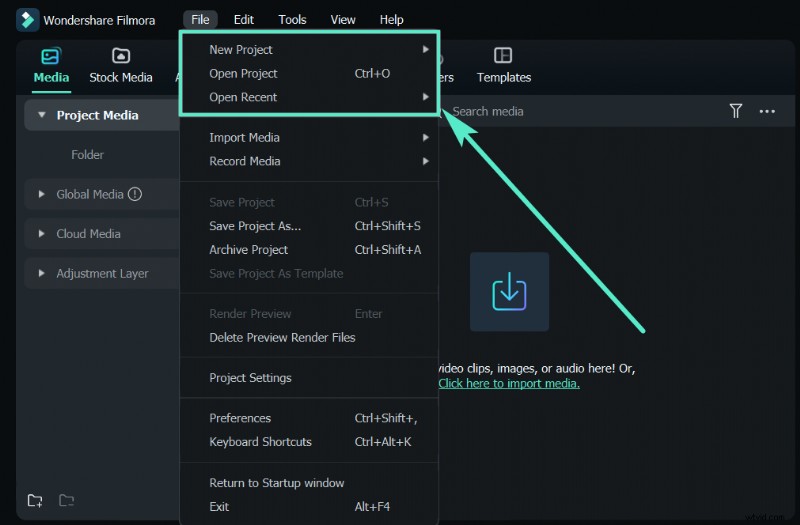
- Launch Filmora, create a new project, and import your video clip as the background.
- Drag the clip onto the timeline, or choose a stock background from Stock Media > Pexels/Pixabay > Video.
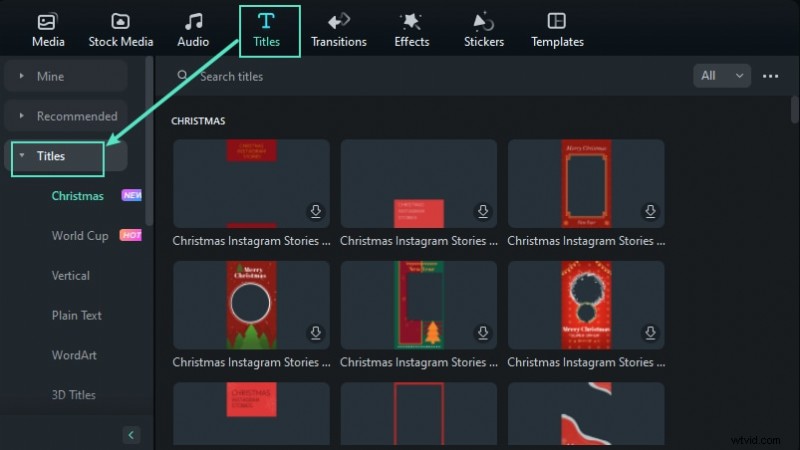
- Navigate to the Titles panel, select a text effect, and drop it above your background layer.
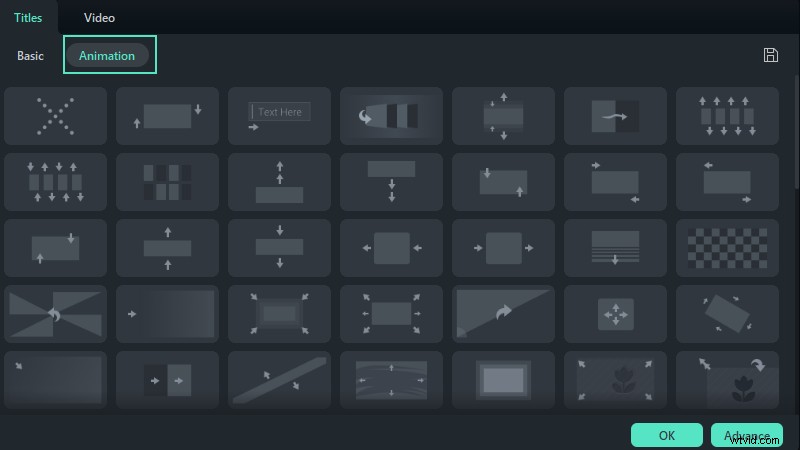
- Double‑click the text layer to edit the content and adjust style settings as needed.

Conclusion
Whether you’re a seasoned motion designer or just starting out, the right text presets can transform your video’s visual impact. Adobe After Effects remains the gold standard for high‑end typography, but Wondershare Filmora provides a powerful, beginner‑friendly alternative. Explore the packs above, experiment with the presets, and elevate your storytelling today.