
HDR, or High Dynamic Range, captures a broader spectrum of brightness and color than its Standard Dynamic Range (SDR) counterpart. While HDR offers richer detail and higher contrast, its large file size and limited compatibility mean many devices—especially older models—cannot play HDR content. Converting HDR to SDR ensures that the video remains accessible to the widest audience without sacrificing visual fidelity.
This article walks you through five practical ways to convert HDR to SDR, ranging from user‑friendly editing software to free open‑source tools and device‑specific solutions. Let’s dive in.
In this article
- Easiest Fix – Edit and Convert HDR Videos in Wondershare Filmora (PC & Mac)
- Convert HDR to SDR in Filmora Without Data Loss
- Decode HDR to SDR with HandBrake
- Transcode HDR to SDR on Samsung Devices (Galaxy S22+)
- Upload HDR to YouTube and Let the Platform Deliver SDR to Unsupported Devices
- Real‑time HDR to SDR Conversion for Live Streams
- Leverage Filmora’s AI Idea to Video After Conversion
Easiest Fix – Edit and Convert HDR Videos in Wondershare Filmora (PC & Mac)
If you’re new to video editing, Wondershare Filmora is a top choice. Its intuitive interface and professional‑grade tools make it ideal for creators who need to edit and format videos quickly.
Filmora supports HDR files from iPhones, DSLR cameras, and professional rigs. By changing the project’s colour space, you can effortlessly output an SDR version that remains true to the original 4K detail.
Follow these steps to convert your HDR clip to SDR in Filmora:


Convert HDR to SDR in Filmora Without Data Loss
1. Download and Install: Grab the latest version of Filmora for your OS from the official website.
2. Import the HDR Clip: Click Import, choose your file, then drag it onto the timeline. Trim or edit as needed.
3. Set Colour Space: Go to File > Project Settings and choose Colour space > SDR-Rec709. This converts the clip to SDR while editing.
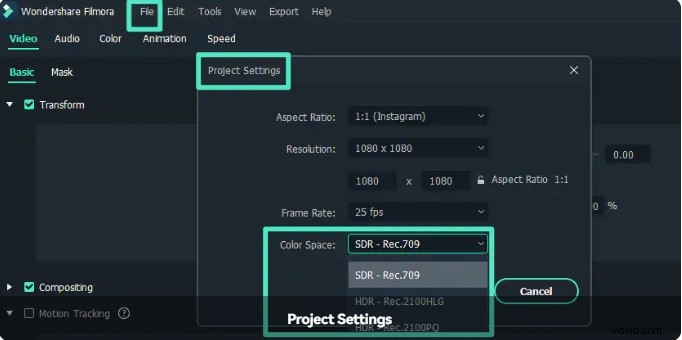
4. Export: In the Export window, click Settings and pick Colour Space > SDR-Rec709. Use the Device tab to match the resolution to iPhone, Samsung, PlayStation, or Xbox. Confirm and export.
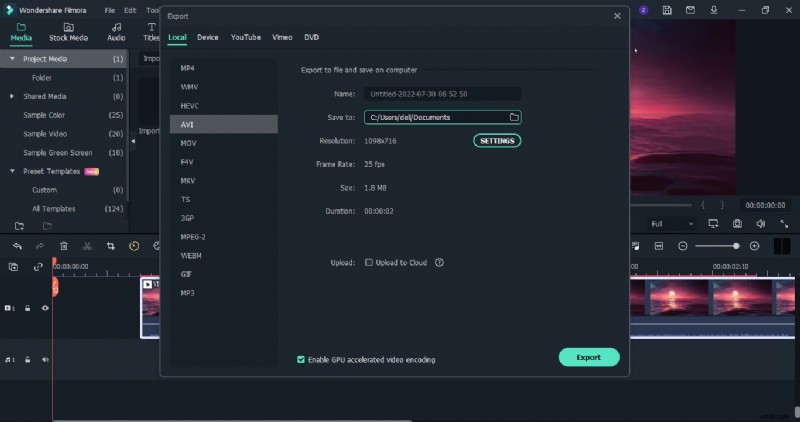
Filmora handles the conversion smoothly, preserving 4K quality while producing a fully compatible SDR file.
Decode HDR to SDR with HandBrake
HandBrake is a widely used, open‑source encoder that supports HDR to SDR conversion. It’s free and available on Windows, macOS, and Linux.
Steps:
- Launch HandBrake and load your HDR file via File > Source Selection or drag‑drop.
- Under General, select a preset such as Fast 1080p30. For 4K HDR to 4K SDR, choose Production > Production Standard or adjust the legacy profile.
- Specify output format (MP4 or MKV), quality, and codec.
- Choose a destination folder and start encoding.
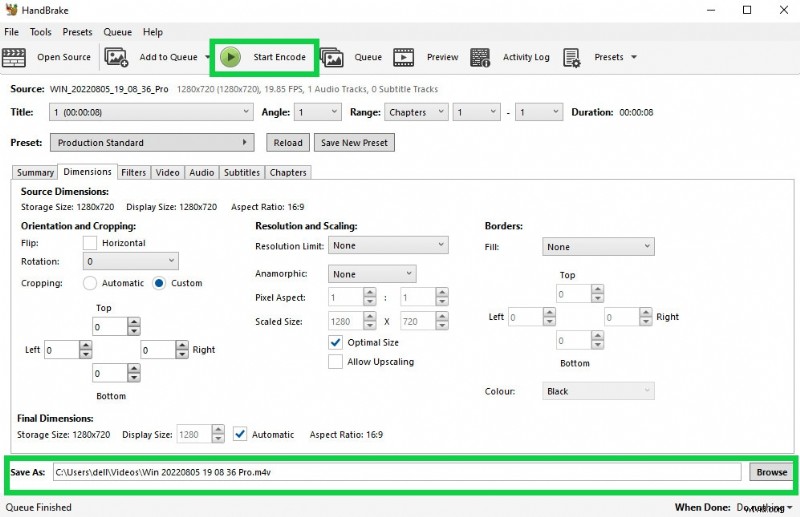
HandBrake’s straightforward interface makes HDR to SDR conversion quick and reliable.
Transcode HDR to SDR on Samsung Devices (Galaxy S22+)
Samsung Galaxy S22+ users can convert HDR10+ videos directly on their phone, avoiding the need to transfer files to a computer.
Procedure:
- Open Gallery and select the HDR10+ clip.
- Tap the three dots in the bottom right, then choose Open in Video Player.
- In the player, tap the top right three dots and select Editor.
- Within the editor, go to Size & Format and set the format to SDR.
- Instead of saving, use Save as Copy to preserve the original HDR file.
Upload HDR to YouTube and Let the Platform Deliver SDR to Unsupported Devices
YouTube automatically transcodes HDR uploads to SDR for devices that cannot play HDR. To use this feature:
- Export your HDR video with proper HDR metadata (Rec.2020 with PQ or HLG transfer function) from a professional editor like Filmora.
- Upload the file to YouTube. If the platform detects HDR metadata, it will generate an SDR stream for legacy devices.
- Viewers on non‑HDR screens will receive the SDR version without any extra steps.
While convenient, ensure your HDR grading is correct to avoid colour distortion.
Real‑time HDR to SDR Conversion for Live Streams
For live streaming, real‑time conversion is essential. Services such as Intel’s live‑streaming stack offer built‑in HDR‑to‑SDR pipelines, allowing broadcasters to serve SDR content to a wider audience while maintaining 4K HDR quality on compatible platforms.
Leverage Filmora’s AI Idea to Video After Conversion
Once your footage is in SDR, Filmora’s AI Idea to Video feature can transform raw clips into polished projects:
- Text Prompt to Video – Enter a sentence and let the AI generate a storyboard and full edit.
- Smart Storyboarding & Script Editing – Refine scenes and dialogue before final rendering.
- Visual Style & Aspect Ratio Control – Choose cinematic styles and export settings for YouTube Shorts, TikTok, or widescreen.
- AI Voiceover & Lip Sync – Add natural narration that matches your visuals.
- Original AI Footage Generation – Create new visual sequences directly from your script.
These tools combine technical precision with creative flexibility, enabling you to repurpose HDR content into engaging stories.
Final Thoughts
HDR offers unparalleled visual richness, but SDR remains the default for broad device compatibility. By using Filmora, HandBrake, or device‑specific workflows, you can convert HDR to SDR without sacrificing 4K detail. Though some colour or shadow adjustments may be needed, the resulting SDR files will play smoothly on virtually any screen, expanding your audience reach.