
Videos help you connect with your audience, building a strong emotional connection and your unique identity. They come in handy when you want to tell your story to the world, share product reviews, or give instructions regarding using one. To make this possible, you need practical tools to stay committed to your business values and services.
However, you must learn methods regarding how to turn a landscape video into a portrait to use these tools effectively and get it sorted. This article will discuss the tested ways to change your portrait video into a landscape to make your video content stand out online.
In this article
-
- Method 1. Change Your Video's Orientation with Built-in Utilities of Smartphone
- Method 2. Changing Orientation with the Filmora App
- Method 3. Trying Split Screen Template in Filmora App
-
- Method 1. Crop the Video Using Filmora
- Method 2. Using the Auto Reframe Function of Filmora
- Method 3. Change Portrait Video to Landscape Through Project Settings
- Method 4. Modify Project Aspect Ratio
Part 1. Ways to Convert Landscape Video to Portrait Video From Your Phone
Various short video platforms now support vertical videos to keep the audiences engaged. Thus, you must embrace vertical video content creation to keep up with the trends and ensure your credibility online. These methods let you change your video's orientation from landscape to portrait without distortions or black bars while you are on the go. Now, let's explore different methods you can use with your smartphone to achieve the desired results:
Method 1. Change Your Video's Orientation with Built-in Utilities of Smartphone
Did you record your video vertically, and now it's displaying in the wrong rotation? You no longer need to worry because you can flip the video over per your required direction using the Google Photos app. Here's how you can rotate your video on Android and iOS using their built-in methods:
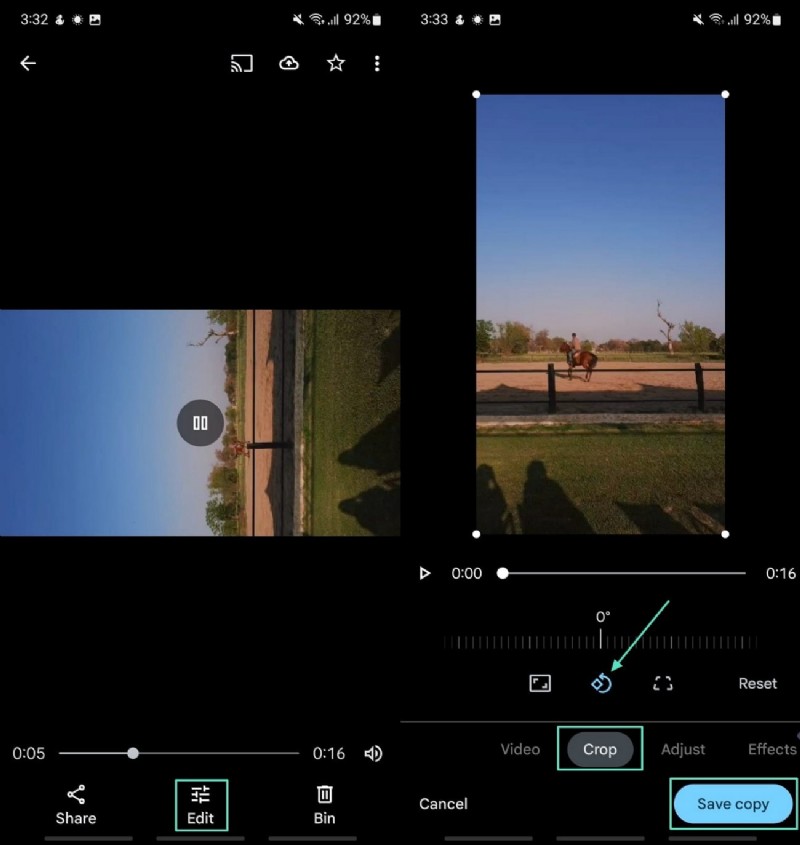
- On the Android Platform. Begin by opening the Google Photos app and taking out the video you want to rotate. Find the "Edit" button below and press it for the "Crop" feature. Then, locate the "Rotate" icon and download your video with a new orientation by tapping on the "Save Copy" button.
You May Also Like: Edit Video in Google Photos
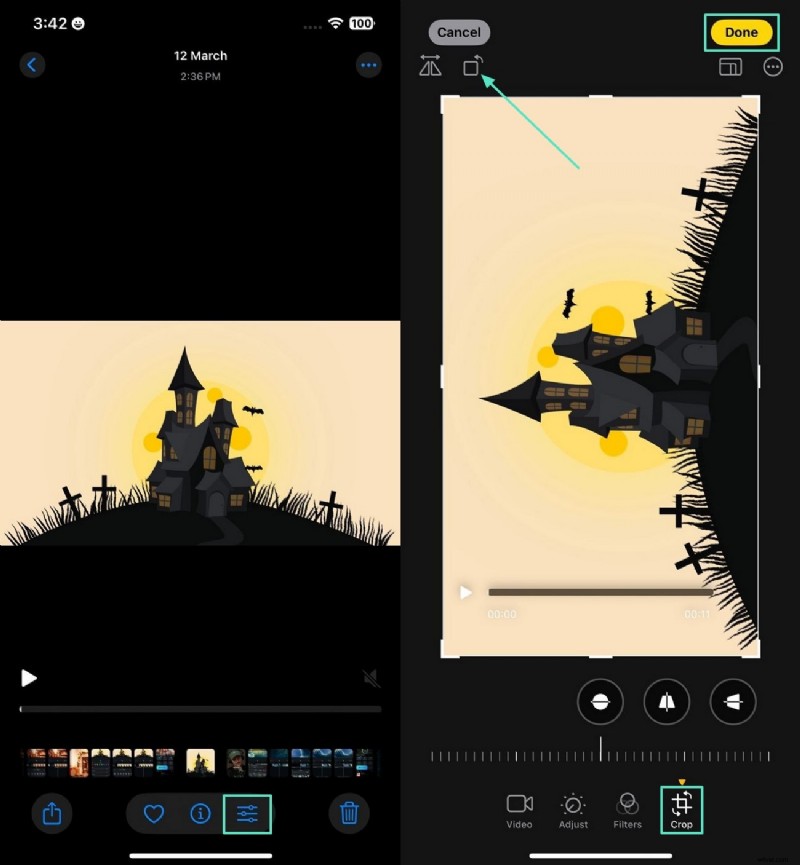
- On the iPhone and iPad. To begin, open the video you want to edit on the Photos app and press the "Edit" option. Next, shift to the "Crop" section and tap on the "Rotate" icon. Finally, hit the "Done" button at the top right corner to save the video.
Method 2. Changing Orientation with the Filmora App
Searching for methods regarding how to change portrait video to landscape without facing any distortion? Filmora App [iOS/Android] is a video editing application that lets you change your previously recorded portrait video to landscape. The application offers different methods to modify the orientation of your document according to your preferences. Follow these steps below to convert your horizontal video to vertical:
1
Begin by Downloading the Filmora App and Choosing a Video.
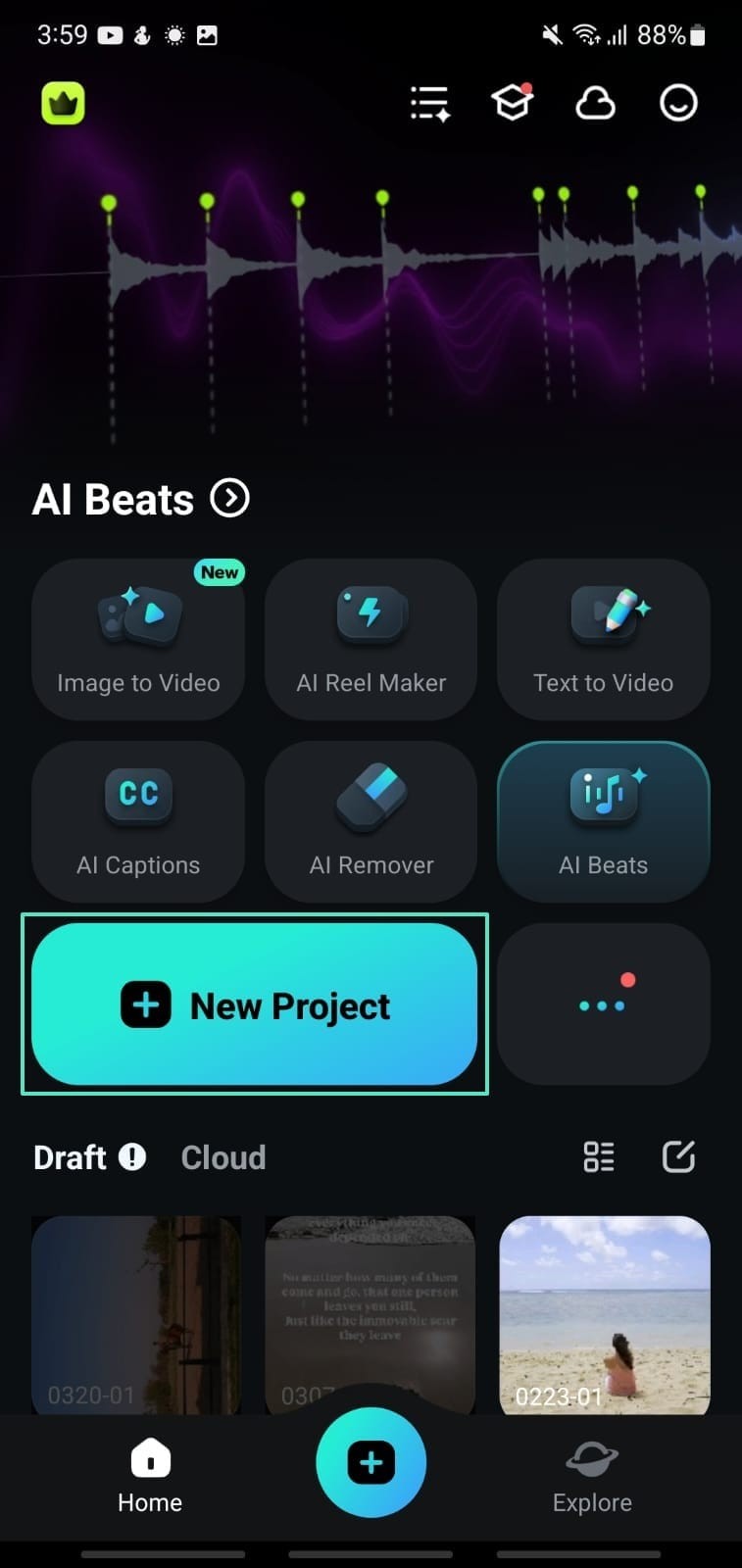
Download the Filmora App on your phone and tap "New Project," located on the homepage. Choose your desired video from your gallery, and press "Import" in the right corner below.
2
Select the Trim Icon to Access Crop Option.
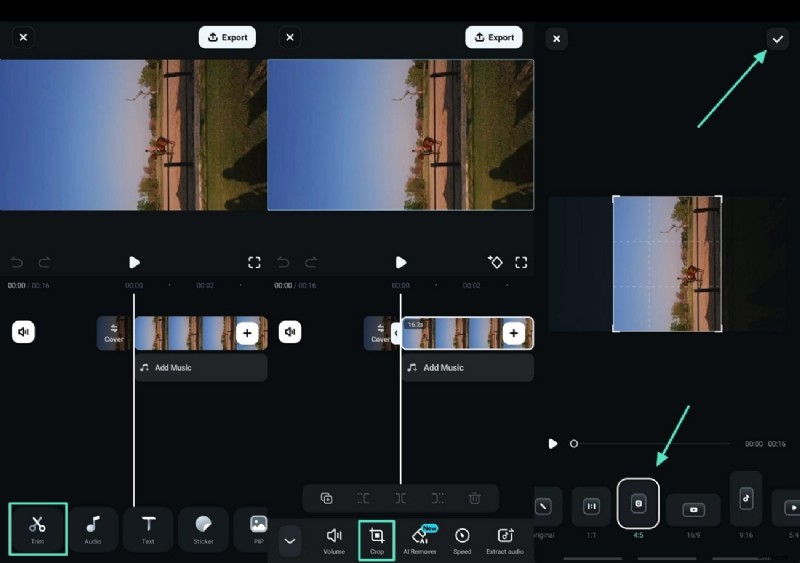
After importing the target video, select the "Trim" icon from the toolbar located at the bottom to access different options. Press the "Crop" button to select a frame that converts your landscape video into a portrait. Next, tap on the "Tick" icon at the top right corner to save your settings.
3
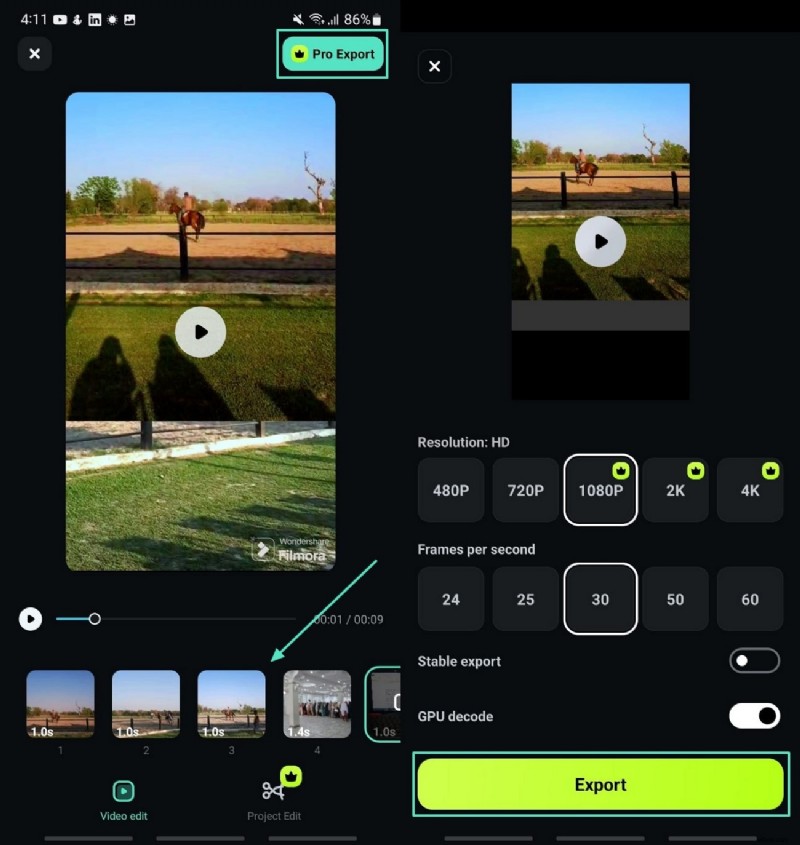
Export Your Orientation-Changed Video.
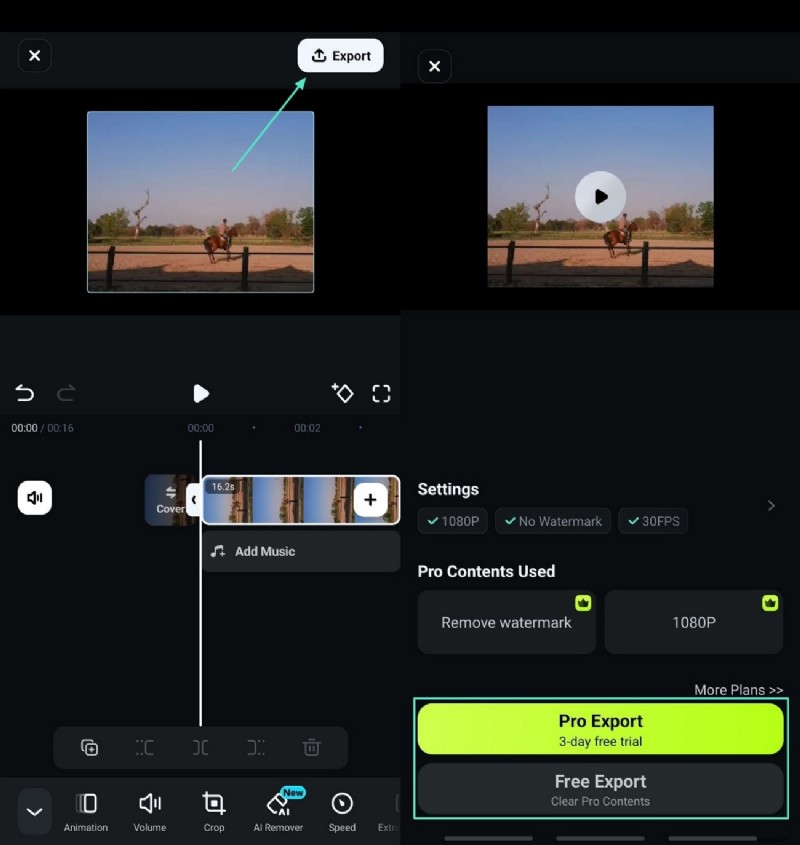
Once you've selected the desired orientation, click the "Export" option at the top right corner to save your finalized version. While your video is exported to your local album, keep the Filmora App open and share it directly on your desired platform.

Filmora
AI Video Editing App & Software
Best Tool for Converting Landscape Videos to Portrait for All Creators!
Easily transform your horizontal videos into vertical format, perfect for platforms like Instagram and TikTok.
Method 3. Trying Split Screen Template in Filmora App
As an influencer, you can achieve virality by uploading split-screen videos to your social accounts. For this, learning how to turn a landscape video into a portrait becomes essential. Filmora App offers several split-screen templates that suit your liking and requirements. Using this application, users get the ability to instantly change the orientation and merge multiple videos into a single post. Read the steps mentioned below to explore how to use this application:
1
Start to Explore and Search for Split Screen Feature.
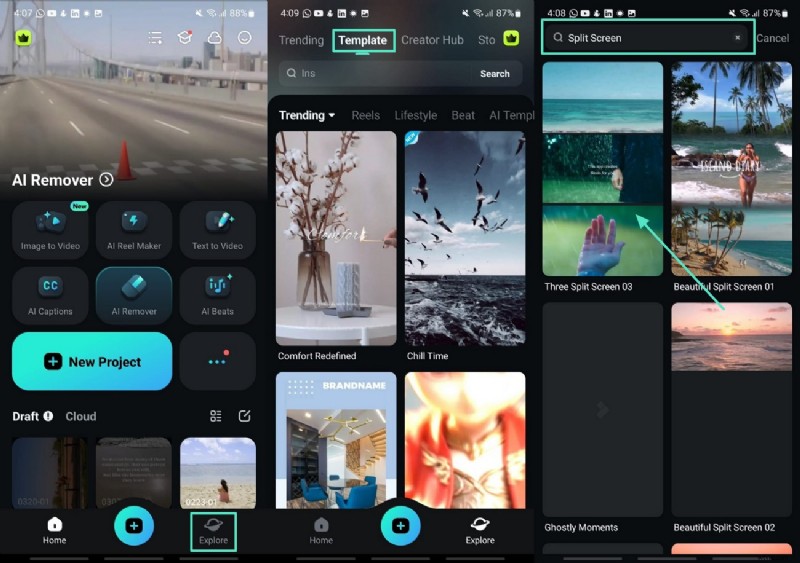
Install the Filmora App on your phone and tap the "Explore" button in the right corner below. Tap on "Template," the second option from the left above. Access the search bar from above and type "Split Screen."
2
Press Make Video and Add Clips.
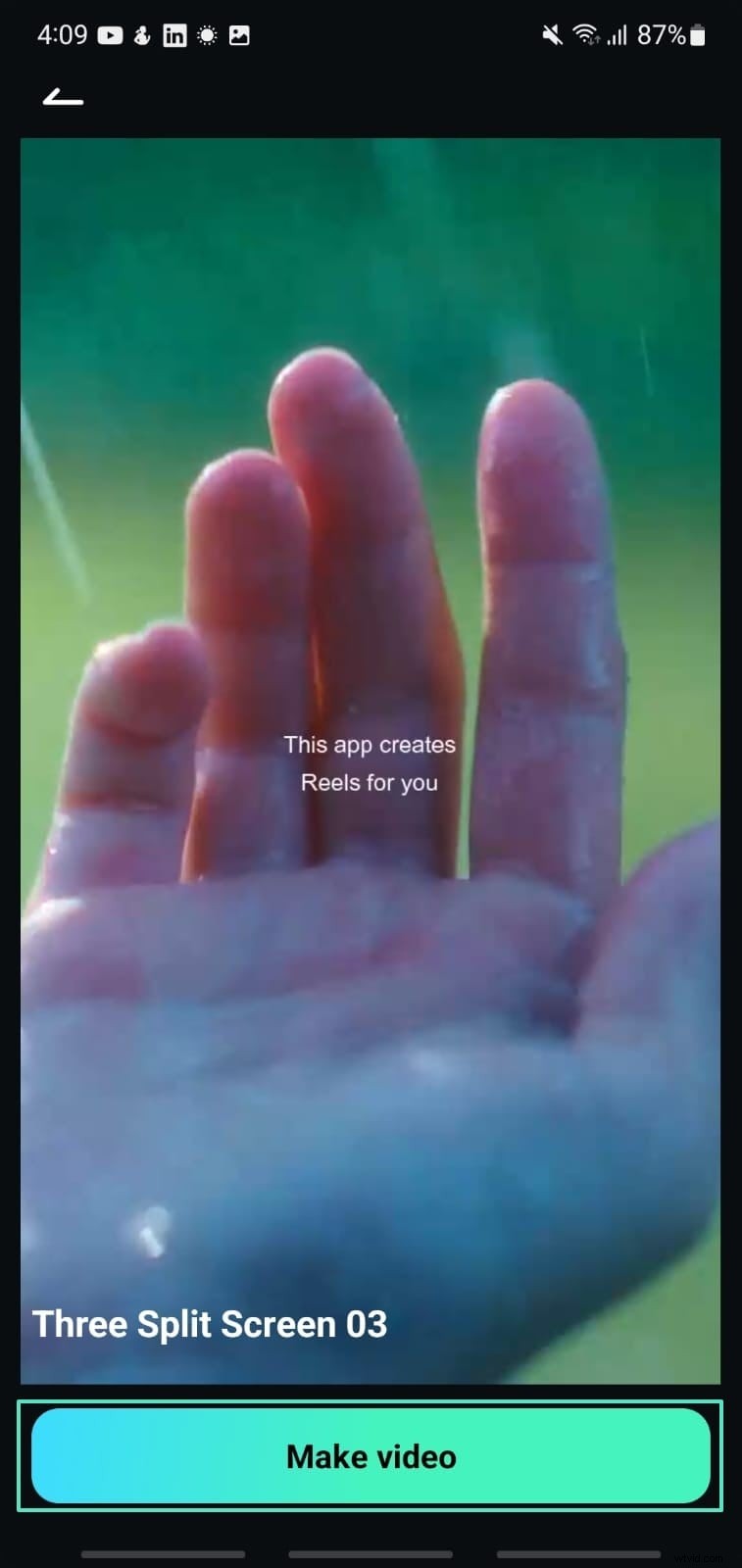
When you're done selecting a template, press "Make Video" to proceed to the next screen, where you can choose clips from your gallery and click "Import."
3
Double Check and Export Your Video.
Now start editing the videos as per your requirements and hit the "Export" tab at the top corner. Set the file aspects and hit the "Export" button.
 Secure Download
Part 2. Changing Video Orientation On Your PC
As a content creator who prefers to work from their desktop to change the orientation of their videos with more precision and accuracy, use Wondershare Filmora. This AI-powered tool allows users to convert landscape videos into portraits by offering different methods. Mentioned below are the methods you can use to change the orientation of the video using this comprehensive tool:
Method 1. Crop the Video Using Filmora
The user-friendly interface of Filmora works well on Windows and macOS, letting you crop your video according to your desired orientation. When looking for software on how to change the landscape to portrait, get Filmora on your desktop and start fixing your videos. Learn how to perform the task by following the steps below:
1
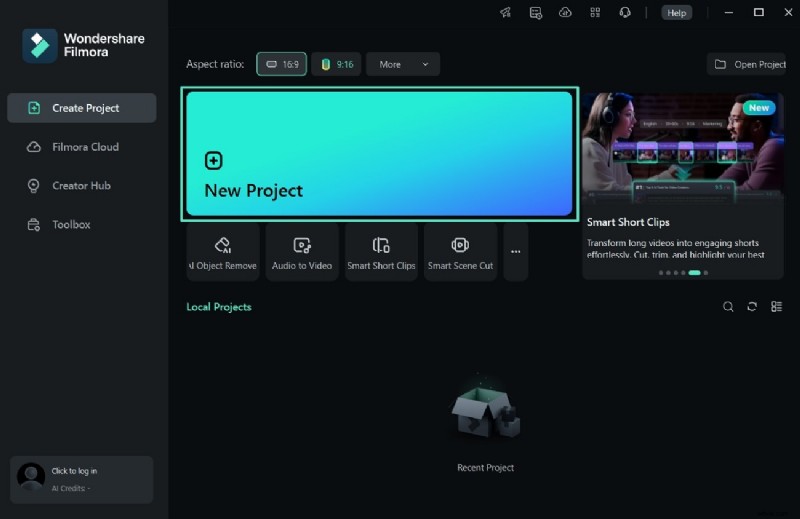
Initiate by Clicking New Project and Import a Video.
After launching Filmora on your desktop, select the "New Project" option on your homepage to begin the process. Next, import the video you want to alter its orientation and drag it to the timeline to add it successfully.
2
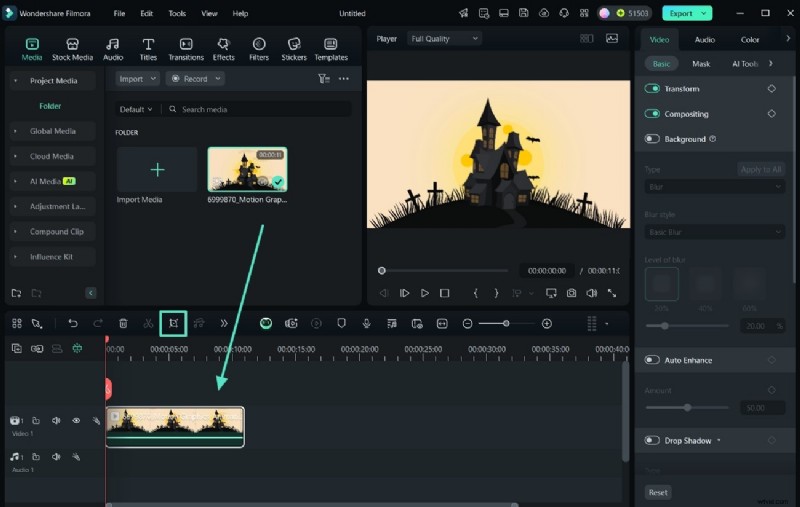
Select the Crop Icon to Change Video Orientation.
Click the "Crop" icon next to the scissor, located at the top of the video track on the timeline.
3
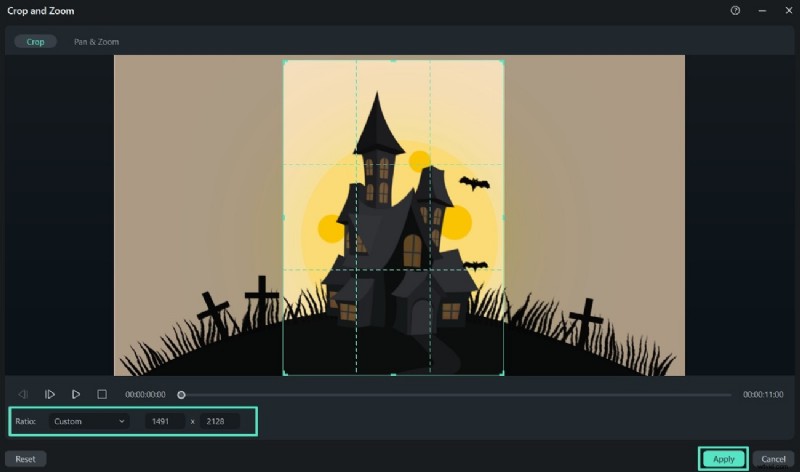
Adjust the Orientation and Hit Apply.
This will lead you to a new interface where you adjust the frame by dragging the cursor according to your requirements and pressing "Apply" after finalizing it.
4
Export and Save Video to Device.
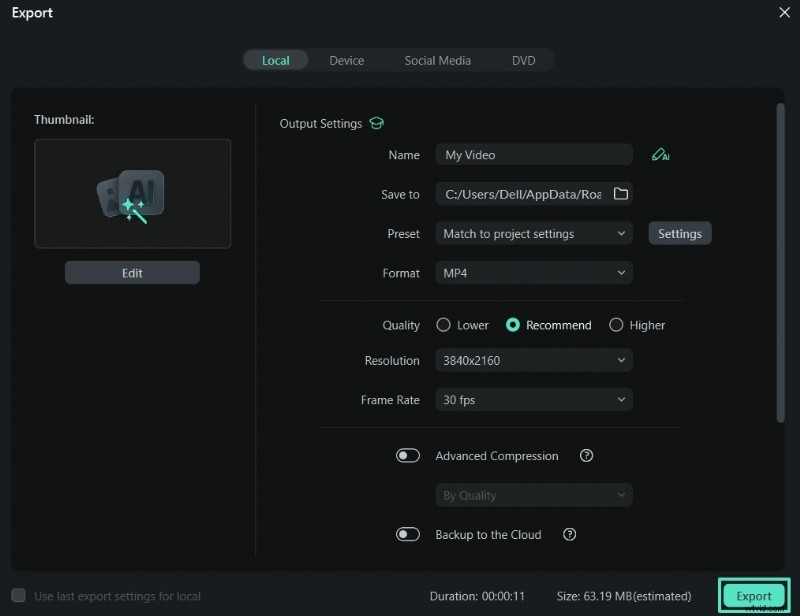
Select the "Export" button at the top right corner to save your video to your device. Here, you can access different options, such as uploading to platforms; if you only want to download the video, simply click "Export."
Method 2. Using the Auto Reframe Function of Filmora
Do you want to get your hands on a tool that automatically detects your video's focal point and crops the file while keeping the main object in the frame? You can use the Filmora desktop version to access this feature. It provides you with a solution on how to change portrait video to landscapeby offering different aspect ratios. Check the steps to learn how to reframe video automatically with Filmora:
1
Click Toolbox on Your Screen.
Open Filmora on your desktop, click "Toolbox" from the left, and look for the "Auto Reframe" feature. When visible, click on it and import your video in the following interface.

2
Fix Adjust Ratio & Speed to Export Video.
Head to the "Adjust Frame" section on the right side and select your desired "Aspect Ratio" and "Motion Speed" options. Afterward, click "Analyze" to check the results and move the frame if required. Once the orientation of your video is changed, hit the "Export" button at the bottom right to save the video to your device.

Method 3. Change Portrait Video to Landscape Through Project Settings
Project Settings come in handy when you need a video to fit the widescreen. Follow these steps to set your video's orientation:
1
Create a New Project and Add Your Video Clip.
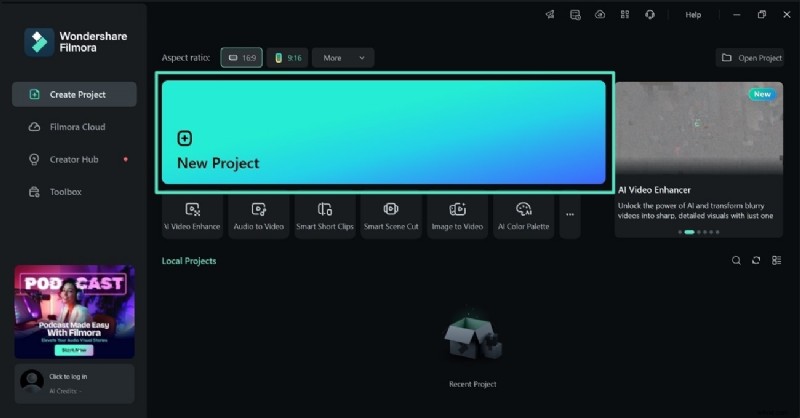
Open Filmora and click on "New Project" from the main screen. Then, upload your portrait-style video and drag it onto the timeline for editing.
2
Navigate to Project Settings from File Menu.
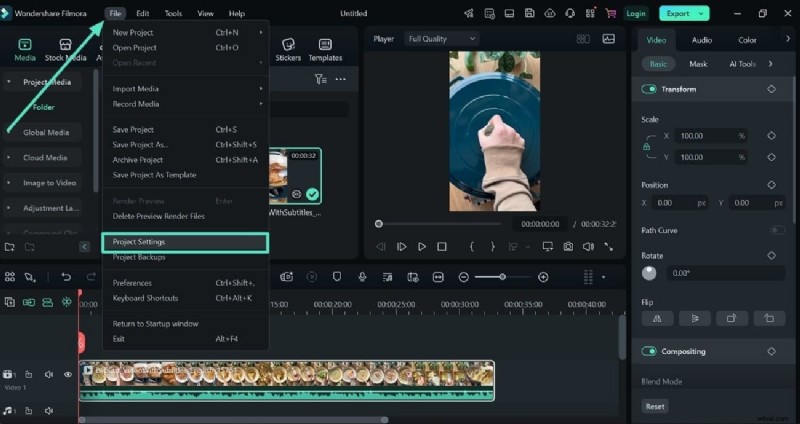
Go to the "File" tab located at the top, then choose "Project Settings" to begin customizing the video dimensions.
3
Adjust Aspect Ratio to 16:9 Format.
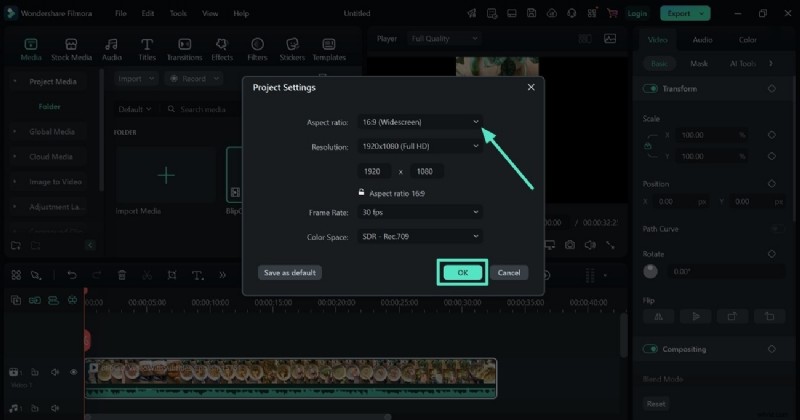
In the settings window, set the aspect ratio to "16:9 Widescreen," which is ideal for landscape orientation. Press "OK" to apply the changes.
4
Export the Landscape Version.
After confirming all changes, click the "Export" button in the top-right to save your newly adjusted landscape video.
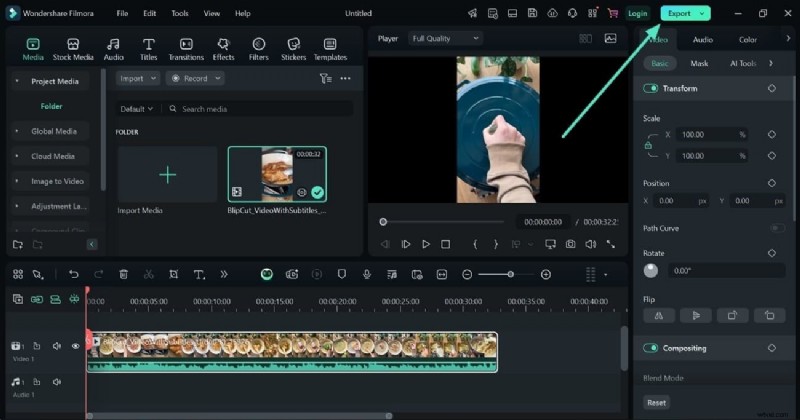
Method 4. Modify Project Aspect Ratio
Looking to initiate a new project with a specific aspect ratio? Here's how to achieve that in Filmora with just two simple steps:
1
Start a New Project with a 16:9 Aspect Ratio.
Launch Filmora and, before selecting "New Project," choose the "16:9 Widescreen" aspect ratio located above. This setup is ideal for converting portrait videos to landscape format, addressing the common query of how to change portrait video to landscape.
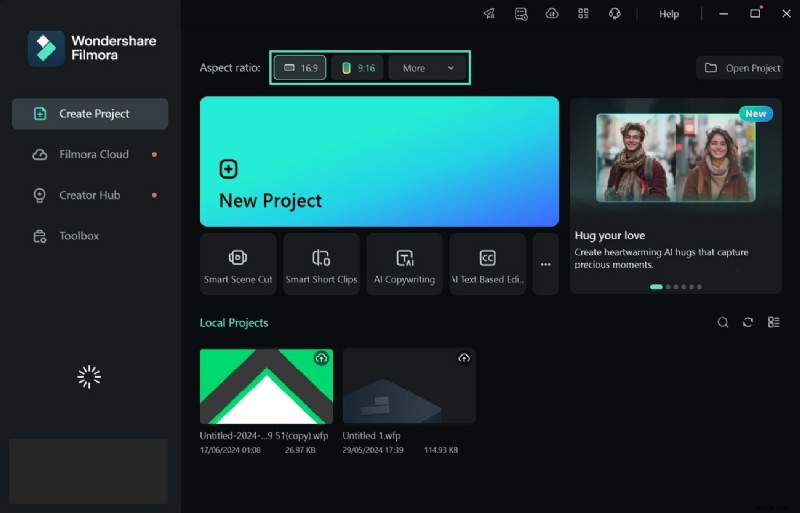
2
Import Your Portrait Video and Export in Landscape Format.
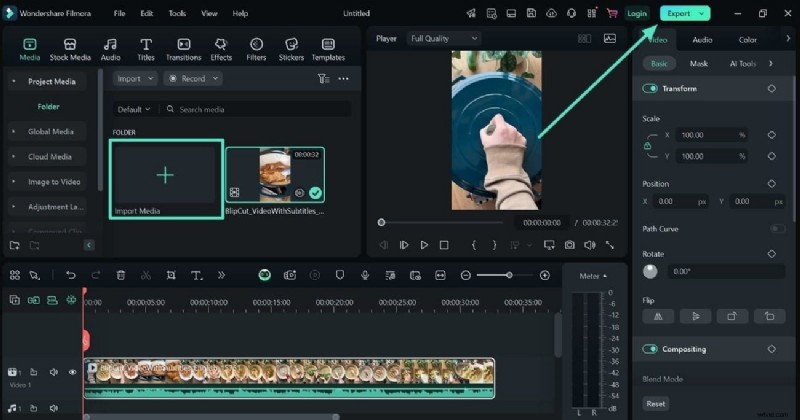
Click the "Import" button to upload your vertical video. Once it's displayed, drag it onto the timeline for editing. After making any necessary adjustments, click the "Export" option in the top right corner to save your video in landscape orientation.
Filmora
AI Video Editing App & Software
Best Tool for Converting Landscape Videos to Portrait for All Creators!
Easily transform your horizontal videos into vertical format, perfect for platforms like Instagram and TikTok.
Conclusion
To conclude, this article discussed different methods for how to turn a landscape video into a portrait, prioritizing high quality. It also suggested how to transform your video recorded in landscape mode into a portrait using Wondershare Filmora. With Filmora, changing the orientation of your video becomes easier due to its easy-to-use interface and AI-powered features. Additionally, you can adjust the video's ratio, keeping up with the platform's requirements for repurposing your video.