
iPhones are not just great for snapping photos; they're fantastic video recorders too. But when your video is too long, you can learn how to split a video on your iPhone into manageable clips to make it easier to share and edit.
Learning this technique is especially helpful if you want to create content for different social media platforms (since each platform has its own length requirements) or focus on specific moments without losing the flow of your footage.
To help you get started, use this guide to easily split your videos on your iPhone!

In this article
-
- How to split video using Filmora on iPhone
-
- Add a transition between clips to smooth out the flow
- Unify the look with video filters
- Add Music to elevate the video mood
-
- Using iMovie
- Using Clips
Part 1. How to Split a Video on iPhone: Step-by-Step
While the built-in Photos app on your iPhone offers basic video editing features, including trimming, it falls short when you need to split a long video on your iPhone into multiple clips. You can only trim the parts and save them as different clips, but it doesn’t allow for splitting or rearranging of these segments within the same project.
As a solution, you can use the video editing app Filmora. Filmora offers comprehensive features that extend beyond the basics. You can split videos on your iPhone into multiple sections easily, rearrange them, and even add transitions and effects for a final look. Let's explore how to use Filmora on your iPhone to split videos effectively.


How to split video using Filmora on iPhone
Step 1: Make sure you’ve installed Filmora on your iPhone. Then, open the app and select "New Project" from the main screen.

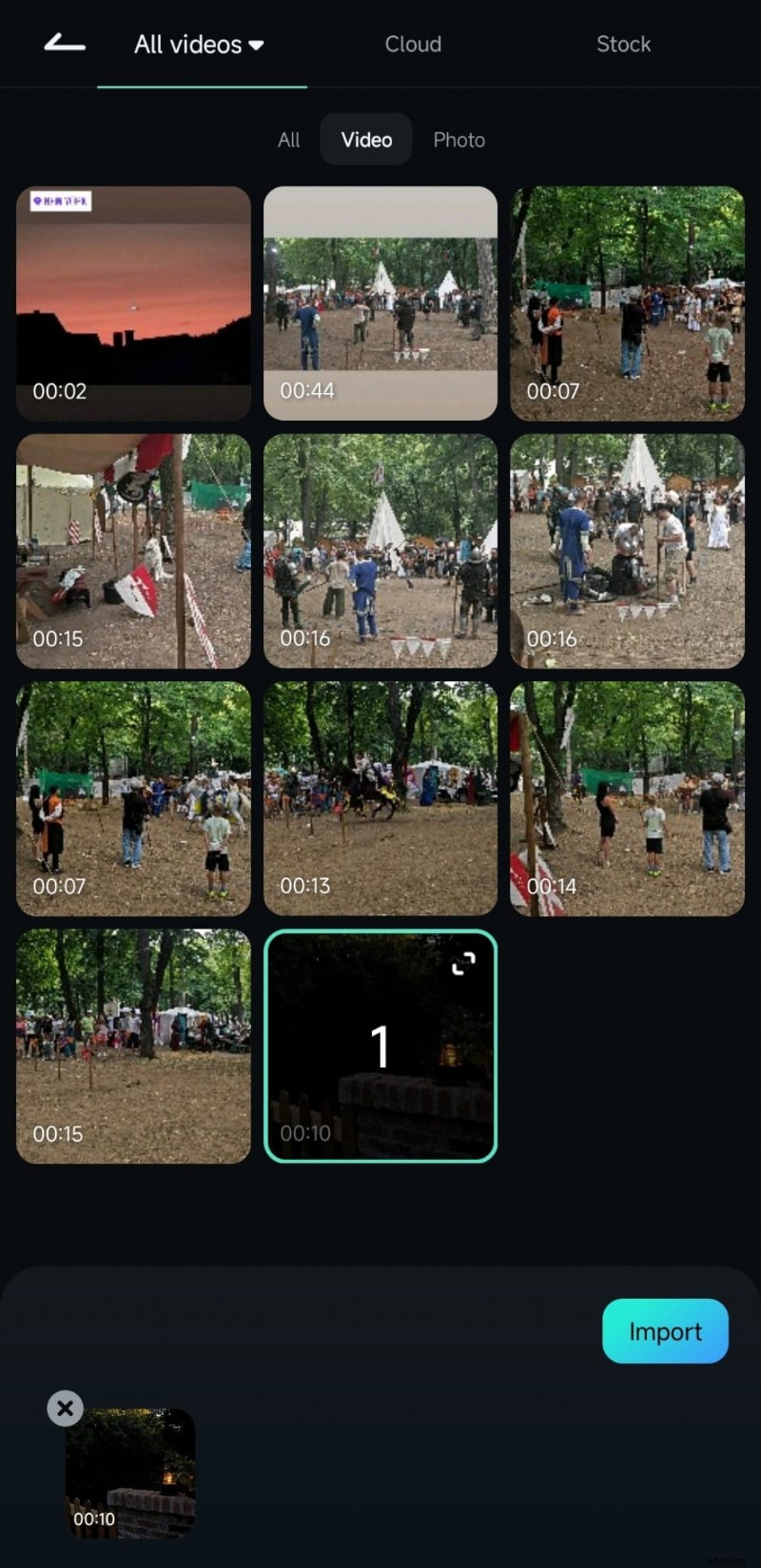
Step 2: To add a video, tap on the one you wish to edit, then press the "Import" button at the bottom of the screen.
Step 3: In the Filmora workspace, tap on your video in the Timeline to select it. Slide the Playhead to the point where you want to split the video.
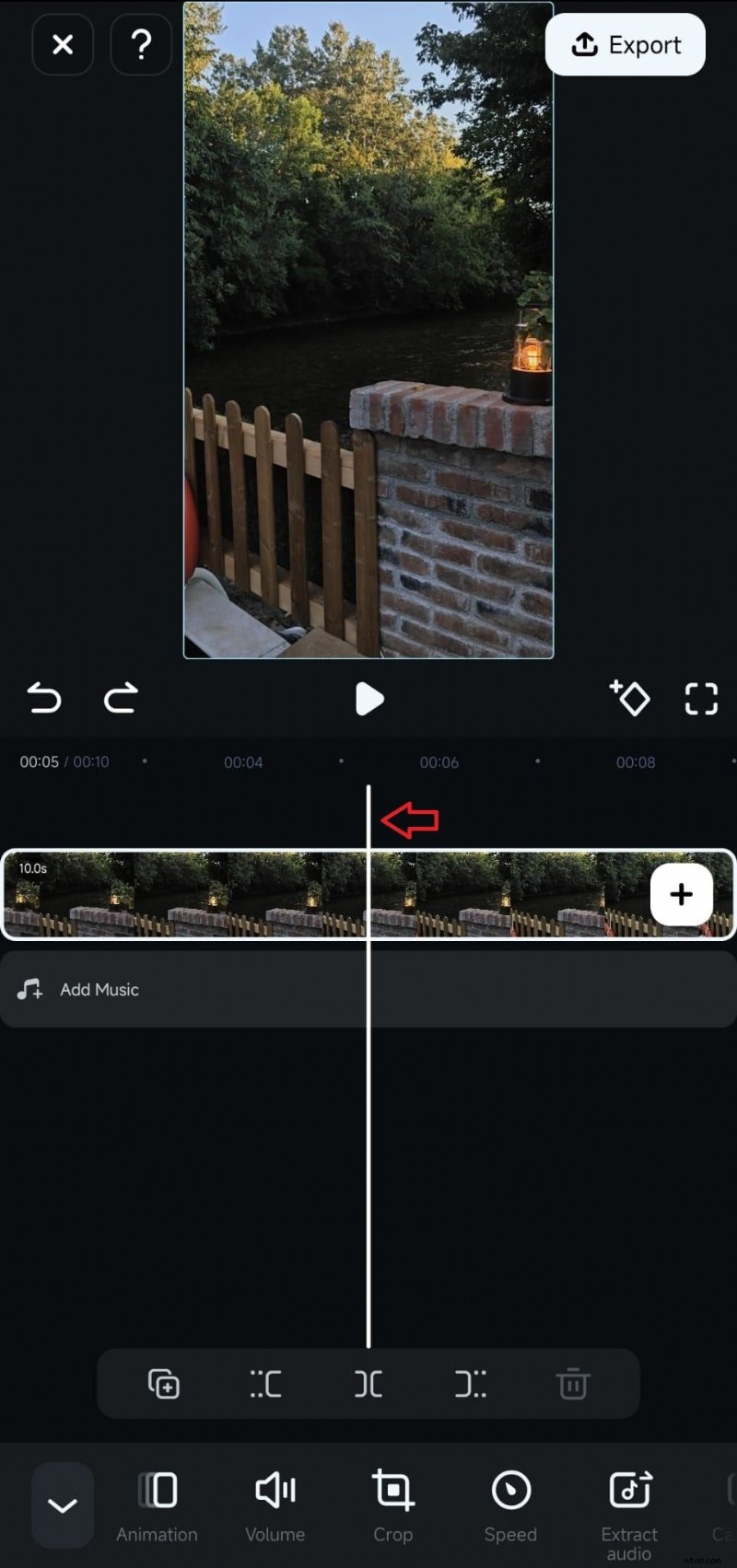
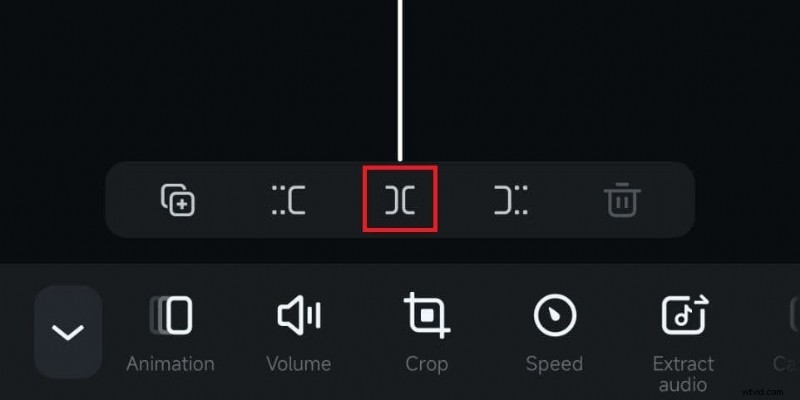
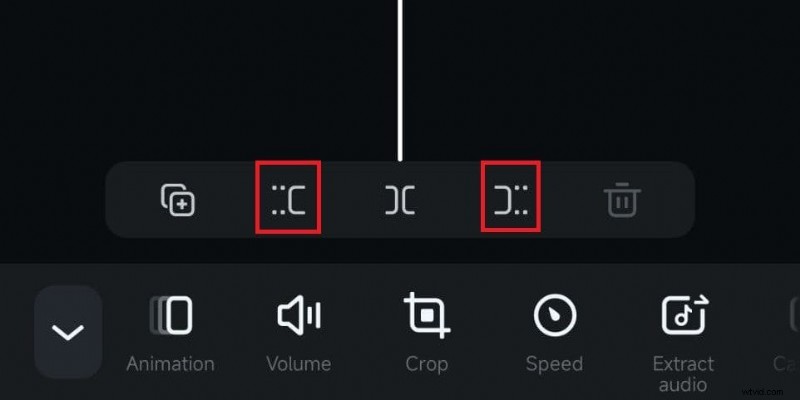
Press the "Split" icon located above the Toolbar. After splitting, you can rearrange the segments by dragging them along the Timeline.
Once you've split your video, you can trim the clips using the Trim button for finer detail or remove any sections you no longer need.

Filmora ⭐⭐⭐⭐⭐
Powerful AI video editor for all creators
Part 2. Manage and Enhance Your Split Video Clips
After learning how to split video on an iPhone, it doesn’t stop there. Managing and enhancing your split video clips is the next step to turning good footage into great presentations. With your video now divided into more manageable clips, you can apply various edits to each segment individually.
This includes enhancing color settings or applying various filters to achieve a consistent look across all clips. Additionally, you can add transitions between clips and even insert background music or sound effects to give an emotional impact to your video.
1. Add a transition between clips to smooth out the flow
After splitting your video on your iPhone, you'll notice a Backslash icon between the clip segments. Tap on this icon to access the Transition menu. Then, select your desired transition effect from the available options.

2. Unify the look with video filters
To apply a filter to your video and make a uniform look across all the clips, you can select one of the clips. Then, find and tap the Filter option.
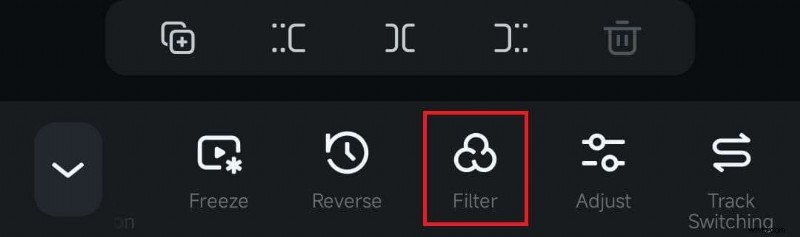
Once you access the filter library, you can search for a specific filter or explore categories such as Film, Mono, Night, and Retro among others. Then, adjust the intensity using the slider. To apply the filters across all segments, select “Apply to All”.

3. Add Music to elevate the video mood
Adding music not only enhances the mood of your video but also helps unify the clips into a cohesive whole, especially after splitting the video in your iPhone. To add music on Filmora, you can tap the Add Music option under your video from the timeline.
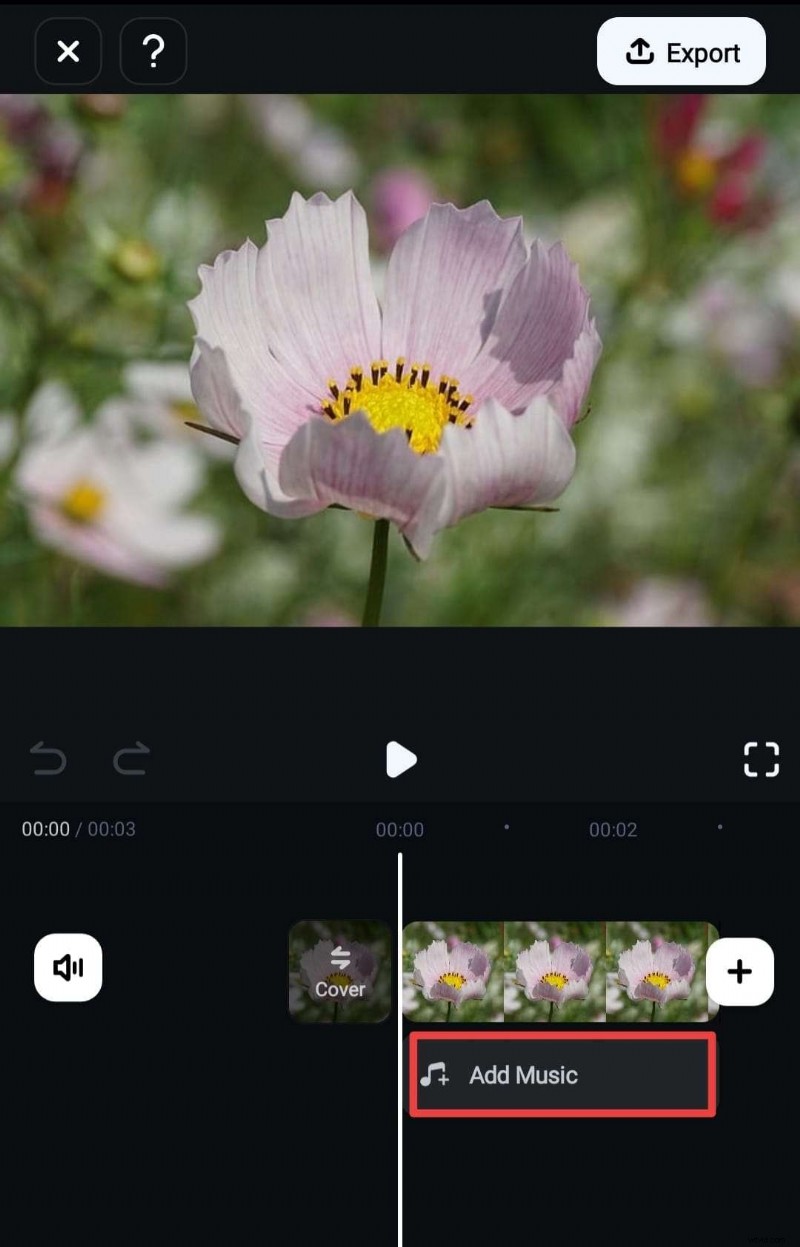
Alternatively, you can access it from the toolbar by selecting “Audio.”
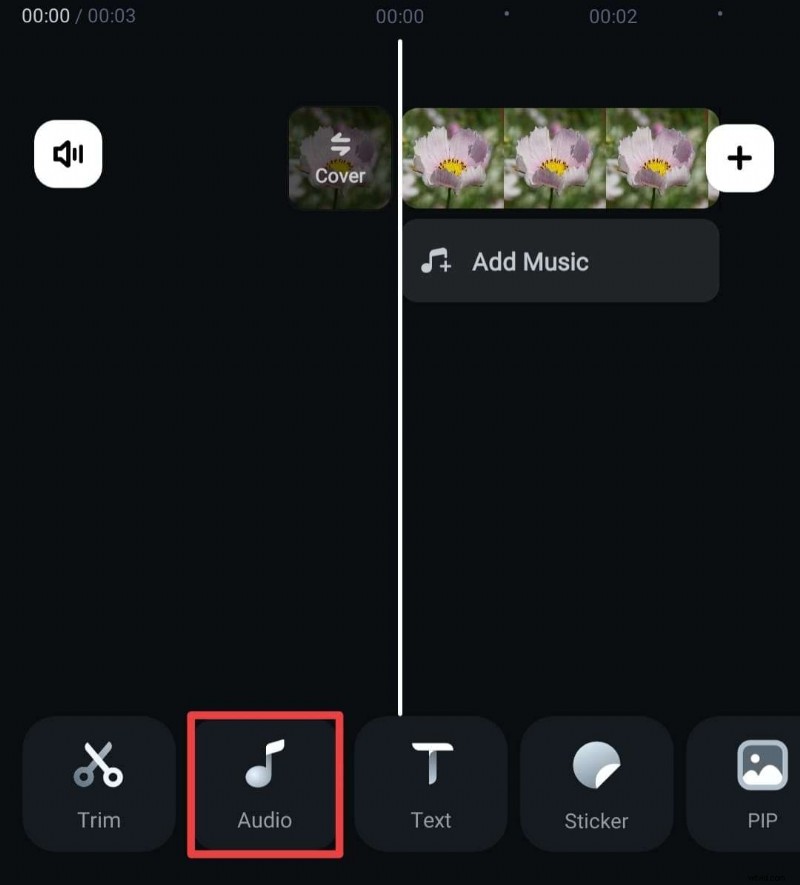
Then, select Music. You can also follow this step if you want to add Sound Effects or record a voiceover instead.

Browse the music you like and click the Download icon next to the desired stock music track to add it to your project.
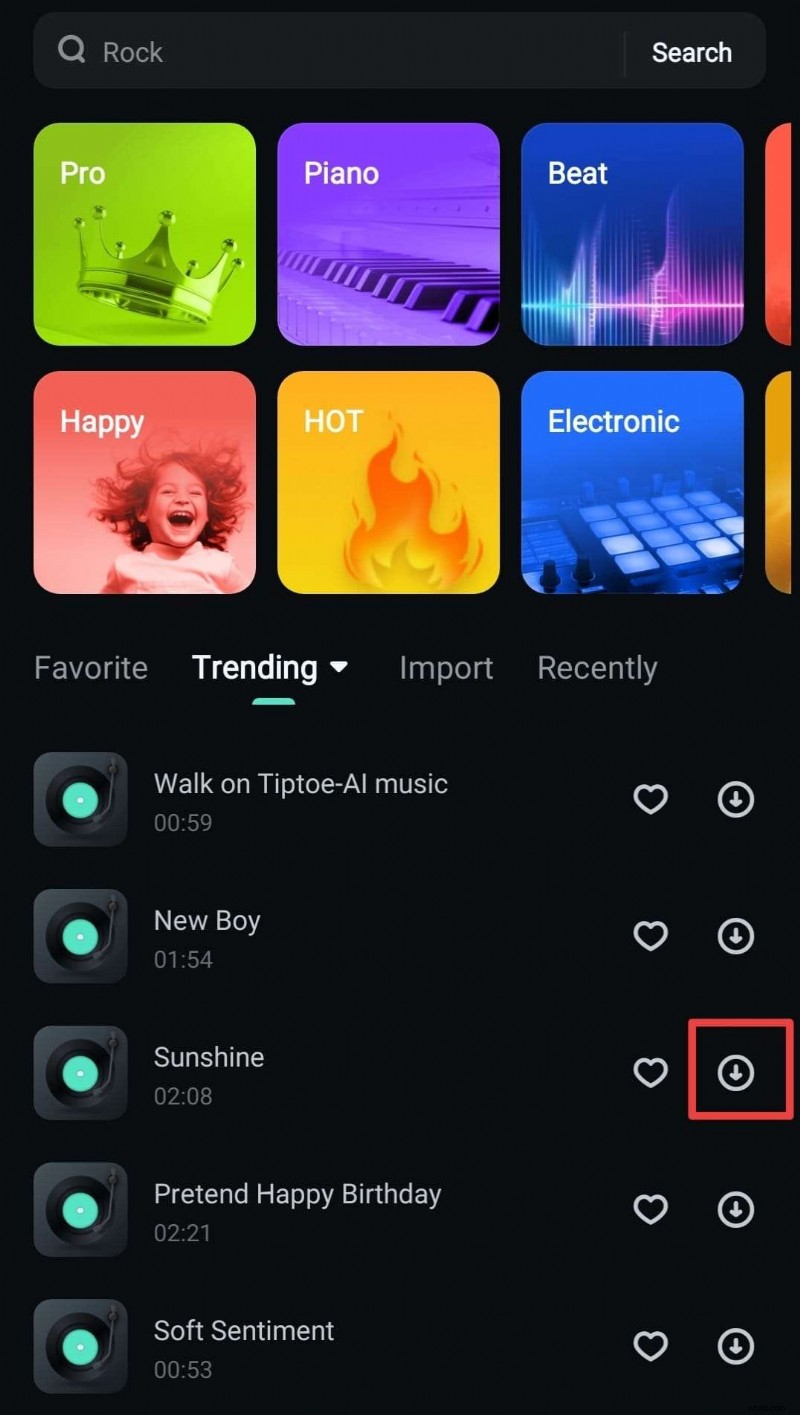
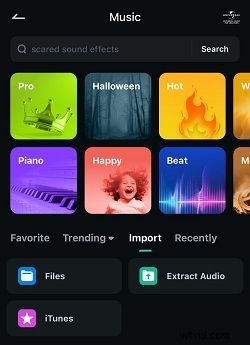
To import a custom track, select the ''Import' option from the top bar and select ''Files.' But if you prefer to access music you’ve already purchased or stored on your device, you can choose ''iTunes'.
Filmora ⭐⭐⭐⭐⭐
Powerful AI video editor for all creators
Part 3. Other Solutions to Split Clips on iPhone
Aside from using Filmora, you can also use other tools like iMovie and Clips to split clips on your iPhone. These apps are suitable if your primary goal is simply splitting clips, as they offer a more limited set of features compared to the extensive functionality available in Filmora.
1. Using iMovie
iMovie is a video editing app from Apple that comes pre-installed on your device. It’s a straightforward solution since you don’t need to install any additional app to split your video on your iPhone. However, the transition and filter it offers are very limited, which might not suffice for more creative or complex editing needs.
Here’s how to split clips using iMovie:
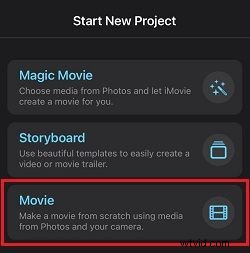
Step 1: Open iMovie and start a new Movie project.
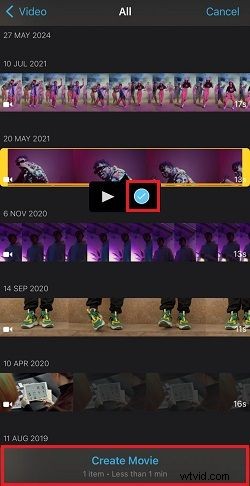
Step 2: Select the video you want to edit and hit “Create Movie” to add it to the editing interface.
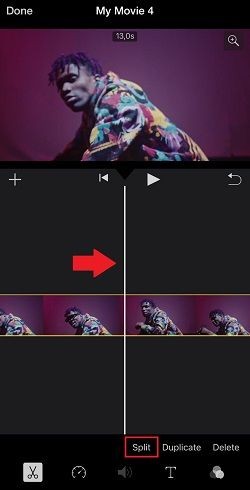
Step 3: Move the playhead to the position you desire and tap Split. It will divide your video into two clips.
2. Using Clips
Clips is another video editing app from Apple. It usually comes pre-installed on iPad, but if you are using an iPhone, you may need to install it first to split clips with Clips. Compared to iMovie, Clips offers a more playful approach with a variety of fun effects. However, it’s somewhat limited when it comes to advanced editing functions like transitions.
Here’s how to split iPhone video using Clips:
Step 1: Open Clips on your iPhone. Then, add media from your Photos.

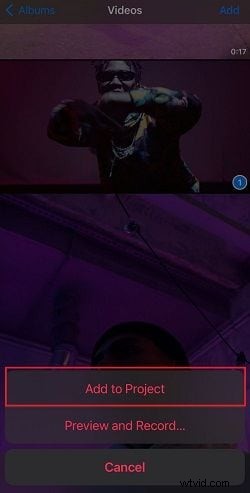
Step 2: Select the video you want to split and tap “Add to Project.”
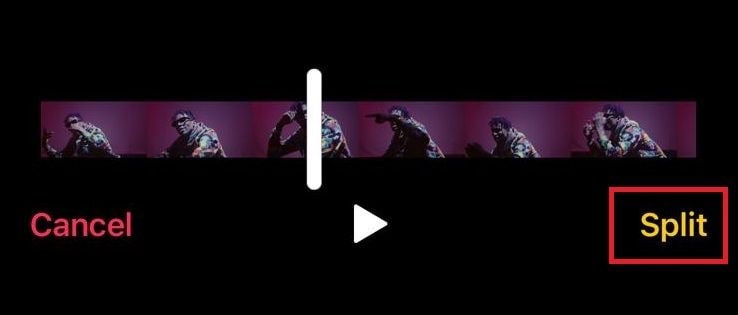
Step 3: In the Clips editing interface, select “Split” from the toolbar.

Next, position the playhead at the desired point in the video and tap "Split" to divide the clip.
Conclusion
Now you've found the answer to the "How do you split a video on iPhone?" question. Splitting your video into manageable clips is quick and simple with Filmora. With this guide, you’re all set to turn those long recordings into perfect, shareable clips.
If you're prepping clips for different social media platforms or just trying to highlight the best moments without losing the flow, the techniques you’ve learned today will help you do just that. So go ahead and experiment with different transitions and filters. There’s no stopping you from realizing your creative vision!
Filmora ⭐⭐⭐⭐⭐
Powerful AI video editor for all creators