
Video quality is the cornerstone of every editor’s workflow. One of the most effective ways to guarantee that quality is choosing the right frame rate. Whether you need a cinematic 24 fps, a smooth 30 fps, or a high‑motion 60 fps, modern editing tools make the transition simple.
This guide covers the advantages of each frame rate, the scenarios where they shine, and a straightforward method to convert between them using Wondershare Filmora.
In this article
- Key Features
- 24 fps Video
- 30 fps Video
- 60 fps Video
- Video Content
- Video Concept
- Viewing Device
- File Size
Converting FPS in Wondershare Filmora
Filmora’s intuitive interface lets you set or change the frame rate of any project. Whether you’re converting 24 fps to 60 fps or the reverse, the process takes only a few clicks.

Key Features of Filmora
- Frame‑rate control: Choose from 24, 25, 30, 60 fps, and more.
- Powerful editing tools for both beginners and pros.
- Extensive library of stock assets, effects, and templates.
- AI‑powered utilities such as thumbnail generator and smart cutout.
- Export to MP4, MOV, AVI, MKV, GIF, and many formats.
Step‑by‑Step Conversion
Follow these simple steps to adjust your project’s frame rate:
- Download and install Filmora from the official site.
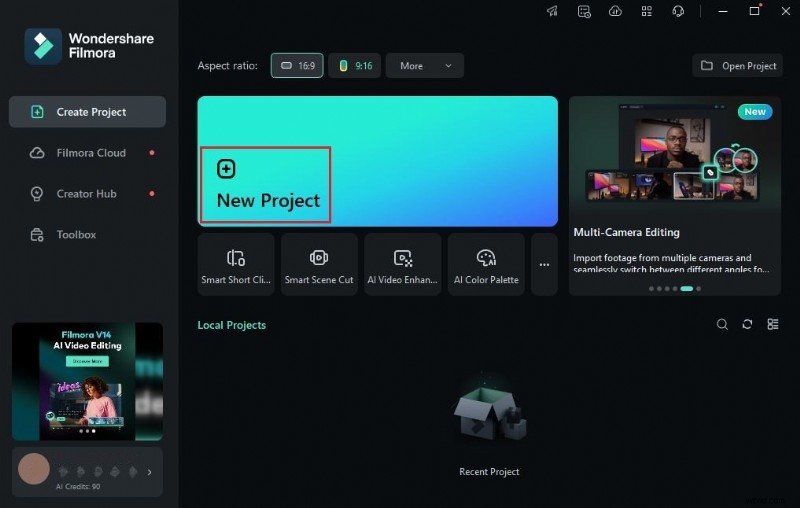
- Launch the app and open a new or existing project.
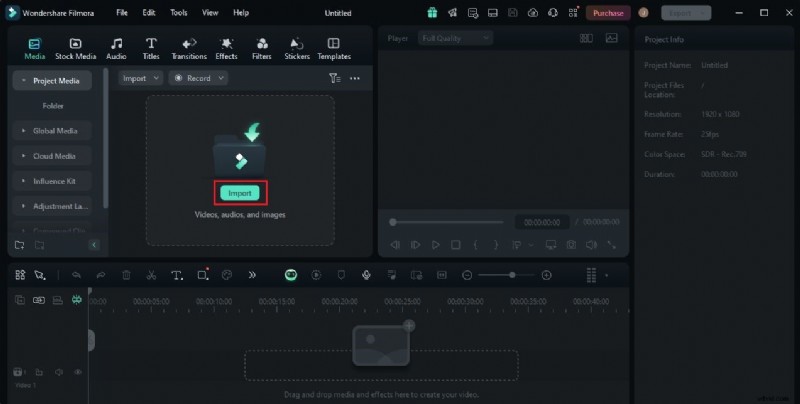
- Import your media into the Elements panel and drag it to the timeline.
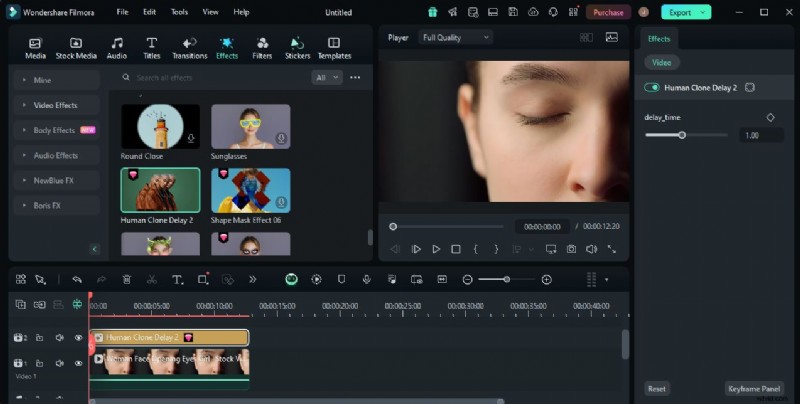
- Perform any editing—color grading, audio sync, etc.
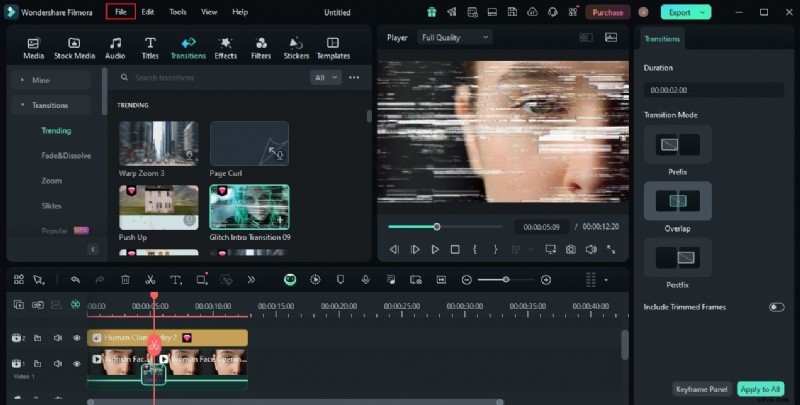
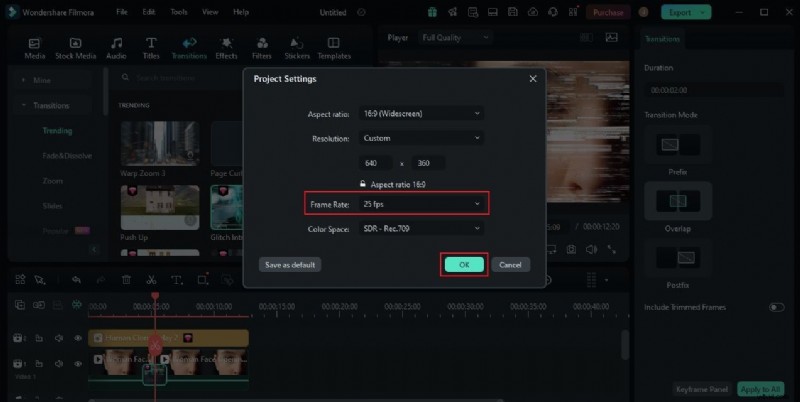
- Open the File menu and select Project Settings.
- In the dialog that appears, choose your desired frame rate from the drop‑down menu and click OK.
- Preview the footage to confirm the new frame rate. Export when satisfied.
Choosing the Right Frame Rate
Each frame rate serves a distinct purpose. Consider the following when making your decision:
24 fps
Industry standard for feature films, providing a classic cinematic feel.
30 fps
Ideal for TV and online video where smooth motion is needed without excessive file size.
60 fps
Best for sports, gaming, or high‑motion content; offers crystal‑clear detail but increases file size.
Other Options
Filmora supports 25 fps (PAL) and additional custom rates if required.
Factors That Influence Your Choice
Content
High‑speed action or slow‑motion footage benefits from higher FPS.
Concept
The visual style you aim to achieve dictates the optimal frame rate.
Device
Ensure the chosen FPS is supported by your target playback hardware.
File Size
Higher FPS increases file size; balance quality with distribution constraints.
Visual Examples




Conclusion
Switching between 24, 30, and 60 fps is straightforward with Filmora. Pick the rate that matches your creative intent, technical requirements, and audience. Download Filmora today to harness these powerful settings and elevate your video projects.