
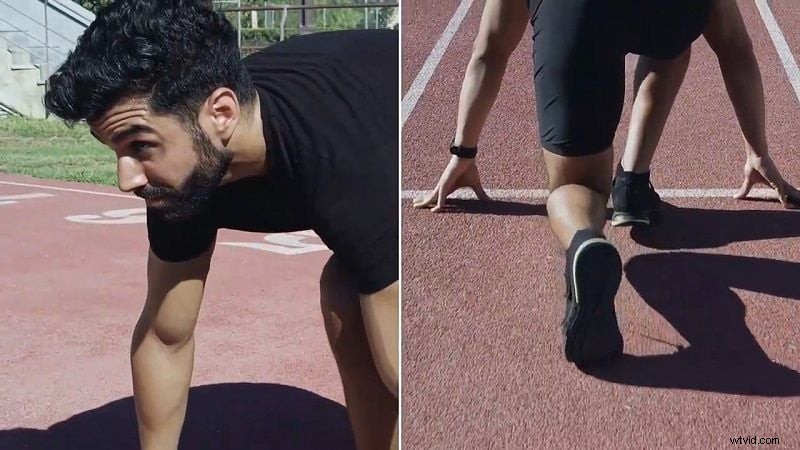
Dual videos are super popular these days. You can create all kinds of things with it like reaction videos, before-and-after clips, and more—plus, they're a great way to keep your audience hooked. If you're an Apple user and love creating content, learning how to put two videos side-by-side on your iPhone opens up tons of fun, creative possibilities.
So, in this guide, we'll show you just how easy it is to put two videos side-by-side on an iPhone. With a few simple steps and a couple of handy apps, you'll be able to create unique, attention-grabbing videos in no time. Let's get started!
In this article
-
- Time-Lapse vs. Real-Time Videos
- Multilingual Reaction Videos
- Voiceover Transformations Using AI Voice Cloning
- Before-and-After Background Removals
Part 1. Turn your iPhone Videos Side-by-Side with Advanced Video Editor: Wondershare Filmora
To learn how to get that side-by-side effect on your iPhone videos, you’ll need a reliable video editor that can handle the job smoothly. And one of the best out there is Filmora. While Filmora is popular as desktop video editing software, it’s also available as a mobile app for both Android and iPhone, so you can edit on the go.
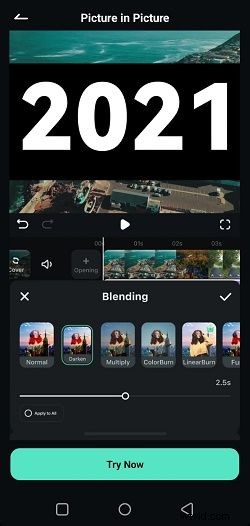
With Filmora mobile, not only can you easily put videos side by side, but you also get tons of editing tools to make your clips look polished and professional. Such as:
- Advanced Picture-in-Picture (PIP) Feature: Filmora makes side-by-side videos easy with its PIP feature, allowing you to place two videos side by side and play them simultaneously.
- Customizable Blending Options: Filmora offers a variety of blending modes, letting you adjust how the videos appear together for a smooth and unique finish.
- AI-Powered Effects and Styles: Filmora has AI-driven effects and styles that give your videos an instant upgrade in style and creativity.
- Complete Editing Toolkit: Besides side-by-side features, Filmora gives you a full set of editing tools to trim, adjust, and enhance your clips, so you can control every detail of your final video.
- Advanced AI Features: Filmora also includes AI tools like AI Captions, AI Voice Cloning, and AI Background Remover, making it easy to create engaging, polished side-by-side videos with the latest tech.

Filmora ⭐⭐⭐⭐⭐
Powerful AI video editor for all creators


On top of that, Filmora is budget-friendly with flexible pricing plans—and it even has a free trial, so you can try it out before deciding to buy. So, no more excuses! Let’s dive into how to put two videos side-by-side on your iPhone using the Filmora mobile app.
For example, if you want to make a side-by-side video showing how two cats react differently when they’re being petted, just follow this simple guide to get started:
Step 1. Launch Filmora and start a new project
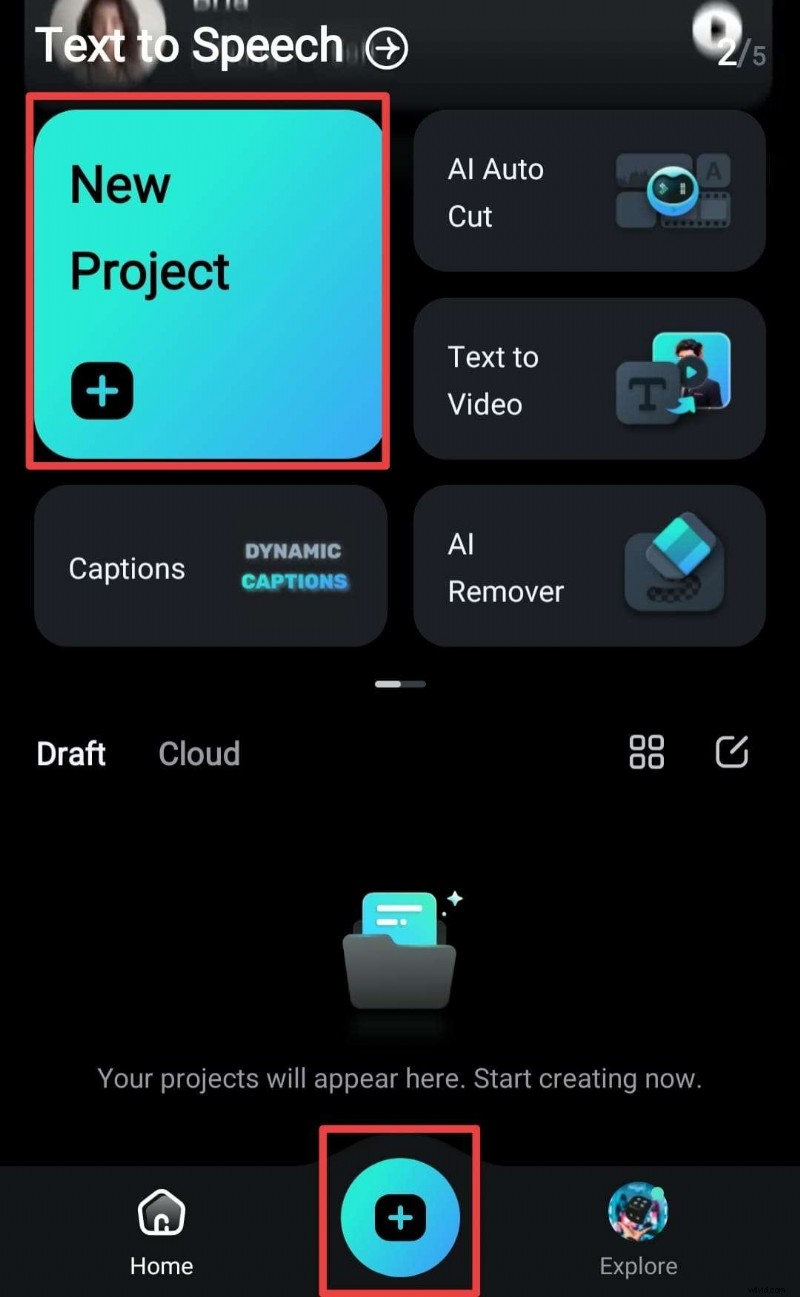
First, download the Filmora Mobile app from the App Store if you haven’t done so already. Once it’s installed, open the app on your iPhone and tap “New Project” to start editing. You can also tap the blue “+” icon to add your videos.
Step 2. Import the video and move it to the editing timeline
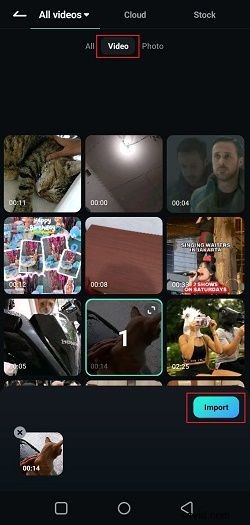
Next, choose the videos you want to put side by side from your library. You can go to the "Video" option to find your own clips or check out Filmora’s "Stock" videos if you want to add something new. Once you’ve selected your videos, tap the “Import” button.
Step 3. Access the PIP feature
Your videos will then appear on the editing timeline, ready for you to start editing. Tap the “PiP” option in the toolbar at the bottom of the screen.
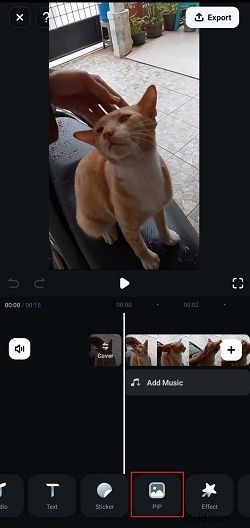
Then, choose a file from your library and tap the checkmark icon to add it to your video. Once you’ve done this, the video will show up on the editing screen, ready for you to work with.
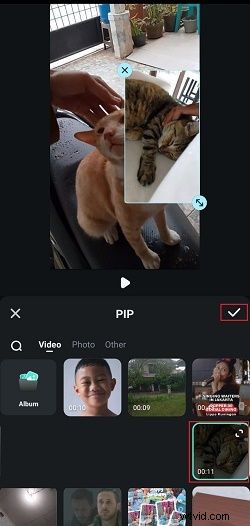
Step 4. Change the video scale and make them appear side-by-side
Next, to set up the side-by-side effect, change the aspect ratio of your video. To do this, tap on the "Scale" option in the toolbar.

Then, select the "5:4" ratio from the list.
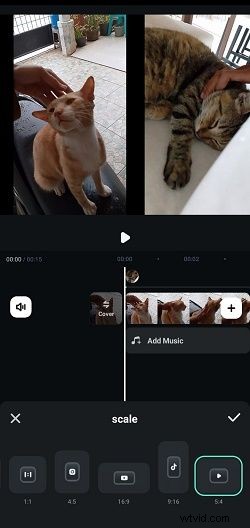
Finally, adjust the position of both videos so they sit side by side on the screen.
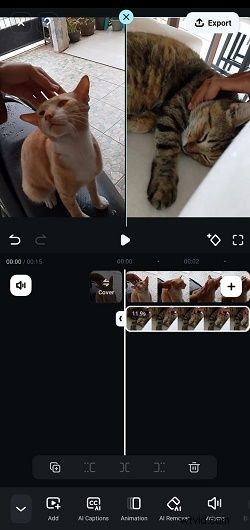
Step 5. Edit side-by-side videos
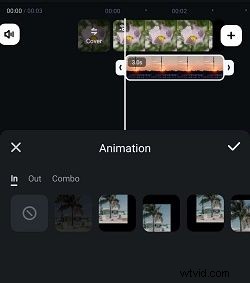
To make your side-by-side videos even better, try out some of Filmora's effects. Tap on the "Animation" tool to add entry and exit animations to the PiP video—just pick the style you like.

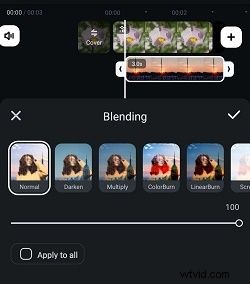
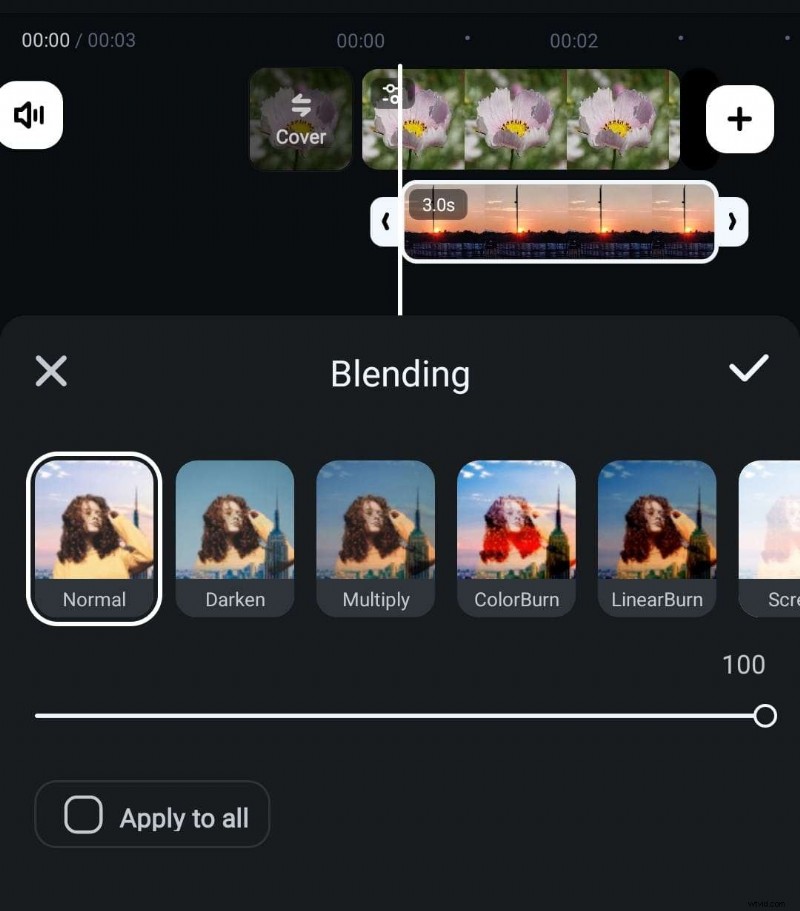
Under the "Blending" option, you can control how the two videos interact visually, with plenty of blending styles to choose from. You can also adjust the opacity by sliding the bar to get the perfect look.
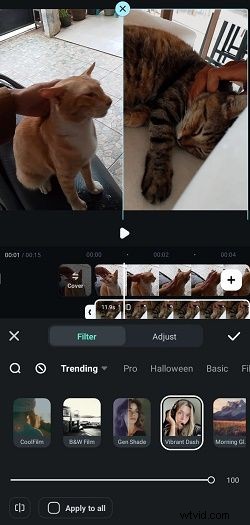
And if you want to add some visual flair, go to the "Filter" options to browse Filmora’s effects library. You can apply a filter to just one video or, if you like, select "Apply to All" to use it on both.
Step 6. Save your side-by-side video
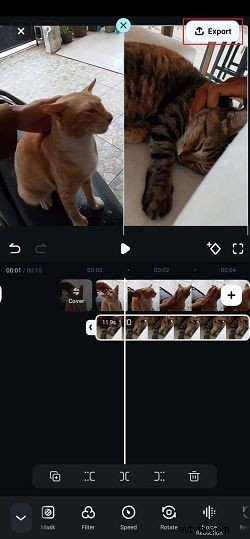
When you’re satisfied with your video, just tap the “Export” button in the top right corner.
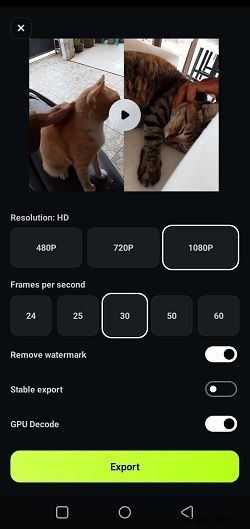
On the next screen, pick your preferred resolution, then tap “Export” again to save your video. Now it’s all set and ready to share on Instagram, TikTok, or anywhere else you like!
Filmora ⭐⭐⭐⭐⭐
Powerful AI video editor for all creators
Part 2. Using Built-in App to Put Videos Side-by-Side on iPhone
As you can see, Filmora mobile is a fantastic solution for putting two videos side-by-side on your iPhone. And that's not all Filmora can do, there are still various advanced features waiting for you to try on! But if you’re interested in using built-in iPhone apps, there’s another option to consider: iMovie.
But it’s important to note that while iMovie is great for simple side-by-side videos, it doesn’t offer the same advanced features as Filmora for more detailed edits. Still, if you’re looking for a quick and straightforward way to put videos side by side, iMovie can do the trick! Follow this guide to get started:
Step 1. Open iMovie and create a new project
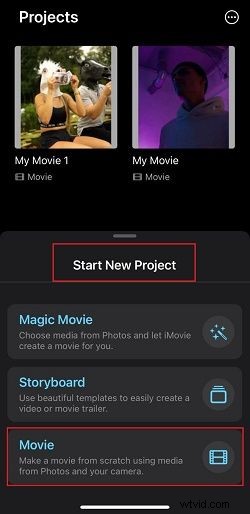
First, open the iMovie app on your iPhone. Tap “Start New Project”, then choose “Movie” to get started on a new project.
Step 2. Add your first video
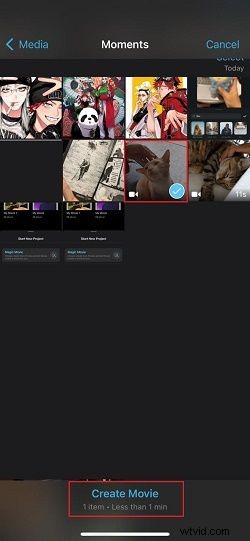
Select the video you want from your Photos library, then tap “Create Movie” at the bottom of the screen. Your video will now show up in the editing timeline.
Step 3. Create a split-screen clip
With the first video in your timeline, tap the “+” icon to add your second video.

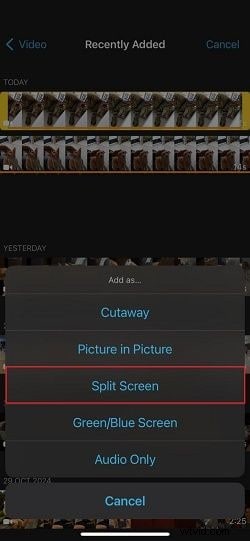
Select the second video from your library and tap on it. Then, tap the three dots (...) icon.

From the options that appear, choose “Split Screen”.
Step 4. Adjust the split-screen effect
As you can see, iMovie will automatically place the two videos side by side.
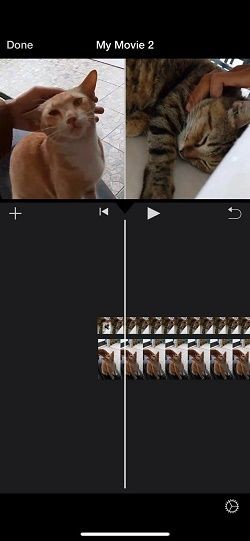
You can make a few tweaks, like choosing if you want the videos to appear side-by-side vertically or horizontally. To do this, tap on your second video and click the rotate icon and adjust as needed.

Step 5. Save your side-by-side video
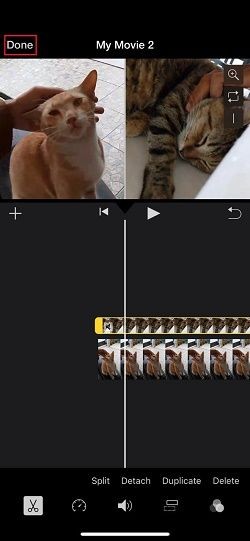
Once you’re happy with the result, tap “Done” in the top left corner. Then tap the “Share” icon (a square with an arrow pointing up) to save your video to your Photos app or directly share it on social media.
Part 3. Creative Ideas for Side-by-Side Video Projects
Now that you know how to put two videos side-by-side on an iPhone, the next step is to get creative with it! Side-by-side videos open up all kinds of possibilities, and there's a ton of fun and creative projects you can try using this editing trick. Here are a few ideas to get your creativity flowing:
-
Time-Lapse vs. Real-Time Videos
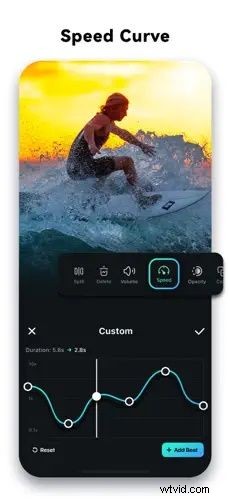
One creative way to play around with side-by-side video is to show a cooking process in real-time on one side, while the other side reveals the final dish in a time-lapse. Filmora’s Speed Control feature is perfect here—you can adjust the speed of one clip while keeping the other at regular speed for a cool contrast.
-
Multilingual Reaction Videos
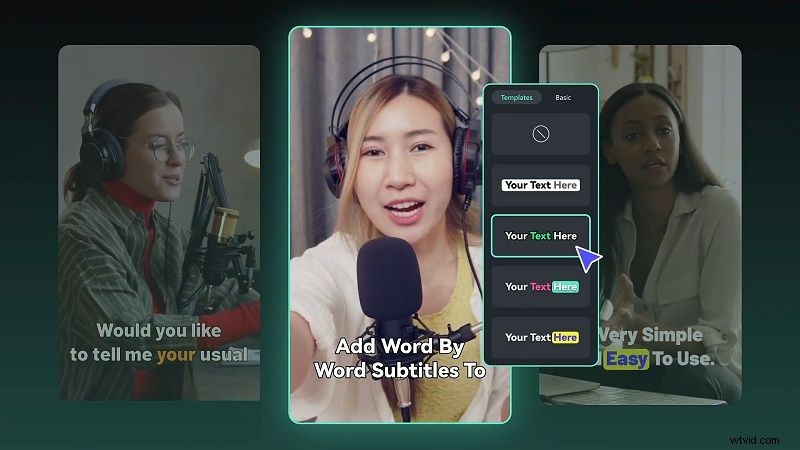
Another fun way to get creative with side-by-side videos is to capture different people’s reactions to the same event or video. Then, use Filmora’s AI Translation and AI Captions to add subtitles in different languages for each clip. It’s perfect for content creators who want to share reactions with an international audience.
-
Voiceover Transformations Using AI Voice Cloning
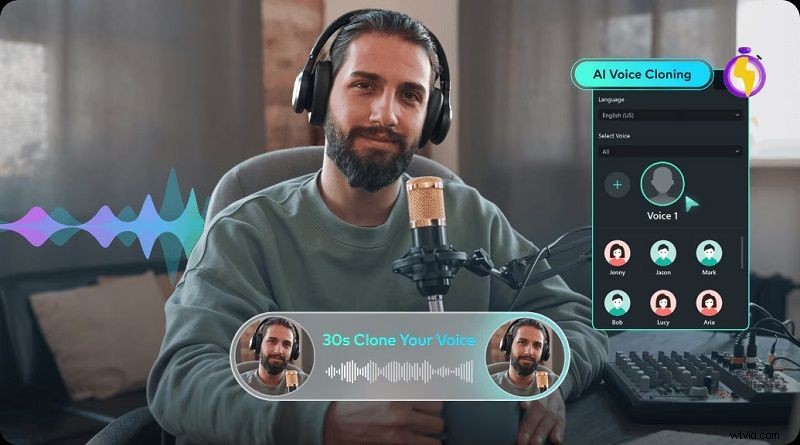
You can maximize a side-by-side video format by showing different narrations over the same clip—one with the original voice and the other with a cloned voice using Filmora’s AI Voice Cloning. This can be fun for storytelling, animated characters, or demonstrating different accents.
-
Before-and-After Background Removals
Use side-by-side video to showcase a “before” with the original background and an “after” with a customized background using Filmora’s AI Background Remover. This is perfect for travel vlogs, product demos, or any scene where a dramatic background transformation adds impact.

The four ideas above are just a few examples of the fun side-by-side video projects you can create with Filmora. To make your videos even more unique, try playing around with effects, and text overlays, or experiment with color filters in Filmora to make each side of the video stand out. The possibilities are endless—so go ahead and get creative!
Conclusion
Many Apple users who create videos wonder how to put two videos side-by-side on an iPhone since it opens up tons of fun possibilities for social media. So, this article provides an easy guide on how to put two videos side-by-side on an iPhone using two popular apps: Wondershare Filmora and iMovie.
After trying both, it’s clear that Filmora has the edge. Not only does its PiP feature make side-by-side videos simple, but it also offers various blending modes and a full set of editing tools to fine-tune every detail.
Plus, once you've mastered how to put side-by-side videos on an iPhone, you can tap into Filmora’s AI features like AI Captions, AI Background Remover, and AI Voice Cloning to make even more creative side-by-side video projects.
Filmora ⭐⭐⭐⭐⭐
Powerful AI video editor for all creators