
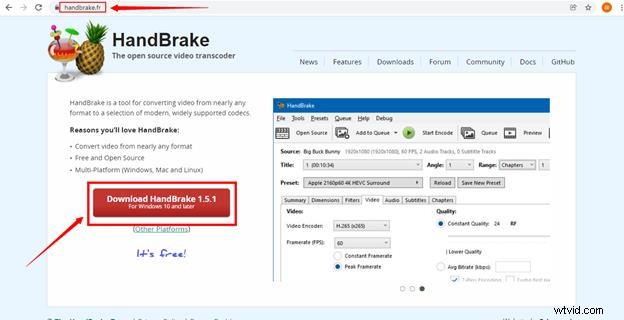
If you’ve captured impressive clips and want to stitch them into a seamless film, you might first think of HandBrake. However, HandBrake’s strengths lie elsewhere—converting videos to play across devices, not joining them together.
Many beginners have the misconception that HandBrake can merge videos, but the latest version (1.5.1) offers no such feature. The official website clearly states that HandBrake is a conversion tool, not a video editor.
What Is HandBrake?
HandBrake is a free, open‑source application available on Windows, macOS, and Linux. It converts videos to popular formats such as MKV, WebM, and MP4, enabling playback on TVs, media players, tablets, and smartphones. Professionals often use it to upgrade footage from older cameras, improving quality without sacrificing audio fidelity.
Key capabilities include:
- Interlacing artifact removal
- Audio‑quality‑preserving conversion
- Volume and bitrate adjustment
- Soft‑subtitle handling (add, remove, preserve)
While HandBrake consumes minimal disk space, its interface can feel dense for newcomers.
Can HandBrake Merge Videos?
Short answer: No. HandBrake does not combine multiple clips into one file. If your goal is to merge footage, you’ll need a dedicated editor. That said, HandBrake remains invaluable for preparing clips before merging.
For example, if you have two clips in different formats, use HandBrake to convert both to the same format (e.g., MP4). Once standardized, any video editor—such as Filmora—can merge them smoothly.
Why Filmora Is a Better Choice for Merging
Filmora by Wondershare offers an intuitive timeline interface that lets you drag and drop clips, adjust transitions, and export a single video file—all without steep learning curves. It works on both Windows and macOS, and you can start with a free version (watermarked) or purchase a license for professional output.
Step‑by‑Step Guide to Merging with Filmora
Step 1: Install Filmora
Download the latest version from Filmora’s website and install. Launch the program; the interface is clean and beginner‑friendly.

Step 2: Import Your Clips
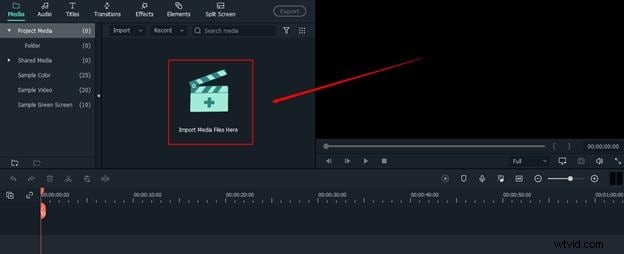
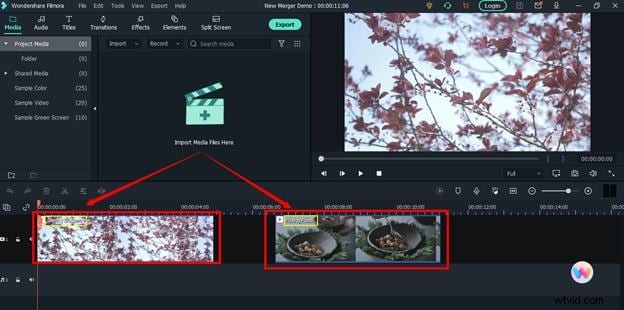
Click the blue “+” icon or go to File > Import to add your videos. Drag the clips onto the timeline.
Ensure both clips are visible on the timeline.
Step 3: Remove Gaps Between Clips
Drag the second clip directly beside the first so there are no black spaces. This aligns the clips seamlessly.

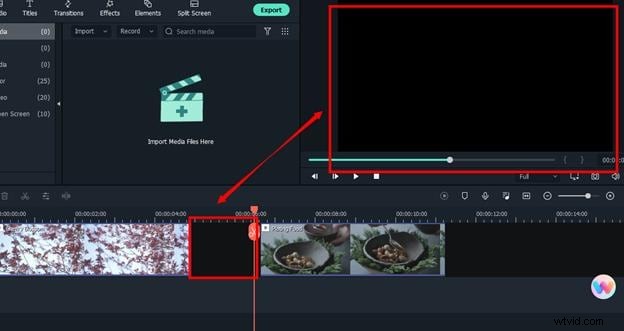

With the clips lined up, you have effectively merged them.
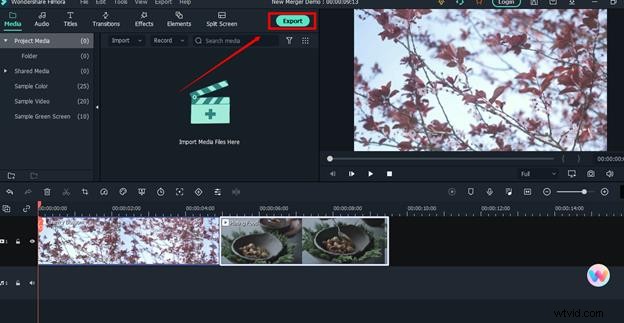
Step 4: Export the Final Video
Click Export, choose your format, and save the merged video to your computer.
HandBrake excels at converting files, but if you need to merge videos, Filmora provides a fast, user‑friendly solution.
FAQs
Can HandBrake improve video quality?
Yes. Adjust bitrate, resolution, and encoder settings before conversion to enhance visual quality.
Can I crop or resize videos in HandBrake?
HandBrake includes cropping and scaling options that preserve audio integrity.
Can I use HandBrake‑converted clips in other editors?
Absolutely. Convert your clips with HandBrake, then import them into editors like Filmora to merge or edit further.