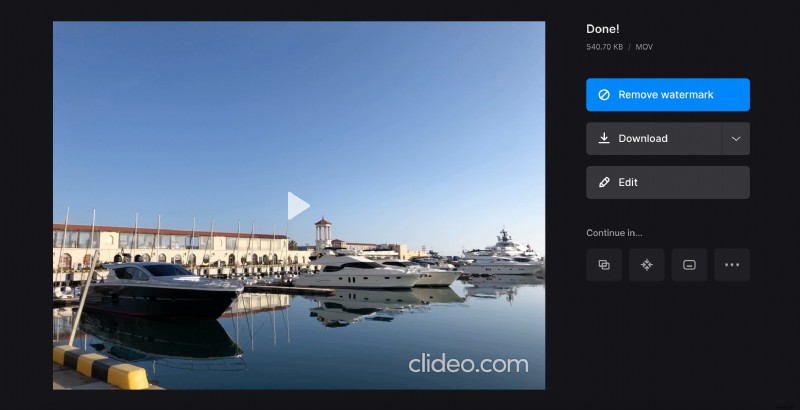
Stop motion animation definition
An animator set a puppet’s posture, shot it, then changed it a little, shot again, and so on and so forth. The result looked a little twitchy when the frames changed, but there were no ways to avoid it.
Nowadays stop motion videos are coming into fashion. Due to computer special effects, advanced photography and filmography, and video-editing programs you can make frame transitions as smooth as you need. But sometimes you just have to create a truly outstanding movie.
Now, when we have clarified a stop motion definition, let’s have a closer look at the software you need to make it.
And here we have very good news for you, as Clideo offers a free online tool for applying a stop motion effect to any video. So you don’t even need to take photos of each frame individually. You don’t have to download any app or buy a license – just open your browser and go ahead!
Upload a video to the tool
Open Clideo’s Stop Motion Maker and select one of available ways to import your original shooting. First of all, you can just hit the blue pane “Choose file” and pick up a small film from your camera roll or computer folder.
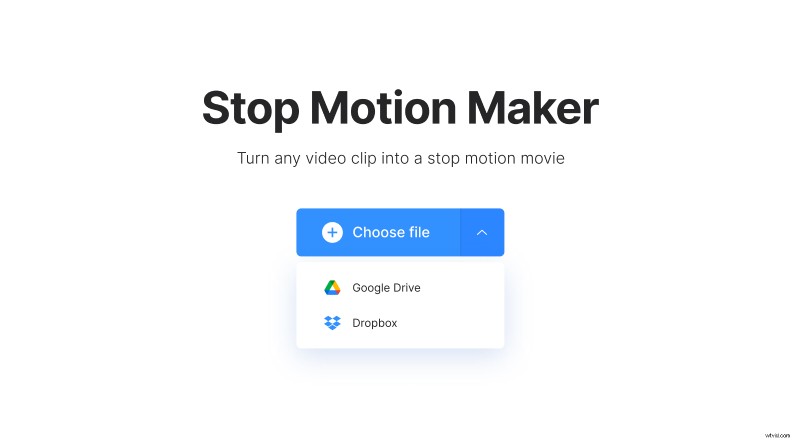
Also, you may call the drop-down menu and select a file from Google Drive or Dropbox.
Turn your shooting into a stop-motion mode
Select one of three speed modes for your video playback.
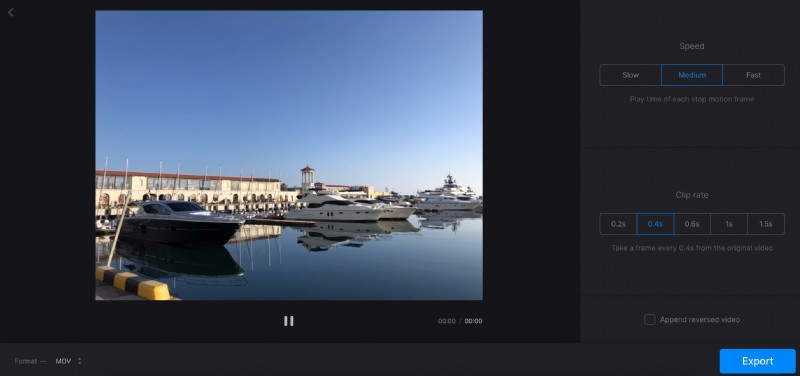
Then decide on the clip rate. As the very meaning implies, stop motion “stops” after each frame for a while, but the question is, how many frames from the original recording you need. You can take a frame from every 0.2 to every 1.5 seconds. Quite logically, the higher this setting is, the “twitchier” the clip will be.
Tick the “Append reversed video” box if you want to “mirror” the shooting and play it both directions.
Don’t forget to choose an output format. If you want to make your project compatible with the majority of social media and online resources, stick to MP4 or MOV.
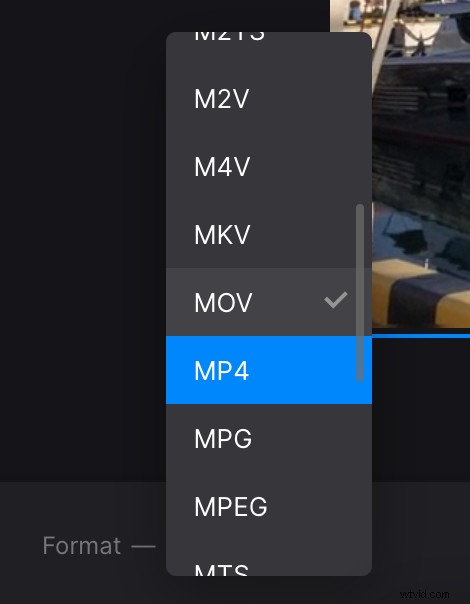
When you are done, hit “Export”, and let the tool do its job.
Save the project
Give the video a quick final run and save it to the cloud storage account or to your personal device. If you don’t like what you see, hit the “Edit” button and apply other settings.