
Converting spoken audio into written form is essential for creators, educators, and businesses alike. AI‑driven transcription tools now deliver speed, precision, and accessibility that far surpass manual methods, enabling you to transform hours of footage into searchable, editable text in minutes.
In video production, this capability translates directly into smoother workflows: subtitles appear instantly, captions are generated automatically, and content can be repurposed for blogs, social media, or SEO optimization. Whether you’re editing a vlog, a corporate training session, or an academic lecture, AI transcription is a game‑changer.
Below we dive into the most effective AI audio‑to‑text solutions and explain how they elevate video editing and beyond.
In this article
- Why AI is Revolutionizing Transcription
- How AI Enhances Video‑Editing Workflows
- Top 5 AI Transcription Tools (Free & Paid)
- Using Wondershare Filmora’s Speech‑to‑Text Feature
- Conclusion & Next Steps
Part 1. Why AI Is Revolutionizing Audio Transcription
AI‑powered transcription brings several key advantages:
- 🚀 Speed and Efficiency – AI tools process hours of audio in minutes, drastically reducing turnaround time.
- 🔍 Improved Accuracy – Advanced speech‑recognition models continuously learn from diverse accents and acoustic conditions, delivering near‑human precision.
- 💸 Cost‑Effectiveness – Scalable pricing and free tiers make AI transcription far cheaper than hiring human transcribers.
- 🌍 Accessibility – Text transcriptions create subtitles and captions, enabling content for hearing‑impairment audiences and language‑barrier users.
Industries that benefit include podcasting, video production, education, and corporate meetings—each seeing improved workflow, engagement, and discoverability.
Part 2. How AI Audio‑to‑Text Enhances Video‑Editing Workflows
Video editors gain four major benefits from AI transcription:
- 📺 Automatic Subtitles & Captions – Generate accurate, timed captions without manual key‑framing.
- 👀 Higher Engagement – Captions keep viewers on screen, especially on platforms where sound is often muted.
- ✍️ Content Repurposing – Convert long videos into text for blogs, social posts, and transcripts.
- 🔎 SEO Boost – Text‑based metadata makes videos searchable by Google, widening audience reach.
Part 3. Top 5 AI Audio‑to‑Text Transcription Tools (Free & Paid)
1. Wondershare Filmora – Ideal for Video Editors
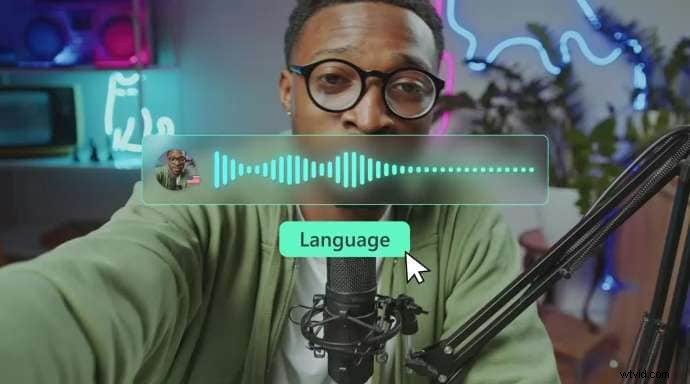
Filmora’s integrated speech‑to‑text feature turns spoken audio directly into captions, syncing automatically with the timeline. It supports 27 languages, offers AI translation, and lets you import or edit SRT files.
Key Features
- Multi‑Language Support – 27 languages including Arabic, Dutch, Korean, Italian, and Urdu.
- AI Translation – Convert subtitles into multiple languages within the editor.
- SRT Import – Edit external subtitle files on the timeline.
- Customizable Captions – Fine‑tune timing and styling for perfect alignment.
Pricing
Free tier with limited features; paid plans start at a competitive monthly fee.
2. Braina Pro – Voice Recognition & General Transcription
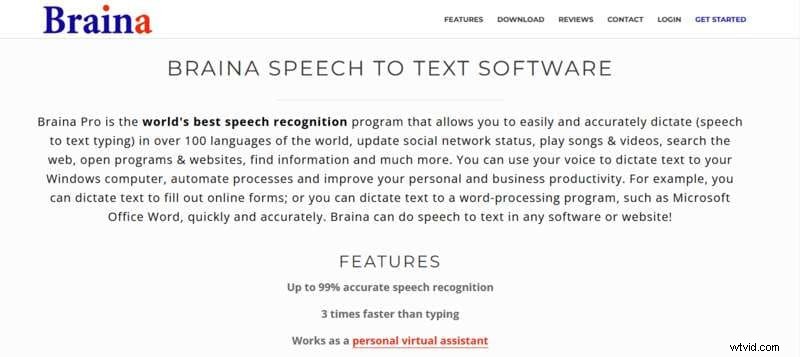
Braina Pro is a Windows‑only assistant that excels at dictation, audio/video transcription, and voice‑activated ChatGPT interactions. It supports over 100 languages and integrates text‑to‑speech capabilities.
Key Features
- Dictation – Rapid speech‑to‑text in 100+ languages.
- Audio/Video Transcription – Handles diverse file formats with high accuracy.
- ChatGPT Integration – Voice‑controlled AI conversations for drafting and coding.
- Text‑to‑Speech – Read content aloud with adjustable voice settings.
Pricing
Pro plan: $99 per year.
3. Google Docs Voice Typing – Free, Real‑Time Dictation
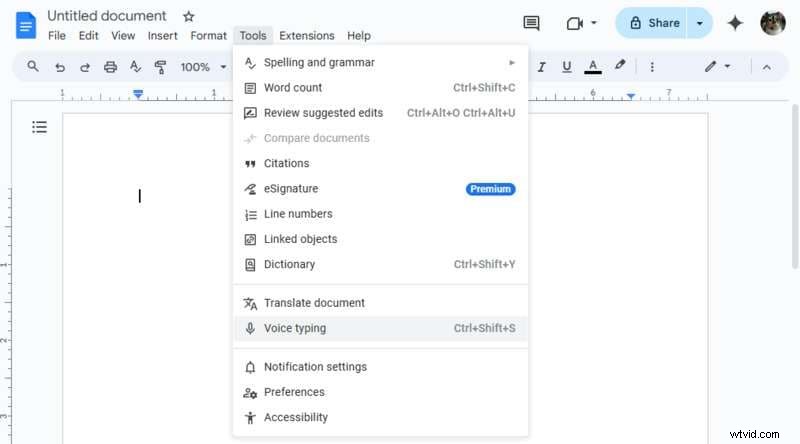
Built into Google Docs, Voice Typing offers instant, multi‑language dictation for documents, emails, or notes. It’s free, browser‑based, and supports over 100 languages.
Key Features
- Real‑Time Transcription – See text appear as you speak.
- Multilingual – Switch between languages on the fly.
- Voice Commands – Edit formatting, lists, and more through speech.
Pricing
Free with a Google account.
4. Descript – Audio Editing with Text Transcription
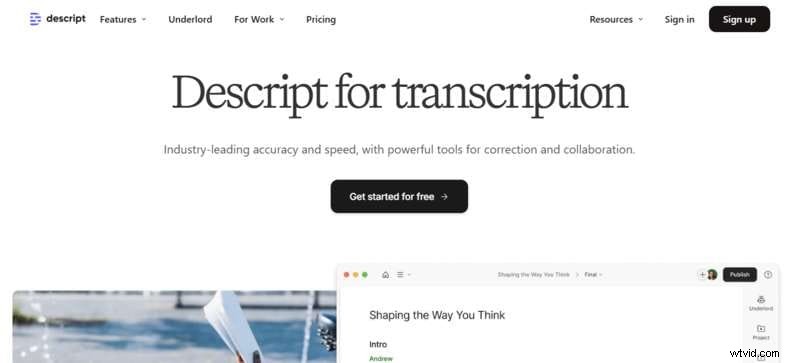
Descript combines transcription, editing, and collaboration into one platform. Edit your video or audio simply by editing the generated transcript.
Key Features
- AI Transcription – Accurate, fast conversion from audio/video.
- Text‑Based Editing – Trim, cut, or replace content by editing the transcript.
- Multi‑Language – Supports 22 languages.
- Speaker Identification – Auto‑label different voices.
- Real‑Time Collaboration – Multiple users edit simultaneously.
Pricing
- Free Plan – $0/month
- Creator – $12/month (annual) / $15/month (monthly)
- Pro – $24/month (annual) / $30/month (monthly)
5. Otter AI – Collaborative Transcription
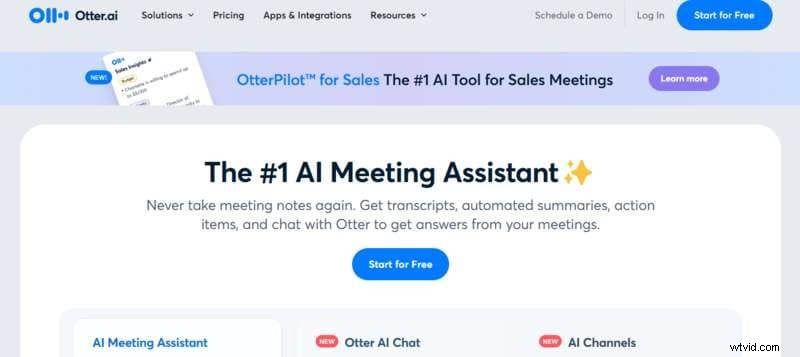
Otter AI excels at real‑time transcription for meetings, lectures, and interviews, offering powerful collaboration tools and platform integrations.
Key Features
- Real‑Time Transcription – View text as it’s spoken.
- Speaker Identification – Label each participant automatically.
- Collaboration – Share, annotate, and edit in real time.
- Platform Integration – Works with Zoom, Teams, Google Meet, and more.
Pricing
- Basic – Free
- Pro – $8.33/month (annual) / $16.99/month (monthly)
- Business – $20/month/user (annual)
Part 4. Using Wondershare Filmora’s Speech‑to‑Text Feature
Filmora’s AI transcription is straightforward. Follow these steps to add subtitles or captions to any video:
Step 1 – Import Audio
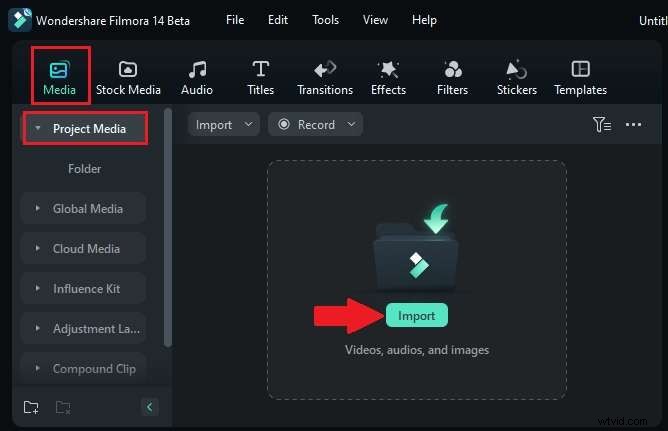
Add your video or audio file via Media > Project Media > Import, then drag it onto the timeline.
Step 2 – Open Speech‑to‑Text
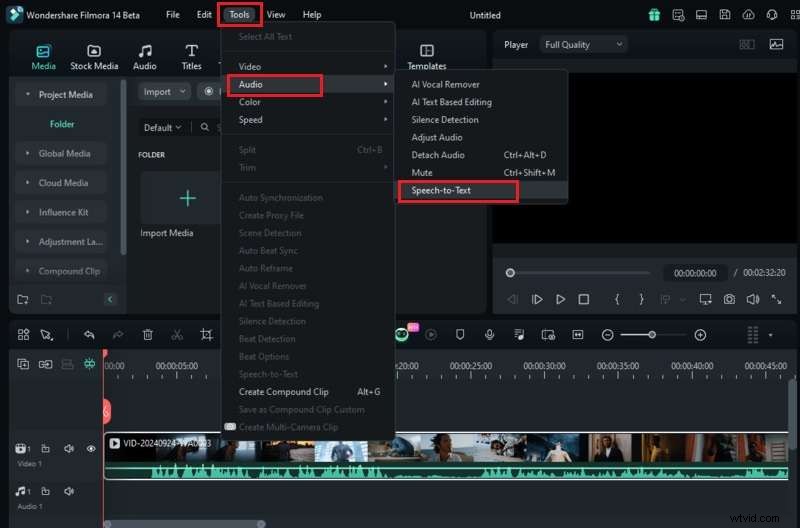
With the track selected, navigate to Tools > Audio > Speech‑to‑Text, or right‑click the track and choose the same option.
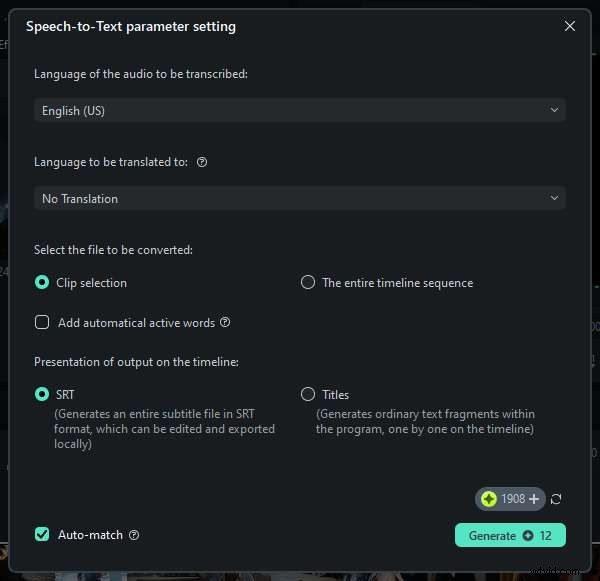
Step 3 – Configure Settings
Choose the audio language, enable automatic syncing if desired, and click Generate.
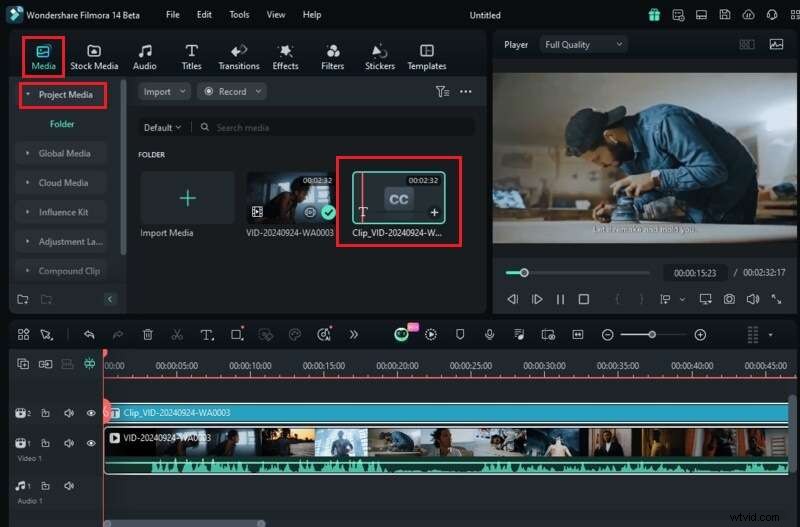
Step 4 – Review & Edit
Once finished, locate the transcript under Media > Project Media. Drag it onto the timeline to edit or export.
Conclusion
AI transcription has become indispensable for modern content production. It saves time, enhances accessibility, and amplifies reach through SEO. Whether you opt for a free tool like Google Docs Voice Typing or an integrated solution like Wondershare Filmora, these technologies enable you to produce polished, engaging videos that resonate with a global audience.
Start transcribing today and elevate your content with precision and professionalism.