
REC

Recommended: Video Production, Editing & Gear Maintenance Guide

 WTVID >> WTVID >  >> video >> Music & Audio

Enable Roblox Voice Chat with Voicemod: A Step-by-Step Guide

To enable the voice chat in Roblox, follow the instructions below:

1.- Go to your Roblox Account Settings

2.- Complete the Age Verification

3.- Select the Privacy Tab

4.- Toggle the voice chat selector to ON

The toggle will turn from grey to green, indicating that voice chat is enabled for your account.

2.- Configure your mic and headphones in Voicemod

After enabling the voice chat in Roblox, the next step will be to check that Voicemod is to check that Voicemod is properly set up. To do so:

1.- Open Voicemod

2.- Go to Settings

3.- Select your preferred Microphone from the dropdown list

4.- Select your preferred Headphones from the dropdown list

5.- Search for an Audio Strem Up message at the bottom of that settings page

6.- If the stream is not up, please choose any other Mic and Headphone combination until it is up.

You can check how you sound by using the hear myself icon in the Voicemod bottom bar. 

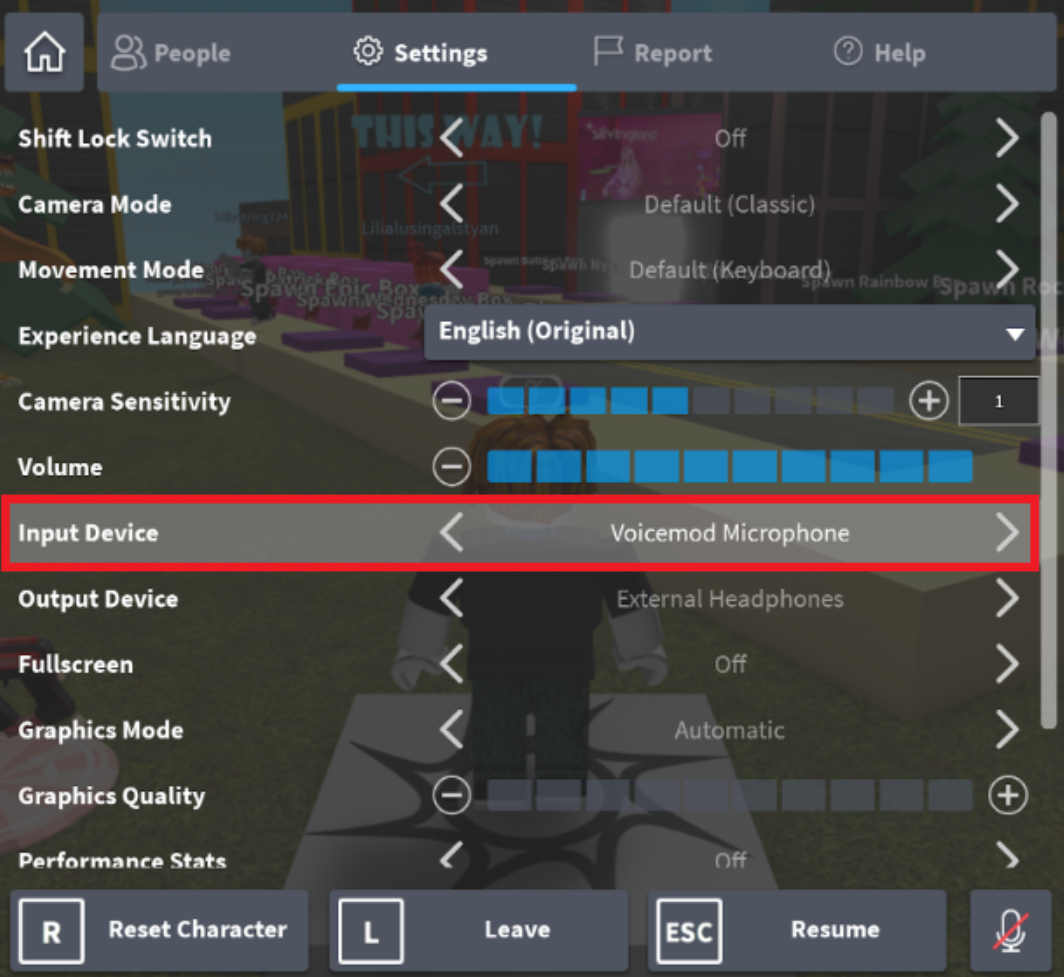
3.- Set your Voicemod microphone in Roblox

You’re all set for success. The only missing piece will be going into a Roblox game and selecting “Voicemod Microphone” as your Input Device. 
Enable Roblox Voice Chat with Voicemod: A Step-by-Step Guide

That’s all! Now you can change your voice and use your soundboard in Roblox. Enjoy!


  1. How Automatic Speech Recognition Works & Its Practical Applications

  2. Step-by-Step Guide: How to Add Audio and Music to Your Videos Effortlessly

  3. How to Easily Add Photos to Audio with Wondershare Filmora: Step-by-Step Guide

  4. Unlocking the Future of Adobe Creative Cloud: Exclusive Insights from Adobe Video World 2016

  5. Best Free Online Voice‑to‑Text Converters – A Comprehensive Guide

Music & Audio
  1. Mastering Curved Text in Photoshop 2024: 3 Simple Techniques

  2. What Is Post-Production? Essential Final Steps in Filmmaking Explained

  3. Master Adjustment Layers in After Effects: A Step‑by‑Step Guide

  4. Adobe Releases Premiere Elements 8 Video Editor & Photoshop Elements 8 for Hobbyists

  5. Unbelievable Basketball Trick Shots Crafted with After Effects and Creative Genius

  6. Convert Video to Image Sequence: 4 Effective Methods & Tools

  7. Pro Lighting Tip: Why Reducing Light is as Crucial as Adding It for Cinematic Impact

  8. Master Video Editing: InShot Tutorial with Stunning Glitch Effects