
VLC media player is a free, open‑source solution that supports an extensive range of audio and video codecs, making it the go‑to choice for viewers worldwide.
With native support on Windows, macOS, Linux, iOS and Android, VLC lets you adjust playback speed—down to 0.02x or up to over 100x—right from the UI.
Part 1: Slow‑Motion on Windows
Follow these steps to play any video in slow motion on a Windows PC.
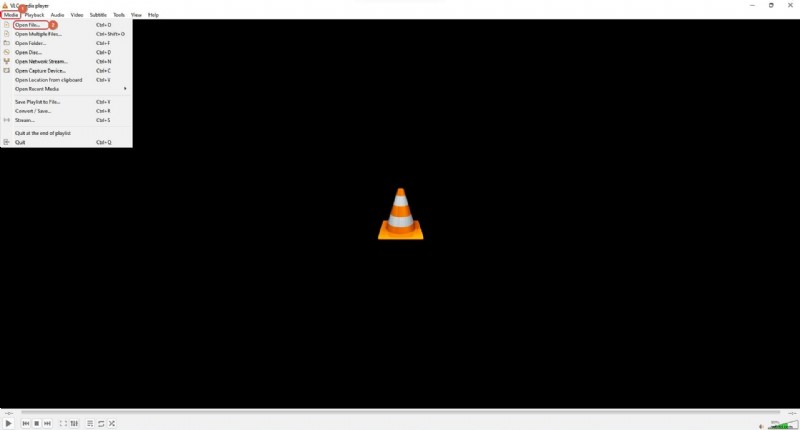
- Open the file. Launch VLC, then click Media > Open File or simply double‑click the clip if VLC is your default player.
- Pause the video. Press the Spacebar or click the pause button.
- Adjust speed. From the top menu, choose Playback > Speed. Use Slower (fine) for 0.10x decrements (e.g., 0.90x, 0.80x) or Slower for larger percentage steps (down to 0.02x). Normal restores standard speed.
- Resume playback. Press Spacebar again or click the play button.
- Keyboard shortcuts. Press [ to slow by 0.10x, ] to speed up by 0.10x. = returns to normal speed. Repeatedly pressing Faster (fine) or Faster can reach up to 31.25x or 100x, respectively.
Part 2: Slow‑Motion on macOS
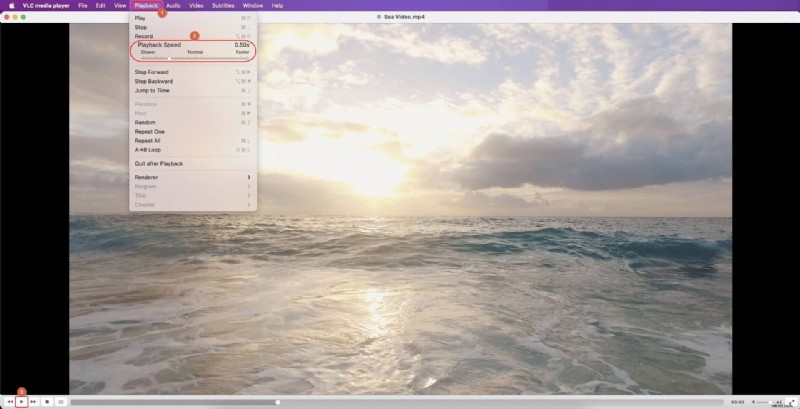
- Open the video. Right‑click the file, select Open With > VLC, then pause the clip.
- Lower the speed. Click Playback in the menu bar and drag the Playback Speed slider leftwards.
- Play again. Click anywhere to dismiss the menu, then hit the play button.
Part 3: Slow‑Motion on Android and iOS
Android
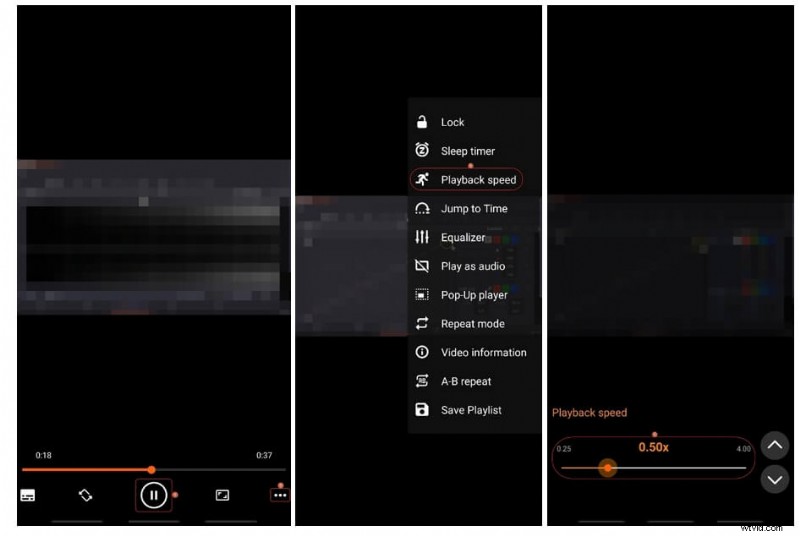
- Pause playback. Open VLC, tap the video, then pause.
- Set speed. Tap the More icon, choose Playback speed, and drag the slider left or tap the down arrow for 0.05x steps.
- Resume. Tap the screen to hide controls, then press play.
iOS
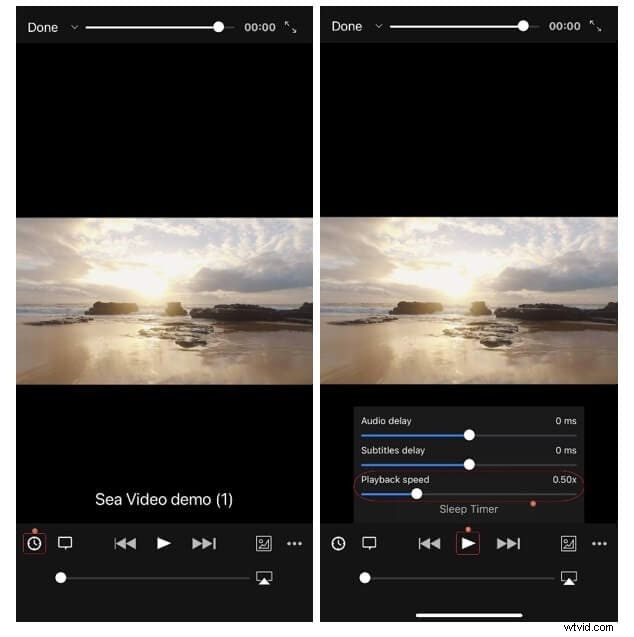
- Pause playback. Add the video to the VLC library, open it, and tap pause.
- Adjust speed. Tap the Clock icon, then drag the slider leftwards.
- Resume. Tap play; if controls hide, tap the screen again then play.
Part 4: Setting a Default Playback Speed
Windows
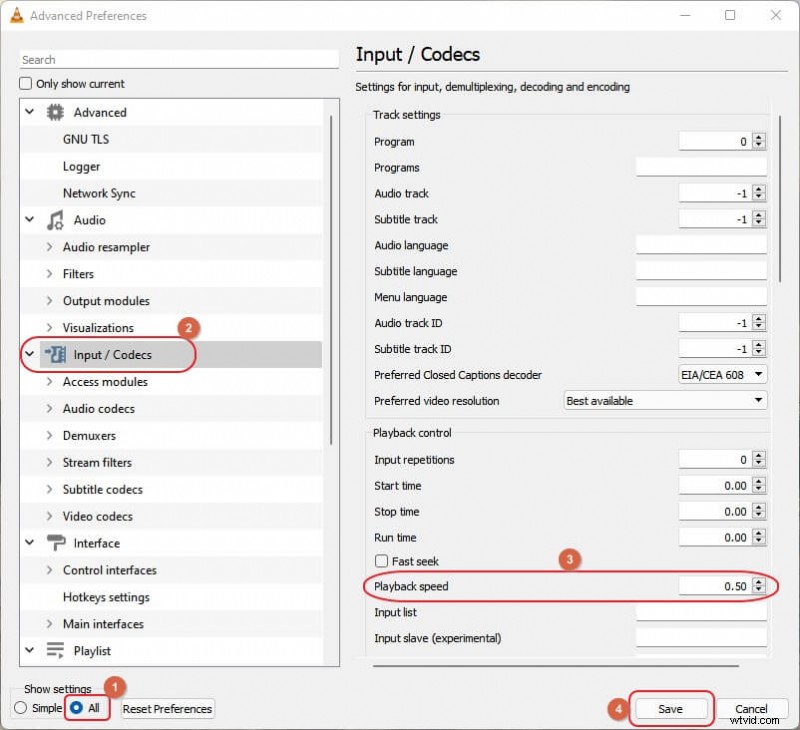
- Open Tools > Preferences, then click All under Show settings.
- Navigate to Input / Codecs and set your preferred speed in the Playback speed field under Playback control.
- Click Save.
macOS
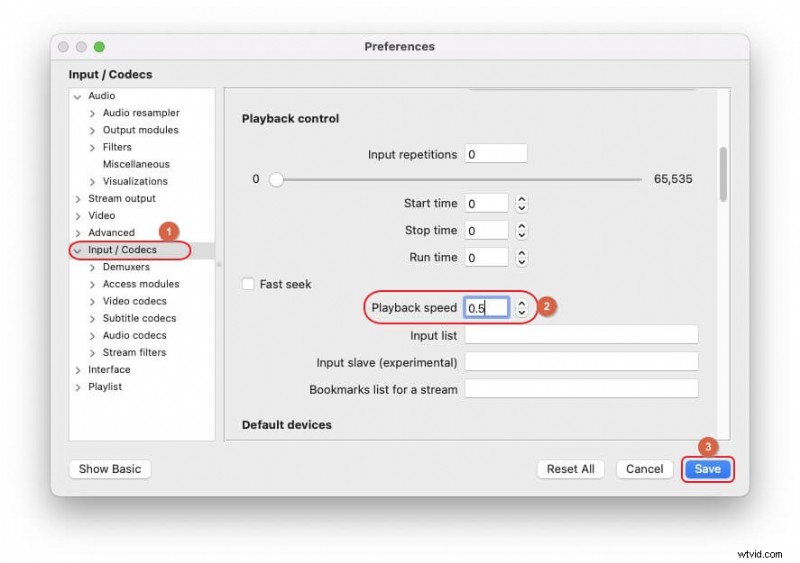
- Launch VLC, go to VLC > Preferences, then click Show All.
- Select Input / Codecs and enter the desired speed under Playback control.
- Click Save.
Android
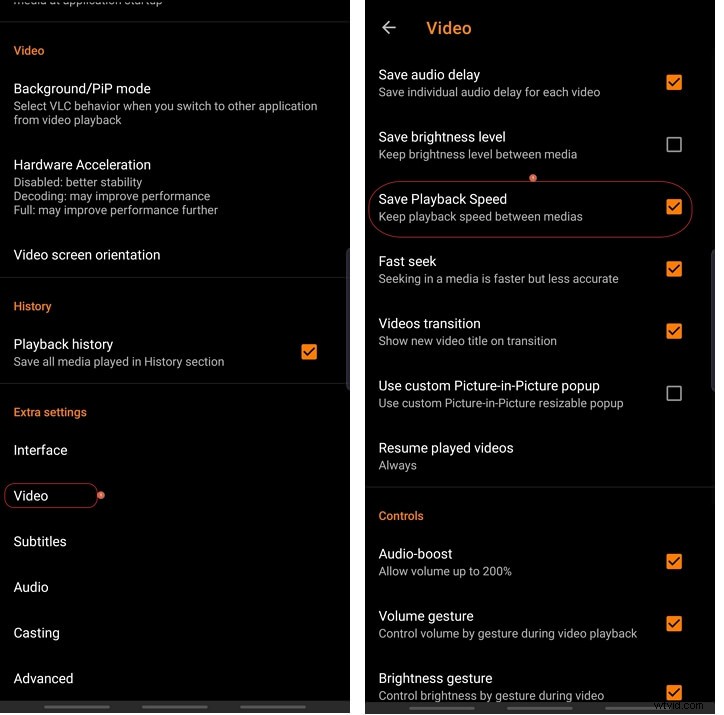
At present, VLC for Android does not support a global default speed. To preserve speed for individual videos:
- Open VLC, tap More > Settings, then Video > Save Playback Speed.
iOS
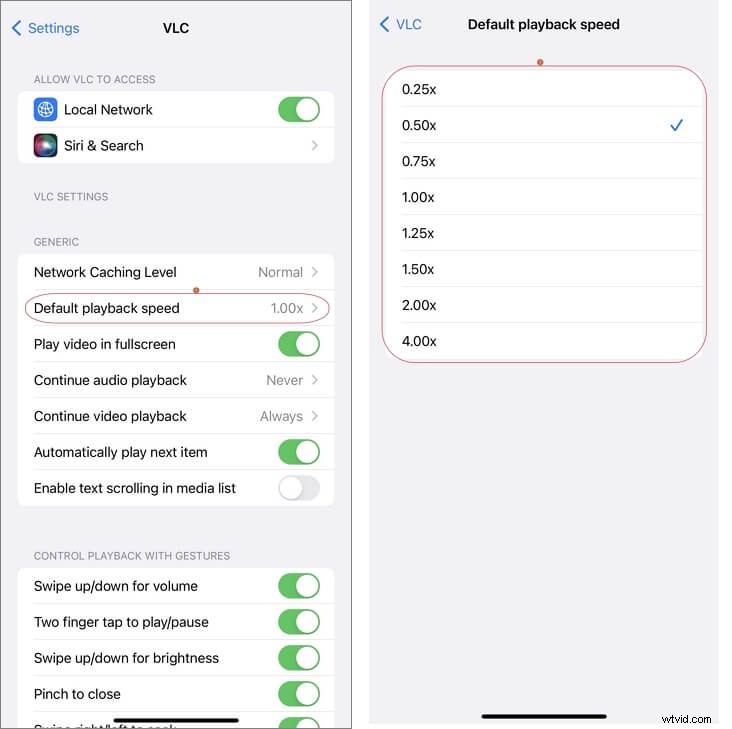
- Open Settings, scroll to VLC.
- Tap Default playback speed and choose your preferred value.
Conclusion
VLC’s playback‑speed control is consistent across platforms, offering granular slow‑motion and fast‑forward options. While Windows and macOS allow you to set a universal default speed, Android and iOS require per‑video configuration. With these simple steps, you can enjoy videos exactly at the pace that suits you.