
Do you need to rotate or flip a video on Android because you recorded it in the wrong orientation? Whether you want a vertical clip for Instagram Stories or a custom rotation for a creative project, your Android device and powerful apps make it easy.
Rotate Your Video Using Google Photos
Google Photos, pre‑installed on every Android, offers a free, no‑watermark solution for basic rotation and mirroring. It lets you rotate in 90° increments, flip horizontally, or fine‑tune the angle with a slider.
- Open the video in Google Photos, tap the screen to reveal the toolbar, and select Edit.
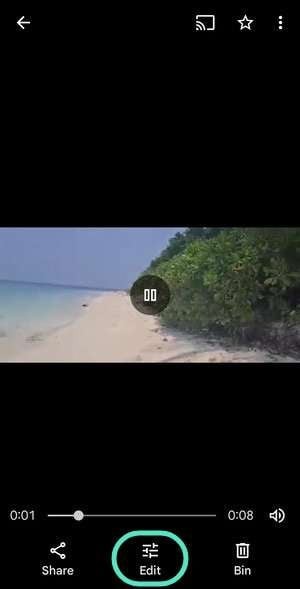
- Navigate to the Crop tab.
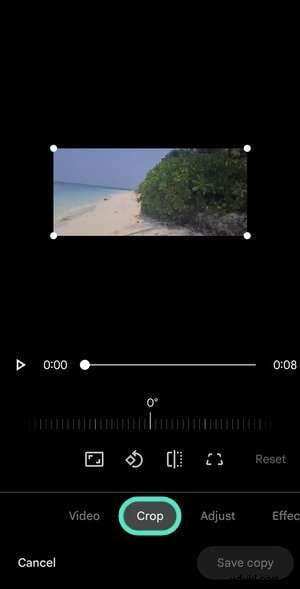
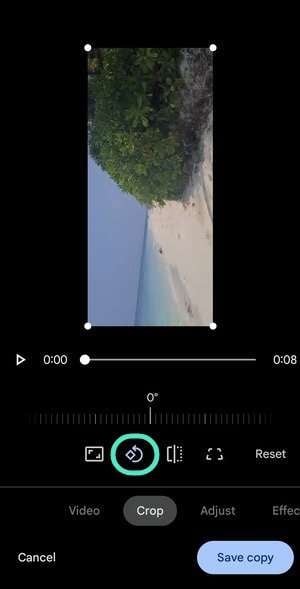
- Press Rotate to turn the clip 90° counter‑clockwise. Repeat for 180° or 270° as needed.
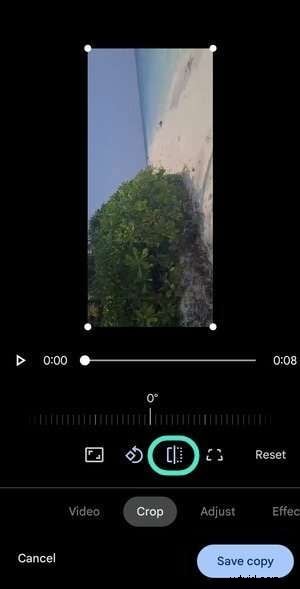
- Tap Mirror to flip the video horizontally.
- Use the slider to adjust the rotation to a specific degree if the preset steps aren’t enough.
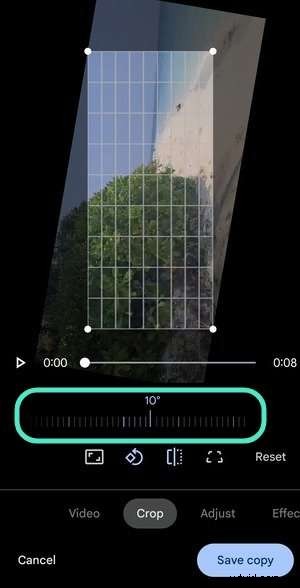
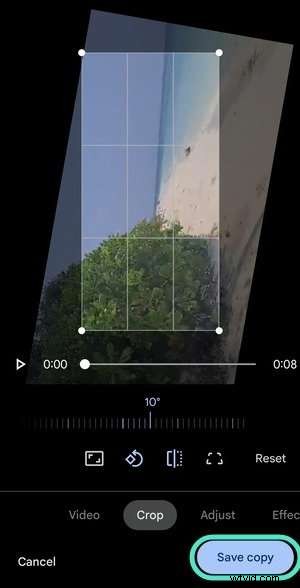
- Adjust the frame by dragging the corners, then tap Save Copy. The edited clip appears in your gallery.
Take It Further with Filmora Mobile
For more advanced editing—motion tracking, speed ramps, AI‑driven effects—Filmora Mobile is a top choice. It supports rotation, mirroring, and many creative assets.
- Launch Filmora, tap New Project.
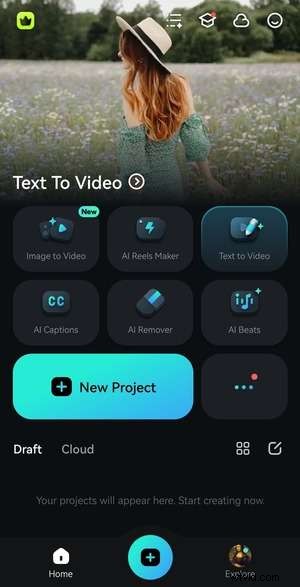
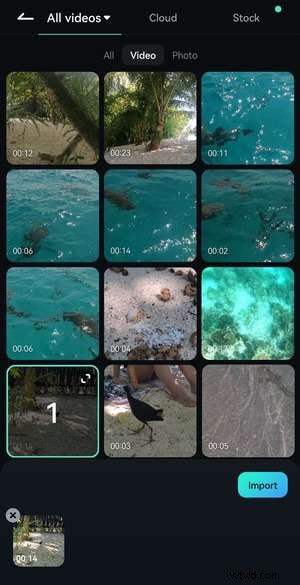
- Import your video from the Video tab or All Videos.
- Open the Trim screen.
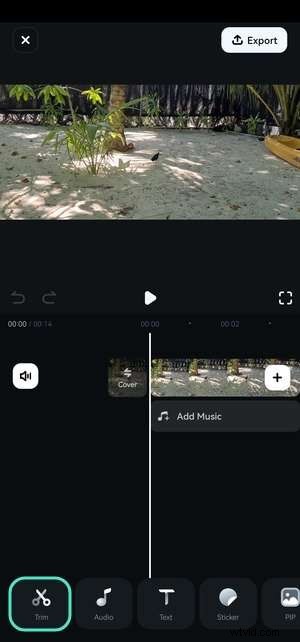
- Find Rotate in the toolbar and tap it.

- Use the left/right arrows to rotate clockwise or counter‑clockwise; Mirror or Flip for horizontal or vertical mirroring.
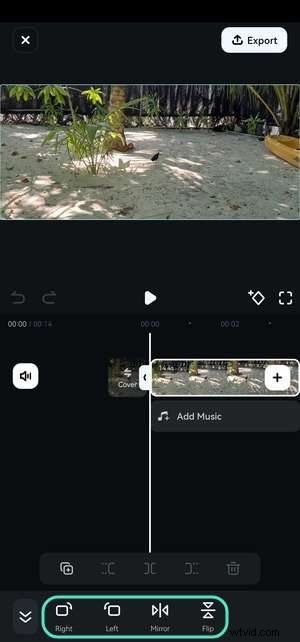
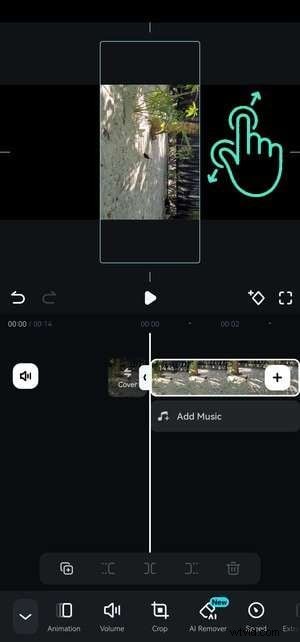
- Pinch the preview to adjust the frame.
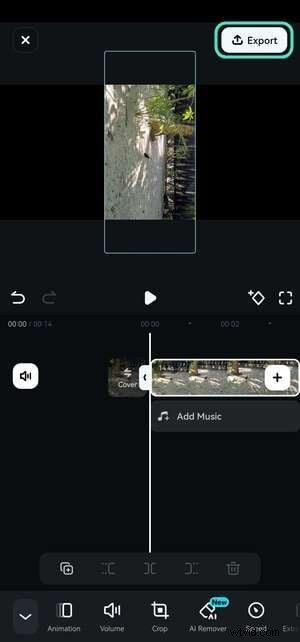
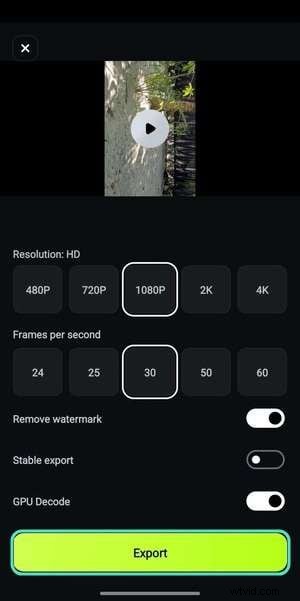
- Tap Export, choose resolution and FPS, then export. The result saves to your gallery.
Rotate to an Exact Angle with Filmora Desktop
Mobile apps limit rotation to preset increments. Filmora Desktop lets you specify any degree, making it ideal for precise edits.
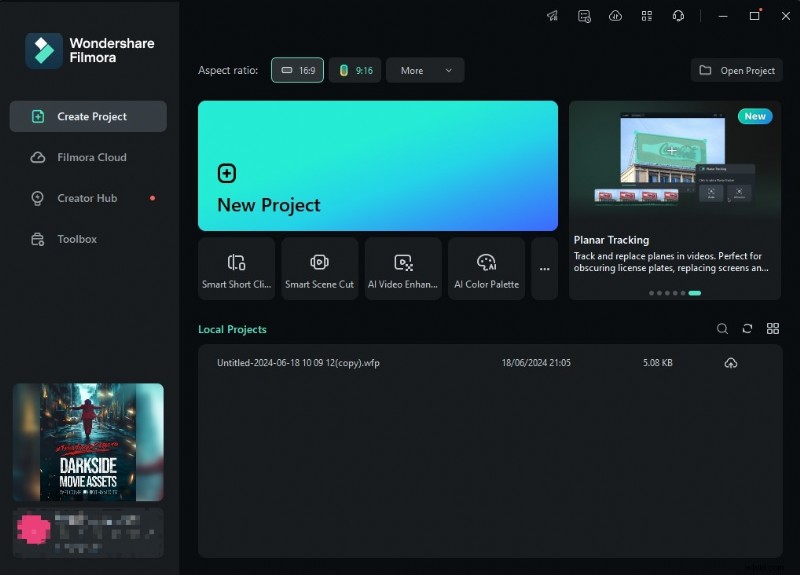
- Open Create Project > New Project.
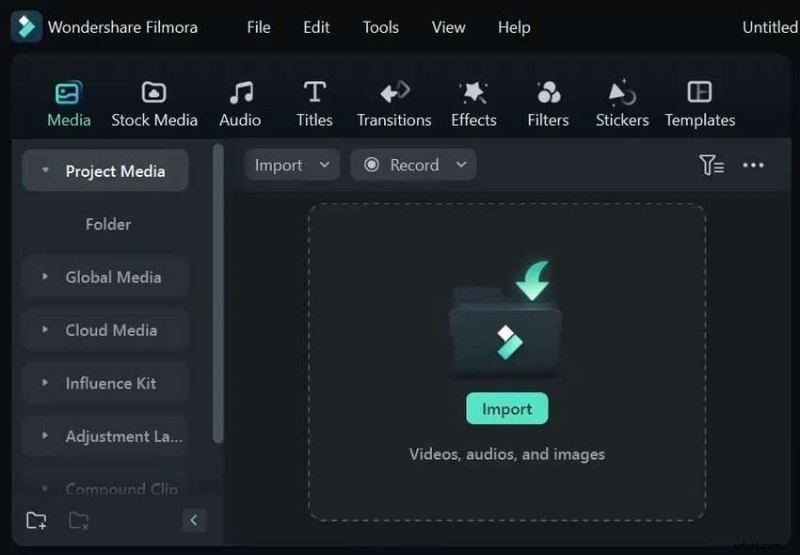
- Import your clip and drag it onto the timeline.
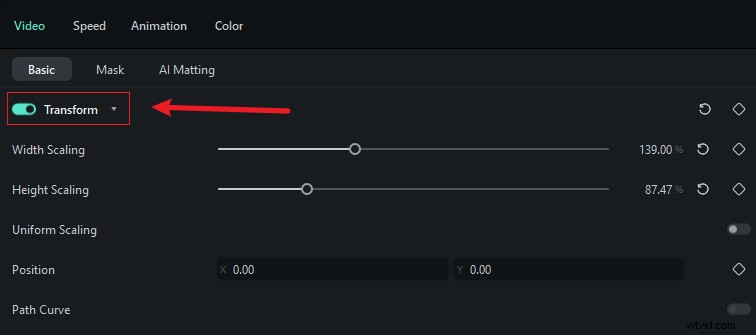
- In the Properties panel, enable Transform under Video > Basic.
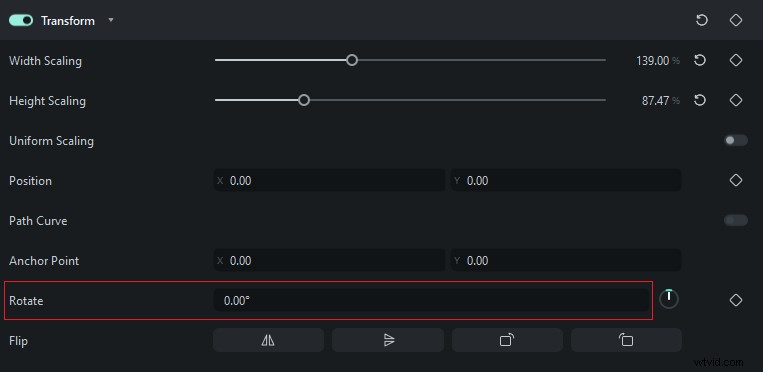
- Drag the white dot on the interactive circle or type a degree into the box to set the exact rotation.
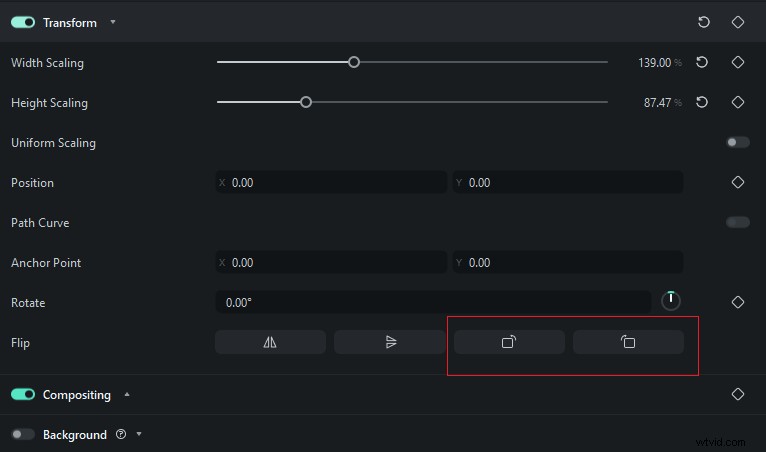
- Use the Rotate Left/Right buttons for 90° steps.
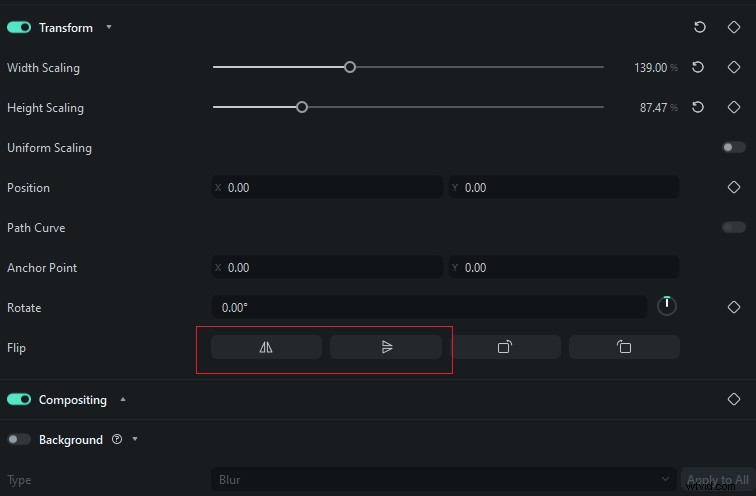
- Click Flip Horizontally or Flip Vertically to mirror or invert the clip.
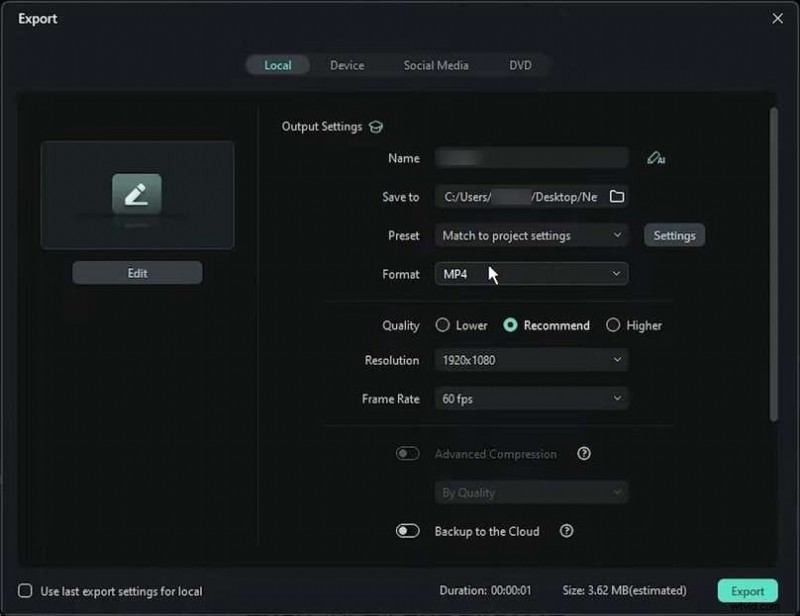
- When satisfied, hit Export and configure output settings. Export to local storage or share directly to social platforms.
Conclusion
Whether you use Google Photos for quick tweaks or Filmora for detailed control, rotating and flipping videos on Android is straightforward. Try these methods today and elevate your content.
FAQs
- Can I rotate a video on Android for free? Yes – Google Photos offers free, watermark‑free rotation.
- Is flipping the same as mirroring? Mirroring flips horizontally; flipping can also mean rotating 180° (vertical flip). They’re related but not identical.
- What’s the best editor for precise angles? Filmora Desktop lets you set any rotation degree, making it the most precise option.