
Have you ever wondered how people add such huge text, images, or other elements at the bottom of each email they send? They don't do it separately for each email they write. They use the signature to make that text permanent on their emails. Signature is one of the best sources of highlighting some of the critical and main points about yourself, your position, the company you are working in, and all the contact details you want to include in your emails. The best thing about Outlook is its ability to add several different elements, such as images and business cards, to make your emails look professional and personalized. In this article, we will show you how to add signatures on Outlook using two ways. You can either select a default signature that will be added automatically to each email you write, or you can also choose a signature for each email separately according to your need.
How to add signature on Outlook
Before you use signatures in your emails, it is necessary to add signatures in Outlook first. You can add multiple signatures in Outlook and then choose one signature according to the need and requirement of the email. So, let's get started.
Step 01: Open Outlook and make sure to log in to your account using your email and password.
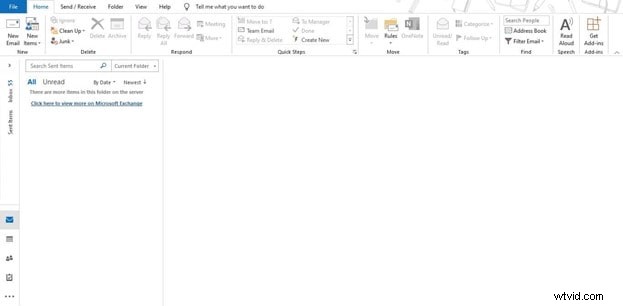
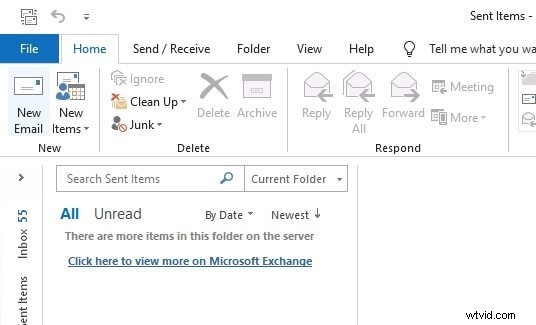
Step 02: From the Home tab, click on the "New Email." It will open a new window to compose an email and send it.
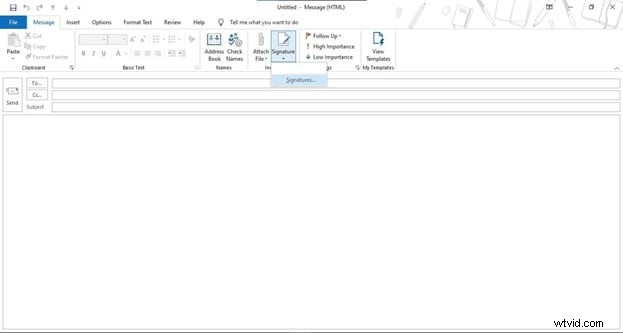
Step 03: Under this New Email window, you can find a button named signature. Click on "Signature", if you have never added a signature, it will not show you any signature here. From the drop-down menu, go to "Signatures...". It will open all the settings related to signatures, where we can add new signatures, edit previous signatures, and select a default signature.
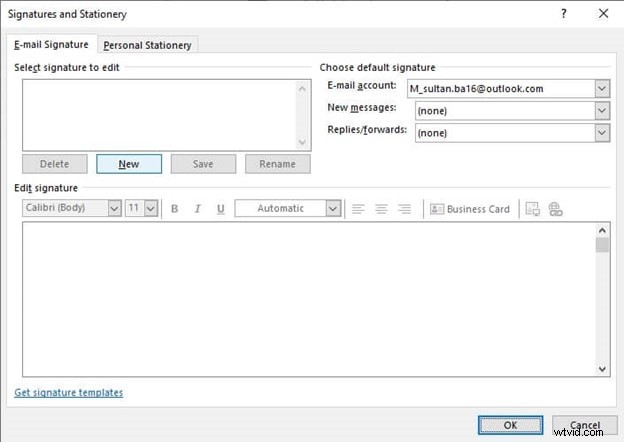
Step 04: Under this "Signature and Stationery" window, click on "New" to add a new signature on Outlook.
Step 05: Type a name that you want to assign to your signature. It will help you differentiate if you are planning to add multiple signatures. Type any name and hit OK.
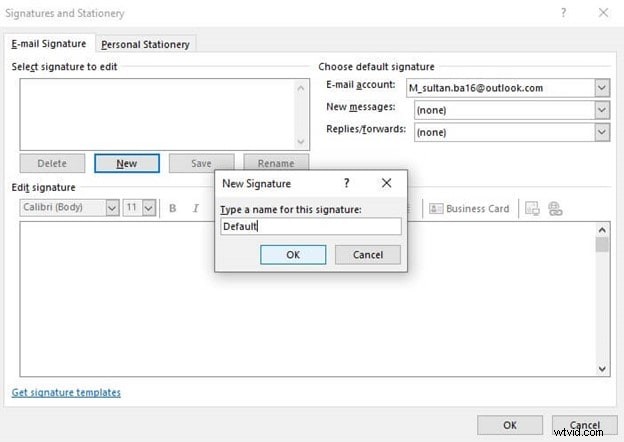
Step 06: Now, under the Edit Signature, compose a signature using all the features such as font styles, font sizes, and more. You can also add several other business cards, images, and links into your signature.
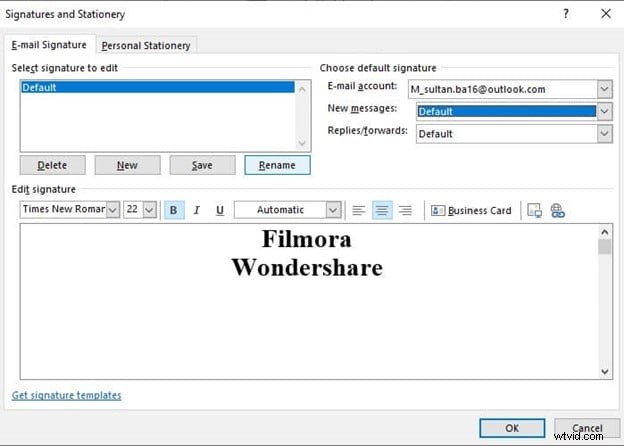
Step 07: Once you have successfully composed your signature, you can use it as a default signature with the help of the menu located at the upper right corner of this window. There are three options to select. Under Email account, like an email in which you want to add this signature as default. Under New Messages, select the signature name you wish to choose as a default signature. It will add this signature to every new email you will compose. And the Replies/Forwards option will help you choose a default signature for the replies and forwards that you send. Select all the settings according to your requirements and hit OK.
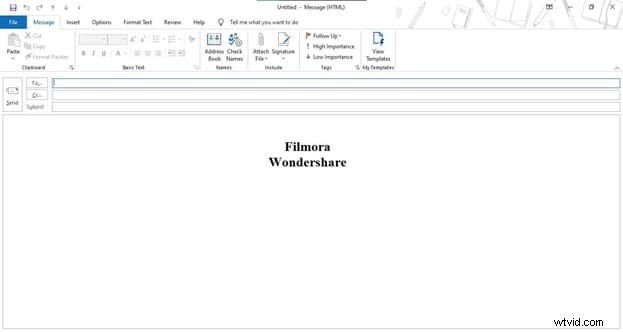
Step 08: Now when you compose a New Email, the default signature will be added to it automatically.
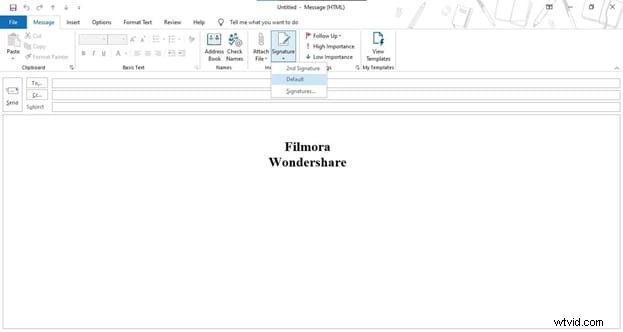
Step 09: In case, if there are multiple signatures on Outlook, and you want to select different signatures each time you compose an email, click signature from the drop-down, select a signature that you want to add to the email accordingly.
Conclusion
Signatures play a vital role in today's digital world. It helps highlight some of the main and important points to help the receiver of the email know about the sender's crucial details and have a better understanding of the email and its purpose. These steps on adding signature on Outlook can help you avoid writing a signature each time you send an email and provide you a permanent solution.