
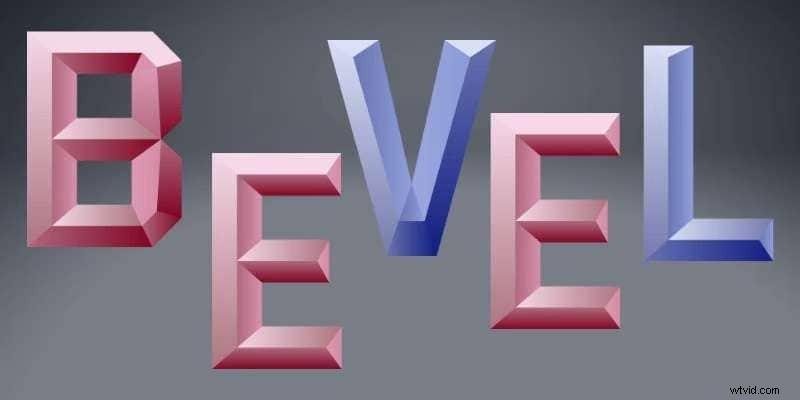
Adobe Illustrator has various tools and features to enhance your content’s visuals and get the desired results. For instance, you can easily create an illusion of 3D objects, making your 2D creations look as realistic as possible.
Read ahead if you want to learn more about the Illustrator Bevel effect. We’ve prepared everything you need to know to start your journey and reach the desired results.
In this article
-
- Video guide on How To Use Effect 3D Extrude and Bevel Option in Adobe Illustrator
- Using the Appearance panel
- How can I fine-tune the bevel settings in the Appearance panel
- Using the 3D and Materials effect
- What are the key differences between using the 3D tool and the Appearance panel for bevel effects?
- Are there any shortcuts for quickly applying the Bevel & Emboss effect in Illustrator
- Additional Tips
-
- Convert 2D to 3D in Filmora – Easy Tutorial for Beginners
- How to create a bevel text effect in Filmora
- Comparison table for Filmora and Adobe Illustrator in creating bevel effects
What is the Bevel and Emboss effect?
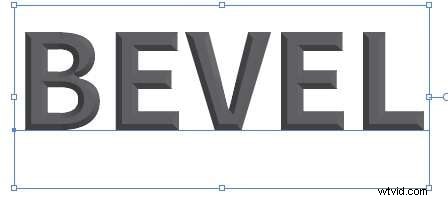
The Bevel and Emboss effects in Illustrator are popular choices for designers as they can make flat, 2D objects appear more realistic. These effects make the edges of your elements seem elevated. For the best results, such effects will add depth, shadows, and other realistic elements to the desired object.
The Bevel effect raises or sinks the edges while embossing makes them appear more realistic. For instance, you can use the Emboss effect to add highlights, adjust the depth of the edges, and more, leading to the best results.
The best part about these solutions is that they are entirely customizable, so you can create a design according to your preferences and reach the desired content quality.
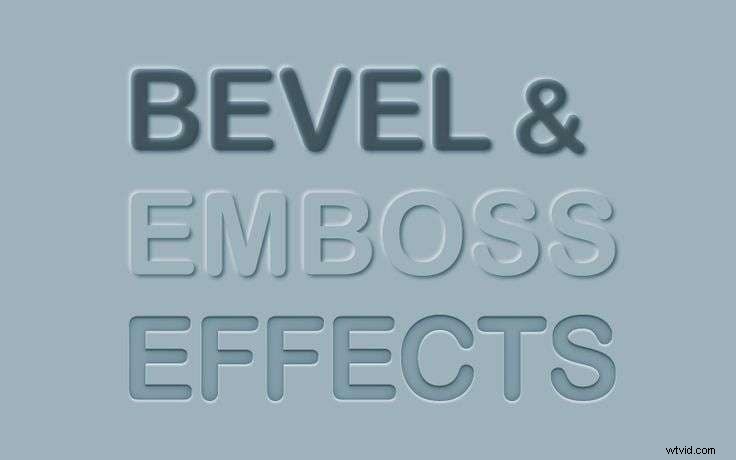
Extrude and bevel functionalities in Adobe Illustrator
The Bevel effect wouldn’t be possible without Extrude. This feature will detect all the edges and add depth to them, allowing you to customize your Bevel experience. Moreover, Extrude will enable you to experiment with your objects regarding positions, depth, and more, so you can get custom results.
On the other hand, Bevel allows you to edit the experience and deal with details. For instance, you can choose shadows, highlights, lighting, and more to complete the experience and add dimensions to your work.
Different approaches to the Illustrator bevel effect
The Adobe Illustrator platform provides several methods to achieve the desired Bevel results. We’ll name some of the most common ones below to help you navigate the experience.
Video guide on How To Use Effect 3D Extrude and Bevel Option in Adobe Illustrator
Check this video guide if you want a hassle-free experience and track your progress. It’ll help you with the step-by-step guides so you can easily navigate the Bevel experience.
Using the Appearance panel
The first method you can try for your Bevel journey is using the Appearance panel. We’ll teach you how to access the feature below and navigate the experience.
Step 1: Enable the Type Tool by pressing T on your keyboard. Type the desired text and choose a font.

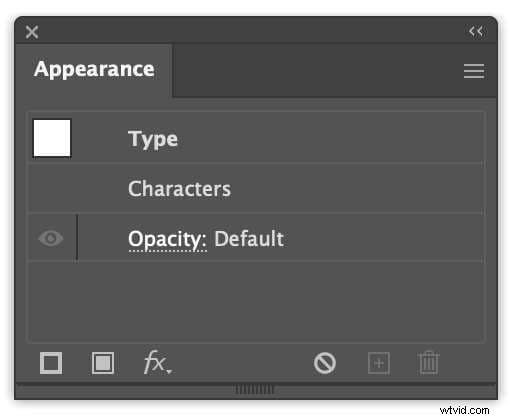
Step 2: Head to Window > Appearance.
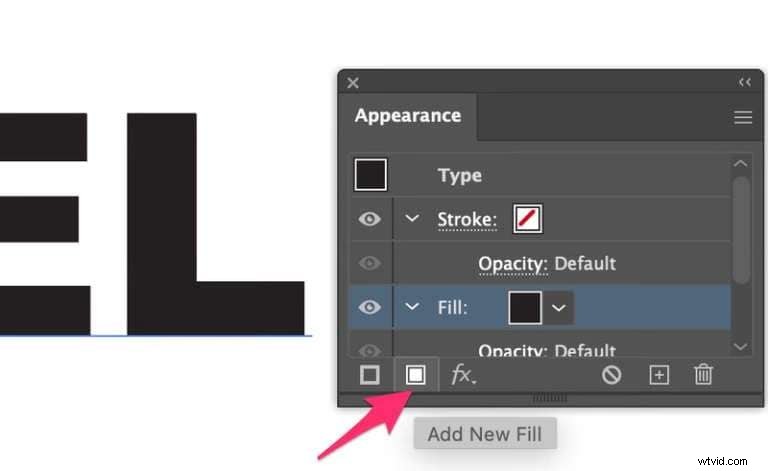
Step 3: Tap the Add New Fill option, as presented in the image below.
Step 4: Head to Opacity and select Screen from the drop-down menu.
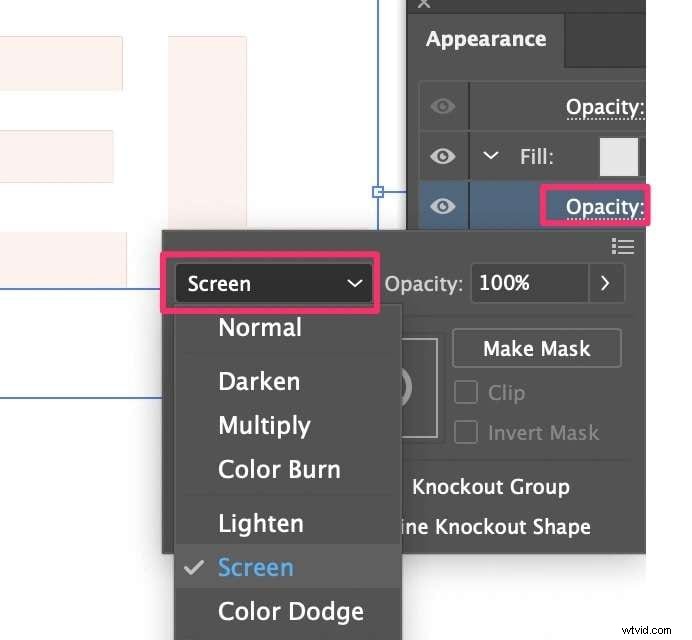
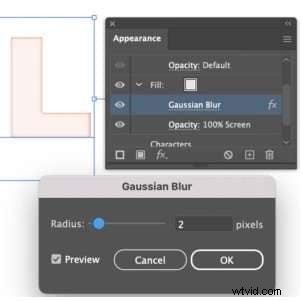
Step 5: Now, open Effect > Blur > Gaussian Blur, and set the Radius to 2 or 3 pixels.
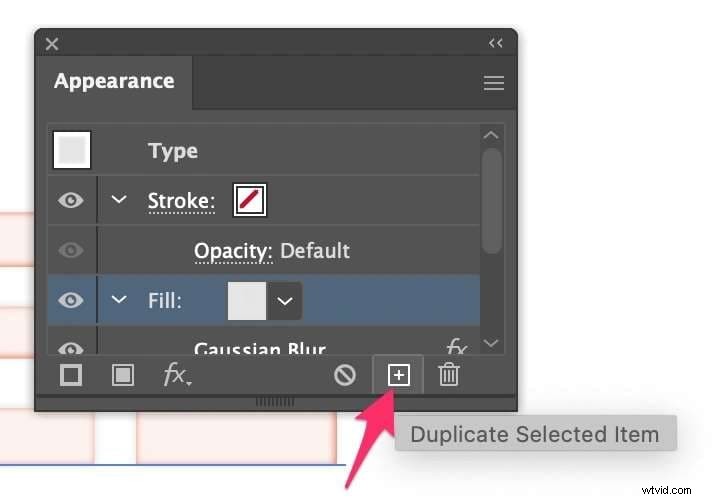
Step 6: Select the fill layer and click on the Duplicate Selected Item from the bottom bar.
Step 7: Select Multiply under blending mode.
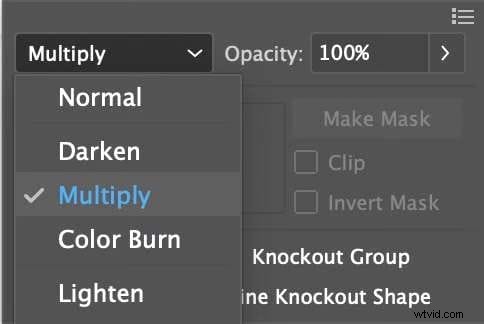
After this, you’ll create layers you can edit to get the desired Bevel results.
How can I fine-tune the bevel settings in the Appearance panel
Although the steps above will create the Bevel effect, you’ll need to adjust it more to get the desired results. Here are some fine-tuning methods you should try.
Step 1: Head to Effect > Distort & Transform > Transform to change the move value. You can tap the Preview box to see the changes you’re making. That will add shadows to the project.

Step 2: Select the first fill layer and head to Effect > Distort & Transform > Transform. Change the values to negative, and make sure they correspond with the abovementioned shadow values.
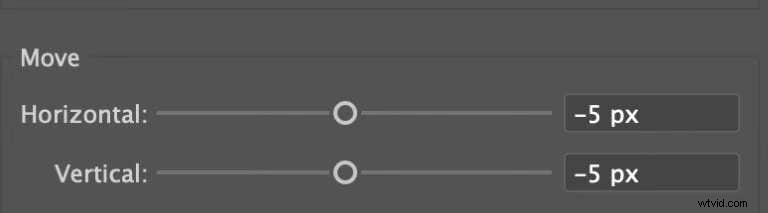
Step 3: Now, select the shadow layer and click the Add New Fill option. Choose the desired background color.
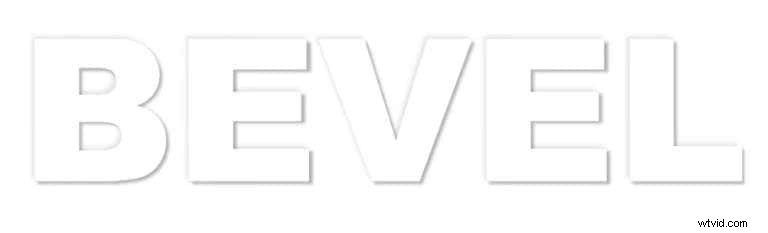
Using the 3D and Materials effect
Another way is to use the 3D and Materials effect, and we’ll teach you how to do it below.
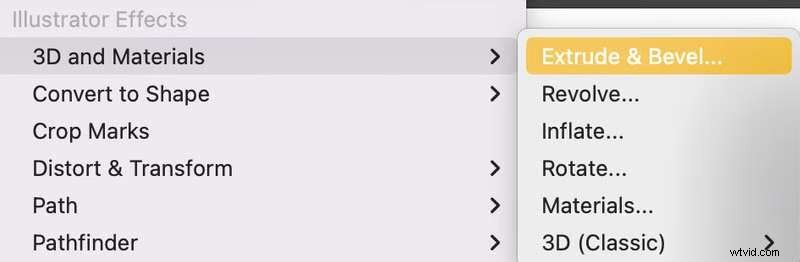
Step 1: Select the element you want to bevel and head to Effect > 3D and Materials > Extrude & Bevel.
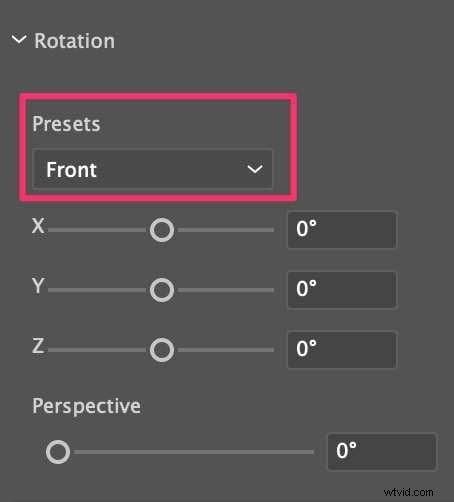
Step 2: Tap on Rotation and change the Presets to Front.
Step 3: Enable the Bevel option from the menu.
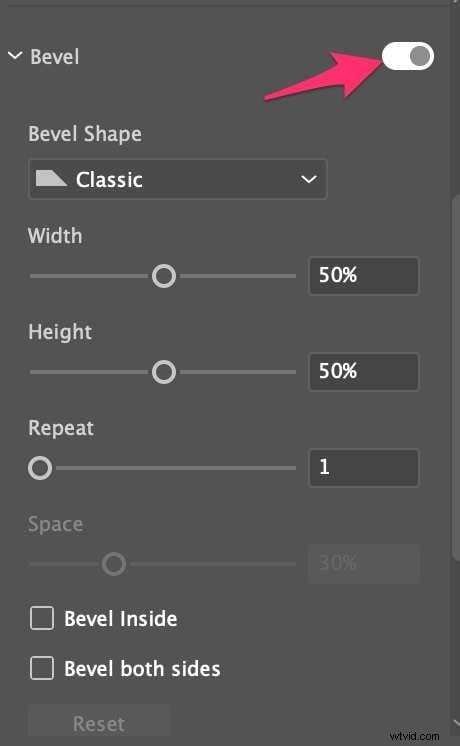
Step 4: Customize the available settings.
Once you complete these steps, you’ll get the desired results.
What are the key differences between using the 3D tool and the Appearance panel for bevel effects?
As you can see, Illustrator provides two Bevel options you can try. However, before you jump into the experience, it’s crucial to determine which one best fits your needs. You can check out the main differences below.
- Ease of use – The Appearance option may be more challenging than the 3D tool. You’ll have to spend much more time customizing the experience.
- Depth – The 3D tool focuses on providing depth for your project, while Appearance won’t allow you to add depth to 2D objects.
- Purpose – The Appearance panel is used for simpler editing solutions and needs, while the 3D tool provides more professional results.
- Realism – Since the Appearance panel won’t allow you to add depth, it automatically means that the results from the 3D tool will be more realistic.
Are there any shortcuts for quickly applying the Bevel & Emboss effect in Illustrator
Unfortunately, the Illustrator platform doesn’t provide shortcuts directly related to Bevel and Emboss effects. The only thing that may come in handy is pressing Ctrl + Alt + E on your keyboard to access the 3D Extrude and Bevel menu.
Additional Tips
Since the Bevel experience may be overwhelming sometimes, we’ve prepared some tips to guide you through it and cut production time. Check out the list below for more information.
- Once you apply the bevel effect, head to Object > Expand > Appearance. It will help you gain more control over your project.
- Illustrator provides smart guides that can help you align the bevel shapes precisely and get the best results.
- Head to Object > Path > Offset Path and add custom transitions for a smooth experience. It’ll help you switch from one bevel to another seamlessly.
- To get the most pronounced bevel effect, use a bold text font. It’ll help you get better edges and more depth.
Everything will transform once you implement these tips into your experience, and you’ll become a bevel professional.
What are some common mistakes to avoid when using the Bevel & Emboss effect
You should be careful about your Bevel and Emboss experience as you may encounter issues on the way. We’ll name some common concerns you should avoid to ensure a smooth transition.
- Don’t overuse the effect – This issue can lead to overwhelming and complex content. Instead, you should only apply the effect to elements you want to emphasize within your projects.
- Inconsistent settings – Pay special attention to the settings while customizing your bevels. All the settings should be in sync for you to provide professional results.
- Not previewing the content – You should preview the changes you made as soon as possible to ensure you’re on the right track. If one element goes to waste, the entire project will likely be affected by the mistake.
Once you start the experience, you’ll know what to avoid to ensure you get the best results and become a bevel professional.
An easier way to create 3d extrude and bevel effect
Although Illustrator is an advanced editing solution for creating various designs, it may not be the best choice if you want convenience and ease of use. The platform is scattered with tools, and you may feel overwhelmed once you start your bevel experience.
Thus, you should check out a more user-friendly option with the same capabilities: Wondershare Filmora. This solution provides AI-powered and advanced tools to cut production time and help you create your dream designs.
The Best AI-Enhanced Video Editing App for Text Bevel Effect Creation
- Customize the bevel color to match your text and video style.
- Combine the bevel with other text customizations like fill, outline, and shadow.
- Animate the bevel effect using keyframes for a dynamic, moving text look.
- Experiment with different bevel presets for a quick try.



For instance, you won’t have to manually adjust all the aspects since Wondershare Filmora provides enough templates to support your unique journey. When comparing Illustrator and Wondershare Filmora, we can say that the latter is far easier and more efficient while providing the same results.
You can completely customize your elements and create unique content, making Wondershare Filmora a better Illustrator alternative.
Convert 2D to 3D in Filmora – Easy Tutorial for Beginners
How to create a bevel text effect in Filmora
Adding 3D text elements to your projects with Wondershare Filmora is simple. Follow the guide below to learn more.
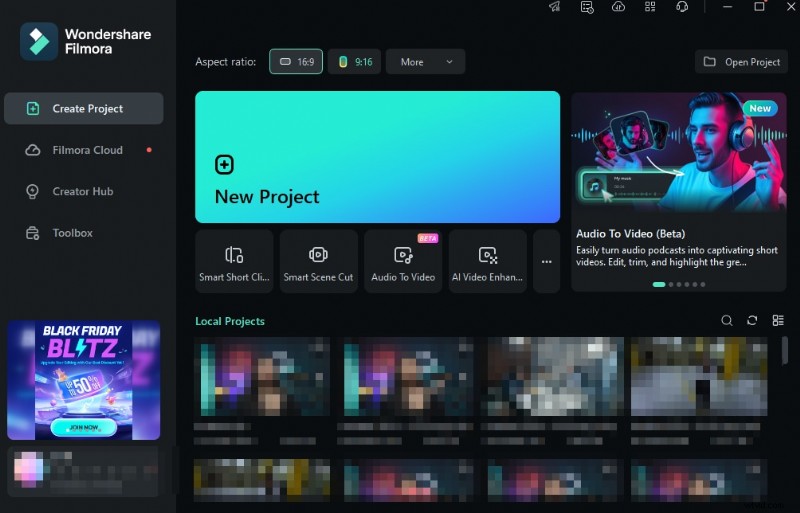
Step 1: Open the Wondershare Filmora platform and click the New Project option from the main menu.
Step 2: Import your project and drag it to the timeline.
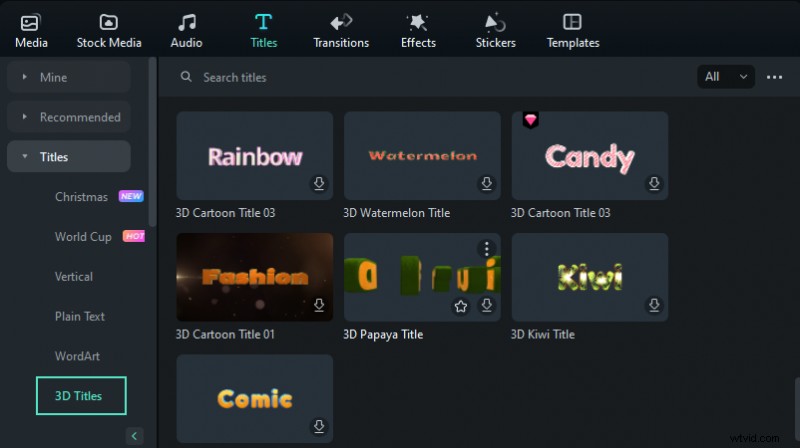
Step 3: Head to the Titles tab from the top bar.

Step 4: Select 3D Titles from the available options and select the design you like the most.
Step 5: Double-click on the text to open the editing panel. Here, you can change the font, size, color, and other essentials.
And just like that, you’ll have 3D textual elements ready for use.
Comparison table for Filmora and Adobe Illustrator in creating bevel effects
| Feature | Filmora | Adobe Illustrator |
| 3D Text Creation | Yes, with built-in 3D title options | Yes, using the Extrude & Bevel effect |
| Customization Options | Extensive font, color, and animation settings | Advanced control over bevel depth, size, and lighting |
| User Interface | Intuitive and user-friendly | Requires more technical knowledge |
| Workflow | Drag-and-drop text onto the timeline | Apply the effect to text, adjust settings |
| Animation Effects | Various pre-built animations available | Limited to manual animation techniques |
| Export Formats | Multiple formats including video files | Vector formats like AI, EPS, SVG |
| Platform Availability | Windows, macOS, iOS, Android, and iPadOS | Windows, macOS |
- Filmora: Offers a more beginner-friendly approach to creating 3D text with bevel effects. It provides a wide range of pre-built animations and templates for quick results. However, customization options may be more limited compared to Illustrator.
- Adobe Illustrator: Allows for more advanced control over bevel effects, including adjusting depth, size, and lighting. It provides precise control over the final look but requires more technical knowledge and a steeper learning curve compared to Filmora.
The choice between Filmora and Illustrator for creating bevel effects depends on your skill level, the level of customization needed, and the intended output format. Filmora is a good option for beginners or those looking for a quick way to add 3D text with bevel effects to videos, while Illustrator offers more advanced features for creating high-quality vector graphics with bevel effects.
Conclusion
Bevel effects can significantly impact the visual experience and produce more professional results. One of the most popular platforms for such experiments is Adobe Illustrator, and we’re here to tell you about this experience. We’ve presented two methods you can use to reach your goals on this platform and start mastering your skills.
However, if this concept seems overwhelming, contact Wondershare Filmora for help. This easy-to-use but straightforward solution will make the journey seamless and more efficient. If you opt for this solution, you’ll save time and nerves.