
Ever spot something intriguing in the distance while playing Minecraft, only to miss the details? Whether you’re hunting rare resources, scouting landscapes, or filming epic gameplay for YouTube, mastering how to zoom in can dramatically improve your experience. This 2026‑updated guide walks you through six reliable methods—native settings, accessibility tools, mods, and even in‑game items—to bring your view closer in both Java and Bedrock editions.
In this article
- Method 1: Adjusting Field of View (FOV) – All Versions
- Method 2: Keyboard‑Only Zoom via Operating‑System Accessibility Features
- Method 3: OptiFine Mod for Enhanced Zoom (Java Edition)
- Method 4: Spyglass – The Built‑In Zoom Tool (Bedrock & Java 1.17+)
- Method 5: All‑in‑One Minecraft Clients (Lunar, Badlion, etc.)
- Method 6: Lightweight Zoom Mods for Fabric/Forge
Method 1: Adjusting Field of View (FOV) – All Versions
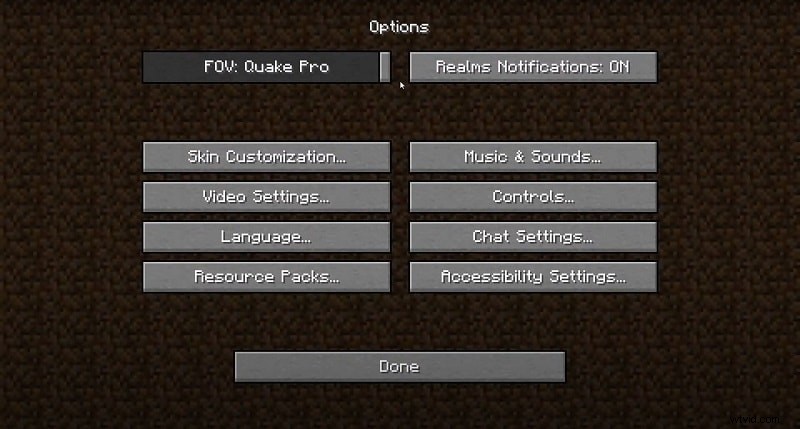
While Minecraft’s vanilla interface lacks a dedicated zoom button, you can simulate zoom by narrowing the Field of View. Lower FOV values make the world appear closer, whereas higher values expand your peripheral vision.
Steps
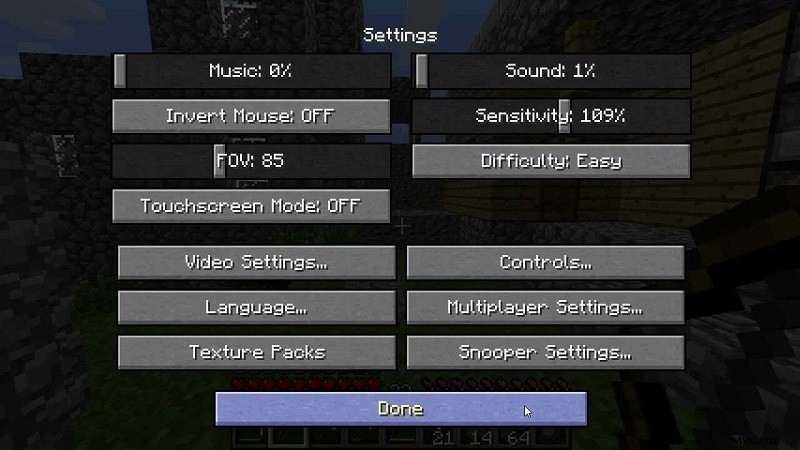
1. Launch the game and press Esc to open the pause menu. 2. Click Options…. 3. Locate the FOV slider. Drag it leftward for a closer view (e.g., 30) or rightward for a wider field. 4. Click Done to apply the change. 5. Press Backspace to return to the game.
Pro‑Tip for Creators: After fine‑tuning FOV, use Filmora’s “Pan & Zoom” feature in post‑production to create sharp, cinematic close‑ups of your Minecraft footage.
Method 2: Keyboard‑Only Zoom via Operating‑System Accessibility Features
Both Windows and macOS provide built‑in screen magnification tools that can be activated with simple keyboard shortcuts—ideal for players who prefer not to tweak in‑game settings.
Windows – Magnifier
- Press Windows + + to launch Magnifier and zoom in.
- Press Windows + - to zoom out.
- Press Windows + Esc to exit Magnifier.

macOS – Accessibility Zoom
1. Open System Preferences (click the Apple icon, then choose Preferences).
2. Select Accessibility → Zoom.
3. Check Use scroll gesture with modifier keys. Choose your modifier (Control, Option, or Command).
4. In Minecraft, hold the chosen modifier key and scroll the mouse wheel to zoom in or out.
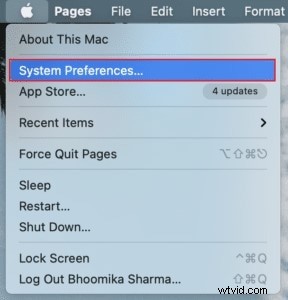
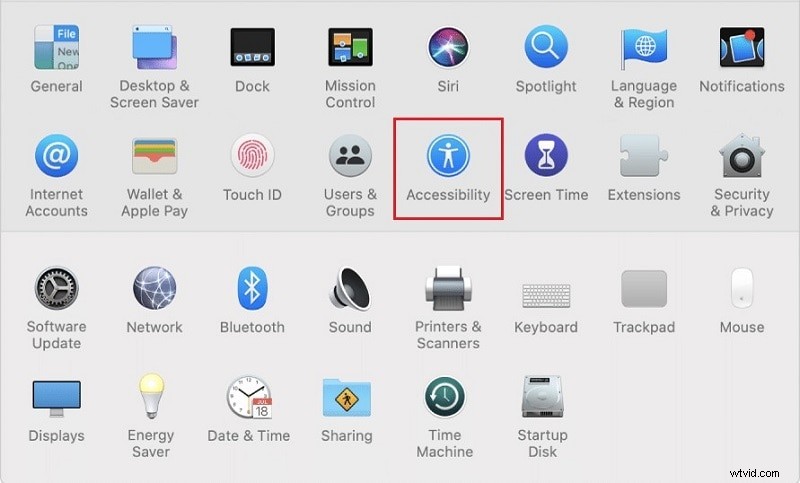
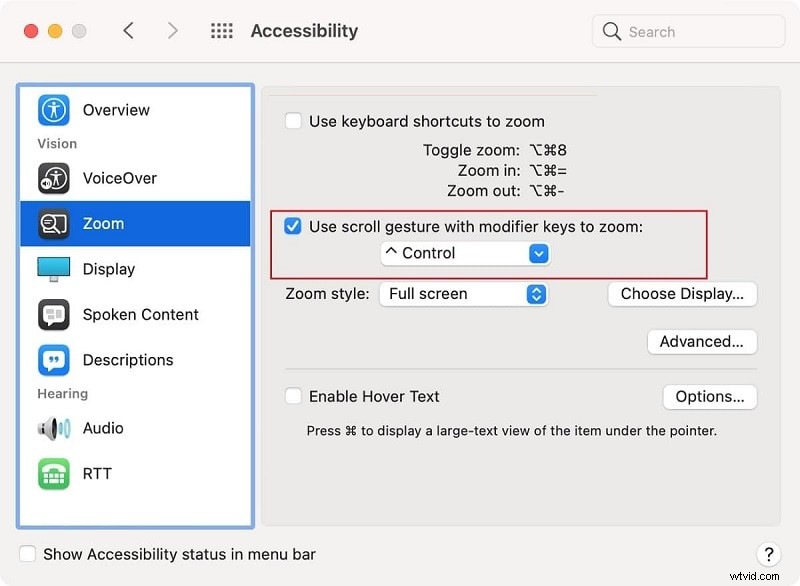
For additional editing, Filmora offers high‑quality screen recording and AI‑powered enhancement tools compatible with Mac, Windows, iOS, and Android.


Method 3: OptiFine Mod for Enhanced Zoom (Java Edition)
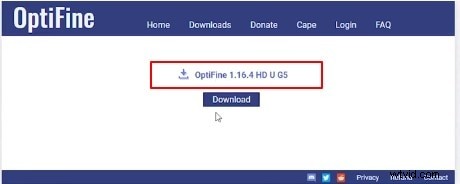
OptiFine extends Java Edition with a dynamic zoom feature, along with improved graphics and performance. It is the most popular mod for custom FOV control.
Installation Steps
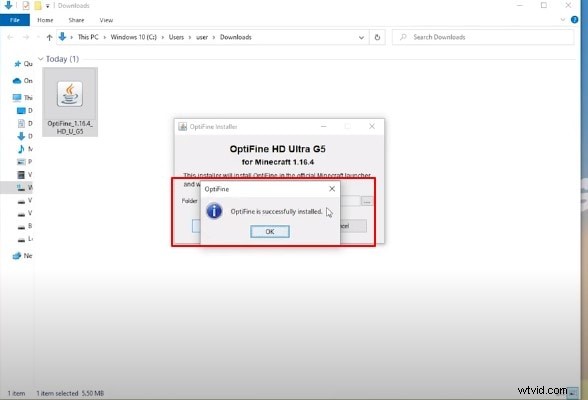
- Download the latest OptiFine from optifine.net. Match the version to your current Minecraft release.
- Run the installer and let it add the OptiFine profile to the launcher.
- Open the Minecraft launcher, navigate to Installations, and select the OptiFine profile.
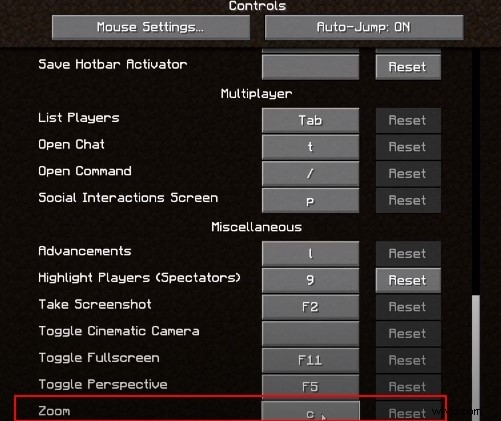
- Launch the game. During play, press C to activate the zoom (default key). Adjust the zoom level in the OptiFine settings if desired.

Method 4: Spyglass – The Built‑In Zoom Tool (Bedrock & Java 1.17+)
Introduced in the 1.17 update, the spyglass offers a quick, game‑native way to zoom without leaving the settings menu.
Crafting the Spyglass
- Open a crafting table.
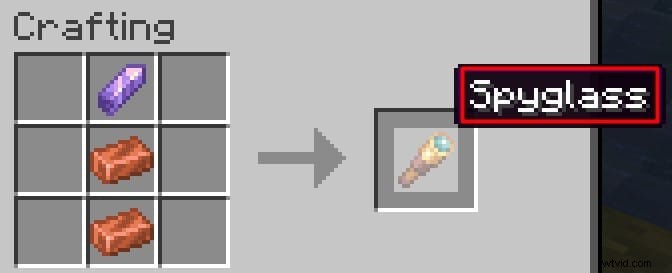
- Place 2 copper ingots and 1 amethyst shard in the pattern shown below.
- Retrieve the spyglass from the result slot.

Once equipped, right‑click (or tap) to activate the spyglass. The view zooms to 10% of your current FOV, giving you a clear look at distant structures or mobs.
Example: With a base FOV of 60, the spyglass provides a 6× zoom (60 × 0.10).
Method 5: All‑in‑One Minecraft Clients (Lunar, Badlion, etc.)
For players who want a streamlined experience, third‑party clients bundle popular mods—like OptiFine—and offer ready‑to‑use settings.
Setup Guide
- Download a reputable client such as Lunar Client or Badlion Client from their official sites.
- Launch the client’s own launcher and sign in with your Microsoft/Mojang account.
- Press Right‑Shift (or the configured key) to open the mod menu. Enable Zoom or OptiFine if not already active.
- Join a world and press C to zoom.
Pro‑Tip: This method is ideal for competitive PvP players seeking performance boosts and a hassle‑free mod setup.
Method 6: Lightweight Zoom Mods for Fabric/Forge
If you prefer a minimal footprint, Fabric or Forge mods like OK Zoomer, WI Zoom, or Zoomify deliver smooth zoom without the extra graphics features of OptiFine.
Installation Steps
- Ensure a modloader is installed: download Fabric or Forge for your Minecraft version.
- Visit CurseForge or Modrinth and search for a zoom mod compatible with your setup.
- Download the .jar file and place it in your
%appdata%/.minecraft/modsfolder (Windows) or the equivalent on macOS/Linux. - Start Minecraft with the Fabric or Forge profile. Configure the zoom key via Options… → Controls → Key Binds.
Pro‑Tip: This approach is perfect for custom modpacks or for players who want to keep their game lightweight.
The Bottom Line
Whether you prefer tweaking the FOV, leveraging OS magnifiers, using the in‑game spyglass, or installing mods, Minecraft offers multiple reliable ways to zoom in on your surroundings. For Java players, OptiFine and Fabric/Forge zoom mods provide advanced control; for Bedrock users, the spyglass is the quickest native option. Apply these techniques to enhance exploration, resource gathering, or content creation, and enjoy a clearer view of the blocky world around you.