
The wiggle text effect injects vibrant motion into your typography, turning static words into engaging visual storytelling. Whether you’re crafting titles, captions, or logos, a few key adjustments can bring playful energy to any project.
While After Effects offers many text animation tools, the wiggle expression stands out for its simplicity and versatility. It works across a range of styles—from bold headlines to subtle overlays—making it an essential skill for motion designers.
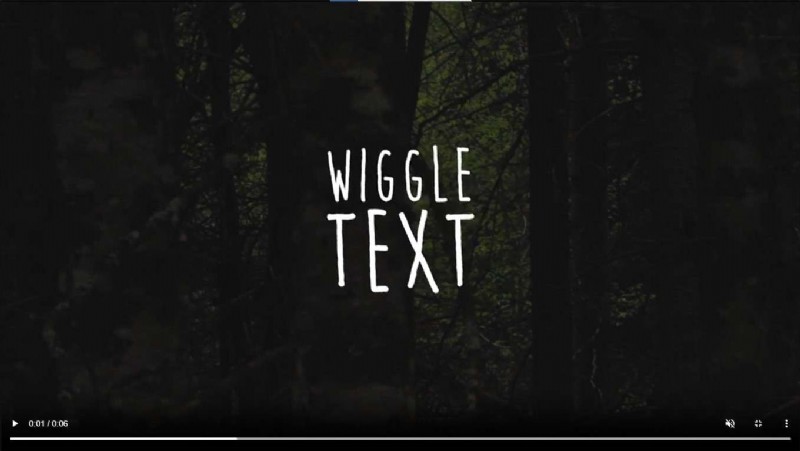
In this guide we’ll walk through how to apply the wiggle expression, tweak its parameters for different looks, and explore advanced techniques. We’ll also compare this workflow to Filmora’s quick‑start presets, so you can choose the best tool for your workflow.
Table of Contents
- Using the Wiggle Expression in After Effects
- Step‑by‑step setup
- Adjusting frequency and amplitude
- Advanced applications
- Best Fonts for Wiggle Text
- Comic Sans, Arial Rounded, Lobster, Helvetica, Pacifico, Futura, Bebas Neue, Handwriting and Brush Script, Impact
- Creating Wiggle Text in Filmora
- Key features and presets
- Step‑by‑step workflow
- Creative Use Cases
- Music videos, social media, intros, promos, tutorials, vlogs, events
- Conclusion
1. Using the Wiggle Expression in After Effects
Step‑by‑Step Setup
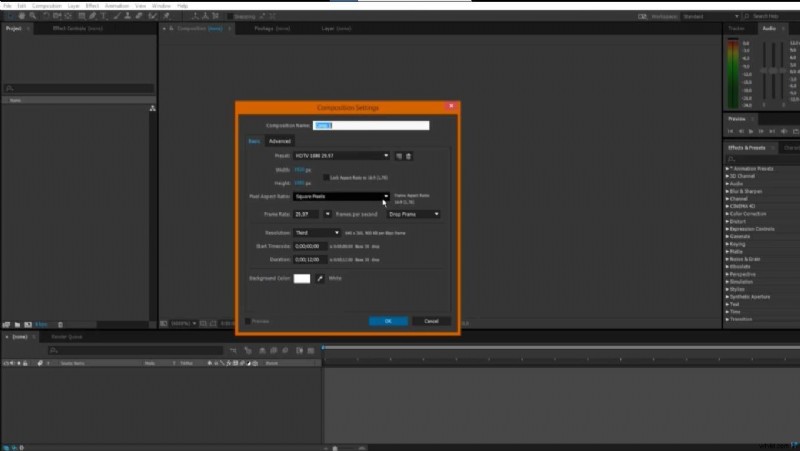
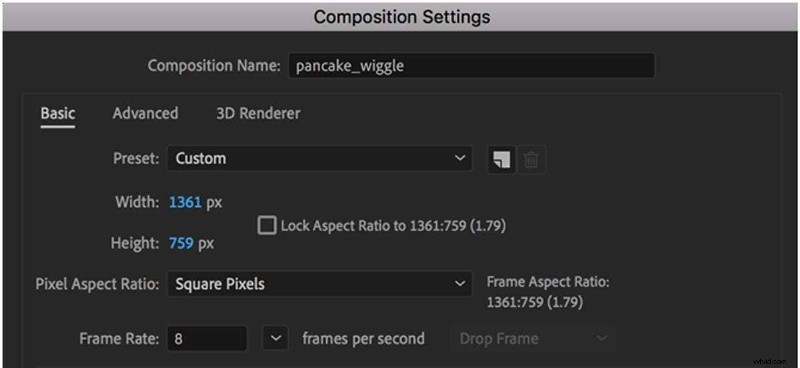
- Start a New Composition – Launch After Effects, choose
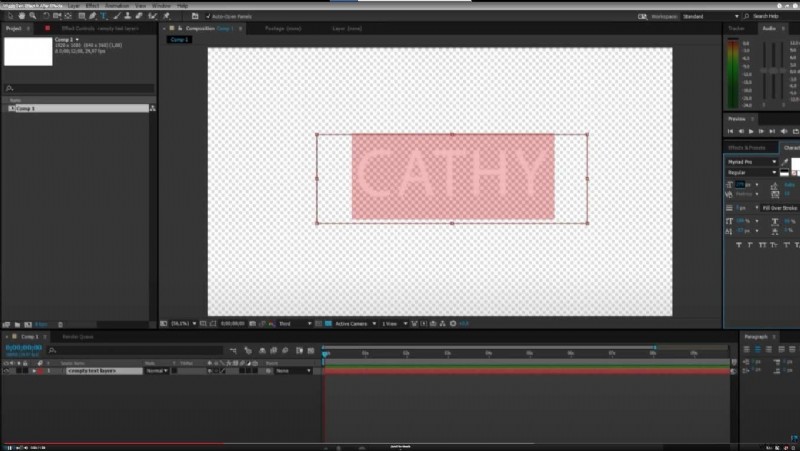
Composition > New Composition, set frame rate, resolution, and duration that match your project. - Add a Text Layer – Press
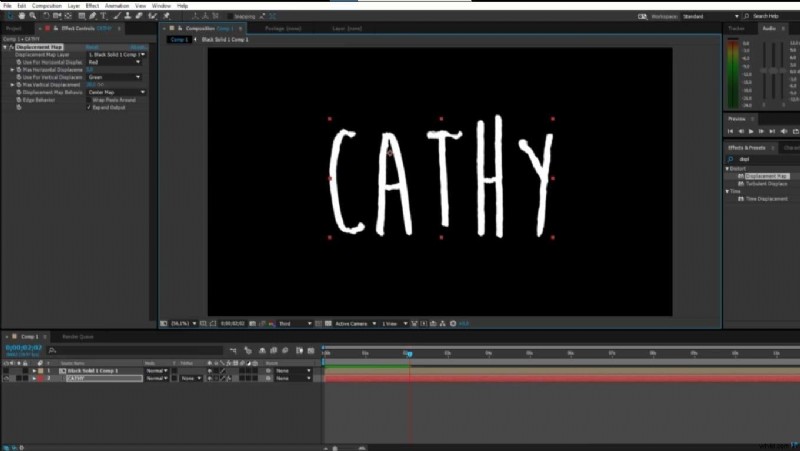
Tfor the Text tool, click in the composition, and type your desired text. - Activate Position Keyframes – Select the text layer, click the stopwatch next to
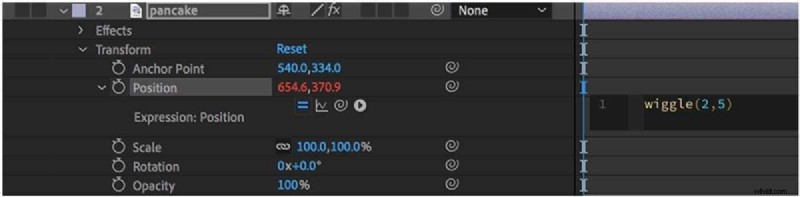
Positionto enable keyframing. - Apply the Wiggle Expression – Hold
Alt(Windows) orOption(Mac) and click the stopwatch. In the expression box, typewiggle(3,10)and pressEnter. - Fine‑Tune Frequency & Amplitude – The first number controls wiggles per second (frequency); the second adjusts movement in pixels (amplitude). Experiment with values like
wiggle(5,20)for a faster, more dramatic motion. - Preview & Export – Press the spacebar to review. Make final adjustments, then save or render your composition.
Customizing for Style
To match a specific aesthetic, tweak the two parameters:
- Frequency (first value) – Higher numbers (e.g., 5) produce rapid, jittery motion; lower numbers (e.g., 1) give gentle swaying.
- Amplitude (second value) – Larger values (e.g., 20) create bold, wide swings; smaller values (e.g., 5) keep motion subtle.
Try combinations like wiggle(2,5) for a subtle wobble or wiggle(7,30) for energetic, eye‑catching motion.
Advanced Uses of Wiggle
- Slider‑Controlled Wiggle – Attach
Slider Controleffects to a null object. Use expressions such aswiggle(effect("Frequency")("Slider"), effect("Amplitude")("Slider"))to animate values over time. - Wiggle with Easing – Combine
easeoreaseInOutto smooth transitions, e.g.,ease(time,0,1,wiggle(3,10)). - Axis‑Specific Wiggle – Apply to X or Y only:
wiggle(2,10)[0,0]affects X;wiggle(2,10)[0,0]affects Y. - Time‑Dependent Wiggle – Vary intensity over the timeline:
wiggle(time*2, 10)or tie to keyframes for dynamic scaling.
2. Best Fonts for Wiggle Text
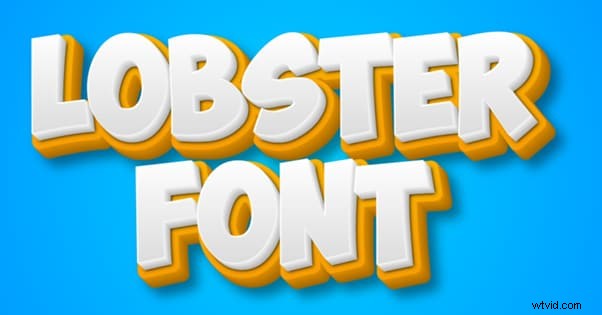
Playful, bold, or rounded typefaces amplify wiggle motion. Below are top choices, each paired with a short description and an illustrative image.
- Comic Sans – Friendly, casual feel.

- Arial Rounded – Smooth edges for a light touch.
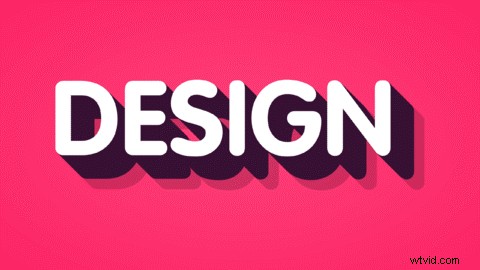
- Lobster – Bold curves add energy.
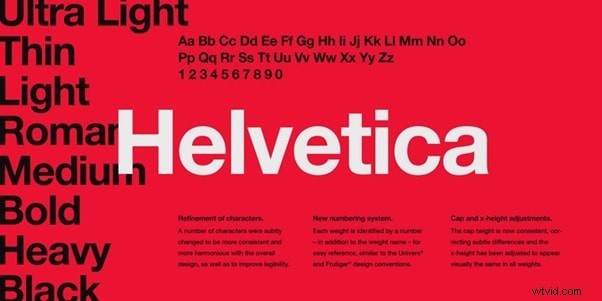
- Helvetica – Clean and versatile.
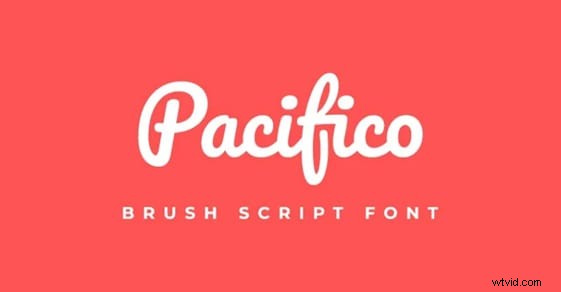
- Pacifico – Hand‑written flow.
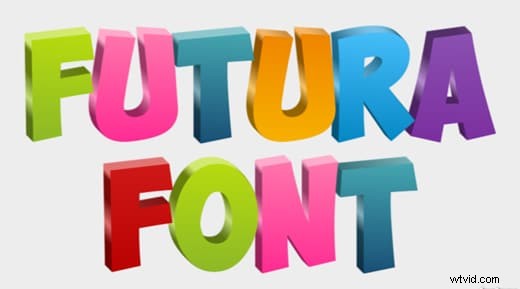
- Futura – Geometric modernity.
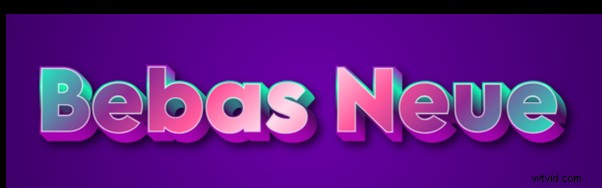
- Bebas Neue – Bold all‑caps impact.
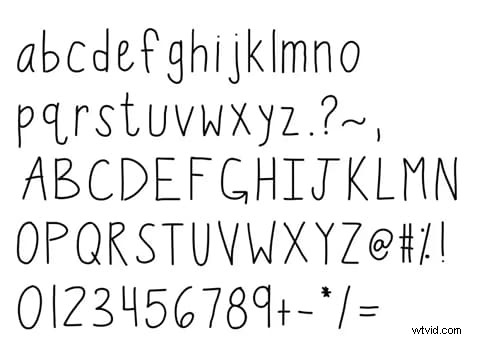
- Handwriting Fonts – Mimic natural writing.
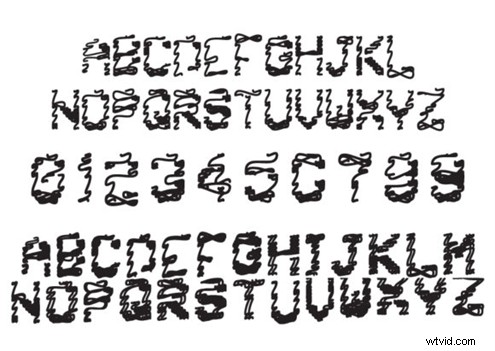
- Brush Script – Brush‑stroke aesthetic.
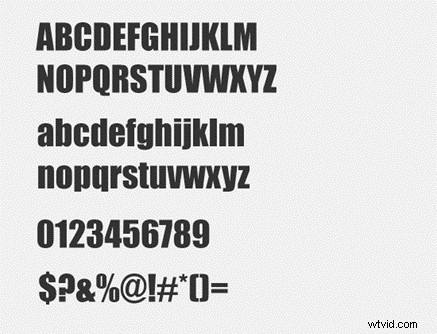
- Impact – Thick, striking presence.
3. Creating Wiggle Text Quickly in Filmora
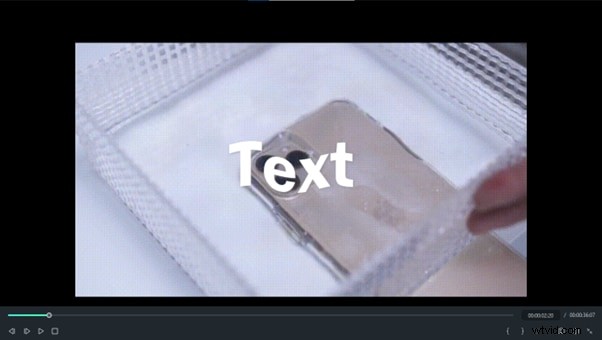
Filmora offers a streamlined workflow with built‑in presets that let you add wiggle motion without scripting. Ideal for users who need speed without sacrificing quality.
Key Features
- Preset Text Animations – Browse a library of wiggle‑style presets, including subtle ripple effects.
- Keyframe Controls – Adjust timing, speed, and amplitude directly on the timeline.
- Text Effects Library – Access a wide array of animated text styles beyond wiggle.
- Intuitive Customization – Modify direction, intensity, and duration with simple sliders.
- Masking Tools – Target specific portions of text for selective animation.
Step‑by‑Step Workflow
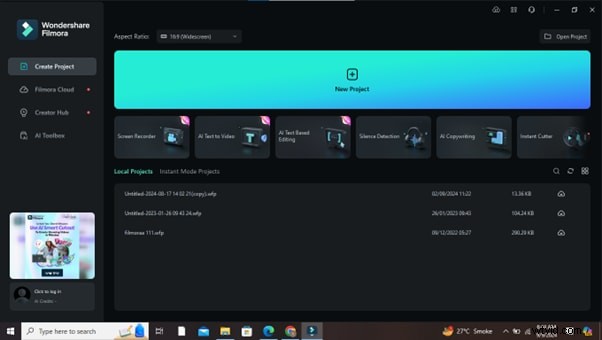
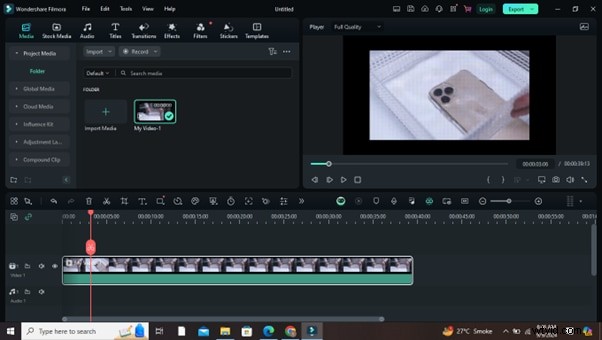
- Start a New Project – Click
New Projectin Filmora’s start screen. - Import Media – Drag footage into the media library and place it on the timeline.
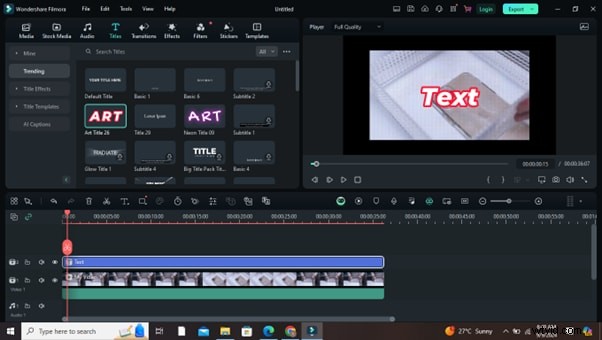
- Add a Title Layer – Select
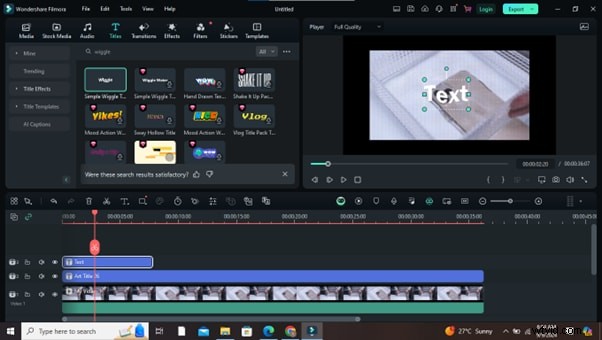
Title, choose a preset style, and drop it onto the timeline. - Apply Wiggle Effect – Go to the
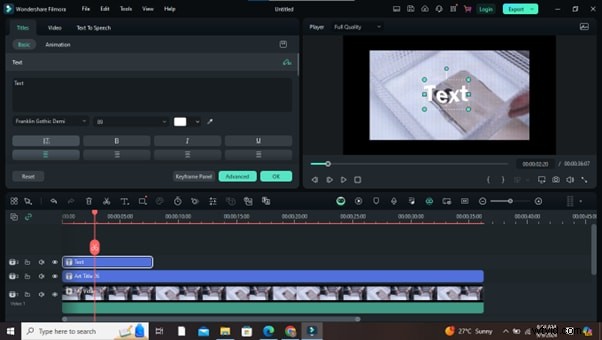
Effectstab, search “wiggle,” and drag the effect onto your text layer. - Customize Text – Double‑click the layer to open the editor; change font, size, color, and content.
- Preview & Adjust – Use the preview pane to fine‑tune timing and intensity.
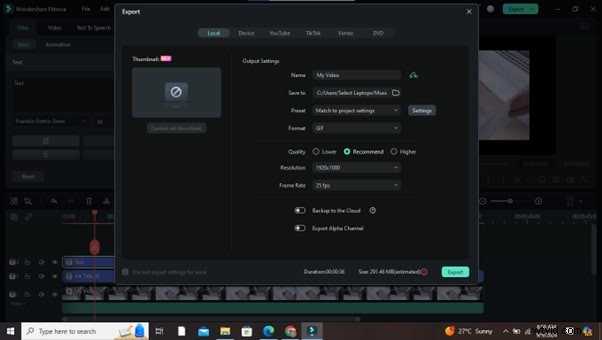
- Export – Click
Exportto render the final video in your preferred format.
Additional Filmora Text Animations
- Fade In/Out & Reveal – Smoothly introduce or remove text.
- End Credits – Create polished credits for films, YouTube, or corporate videos.
- Typewriter Effect – Simulate live typing for storytelling or tutorials.
4. Creative Uses of Wiggle Text
When integrated thoughtfully, wiggle text can enhance a wide array of video content:
- Music Videos – Add rhythmic motion to lyrics or titles.
- Social Media Posts – Grab attention with playful, kinetic text.
- Intros & Outros – Create memorable opening or closing sequences.
- Promotional Videos – Emphasize product names or offers.
- Tutorials & Educational Content – Highlight key points and maintain viewer focus.
- Vlog Title Cards – Infuse personality and informality.
- Event Announcements – Build excitement around dates and details.
Conclusion
Wiggle text transforms static typography into dynamic visual storytelling. By mastering the wiggle expression in After Effects or leveraging Filmora’s presets, you can create engaging animations that captivate audiences across platforms.
Experiment with different fonts, frequencies, and amplitudes to discover the style that best suits your project’s tone. Whether you’re a seasoned motion designer or a beginner, the wiggle effect offers a versatile, low‑effort way to elevate your video content.

