
REC

Recommended: Video Production, Editing & Gear Maintenance Guide

 WTVID >> WTVID >  >> video >> Video clip

How to Rotate Videos in CyberLink PowerDirector 365 and Wondershare Filmora X – Step‑by‑Step Guide

Video editing is a craft that hinges on the precise presentation of footage. A common issue is footage recorded at the wrong angle or upside‑down, especially when shooting on mobile devices. Fortunately, both CyberLink PowerDirector 365 and Wondershare Filmora X offer reliable solutions to rotate your clips and even animate the rotation with keyframes.

Note: This guide covers PowerDirector 365 and Wondershare Filmora X.

Rotating Clips in CyberLink PowerDirector 365

1. Start a new project. Launch PowerDirector 365, choose Full Mode for a comprehensive editing experience, and create a new video project.
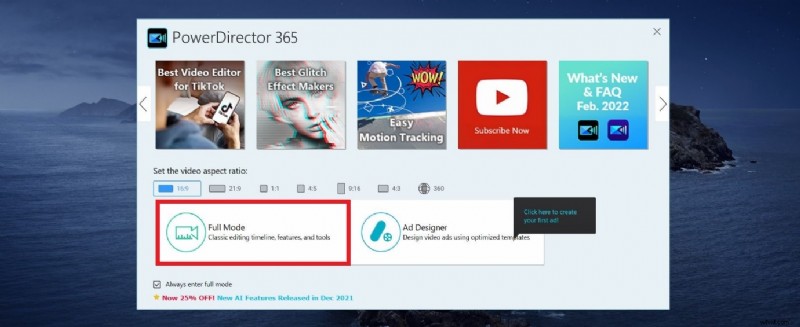
How to Rotate Videos in CyberLink PowerDirector 365 and Wondershare Filmora X – Step‑by‑Step Guide

2. Import media. Drag your video files from the Media Library onto the Timeline.
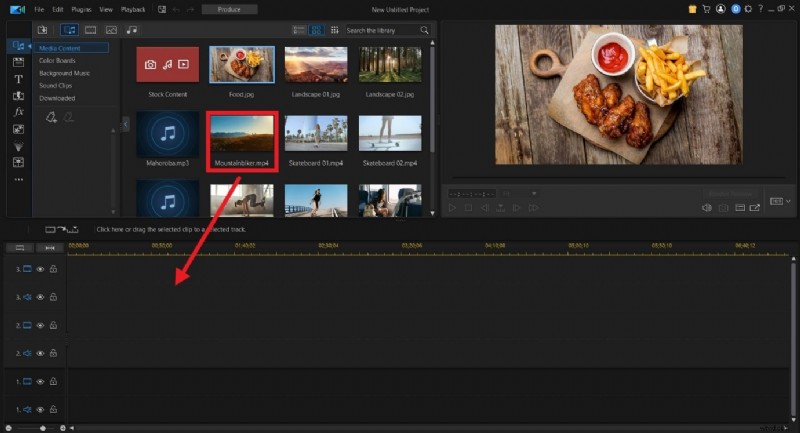
How to Rotate Videos in CyberLink PowerDirector 365 and Wondershare Filmora X – Step‑by‑Step Guide

3. Activate rotation. Click the clip on the Timeline. In the Preview Window, a rotation circle appears. Adjust the angle until the video is correctly oriented.
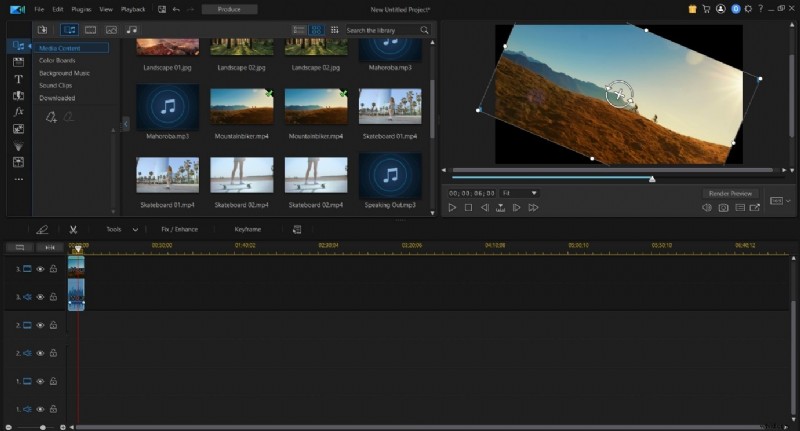
How to Rotate Videos in CyberLink PowerDirector 365 and Wondershare Filmora X – Step‑by‑Step Guide

Advanced: Keyframe‑based rotation. Right‑click the clip, select Edit > Modify, then open the Motion tab. Use the Rotation Settings slider to set precise angles and keyframes for animated rotation.
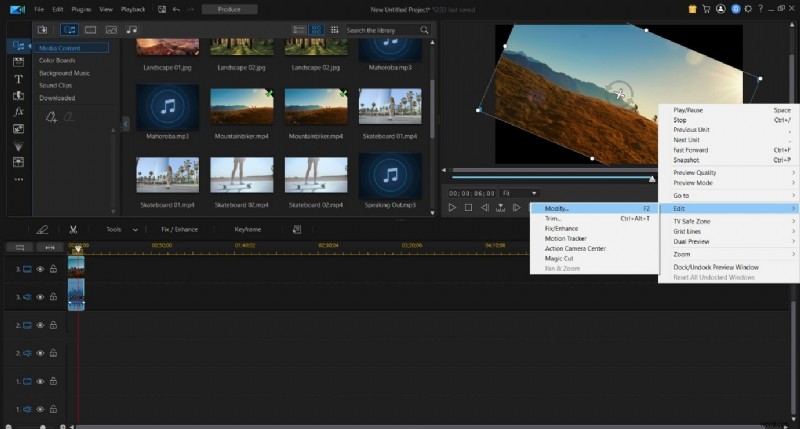
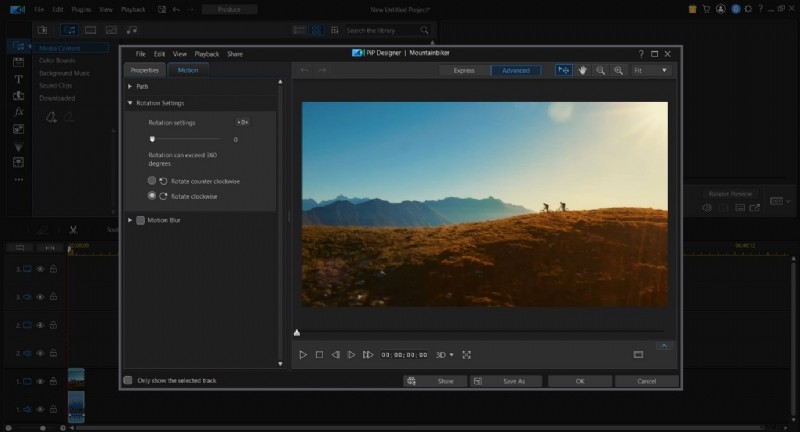
How to Rotate Videos in CyberLink PowerDirector 365 and Wondershare Filmora X – Step‑by‑Step Guide How to Rotate Videos in CyberLink PowerDirector 365 and Wondershare Filmora X – Step‑by‑Step Guide

Rotating Clips in Wondershare Filmora X

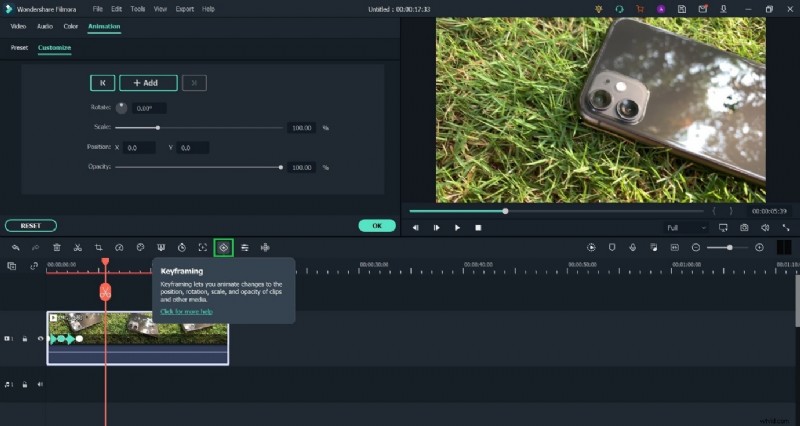
Filmora prioritizes ease of use. Rotation is accessed directly from the Edit menu, and keyframes are conveniently located above the Timeline.

1. Open a new project and import media. Drag your clip onto the Timeline.
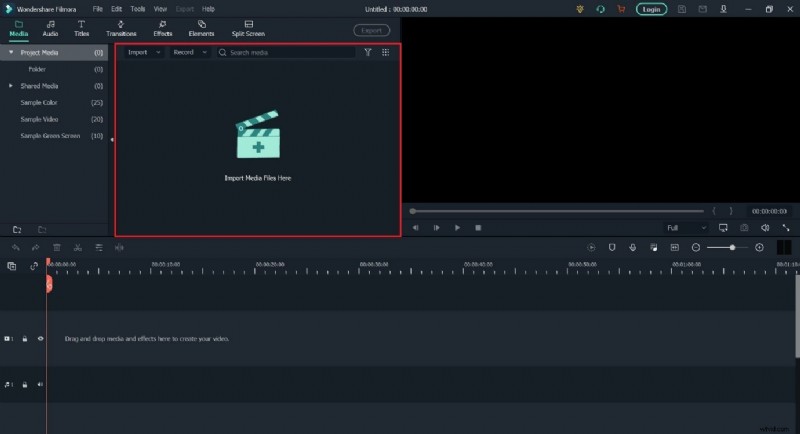
How to Rotate Videos in CyberLink PowerDirector 365 and Wondershare Filmora X – Step‑by‑Step Guide

2. Open the Edit window. Click the Edit button (red icon) next to the clip.
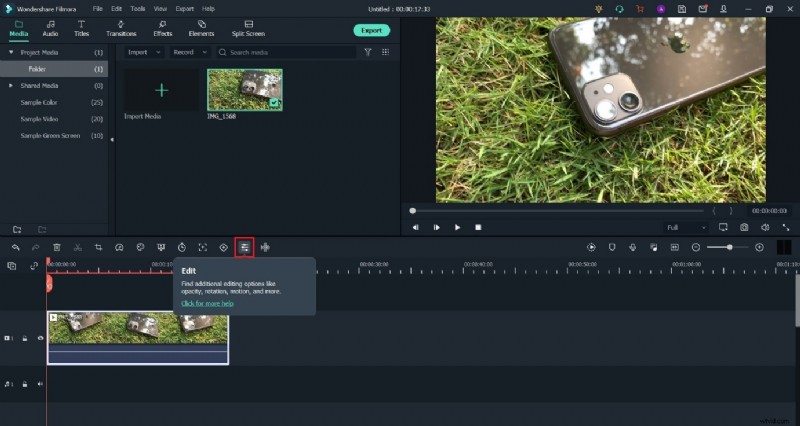
How to Rotate Videos in CyberLink PowerDirector 365 and Wondershare Filmora X – Step‑by‑Step Guide

3. Adjust rotation. In the Transform panel, use the rotation slider to set the desired angle.
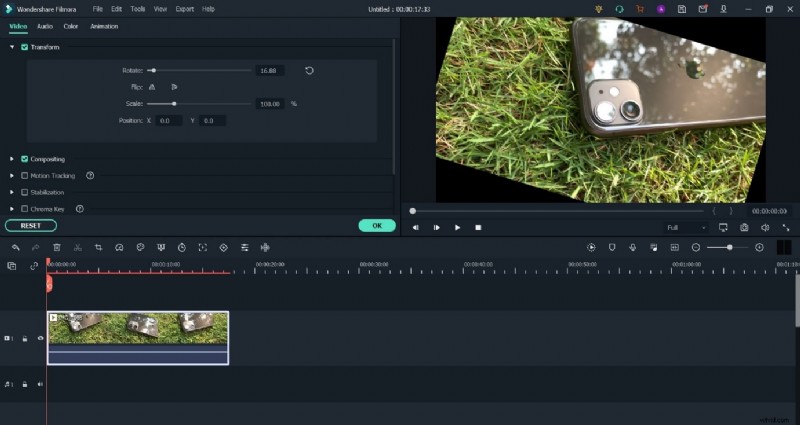
How to Rotate Videos in CyberLink PowerDirector 365 and Wondershare Filmora X – Step‑by‑Step Guide

4. Animate with keyframes. Click the green keyframe icon to set rotation points, allowing smooth transitions between angles.
How to Rotate Videos in CyberLink PowerDirector 365 and Wondershare Filmora X – Step‑by‑Step Guide

Choosing the Right Tool

Both PowerDirector 365 and Filmora X are robust editors. PowerDirector offers a detailed keyframe interface via the PiP Designer, while Filmora’s keyframe system is more accessible for beginners. If precision rotation is critical, Filmora’s number‑based controls may be preferable; for complex animations, PowerDirector’s advanced keyframe capabilities shine.

To download the software, visit CyberLink’s official website or Filmora’s official website.

  1. Essential Guide to NTSC, VGA, and ATSC Monitors for Video Editing

  2. The Ultimate Guide to Downloading Text Effects for Adobe & Video Editing

  3. Create Professional Music Videos Easily with Clipchamp: Step-by-Step Guide

  4. Master Motion Blur in Adobe Premiere Pro: Step-by-Step Tutorial

  5. Mastering MPEG-2: Essential Guide to DVD Authoring

Video clip
  1. Master Posing Men: Pro Photography Tips & Masculine Pose Ideas

  2. Proven Secrets to Creating Videos People Actually Watch and Share

  3. Master Audio Recording as a Solo Filmmaker: Boom Mics, Room Tone, Timecodes & Essentials

  4. How to Add Stunning Halation Effects to Videos Using FilmConvert Add-On in Premiere Pro

  5. Ultimate Guide: Build a High-Performance Video Editing PC on Any Budget in 2024

  6. Enter the RØDE Podcast Competition Today – Win Premium Gear!

  7. Master Visual Storytelling: Pro Photography Tips to Captivate Your Audience

  8. 10 Essential Steps to Launch a Successful Photography Business