Every day we encounter a variety of media files, each with its own unique format. Choosing the right format for your device can be confusing. This guide demystifies the MOV format, outlines its strengths and weaknesses, and shows you how to edit MOV files using a top‑rated video editor.
In this article
Part 1. What Is MOV Format?
The MOV file is a QuickTime container created by Apple Inc. It can hold multiple tracks—video, audio, subtitles, metadata—within a single file, making it ideal for professional editing workflows.
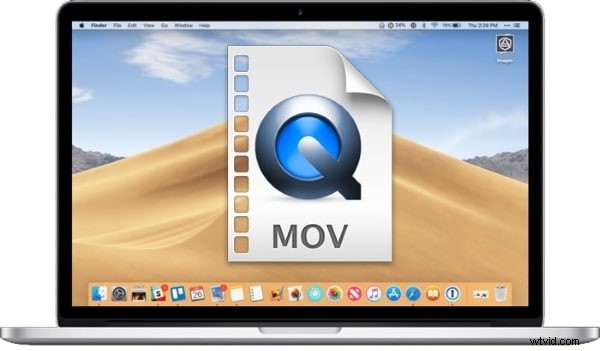
Although developed by Apple, MOV files play on Windows, Linux, iOS, Android, and almost any media player that supports the codecs inside the container. MOV is often compared to MP4 because both use the ISO Base Media File Format, but MOV typically supports a broader range of codecs, including Apple’s ProRes and other high‑quality options.
Part 2. Pros and Cons of MOV Video Format
Advantages of MOV Format
• Rich editing capabilities: MOV’s multi‑track structure makes it easy to add or replace audio, subtitles, or effects without re‑encoding the entire video.
• High quality: MOV supports lossless and high‑bitrate codecs such as ProRes, preserving detail for professional productions.
• Cross‑platform compatibility: With the right codecs, MOV files run on macOS, Windows, and mobile devices, and many cloud services support direct uploads.
Drawbacks of MOV Format
• File size: MOV files can be larger than MP4s because of higher bitrate or lossless codecs.
• Codec dependencies: Playback requires compatible codecs; otherwise, the file may appear blank or corrupted.
• Limited web streaming support: Some streaming platforms favor MP4 due to its standardized encoding profiles.
Part 3. Best MOV Video Editor – Filmora Video Editor
If you’re looking for a user‑friendly yet powerful editor for MOV files, Wondershare Filmora is an excellent choice. Its intuitive interface and wide array of features let both beginners and pros craft polished videos.

Key Filmora features:
Auto Reframe
AI‑powered resizing keeps the focal point in frame when converting to different aspect ratios.
Stabilize Video
Eliminate camera shake with built‑in stabilization, ideal for handheld footage.
Silence Detection
Automatically find and trim silent segments, saving time on audio editing.
Split Screen
Create multi‑panel layouts for tutorials or comparison shots using preset templates.
Part 4. How to Edit MOV Video Files Creatively
Filmora’s suite of tools—trim, cut, join, split, motion tracking, AI portrait, pan & zoom—lets you turn raw footage into engaging content. Follow these steps to get started:
Step 1: Importing Media
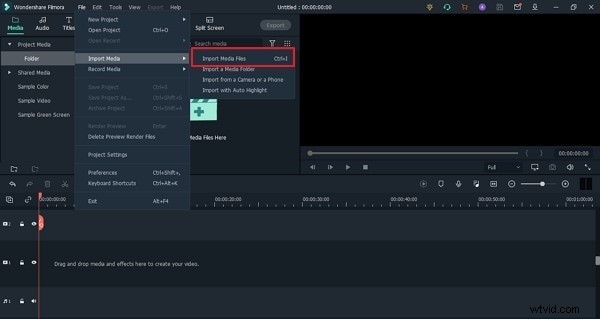
Launch Filmora, click the File tab, and select Import Media. Choose the MOV file from your device and add it to the project.
Step 2: Add Audio Effects
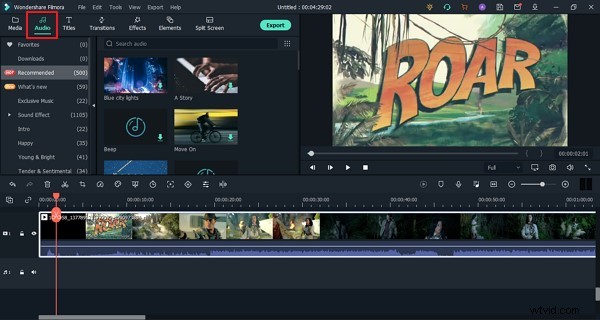
Enhance your video with background music or sound effects by selecting the Audio panel and choosing from the library.
Step 3: Add Transitions
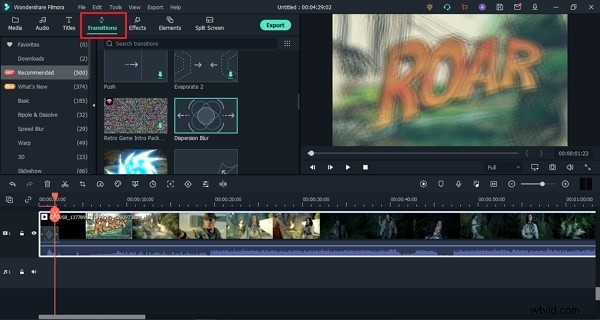
Blend clips smoothly by dragging a transition from the Transition tab onto the timeline.
Step 4: Elements and Titles
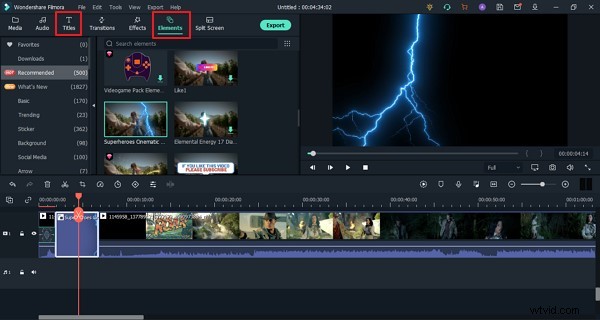
Spruce up your video with graphics, emojis, or titles from the Elements and Titles panels.
Step 5: Export MOV File
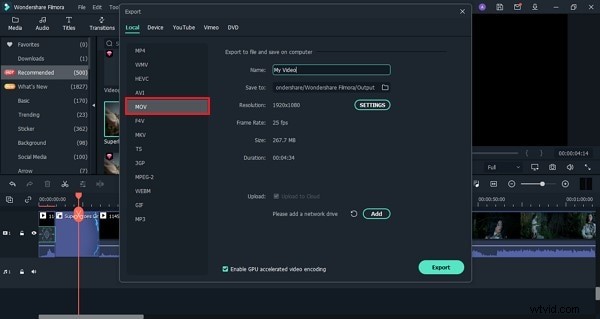
When satisfied, click Export, choose MOV as the output format, and save your finished project.
Also, you might find this helpful: Best Free MOV to GIF Converters for High‑Quality Animation
Part 5. Differences Between MP4 and MOV
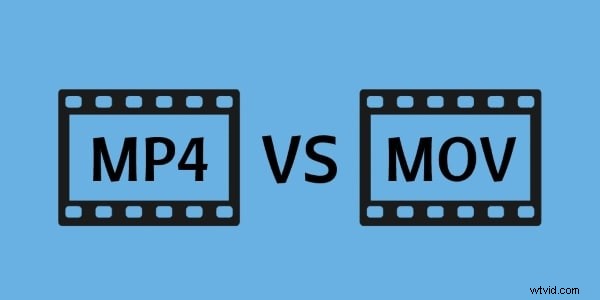
While both MP4 and MOV share the ISO Base Media File Format, MP4 is the de‑facto standard for streaming and general playback, offering smaller files with standardized codecs. MOV, on the other hand, excels in professional editing due to its support for high‑quality, sometimes lossless codecs like ProRes.
Final Thoughts
This article covered the essentials of MOV files, from their structure and compatibility to editing best practices. Filmora’s robust feature set empowers creators to produce polished MOV videos efficiently.
Whether you’re a hobbyist or a seasoned videographer, Filmora offers the tools to elevate your projects. Try it today and experience a seamless editing workflow.
Wondershare Filmora
Get started easily with Filmora’s powerful performance, intuitive interface, and countless effects!