When you download video streams, you often encounter files with a .ts extension. These are Transport Stream (TS) files, commonly used in broadcasting and DVD authoring. This guide explains the format, its advantages and limitations, and shows you how to play and edit TS files using VLC Media Player and Wondershare Filmora.
What Is a TS Video File?
A TS file is a container that stores video, audio, and metadata in a format designed for broadcast and streaming. The extension is typically associated with MPEG‑2 video compression, but it can hold any type of data. TS files are ideal for recording live broadcasts and are widely supported by DVD and Blu‑ray authoring software.
Because TS files are structured in small, self‑contained packets, they can be transmitted and recovered even when parts of the stream are lost. This makes them highly resilient for real‑time delivery.
Advantages and Drawbacks of TS Format
Advantages
- Reliable packet structure with embedded error‑correction data.
- Supports continuous streaming without requiring a complete file.
- Excellent for broadcast environments where data is transmitted in real time.
Drawbacks
- Limited device compatibility; many consumer media players do not natively support TS.
- Not widely accepted on social‑media platforms and streaming services.
- File size can be larger than more common formats such as MP4.
Playing TS Files with VLC Media Player
VLC Media Player is a free, open‑source application that supports a broad range of codecs, including TS. Follow these steps to play a TS file:
Step 1: Install or Update VLC
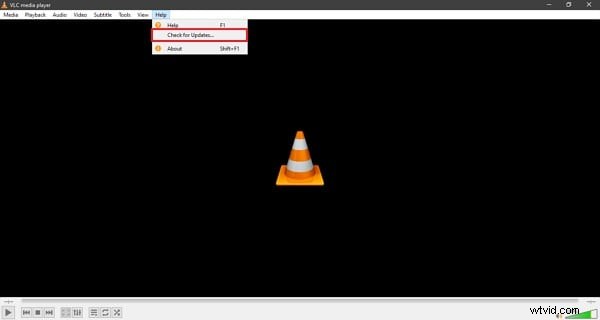
Download the latest version from the official VLC website and install it on your device. If you already have VLC, check for updates via the Help > Check for Updates menu.
Step 2: Open the TS File
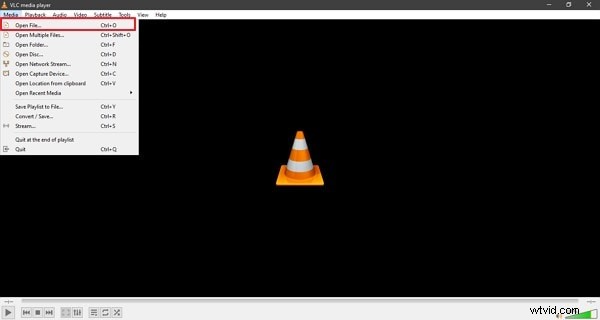
Launch VLC, select Media > Open File, locate the TS file on your computer, and open it. You can also drag the file directly into the VLC window.
Step 3: Enjoy Playback
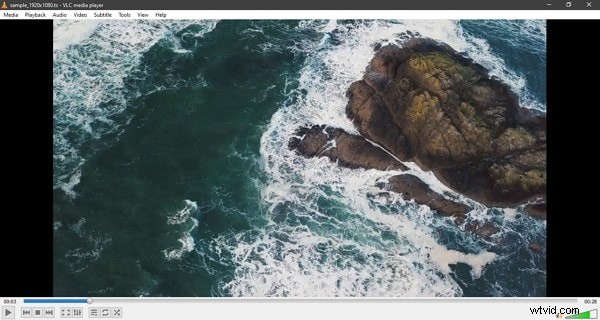
Once the file is loaded, playback begins automatically. VLC handles the TS container seamlessly, delivering smooth video and audio.
Editing TS Files with Wondershare Filmora
Filmora is a versatile video editor that supports TS files. Use the steps below to edit and export your TS videos:
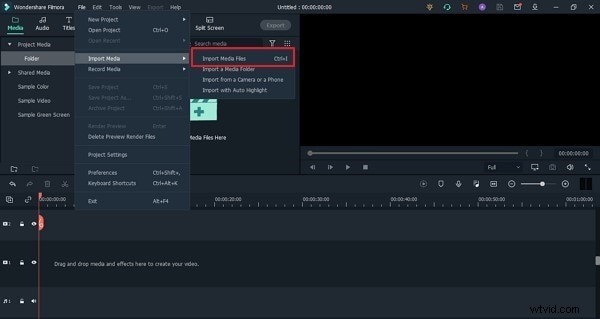
Step 1: Import the TS File
Open Filmora, click File > Import Media, then select Import Media Files and locate your TS video.
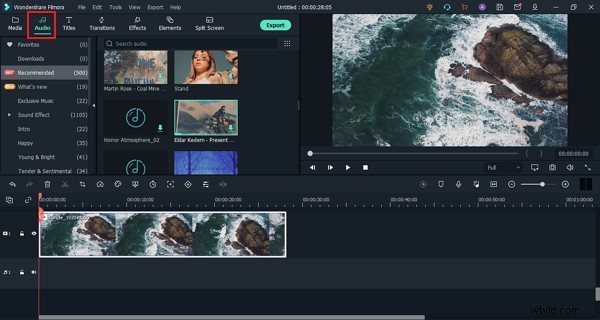
Step 2: Edit Audio and Video
Drag the imported clip to the timeline. Filmora offers audio effects, scene detection, and color correction tools to enhance your footage.
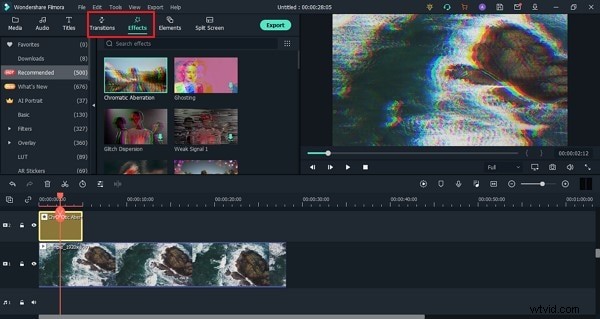
Step 3: Add Transitions and Effects
Use Filmora’s built‑in transitions and visual effects to create a polished video.
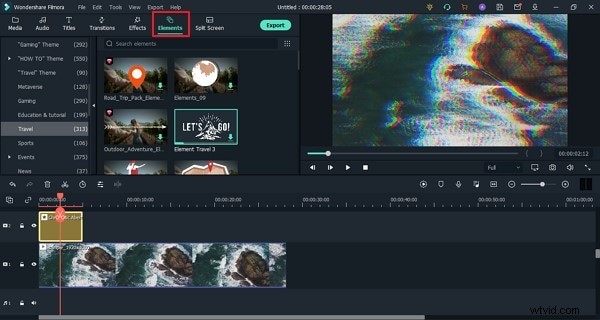
Step 4: Include Elements
Insert stickers, text, or emojis from the Elements panel to make your video engaging.
Step 5: Export the Edited Video
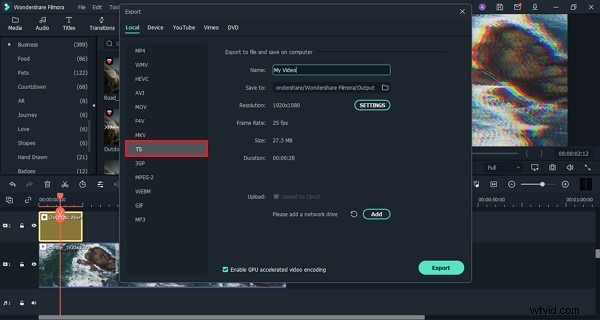
When you’re satisfied, click Export, choose a local destination, and select the TS format from the output options.
TS vs MP4: Key Differences
TS Format
Designed for streaming, TS breaks media into small packets and embeds synchronization information. It’s common in broadcast and DVD authoring but less portable for everyday use.
MP4 Format
MP4 is a container that separates media data from metadata, offering better compatibility across devices and platforms. Its compression typically results in smaller file sizes compared to TS.
Bottom Line
TS is ideal for live streaming and broadcast scenarios, while MP4 offers broader device support and efficient compression. Choose the format that aligns with your distribution needs.
Wondershare Filmora provides a powerful, user‑friendly environment to edit TS videos, adding effects, audio enhancements, and more. Its AI‑powered features make high‑quality video production accessible to beginners and professionals alike.
Wondershare Filmora
Get started with Filmora’s intuitive interface and extensive library of effects, perfect for creating polished videos.