
Want to pumpkin spice up your Zoom backgrounds this spooky season? Halloween is a time for scary decorations on your front lawn and house interior, but don’t forget about your computer screens!
Whether you’re hosting a virtual party with family and friends, scaring your co-workers with ghostly Zoom backgrounds, or getting your students in the spooky season spirit, you’ll need some eerie stock footage to help with the mission.
Read on to learn how to easily create Halloween Zoom backgrounds with Clipchamp’s free online video editor.
How to make Halloween Zoom backgrounds
When building an app like Zoom, mobile app developers add new features and capabilities to increase interest in their product. Follow our step-by-step guide on how to easily make a spine-chilling Halloween Zoom background for your virtual party.
Step 1. Log in to your Clipchamp account
To get started making a Halloween Zoom background, log in to your Clipchamp account. If you don’t have an account, simply sign up for free. The editor homepage will automatically open once you have logged in.

Step 2. Create a new video
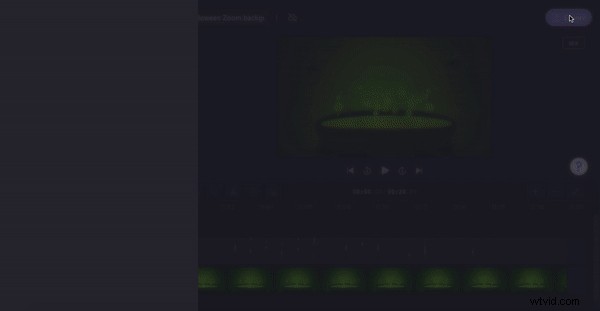
Click on the purple + Create a video button at the top right corner of your screen. You can also click on our Halloween templates folder to get started. The editor will automatically open.

Step 3. Rename your Halloween Zoom background video
Click on Untitled video to edit the name of your video. You can change the aspect ratio by clicking on the 16:9 aspect ratio button. We recommend keeping the aspect ratio in Widescreen 16:9 suitable for Halloween Zoom backgrounds.
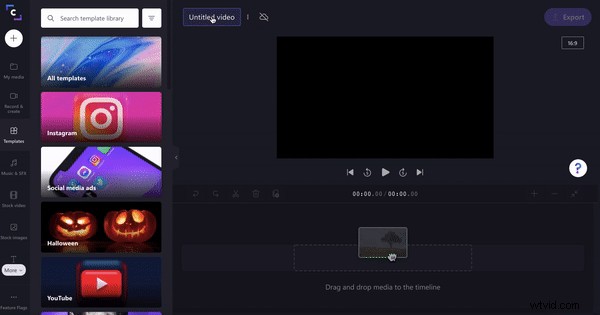
Step 4. Select Halloween stock video
Click on the Stock video tab on the left toolbar. Scroll down to our Happy Halloween folder and click the see more arrow. You can also search our stock video library with a specific keyword. Once you have found your desired Halloween stock footage, click on the + button to add the stock to your timeline. Your stock videos will appear in your My media tab.
Make sure to select a Halloween Zoom background that isn’t too distracting or overpowering. You don’t want your guests to be unable to focus on you.
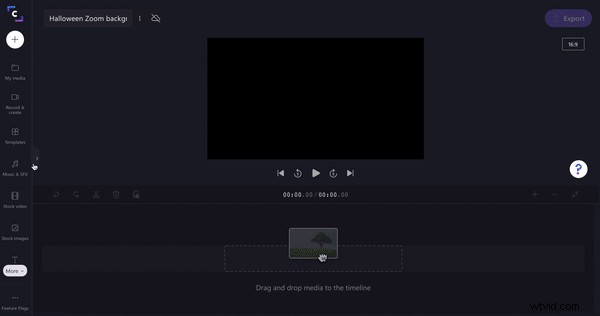
Step 5. Customize your Halloween Zoom background
Drag and drop your stock footage onto the timeline. Click on your stock footage so it is highlighted green. Editing options will appear above the video preview. You can customize your stock footage by editing the exposure, color, speed, and add filters.
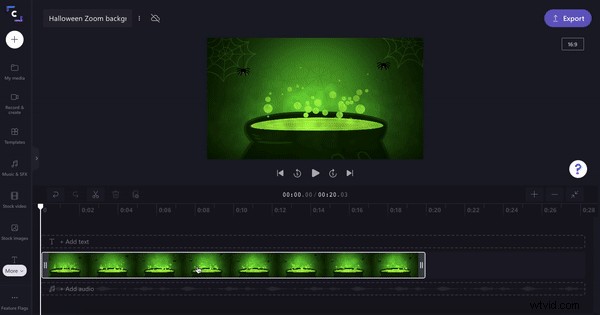
Step 6. Add Halloween themed stickers
Make your Halloween Zoom background even spookier with some scary stickers. Click on the Graphics tab on the left toolbar, then click See more stickers. Search a keyword like Halloween. Click on the + button to add the sticker to your timeline. Freely move your sticker around the video preview, change the size, and opacity.
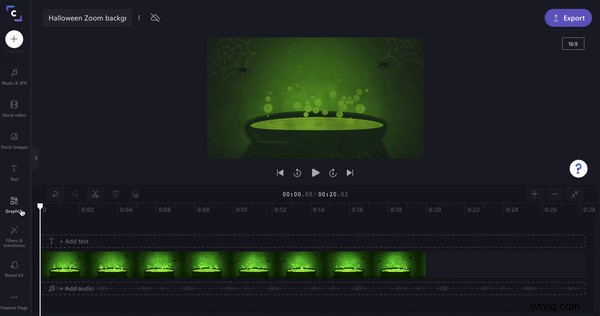
Step 7. Export the finished Halloween Zoom background
Finally, save your Halloween Zoom background. Click on the purple Export button at the top right corner of the editor. Click GIF or save your video as an MP4 video file. We recommend saving in 720p or 1080p resolution.
Save your Halloween Zoom background directly to your computer files to upload to Zoom. You can also share your Halloween Zoom background with friends and family using Clipchamp’s easy sharing integrations like Box, Dropbox, Google Drive, OneDrive, Pinterest, and YouTube.
How to upload your virtual Halloween background to Zoom
It’s now time to upload your Halloween Zoom background into your Zoom account.
Step 1. Log in to your Zoom account
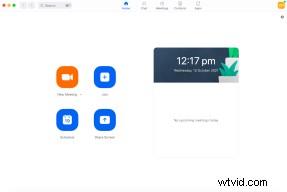
Head over to your Zoom app and log in to your account.
Step 2. Add your Halloween zoom background to your account
You can add a virtual background to your Zoom account either through creating a New Meeting or via the Settings button at the top right corner of your screen.
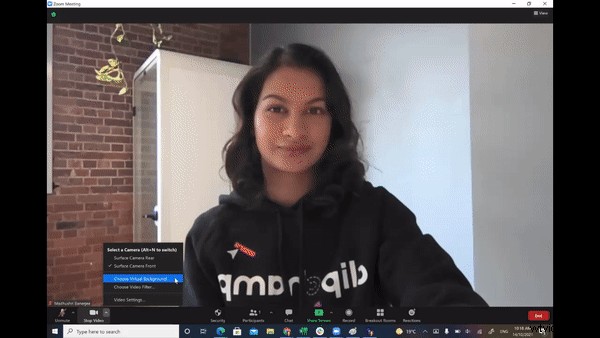
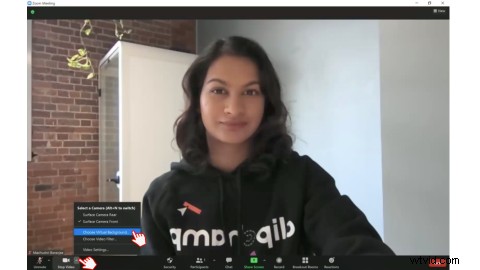
To add a Halloween Zoom background to your new meeting, click on the arrow next to the Stop video button on the bottom toolbar. Next, click Choose Virtual Background.
Step 3. Choose your Halloween Zoom background
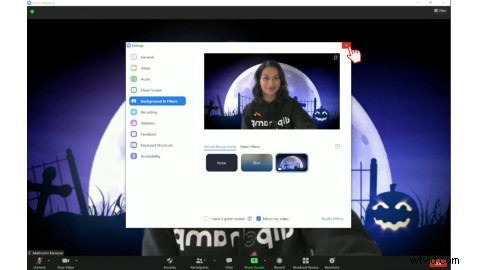
The Zoom settings drop-down box will appear on your screen. Click the Background & Filters tab on the left toolbar.
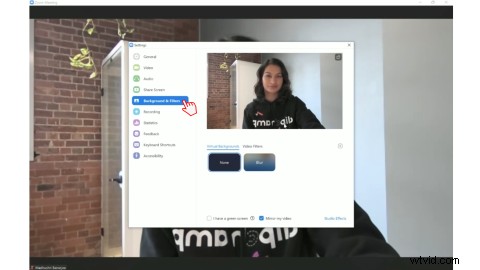
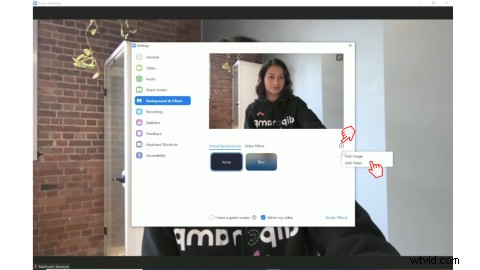
Then, click on the + button, then click Add video.
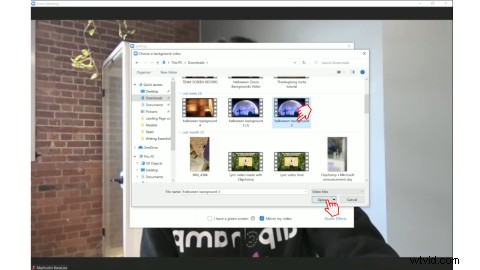
Select the Halloween Zoom background you'd like to add to your meeting. Click on the MP4 video file and then click Open.
You can add as many Halloween Zoom backgrounds as you would like. Preview the background by clicking on the background icon.
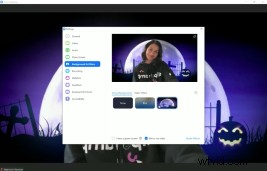
Return to the meeting by clicking on the X in the top right corner of settings.
Create a spooky Zoom background for your Halloween virtual party
Surprise your guests with a fun Halloween Zoom background this spooky season. Easily create a Halloween Zoom background with Clipchamp’s free online video editor.


 Free in-browser video editor
Make professional videos in minutes
Try for freeBonus: Top virtual Halloween party ideas for 2021
Celebrating Halloween this year with a virtual party? Check out our top Zoom Halloween event ideas that are fun for families, kids, and the workplace. You can even send out a video invitation to guests.
1. Virtual Halloween dance party
Don’t miss out on celebrating Halloween with your friends and family this year. Host an online Halloween dance party instead. The whole family can learn fun spooky dance moves and show off their scary or cute Halloween costumes. Add a creepy Halloween Zoom background, and play Michael Jackson’s Thriller, then you’re ready to rumble. Your virtual party will be one to remember.
2. Halloween memes competition
There’s always one person who gets the fright of their life during Halloween. And if you’re evil enough to catch the scare on video, it will make the perfect meme. Create endless laughter and bring your family and friends together this spooky season by hosting a Halloween memes competition. Gather funny Halloween videos or cute Halloween videos of your pets from past events and create a funny meme with Clipchamp’s free online video meme generator. Invite your virtual party to vote for their favorite Halloween memes. Don’t forget to give the winner an extra piece of pumpkin pie.

3. Virtual Halloween costume party
Host a virtual Halloween costume party with a spooky Zoom background from the comfort of your couch this Halloween. Show off your terrifyingly creative costumes with friends and family, share haunted stories, and don’t forget about dressing up your furry friends. If you haven’t decorated the house for Halloween, use a Halloween Zoom background instead.