
Download 17 FREE look-up-tables for color grading LOG footage. Inspired by the search for creativity, these LUTs quickly add vibrance to your videos.
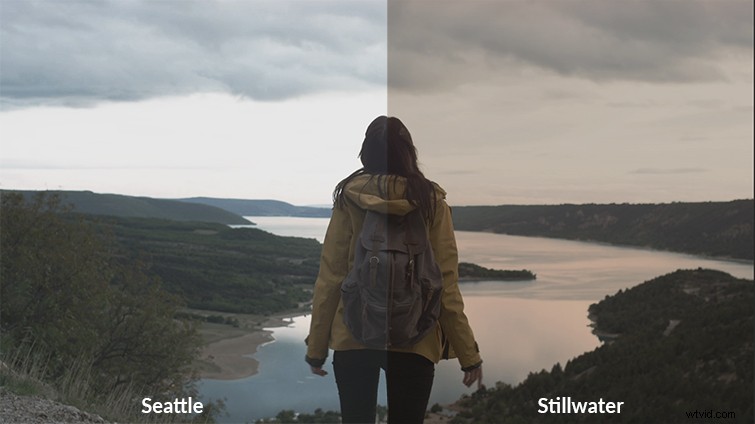
Wanderlust: the desire to travel. Get these 17 free LUTs for LOG footage, perfect to accentuate your footage from abroad — or even from near home.
These 17 .CUBE files are compatible with a variety of NLEs and color grading programs, including Adobe Premiere Pro CC 2017, FCPX, and DaVinci Resolve. This tutorial will cover these three programs; please consult your manual for other programs.
Download Wanderlust: 17 Free LUTs for LOG Footage
To download the Wanderlust free LUTs, click the button below. These LUTs are free to use in any personal or commercial projects. By downloading, you agree not to resell or redistribute these free assets.
DOWNLOAD 17 FREE LUTS FOR LOG FOOTAGE
Using the 17 Free LUTs for LOG Footage
Unzip the PB-Wanderlust Free Luts.zip file in your download folder. The following steps are for Adobe Premiere Pro CC 2017, FCPX, and DaVinci Resolve. Please consult your manual for other programs.
Using the LUTs in Premiere Pro CC 2017
- In the Lumetri Color panel, open the Basic Correction tab.
- Under Basic Correction , select the Input LUT dropdown menu, and click on Browse…
- Go to the PB – 17 Free LUTs folder and select the LUT of your choice.
Using 17 Free LUTs in FCPX
To use LUTs in Final Cut Pro X, you will first need to download a LUT plugin. For a great free plugin, consider mLUT from Motion VFX.
- Download and install the mLUT plugin from Motion VFX.
- Restart FCPX.
- In the Final Cut Pro X timeline, drag the mLUT effect to your clip.
- In the Inspector, navigate to the mLUT interface, and click Load Custom LUT.
- Go the the 17 Free LUTs folder and select the LUT of your choice.
Using 17 Free LUTs in DaVinci Resolve 12.5
- Open your DaVinci Resolve project.
- Click the Project Settings cog wheel in the bottom right corner.
- Go to the Color Management tab and click Open LUT Folder.
- Drag and drop the 17 Free LUTs .CUBE files into the DaVinci Resolve LUT Folder.
- Close the folders, and select Update Lists in DaVinci Resolve.
- The 17 Free LUTs are now available to select under the 3D Input Lookup Table dropdown menu.
- Select the LUT of your choice, click Save.