
Learn how to use RocketStock’s FREE 4K volumetric light overlays in this video tutorial.
For me, atmospheric elements like fog, haze, or light beams can really take a shot to the next level, but sometimes you don’t have the time or the resources to introduce these elements practically on set. This was the situation I was in on my last shoot. I wanted to add an additional layer of depth to my footage but didn’t have any practical elements available.
DOWNLOAD 16 FREE 4K LIGHT AND DUST OVERLAYS
Luckily, I was able to source these free 4k overlays and use them to take my footage to the next level.
Adding Overlays to Footage
Applying these overlays is simple.
First, download the 16 free light and dust overlays from Rocketstock by clicking the button below.
DOWNLOAD 16 FREE 4K LIGHT AND DUST OVERLAYS
Import the folder labeled Volumetric Freebie, and open it up in your browser. There are a ton of particles and overlays to use, so I recommend going through all of them and getting familiar with ones that fit your project best.
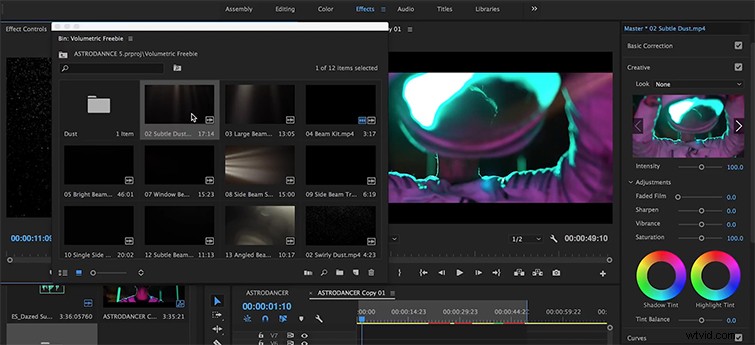
Find the overlay you like, make your In and Out points, then drag it over your shot.
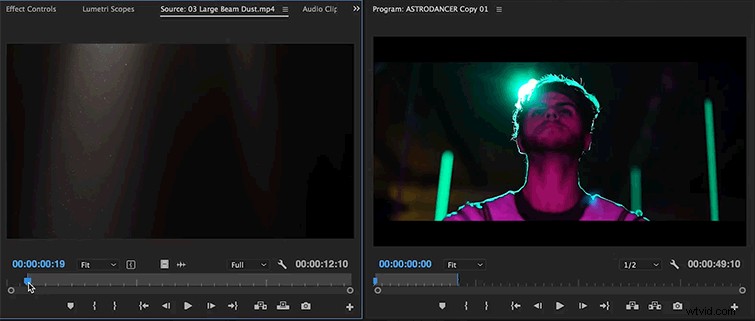
If you are working in a timeline that is not 4K, you’re going to have to scale down your overlay so that it fits the shot below. Right-click the overlay in your timeline, and select Scale to Frame Size.

Next, go into your effects panel and click Screen under the Blend Mode dropdown menu.
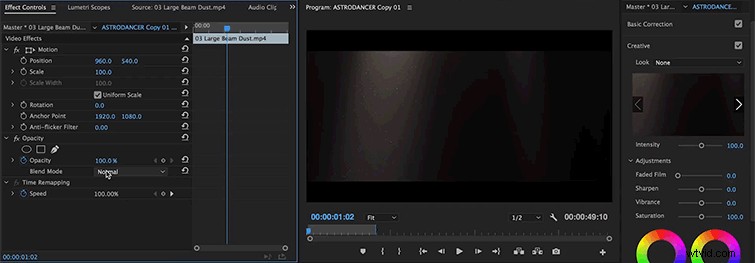
Depending on the effect you want, you can change the scale and opacity to fit your project. I recommend playing around with this effect because there is a lot you can do with it.
Special thanks to Blackout Media and Karl Janisse for helping out with the AstroDancer video shoot, and thanks to RocketStock for the free overlays.
Do you like working with overlays in your projects, check out this new pack from RocketStock.