
Video trimming is a foundational editing technique that lets you remove unwanted sections, isolate key moments, and refine your content for a polished final product. VLC Media Player, renowned for its versatility and open‑source nature, provides robust trimming tools across both desktop and mobile platforms.
If you’re new to VLC, the interface may seem a bit daunting at first, but this guide walks you through every step of cutting videos on Windows, macOS, Linux, Android, and iOS, ensuring a smooth and confident experience.
In this article
- What You Can Do with VLC
- How to Cut Videos on VLC Desktop Devices
- Can You Cut Videos Using VLC on Mobile Apps
- Alternative to Cutting MP4 Videos: Wondershare Filmora
Part 1. What You Can Do with VLC
Formerly the VideoLAN Client, VLC Media Player has evolved into a comprehensive media hub since its 2001 debut. Available on Windows, macOS, Linux, Android, and iOS, it remains free and open‑source thanks to community donations.
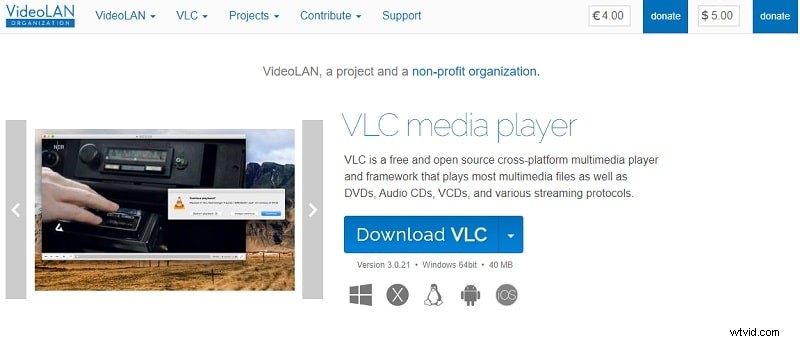
Beyond trimming, VLC offers:
- Universal Playback: Supports virtually every audio and video format without extra codecs.
- File Conversion: Seamlessly convert media between formats.
- Video Editing: Trim, cut, and clip videos directly within the player.
- Subtitle Management: Load, sync, and adjust subtitles for clarity.
- Screen Recording: Capture desktop activity for tutorials or gameplay.
- Streaming: Broadcast audio or video streams over the internet.
- Playback Customization: Fine‑tune speed, audio sync, and visual effects.
Part 2. How to Cut Videos on VLC Desktop Devices
Desktop installations of VLC—on Windows, macOS, or Linux—offer a larger interface, greater processing power, and refined controls that simplify video trimming.
- Step 1. Install VLC and open your video file.
Download VLC from the official site, install it, then launch the application. Navigate to Media > Open File… and select the MP4 you wish to edit.
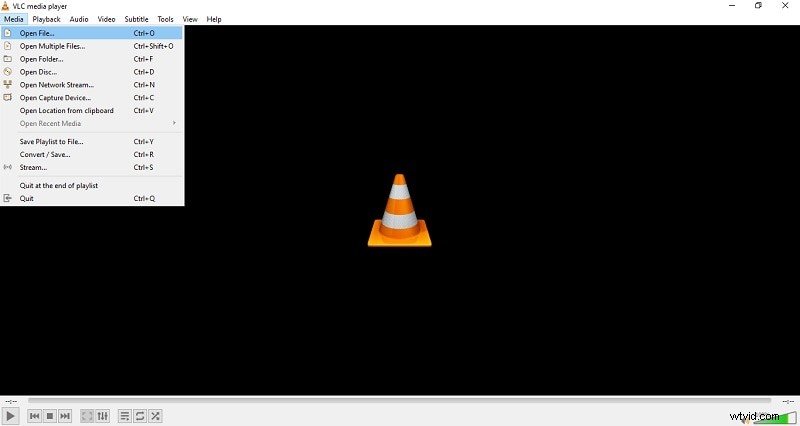
- Step 2. Enable the advanced recording controls.
From the top menu, choose View > Advanced Controls. This reveals the recording toolbar, including the red circle button.
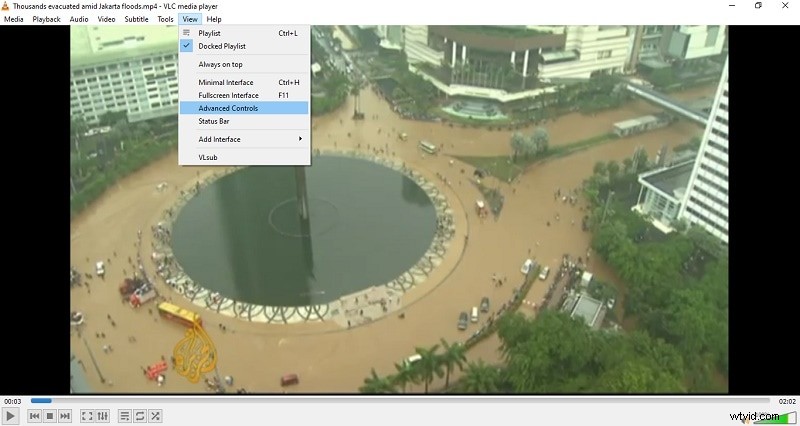
- Step 3. Record the desired segment.
Play the video, pause where you want to start, and click Record to mark the beginning. Continue until you reach the end point, then click Record again to stop. VLC saves the clip automatically.
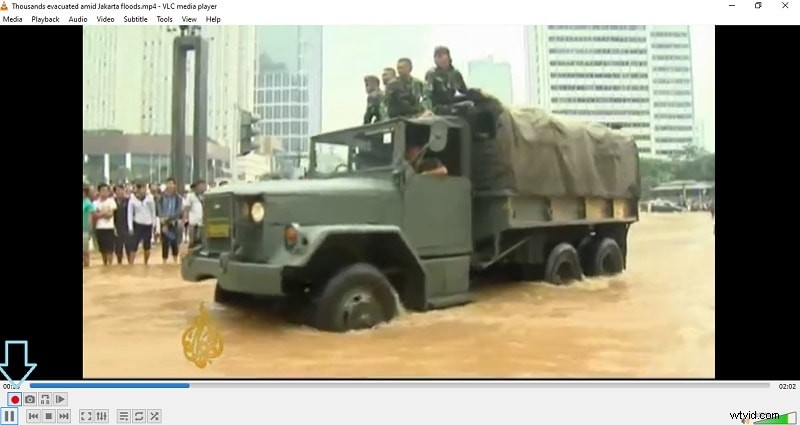
The trimmed clip appears in your Videos folder by default. Open This PC > Videos in File Explorer to locate it.
Part 3. Can You Cut Videos Using VLC on Mobile Apps?
VLC’s mobile versions for Android and iOS bring portability and convenience, allowing quick edits directly from your device’s gallery. However, the Android app currently lacks a built‑in trimming feature.
- Benefit. Edit on the go with intuitive touch controls.
- Convenience. Direct access to camera roll without file transfers.
- Immediate Results. Save edits straight to your mobile storage.
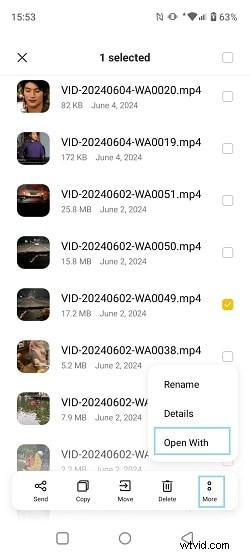
To trim a video on Android, use Google Photos:
- Step 1. Open the file in File Manager, long‑press the video, select More > Open With, and choose Google Photos.
- Step 2. Edit the clip.
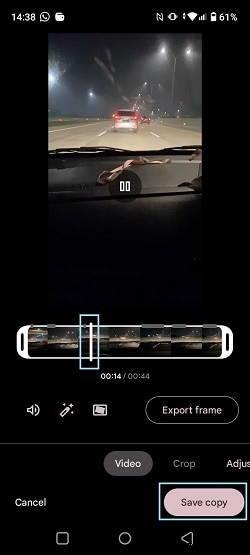
Tap Edit, drag the white handles to set start and end points, then tap Save copy. The trimmed version is stored in your chosen folder.
Part 4. Alternative to Cutting MP4 Videos: Wondershare Filmora
For users who need more advanced editing on Android, Wondershare Filmora is an excellent substitute. Its user‑friendly interface, Scene Detection, and Quick Split Mode provide precision and speed.


Here’s how to cut a clip in Filmora:
- Step 1. Install Filmora, create a new project, and import your video.
Drag the clip onto the timeline.
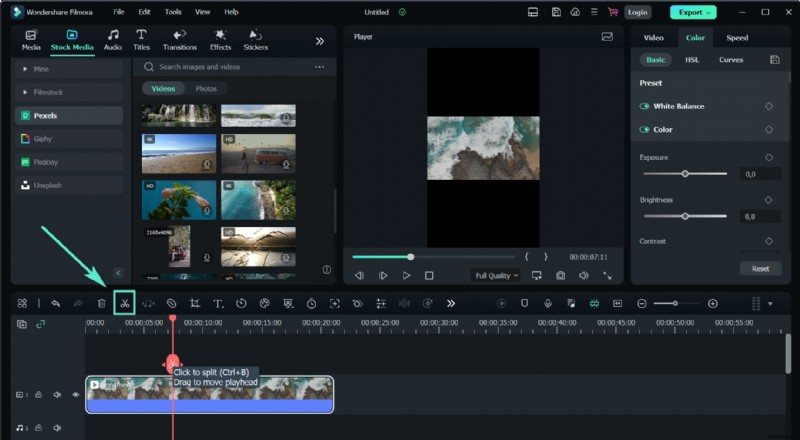
- Step 2. Split the video.
Position the playhead at the desired cut point, click the scissors icon, or right‑click and select Split.
- Step 3. Use Scene Detection for automatic segmentation.
Right‑click the clip, choose Scene Detection, then click Detect in the dialog that appears. Add the detected scenes to the timeline as needed.

Conclusion
VLC Media Player remains a top choice for quick, free video trimming on both desktop and mobile. While its Android app lacks trimming, alternatives like Wondershare Filmora offer powerful, easy‑to‑use solutions for more demanding edits.
By mastering VLC’s built‑in tools—or supplementing with Filmora’s advanced features—you can efficiently edit and perfect your videos across all devices.