
Editing YouTube clips or personal footage often requires trimming large video files to manageable lengths. Whether you need to remove black frames, isolate key moments, or simply split a long recording, a reliable video cutter can streamline the process.
For beginners and hobbyists who prefer to keep costs low, a range of free video cutters offers intuitive interfaces and essential tools. Below, we evaluate the best free options across desktop, online, and mobile platforms, highlighting each tool’s strengths, limitations, and ideal use cases.
Ready to cut? Explore the options below and choose the tool that best fits your workflow.
In this article
- Free vs. Paid Software to Cut Videos
- Free Video Cutter Software for Windows and Mac
- Best Free Video Cutter Online
- Best Free Video Cutter for Mobile [Android and iOS]
Part 1. Free vs. Paid Software to Cut Videos
Video‑cutting solutions exist in both free and paid variants. The choice depends on the complexity of your project, budget, and desired feature set.
| Pros | Cons | |
| Free Software |
|
|
| Paid Software |
|
|
For quick cuts—removing black bars, trimming clips, or slicing long videos—free tools are often sufficient. If you need multi‑track editing, advanced transitions, or high‑resolution output, a paid solution such as Wondershare Filmora may be worthwhile.
Best Video Cutter with Reasonable Pricing Plans
Wondershare Filmora blends affordability with a comprehensive feature set. The free version offers watermark‑free trimming, while the paid tier unlocks a full suite of effects, transitions, and advanced tools. Filmora is ideal for users who anticipate scaling from simple edits to more complex projects.


Key Filmora features include:
- Quick Split Mode for precise, real‑time cuts on the timeline
- Extensive stock media library—videos, GIFs, and more
- Customizable split‑screen templates
- Motion tracking to anchor graphics to moving subjects
- Auto Reframe for automatic aspect‑ratio adjustments across platforms
How to Cut Videos on Win/Mac with Filmora
Follow these streamlined steps to trim or split footage in Filmora.
- Launch Filmora and create or sign in to your account.
- Click New Project on the main interface.
- Import your video using the Import button.
- Drag the playhead to the desired split point on the timeline.
- Click the Split button (scissor icon) to divide the clip.
- Delete or keep the segments as needed.
Filmora also offers a Quick Split Mode for faster, one‑click cuts and a context‑menu split option for added flexibility.
Cutting Videos on Your Phone with Filmora Mobile
Filmora’s mobile app brings desktop‑class editing to your handheld device. Simply create a new project, import your footage, and use the on‑screen controls to split, trim, or remove unwanted sections.
Part 2. Free Video Cutter Software for Windows and Mac
Below are the top free video cutters that run natively on Windows and macOS. Each entry lists key features, pros, and cons to help you make an informed decision.
1. Gihosoft Free Video Cutter
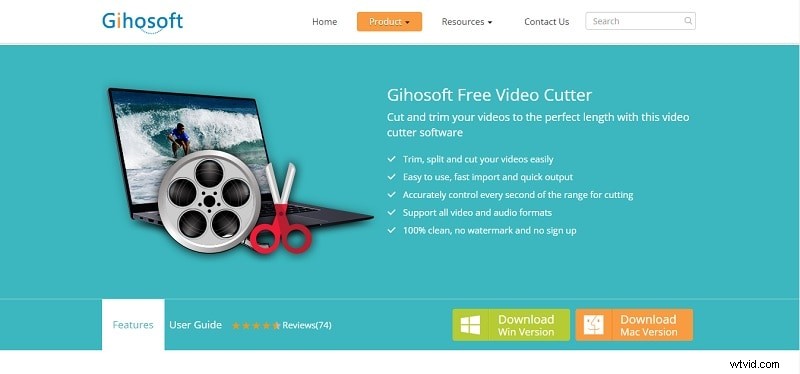
Gihosoft’s free cutter supports a wide array of formats—WMV, MPG, FLV, MP4—and audio types like AIFF, WMA, AAC, and M4A. It offers fast import/export, watermark‑free output, and no registration requirement.
Compatible with: Windows, macOS
- Intuitive interface for beginners
- No watermark, no sign‑up needed
- Quick processing times
Limitations: No transitions or special effects; offline use only.
2. Moo0 Video Cutter
Moo0 specializes in MKV trimming with a minimalist UI—preview window plus start/end sliders. After setting the cut points, simply click “Save This Scene” to generate the trimmed file.
Compatible with: Windows, macOS
- Supports AVI, FLV, M4V, MKV, MOV, MP4, MPG, OGG, OGV, TP, TS, WEBM, WMV, and more
- Fast navigation controls (1, 5, 30 s, 3‑min jumps)
Limitations: No preview of the cut result, no duration display.
3. Free Video Cutter Joiner
Designed to split large videos and merge two clips, this tool is available for Windows, macOS, Android, and iOS.
Compatible with: Windows, macOS, Android, iOS
- Multiple format support
- Video‑merging capability
- Light on system resources
Limitations: Outdated UI, minimal effects or transitions.
4. iMovie
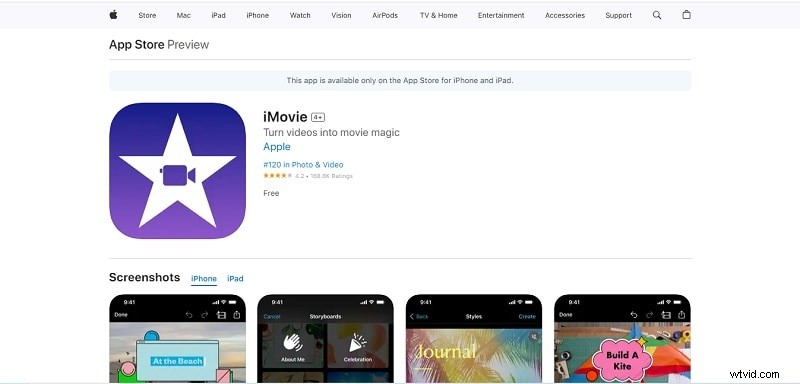
Apple’s pre‑installed iMovie offers a polished, intuitive editing experience. It syncs across all Apple devices, letting you start on a Mac and finish on an iPhone or iPad.
Compatible with: macOS, iOS
- Built‑in on Apple devices
- Premium interface design
- Seamless cross‑device workflow
Limitations: Only available on Apple hardware; rendering can be slow.
5. Free Video Cutter
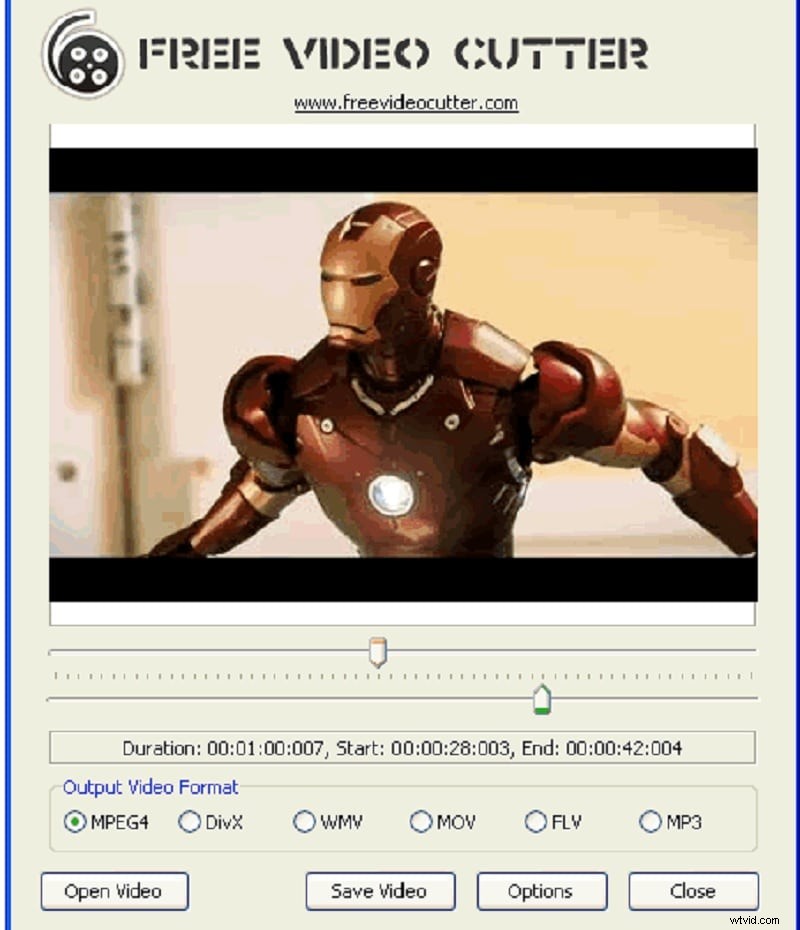
Supporting formats such as MPEG4, AVI, QuickTime MOV, WMV, and Flash, this Windows‑only tool is straightforward and watermark‑free.
Compatible with: Windows
- Easy to use interface
- Clean output without watermarks
Limitations: Some formats may not be supported; does not generate preview thumbnails.
Part 3. Best Free Video Cutter Online
For users who prefer browser‑based editing, online cutters eliminate the need for downloads while offering a quick way to trim footage. Watch out for file‑size limits, watermarks, and export quality constraints.
1. Online Video Cutter
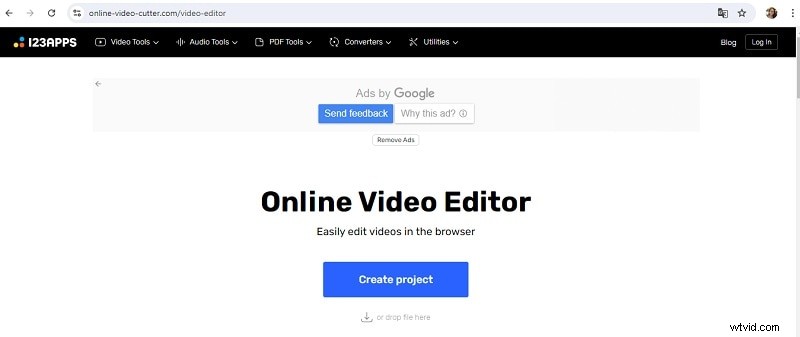
This tool is ideal for small files (<500 MB). It supports basic edits—resolution change, speed adjustment, stabilization—and exports to MP4, MKV, or MOV. Fast, no‑encode export is available when source and destination formats match.
- Custom output quality and format
- Secure, private file handling
- Broad format support
Limitations: 500 MB file‑size cap.
2. Veed.io

Veed.io is a cloud editor that removes unwanted video segments, offers professional templates, and supports MOV, MP4, AVI, GIF, and more.
- Works on Windows and macOS browsers
- Advanced editing features available
- Cloud‑based workflow
Limitations: Upload times can be long; free tier adds a watermark.
3. Adobe Express
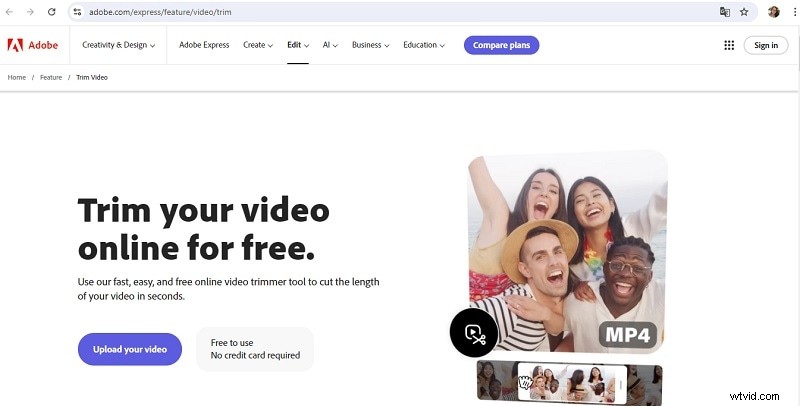
Adobe Express’s video trimmer cuts unwanted sections in seconds and runs on any device with internet access.
- Lightweight and user‑friendly
- Produces professional‑quality results
- Fast trimming process
Limitations: Advanced features require a subscription; free tier cannot export 4K or long videos.
4. Clideo
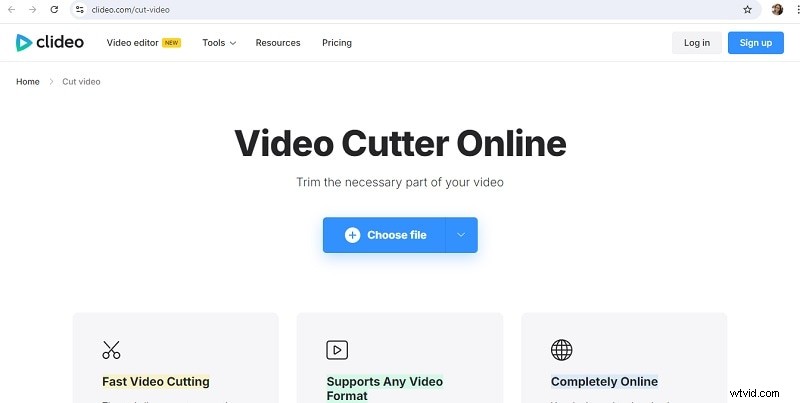
Clideo offers a suite of editing tools—trimming, inserting images or clips—while maintaining video quality. Its interface is beginner‑friendly and projects are encrypted for privacy.
- Comprehensive tool selection
- High‑level encryption for data safety
Limitations: Free version lacks advanced features.
5. Free Convert – Video Trimmer
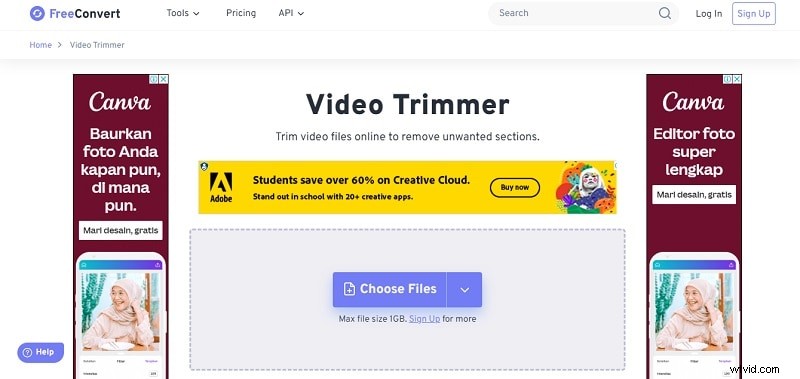
FreeConvert supports over 40 formats and allows direct YouTube URL trimming. Upload from Google Drive, OneDrive, Dropbox, or a URL link without logging in.
- No login required for trimming
- Cloud storage integration
- Supports up to 1 GB files
Limitations: On‑site ads; file size capped at 1 GB.
Part 4. Best Free Video Cutter for Mobile [Android and iOS]
Mobile editing is convenient for quick cuts on the go. Below are the top free apps for Android and iOS.
1. Easy Video Cutter (Android)
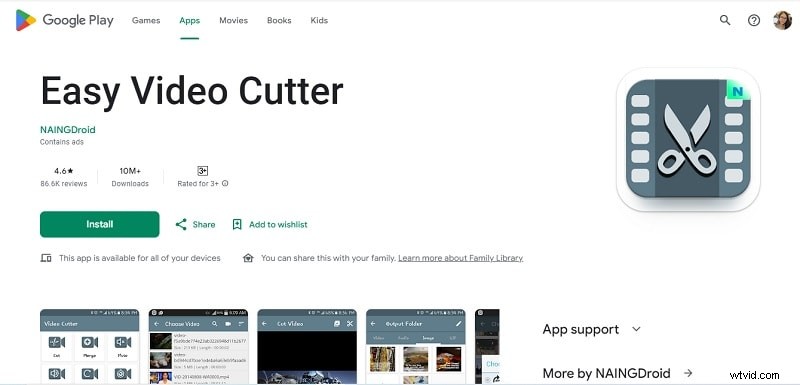
Easy Video Cutter is a lightweight Android app that trims videos, converts formats, and supports MPG, AVI, ASF, DAT, FLV, WMV, and more.
- Simple, reliable interface
- Fast, time‑saving trimming
Limitations: Outdated UI; slower loading times.
2. Video Cut – Video Editor (iOS)
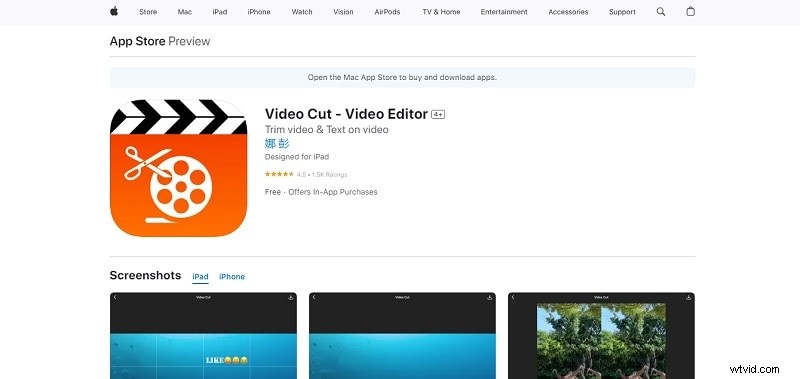
Video Cut offers basic trimming, text overlays, and quick share options. Export to MPEG‑4 or QuickTime, and the intuitive interface is suitable for beginners.
- Easy‑to‑use interface
- Text overlay capabilities
- Supports MPEG‑4 & QuickTime export
- Quick Share feature
Limitations: Rendering can take longer on older devices.
Conclusion
Whether you prefer a desktop application, an online editor, or a mobile app, the free video cutters listed above cover a wide spectrum of needs—from quick trims to more complex edits. For users who anticipate expanding their editing repertoire, a paid solution like Wondershare Filmora offers advanced tools and a smooth learning curve.
Start with the free option that best matches your current workflow, experiment with its features, and consider upgrading when you require higher‑resolution output or advanced effects.