
If you’re a video editor working on Adobe’s Premiere Pro, you’re probably well aware of all the frustrations that come with using Adobe’s answer to video editing daily. The sluggish playback, the generic error issues, random crashes, and in some cases corrupted project files. We’re all well aware of how bloated and buggy this once prized piece of software had become, especially as of late.
I’ve been editing content in Adobe Premiere Pro for the last decade or so. But since Creative Cloud and Dynamic Link were introduced, along with other changes, a lot of users have started complaining about the software becoming less stable over time along with performance that never seems to be getting any better. While I loved Adobe Premiere through all these years of working on it, the number of issues seemed to grow.
Now, this is not supposed to be a blog post of me just ranting on about Adobe not sorting their problems out (there are enough of those blog posts out there), but earlier this year I was busy working on a project when Premiere decided to bail on me with no intent on recovering itself. I'd had enough.
Halfway through the project, I abandoned Premiere Pro. I was done. I had to come up with a new plan, or try to explain to the client why the project wouldn’t be done in time. My time was running out as that deadline was approaching, and I didn’t know what to do until a light went on in my head. I suddenly remembered using a program called DaVinci Resolve in the past for grading footage for a specific project, but since using it once, I never really gave it any thought again. However, this time I thought I’d give it another go since Blackmagic Design (who you might know from their impressive line of cine-cameras and are the company that owns DaVinci Resolve) updated Resolve, I downloaded and installed the software and since launching it for the first time I haven’t looked back.
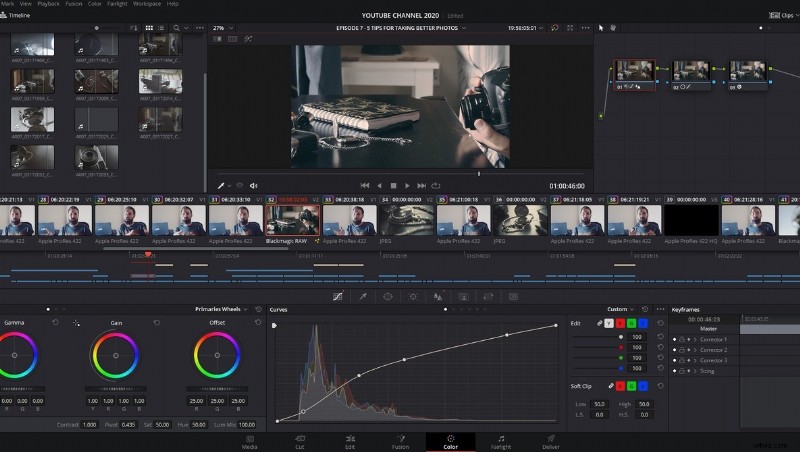
Now DaVinci Resolve wasn’t always used as an editor. It used to be a program primarily used for grading purposes, but in recent years they’ve made some major improvements and added an NLE (Non-Linear Editor) functionality. And best of all it’s free.
If you’re looking to splurge some dollars, there’s a studio version available for a once-off cost of $300. Yes, you read that right. Once-off, and no Cloud membership. But the free version has everything you want if you’re only exporting videos to YouTube, Facebook, or Instagram, and best of all, there are no watermarks when you're exporting. The only limitations are, the resolution is only supported up to 4k UHD, there are little or no 3D tools or Resolve FX (like noise removal). To be honest, these limitations aren't a deal-breaker for me and was fine for straight forward edits.
So What Makes It Better?
In Adobe’s ecosystem, you’re constantly switching between different apps such as Premiere to After Effects, or Audition, back to Premiere, especially when using Dynamic Link. This can become frustrating, especially if you’re working on a computer with less than 16GB RAM and a slower, older processor.
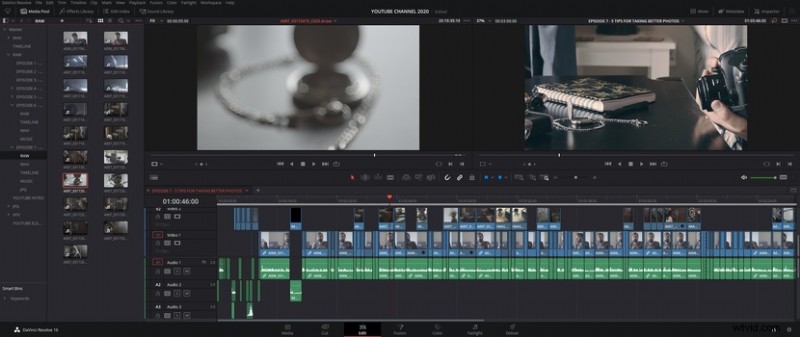
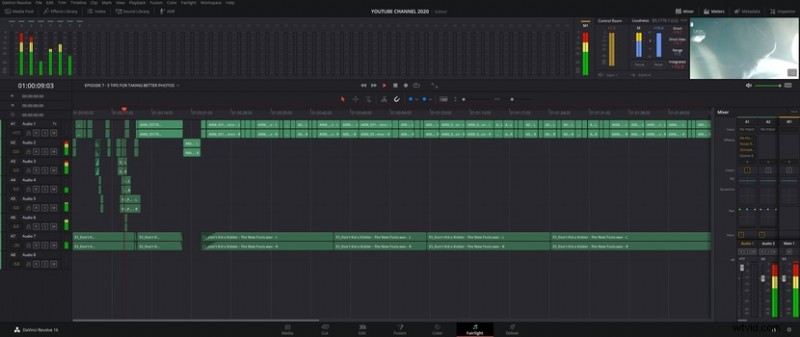
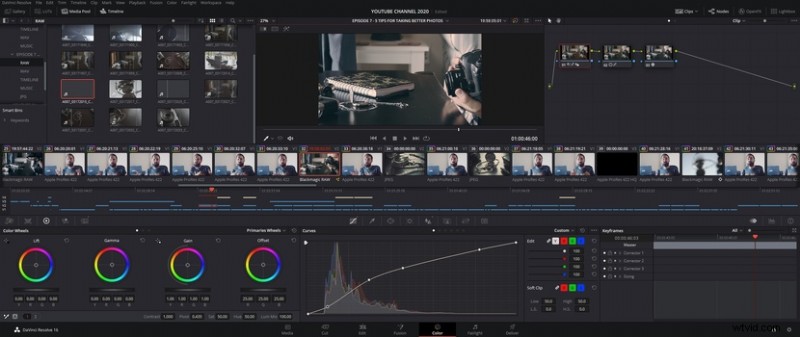
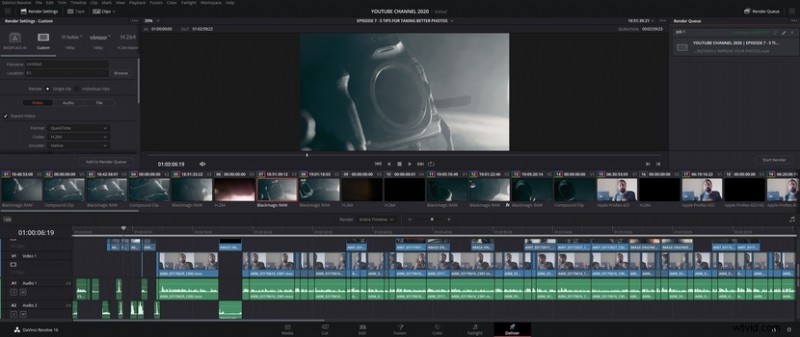
DaVinci Resolve eliminates this terrifying ordeal by bundling their equivalent of Premiere, After Effects, and Audition all into one, namely Resolve, Fusion, and Fairlight, respectively. And it’s simple to switch over inside the program, by clicking on the different tabs in the bottom. The consistent design across all the different tabs increases productivity by eliminating the need to wait for a new program to load. Changes are now made instantly, all inside one program.
Another major difference is the fact that DaVinci Resolve uses your GPU rather than relying on your CPU for the majority of the workload. This reason alone was the biggest selling point for me. Especially handy when you’ve got about 40 video layers in your timeline and you need to cut fast! The ability to use your GPU one-ups Adobe as Premiere only uses it occasionally but relies heavily on a strong CPU. Why they’re still sticking to the CPU, with the latest powerful Nvidia cards available on the market today, is anyone’s guess.
The GPU is also utilized when grading and using VFX in Fusion, so no need to waste countless hours to render clips in the timeline, but if you’re stuck, you can easily switch to the built-in Proxy Mode to reduce the quality of your clips to 1/2 or 1/4 its resolution. Very handy, once again, if you have multiple video layers and you need playback in real-time or rendering large files.
Just for interest’s sake, I’ve exported two identical edits, one from Premiere and one from Resolve. In my test, the footage from Premiere took around 10 minutes to export, while the footage from Resolve took around 3 minutes. That’s a significant improvement already! If I could shave 7 minutes off any export, that’s a win in my books.
The interface is beautifully designed and if you’re a long-time user of the Adobe interface, crossing over to DaVinci Resolve, is not a major change. Once I got used to the different keyboard shortcuts and where everything in the menu was located, I could start editing. It only took an hour or two to familiarize myself with the entire interface.
For the free version of Da Vinci Resolve 16, I've listed a few pros and cons below.
Pros
- No watermarks
- There's a free version available, and no cloud subscription for the full version.
- Perfect for straightforward work requiring minimal special effects.
- Easy to use interface, and no massive learning curve when switching from Premiere.
- You can ingest, cut, edit, add special fx, mix sound and export all in one program.
- Da Vinci Resolve uses the majority of your GPU to process the footage, speeding up your editing workflow.
- Great online forums with an expansive user base, offering a lot of support.
- If you buy a Blackmagic Design Pocket Cinema Camera 4k/6K, you get Da Vinci Resolve Studio (full version) included for free.
- Free updates.
Cons
- No H.265 export options in the free version.
- Fusion page could sometimes lead to instability when you're dealing with an effects-heavy clip (this could be system dependent).
- No hardware decoding in the free version
Benefits of Upgrading to the Full Version
If you have checked out the free version and you're not sure if you should invest in the full version, check out these mouth-watering features you're missing out on.
- HDR Grading
- Noise Reduction
- Motion Blur Effects
- Stereoscopic 3D Grading
- Collaborative Teamwork & Remote Grading
- 3D Effects and Plugins
- Hardware Decoding
- 4K + export resolutions
Conclusion
I've been using the Studio version since the beginning of the year when I invested in a BMPCC4K, and since then I haven't found a need to open Adobe Premiere, After Effects, or Audition. Resolve offers all the features I need as a filmmaker in one sleek, well designed, and easy to use package.
There are a ton of other useful features jampacked into Resolve, especially with the latest 16.2 update, so head on over to https://www.blackmagicdesign.com/products/davinciresolve/ and download the free version.
Have you considered using Da Vinci Resolve as your editor?