
Today, we’re looking at the financial implications of how the CPU-dependent Premiere competes against the GPU-leaning Resolve.
In our first Resolve vs. Premiere showdown, we analyzed the cost of the two applications. The result was that Resolve would have you walking away with a lot more cash in your pocket — even with the paid studio version — after a year of use. In this round, we’re looking at how the CPU-dependent Premiere squares up against the GPU-leaning Resolve — and the financial ramifications of these two applications for a no-to-low-budget filmmaker.
Regardless how much money you can save with free software vs. subscription-based, with 4K, 12bit footage, 10Gb per-minute files, an onslaught of built-in effects, and today’s media, you’re going to have to invest in a machine that can somewhat handle these files. Somewhat meaning that you can at minimum get video playback at a low resolution, but not necessarily playback from the original file. Since Resolve and Premiere operate differently, there’s also a case to be made that even with the lower cost, you can get better playback from Resolve. Let’s look at why.
If you follow enough filmmaking pages on social media, I’m confident that you’ve seen at least one “meme” poking fun at how much Premiere Pro crashes.
While there could be many reasons why Premiere Pro crashes — or performs sluggishly — in all likelihood, it’s due to a dated or low-performing CPU. While Adobe has made strides with GPU acceleration (GPU is your graphics card), they remain adamant on CPU usage to process the software. You hear people say that with each update, Premiere seems to be worsening. This could be a result of Adobe adding more unnecessary features and processing, ultimately bogging down the software. You can’t ignore how CPU intensive the software has become.
Puget Systems, a website that runs benchmarking tests built on their own systems, lists the Intel Core i9 9980XE as the best CPU for Premiere. How much? Oh, only $2,200. That defeats the point of our prior showdown to save you money. Of course, this isn’t to say that without a $2,000 processor, Premiere is obsolete. It’s not. I have a $500 processor and can still (somewhat) get real-time playback of 4K clips. Although, admittedly, it does turn mushy as soon as I apply any effects.
In the video below, the guys from Cinecom offer several suggestions on how you can optimize Premiere Pro without purchasing an expensive CPU.
Well, what if you have a moderate CPU and high-end GPU? With PC gaming at an all-time high, many gamers unknowingly sit on a rig that could be used as a powerful editing machine. Well, in the Puget Systems Premiere Pro Benchmark, they say the following:
So, while the GPU is a peripheral in Premiere’s performance, it’s not giving Premiere the much-needed boost it needs on a machine with a low-performing CPU.
Resolve Favors GPU
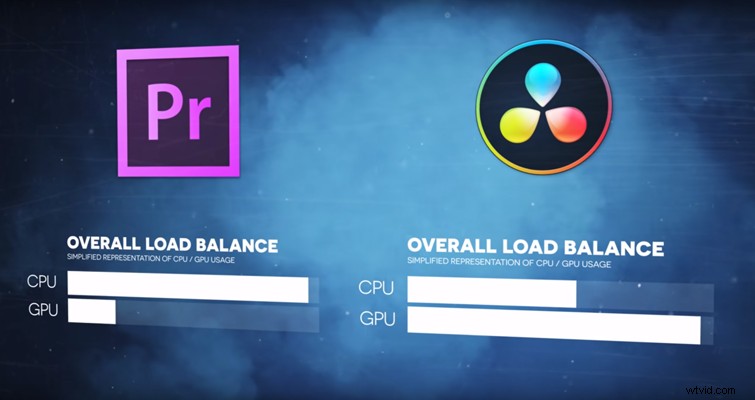
Resolve, on the other hand, bases its performance on the user’s GPU. While the CPU is still a critical element of smooth operation (the CPU will always factor into every action in Resolve), the balance favors the GPU. In the previous showdown, I referenced a video from Zebra Zone. In this video, he created a graph comparing the load balance between the two systems. (You can watch his video here.)
The Puget Systems benchmark test for Resolve goes on to state the following:
So, for the no-budget filmmaker, or quite simply, those without $2,000 to spend on a CPU — where does this put us? I’ve only tried to skim the surface in this round because, technically, there’s so much more to each category. Also, there are many new filmmakers who simply want to edit higher-quality footage without getting lost in technical jargon.
So, in brief: for fluid editing in Premiere Pro, you’re going to need a high-end processor and moderate GPU; in Resolve, because the load is more balanced (but in favor of the GPU), you can use a mid-range GPU and a mid-range CPU for editing.
In both cases, I highly recommend reading the Puget Systems hardware benchmark tests for both Resolve and Premiere, as they are incredibly detailed, they dig further into RAM and storage, and they even offer brand suggestions.
Where Exactly Is Resolve’s Advancement?
Notably, you’ll find improvements throughout the smaller areas of the software that slightly irritate you. However, perhaps you’ve grown accustomed to the irritation — as such, it typically isn’t apparent until you upgrade. Examples would include the slight delay when dragging new media into the application, the slight delay when pressing play, the frame delays when scrubbing through your media, moving a clip across the tracks, or the delay when running through the thumbnail-clip preview.
Once again, Resolve slightly takes the advantage in keeping your money in your pocket because of the way it tackles its operational power. And, even in the case of affording whatever GPU or CPU you want, Resolve would still step to the front. In the next bout, we’ll look at the effects that come with each program.