
Imagine you are a content creator who has just started your online streaming channel. You have a brilliant idea for a logo that captures your channel's theme, but the initial design feels dull or unclear when viewed on different devices. For this, you tried different techniques but could not achieve the desired results. This is where Wondershare Filmora becomes essential to bring your vision to life.
The tool offers an extensive suite of functionalities to cater to all your logo creation needs. In this article, we will discuss the best techniques for editing channel logos using this comprehensive tool.
In this article
-
- Rules to Follow
- What to Avoid
-
- Cocomelon
- MrBeast
- Dudeperfect
- Bright Side
- 5-Minutes Craft
-
- Method 1. Create Image Logo
- Method 2. Create an Animated Logo
- Method 3. Use Filmora Logo Template
- Method 4. Use Influence Kit
-
- Method 1. Generate Live Photo Logo With Filmora App
- Method 2. Create Video Logo from Templates
Part 1. Things to Consider While Generating a Logo and Mistakes to Avoid
Creating a logo is more than just experimenting with colors and designs; it is about aligning your visual elements with your brand identity. There are some rules to follow, and things to avoid, which makes a logo great. This section is based on providing the information with illustrative examples, which will give you the right idea of what a "brand logo" actually is.
Rules to Follow
Provided next are some of the essential rules illustrated with examples that you must follow to generate and edit a channel logo that instantly grabs attention:
- Use Simple Logos: Always use simple and minimal logos as they are easier to recognize and scale to various sizes. For example, the Nike Swoosh is a single, fluid shape, yet it is instantly memorable and works on everything from billboards to tags.
- Opt for Memorable Design: Try to use a logo design that stands out in the crowded market, and people recognize your brand just by the logo. An example of a memorable logo is the bitten apple of Apple Inc. The Apple logo's clean look and meaningful symbolism make it stand out in the market.

- Choose Relevant Design: It's important that your logo resonates with your target audience while clearly representing your brand's core values. Amazon's logo incorporates a smile-shaped arrow stretching from the letter A to Z, symbolizing the company's commitment to delivering a wide range of products.

- Use Appropriate Color and Typography: Pay close attention to color and typography as they evoke the right emotions and make your brand message clear. For example, PewDiePie's editing channel logo uses a bold red circle and a stylized "P" resembling a fist bump to convey energy and passion.

- Uniqueness: A distinctive logo is essential for setting your brand apart from competitors and solidifying its identity in the market. Chanel uses two interlocking CCs to give a unique touch to the design that stands out in the market.

What to Avoid
Here are some of the common mistakes that you should avoid while generating a logo for your brand:
- Overcomplicated Design: Avoid adding too many elements and details to the logo. For example, the original London 2012 Olympics logo was widely criticized for its chaotic appearance.

- Other Brands' Imitation: Do not copy the editor channel logo design of some other brand, as it may lead to legal consequences. Some lesser-known brands imitated the Pepsi logo and harmed their own credibility.

- Reliance on Trends: Relying heavily on trends may damage your brand identity once the trend is over. Gap's 2010 logo redesign failed miserably because it abandoned the brand's classic identity for a trendy look.
- Choosing the Wrong Color Combination: Try to avoid creating logos with mismatched colors that affect readability. The Fyre Festival promotional YouTube channel logo was criticized for being overly complex.
Part 2. Top YouTube Channel Logo Examples For You To Consider
A well-generated channel logo helps you grow as it is easily recognizable and generates more clicks. Mentioned below are the top 5 YouTube channel logo examples which you can consider before starting with your own editz channel logo:
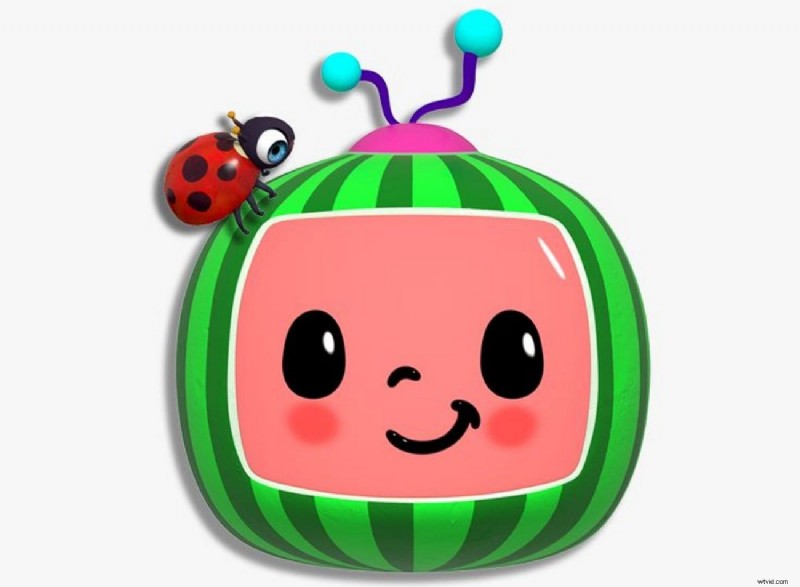
Cocomelon
The logo of this YouTube channel features a smiling watermelon character with bright, playful colors that appeal to toddlers. Its TV-screen shape highlights the digital kids' content focus. The colorful and friendly design makes it attractive to the kids, and they tend to visit the channel more often.
MrBeast
MrBeast's logo shows a fierce beast's head in vibrant blue, which symbolizes energy and boldness. The clean design ensures easy recognition across media. It overall portrays the adventurous and challenging style of the channel.
Dudeperfect
Simple and bold block letters are used as the logo for the channel, which makes it easier for people to instantly remember it. It's simple, high-contrast style stands out, representing sportsmanship and teamwork.
Bright Side
Their logo is bright and memorable, featuring a lightbulb that perfectly aligns with the channel's educational content and makes it the best logo for an editing channel. The logo is simple and clear, which makes it easily memorable for the audience who consumes infotainment content.

5-Minutes Craft
The 5-Minute Crafts logo effectively combines clean, modern typography with the lightbulb image that clearly reflects the channel's DIY focus. The color and icon combination supports strong brand recognition and aligns well with the energetic spirit of the channel.

Part 3. Formulate Creative Logos With the Best Resource
If you are looking for the right resource that helps you generate a creative logo for your YouTube channel, Filmora is the right tool. This is an all-in-one multimedia tool that offers an extensive array of features to generate high-quality content. Users get the ability to generate images as well as animated video logos through this comprehensive tool.
Moreover, it allows you to add various resources such as text, effects, and even stickers to make the logo more personalized. Filmora offers various methods to craft a compelling logo with multiple enhancements and color corrections.
Method 1. Create Image Logo
Filmora allows you to generate image logos using basic and AI-powered features. The generated logo can be saved as a PNG to be used anywhere effortlessly. To learn how to use this tool for editor channel logo generation, read the steps mentioned below:
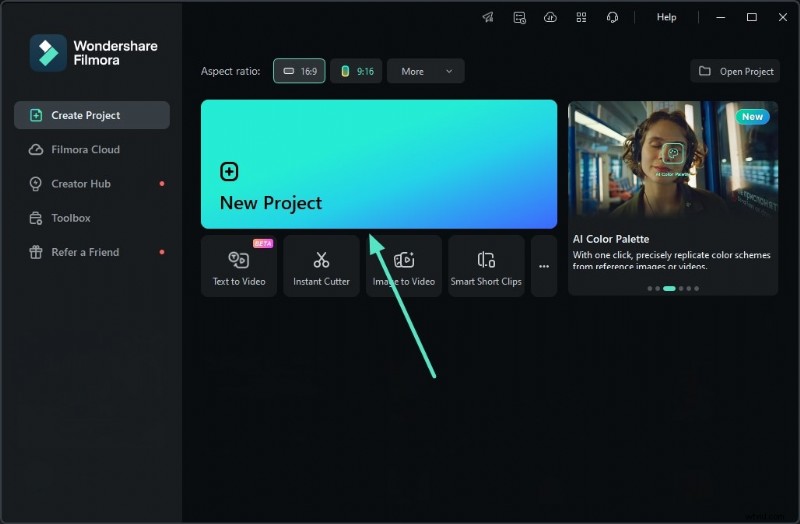
- Step 1. Create New Project. Start the process by launching Filmora on your device and pressing the "New Project" tab located on the homepage.
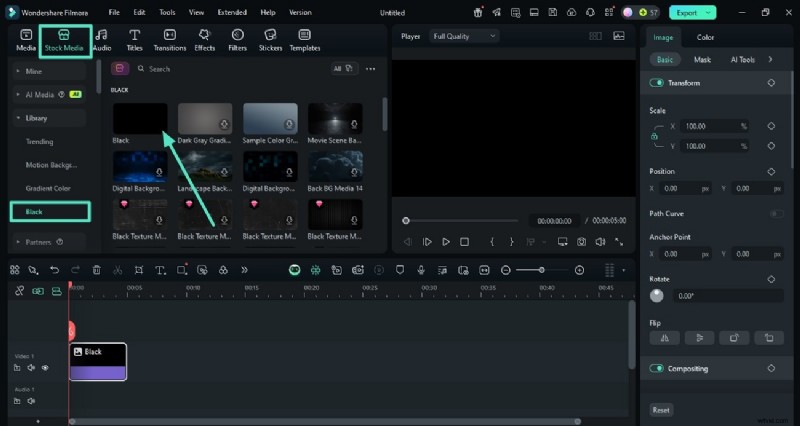
- Step 2. Use Stock Media for Background. Access the "Stock Media" option from the toolbar located at the top and choose a plain background as a canvas. Drag the background to the editing timeline to proceed with the process.
- Step 3. Generate an AI Sticker Logo. Head to the toolbar again and select the "Stickers" option to expand the "AI Sticker" section from the left. Next, input the text requirement for the logo in the text field and press the "Generate" button to start generation. Once the sticker logo is generated, drag it to the editing timeline to apply it to the image.

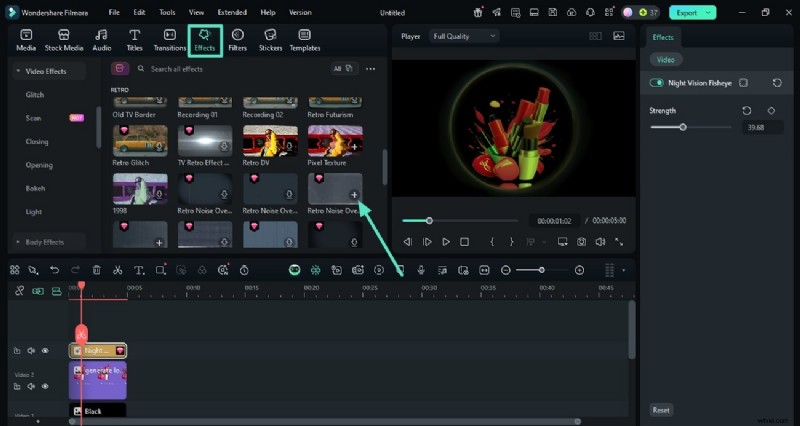
- Step 4. Add Compelling Effects. Moving forward, acquire the "Effects" option from the toolbar and choose the relevant one from the library. Apply it to the image by clicking the "+" icon located on the thumbnail.
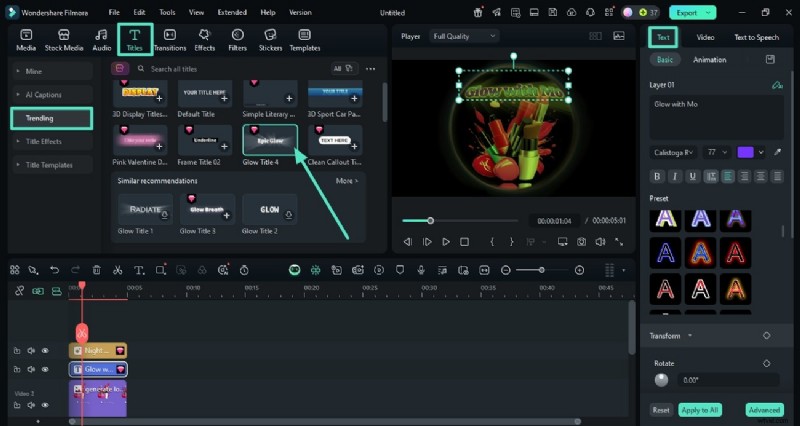
- Step 5. Insert Logo Text. Press the "Titles" option from the top toolbar and choose a text style from the options provided by clicking the "+" icon. Insert the text by accessing the text field in the panel on the right side. Once all the elements are successfully added, head to the top-right corner and press the "Export" button.
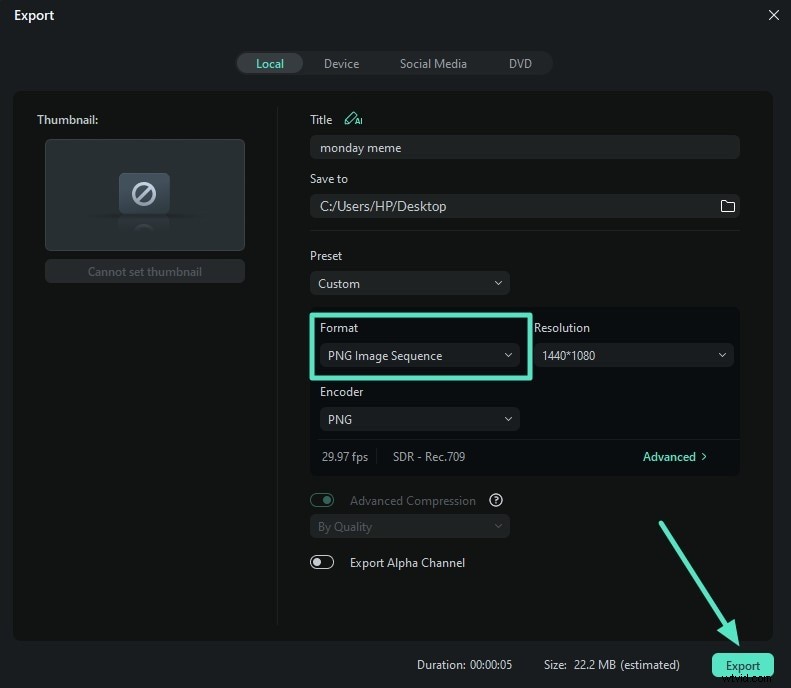
- Step 6. Save Result as PNG. In the export window, choose the format as "PNG Image Sequence" and hit the "Export" button to save the results.
Method 2. Create an Animated Logo
Filmora also allows you to convert your boring logo initials into animated designs. This is best for your YouTube intro for the videos. You can apply various effects and elements to animate the logo and make your channel stand out. Read the steps mentioned below to learn how to create a video logo for your channel using Filmora:
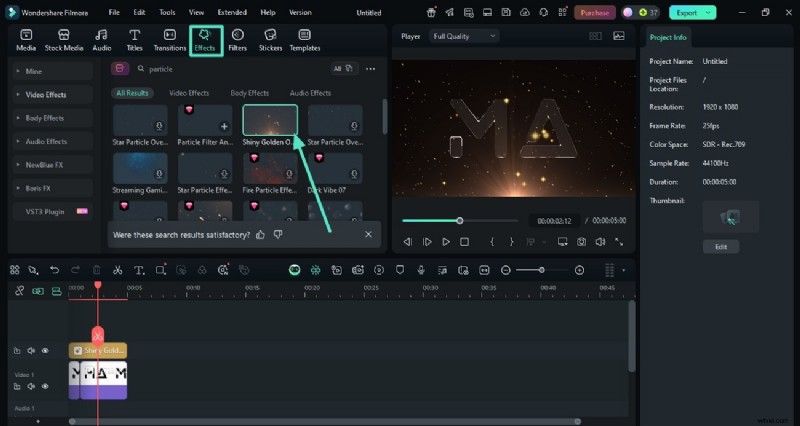
- Step 1. Insert Particle Effect. After creating a new project on Filmora, import the initials of your logo and drag it to the editing timeline. Head to the toolbar at the top and click the "Effects" option to enable the effects library. Search for the particle effect using the search bar and apply it to the timeline using the "+" icon.
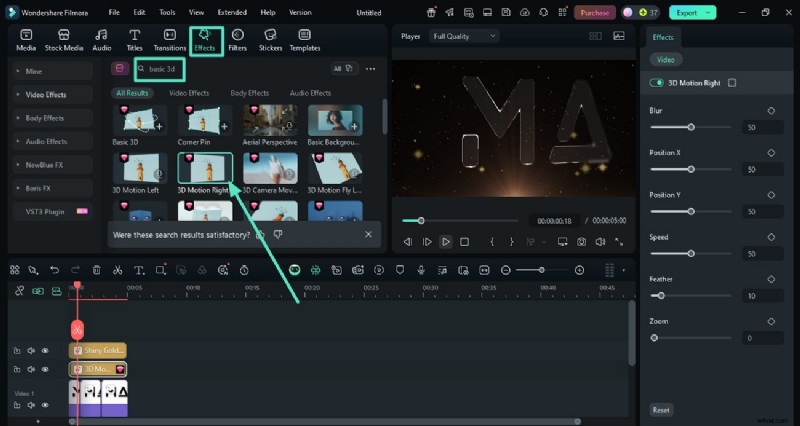
- Step 2. Add 3D Animation on Initials. Moving forward, search for the 3D effects within the same effects library and click the "+" icon on the thumbnail of your selected one. Adjust the Blur, Position, and other attributes by accessing the "effects" panel on the right.
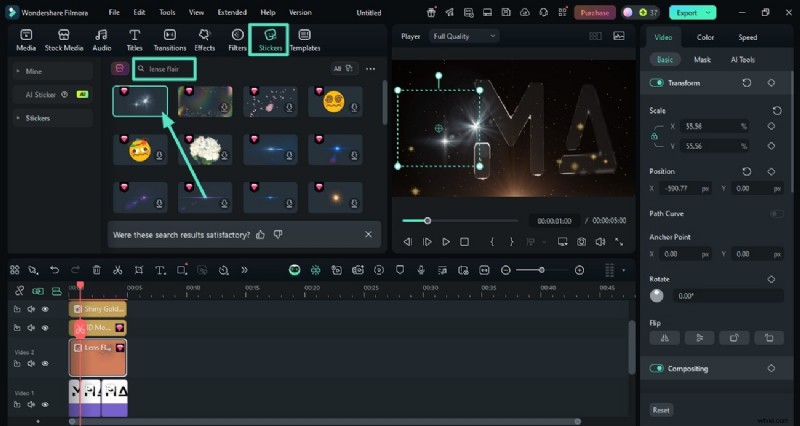
- Step 3. Add Lens Flair Sticker. Add more detail to the animation by accessing the "Stickers" option from the toolbar and searching for the lens flair sticker. Apply it to the animation by clicking the "+" icon and adjusting its attributes in the right side panel. Once you are satisfied with the results, hit the "Export" button located at the top-right corner.
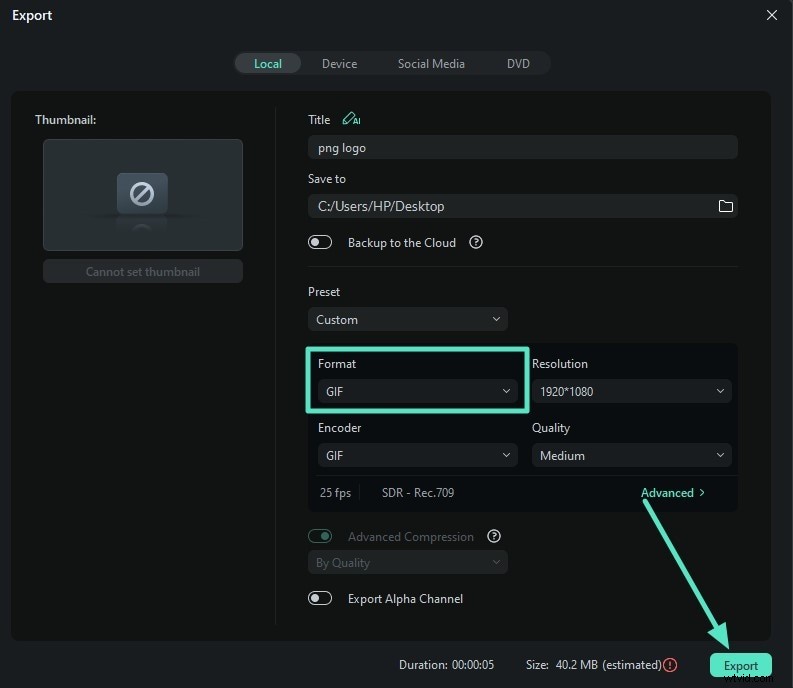
- Step 4. Save Animation as GIF. Configure the output settings in the export window and choose the format as GIF. Finally, press the "Export" button located at the top-right corner to save the results to your device.
Method 3. Use Filmora Logo Template
Filmora offers an extensive Filmorago logo template library that lets you create logo reveal intros for your YouTube videos. The utility is simple to use due to the drag-and-drop functionality offered by Filmora. You can customize the selected template effortlessly according to your preferences. Follow the steps mentioned below to learn how to use the logo templates library of Filmora:
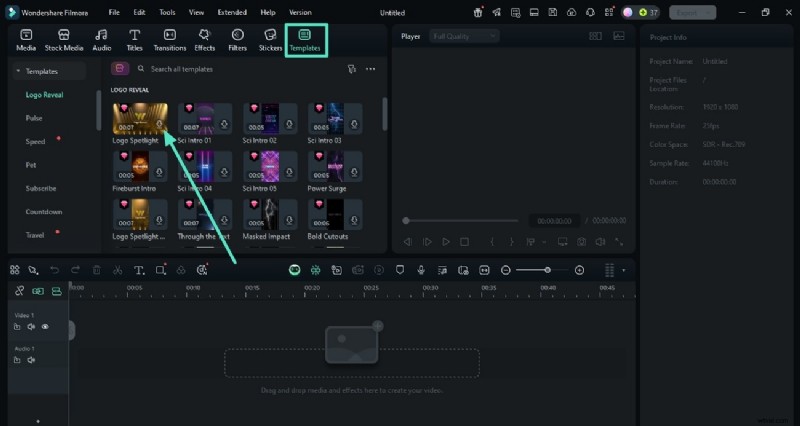
- Step 1. Opt For the Templates Library. After creating a new project on Filmora, head to the toolbar at the top and click on the "Templates" option. Now, expand the "Logo Reveal" section from the left and choose your desired logo from the library. Apply it to the timeline by pressing the "+" icon located on the thumbnail.
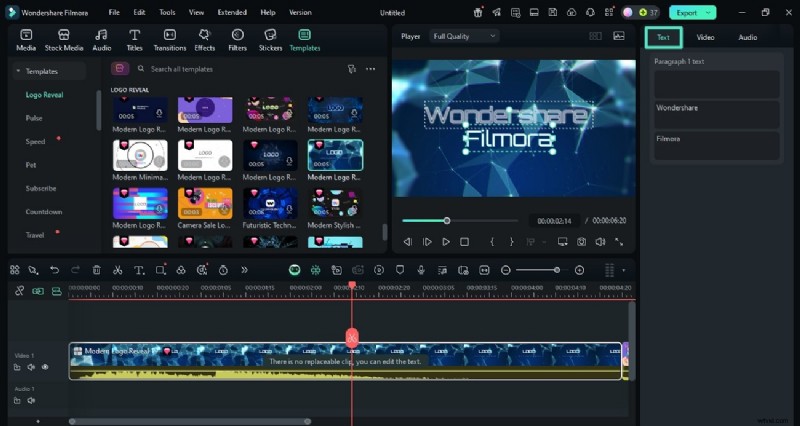
- Step 2. Customize the Template Text. Moving forward, access the panel on the right and enable the "Text" section. Input the text of your channel name and play the video within the preview window to preview the changes.
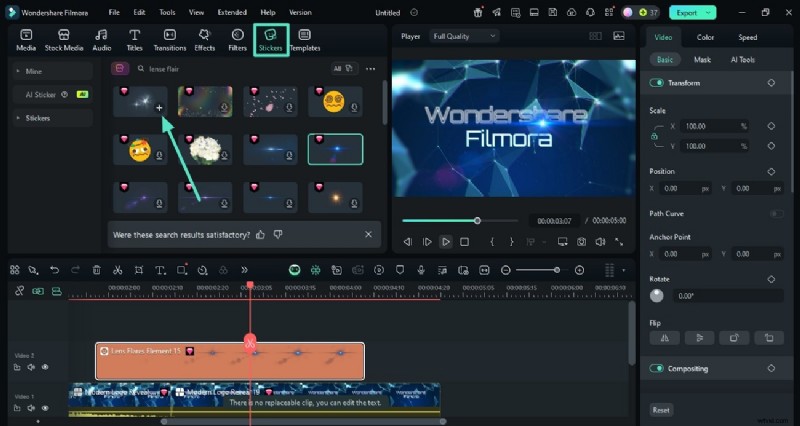
- Step 3. Add a Sticker for More Flair. Give your logo animation an instant flair by accessing the "Sticker" option from the toolbar. Now, choose the lens flair sticker and apply it to the template by tapping on the "+" icon. When all the customization is successfully done, press the "Export" button at the topmost corner of the interface.
Method 4. Use Influence Kit
This dedicated logo feature enables content creators to create a logo reveal video instantly by simply adding their logo. The feature offers a vast variety of predesigned templates with animation, which is highly customizable. You can insert the text of your choice and add further enhancements according to your preferences. Provided below are the steps for creating a logo with Filmora's Influence Kit for your channel:
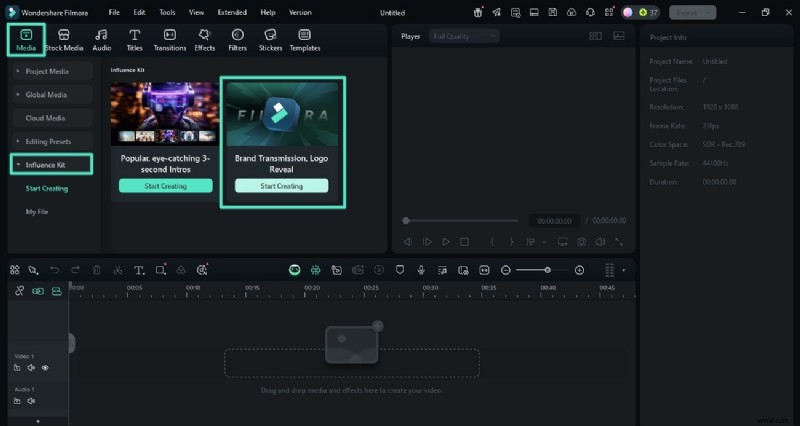
- Step 1. Access the Tool's Influence Kit. Start by launching Filmora and creating a new project within the interface. Next, access the toolbar at the top and click the "Media" section. Expand the "Influence Kit" section from the left and press "Start Creating" under the "Brand Transmission, logo Reveal" tab.
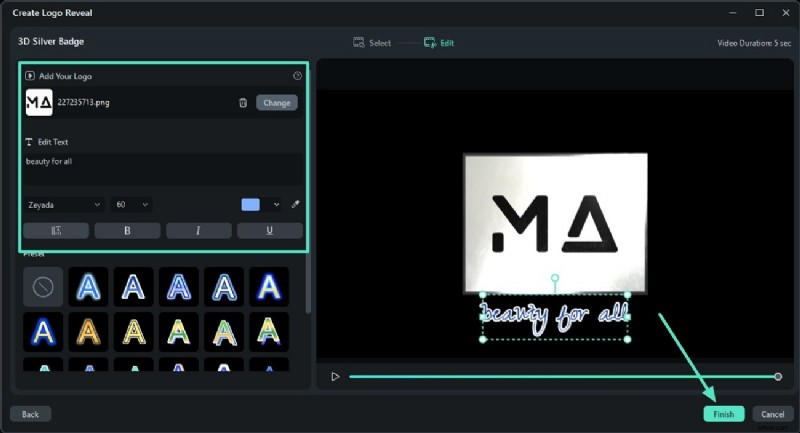
- Step 2. Import your Logo and Customize Text. Import the logo and add your text within the text field and customize it according to your preferences. You can choose the text presets for the edit channel logo from the option located on the left. Once you are done, press the "Finish" button located at the bottom of the window.
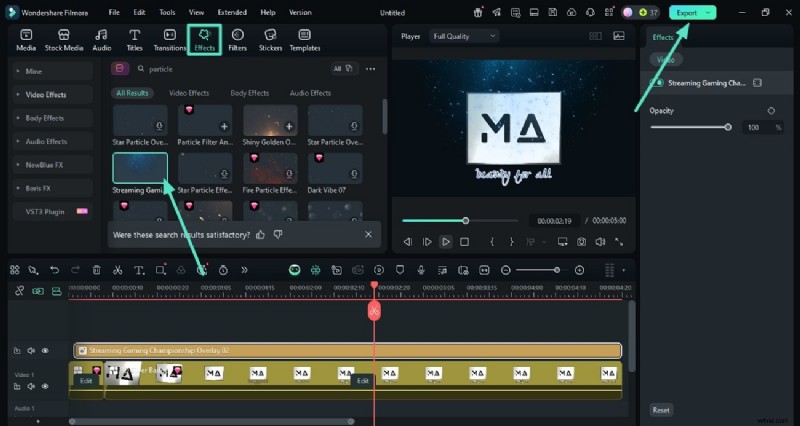
- Step 3. Add Further Enhancement and Export. In the main editing interface of Filmora, head to the "Effects" option from the toolbar and choose the relevant effect. Apply it to the animation by tapping on the "+" icon. Finally, hit the "Export" button once you are satisfied with the results.
Bonus Part. Creating a Channel on Your Smartphone
One of the most reliable resources to generate logos instantly for creators who are on the go is the Filmora App [iOS/Android]. This multimedia application lets you generate incredible visual animations by offering various elements such as effects, filters, and stickers. You also get the ability to insert text and customize it according to your preferences. Provided below are both the methods of generating the best logo for an editing channel using the Filmora App:
Method 1. Generate Live Photo Logo With Filmora App
Users get the ability to transform their mundane logo initials into a compelling design using this application. The app allows you to add various elements and save the generated results in high quality in various formats. To learn how to use this app for the Live Photo logo, read the steps mentioned below:
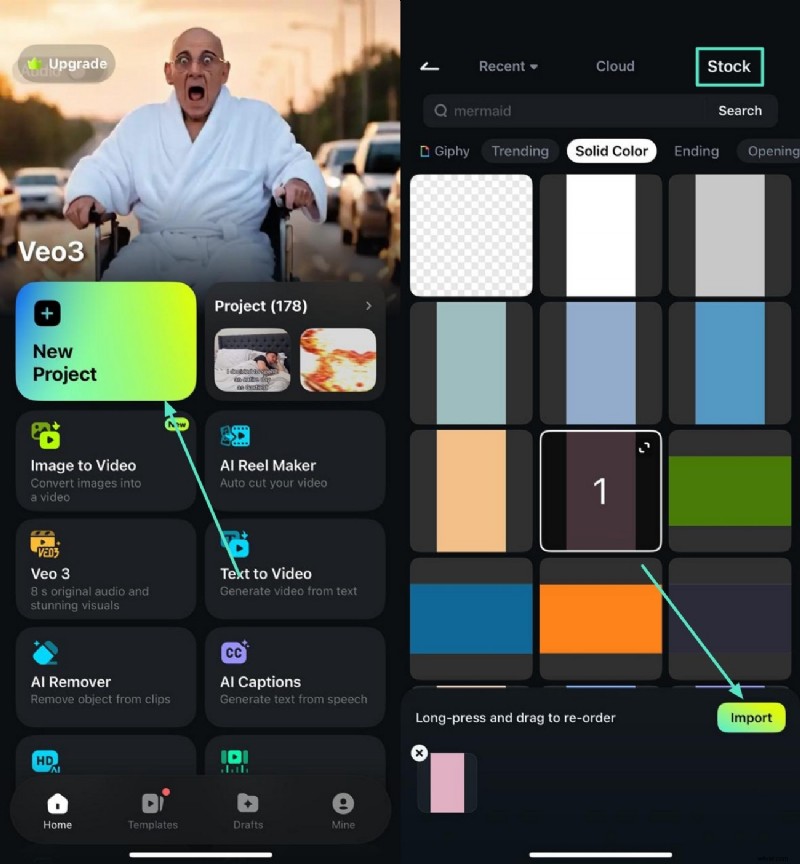
- Step 1. Launch the App And Select Background. Begin the process by launching the application on your smartphone and tapping on the "New Project" tab located within the homepage. Now, head to the "Stock" section in the following interface and access the solid color option. Select the solid color of your choice and press the "Import" button located at the bottom of the interface.
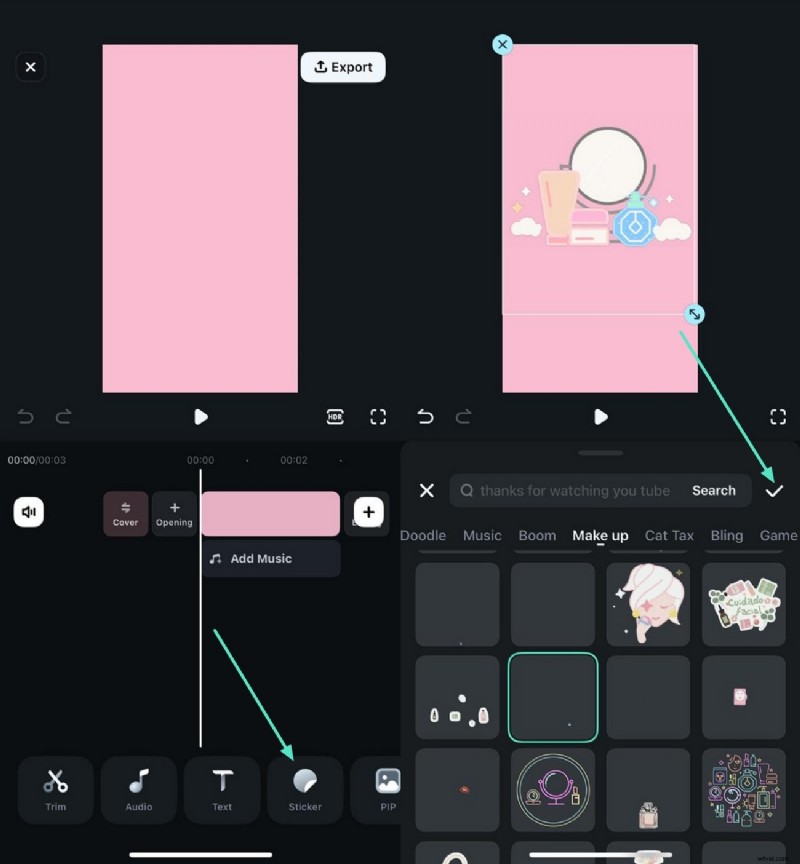
- Step 2. Add a Sticker on the Background. In the following screen, locate the sticker option on the bottom toolbar and tap on it. Choose the sticker that is relevant to your channel and apply it by tapping on the tick icon.
- Step 3. Add Text To The Logo. Moving forward, access the "Text" section from the toolbar and press the "T+" icon in the following interface. Input your text and select the "Art Text" of your choice from the options offered. Hit the "Tick" icon located on the right to save the applied text to the editing channel logo.
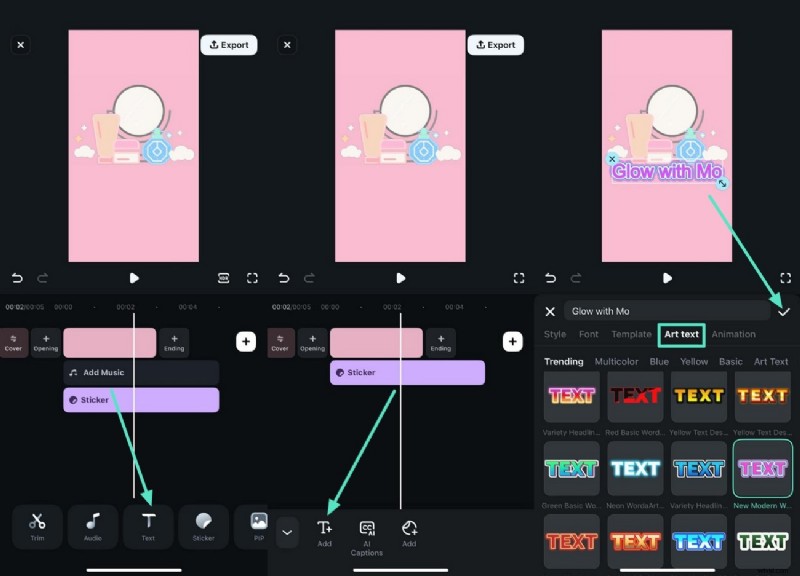
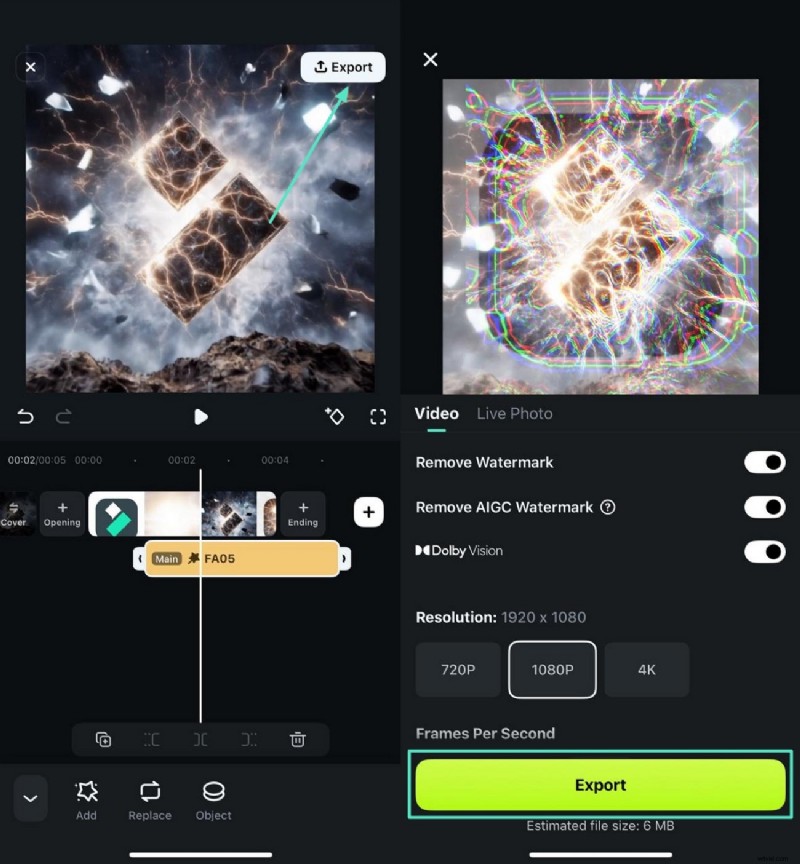
- Step 4. Preview Changes as Save Live Photo. Once all the elements are added, tap on the "Export" option located at the top-right corner of the interface. In the following screen, enable the "Live Photo" section and press the "Export" button after configuring output settings.

Method 2. Create Video Logo from Templates
The Filmora App offers an extensive variety of templates to generate logo reveal videos for your YouTube channel. You can simply select the template and import your logo image to animate it automatically with the app. Provided below are the steps for using the templates offered by the Filmora App to generate Ninja YouTube logo reveal videos effortlessly:
- Step 1. Begin By Choosing a Template. After launching the application on your phone, access the "Templates" section from the bottom of the screen and search for the logo template. Pick the template of your choice by tapping on it. Preview the template in the following window and press the "Use" button.
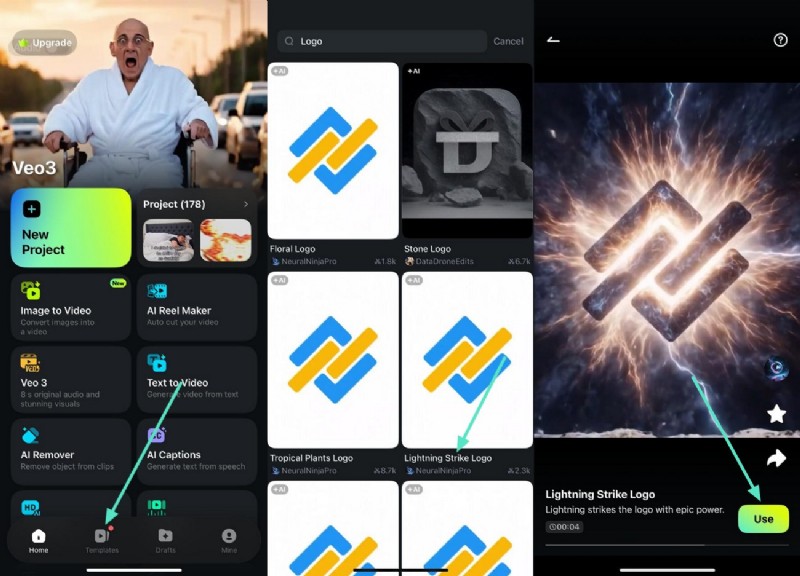
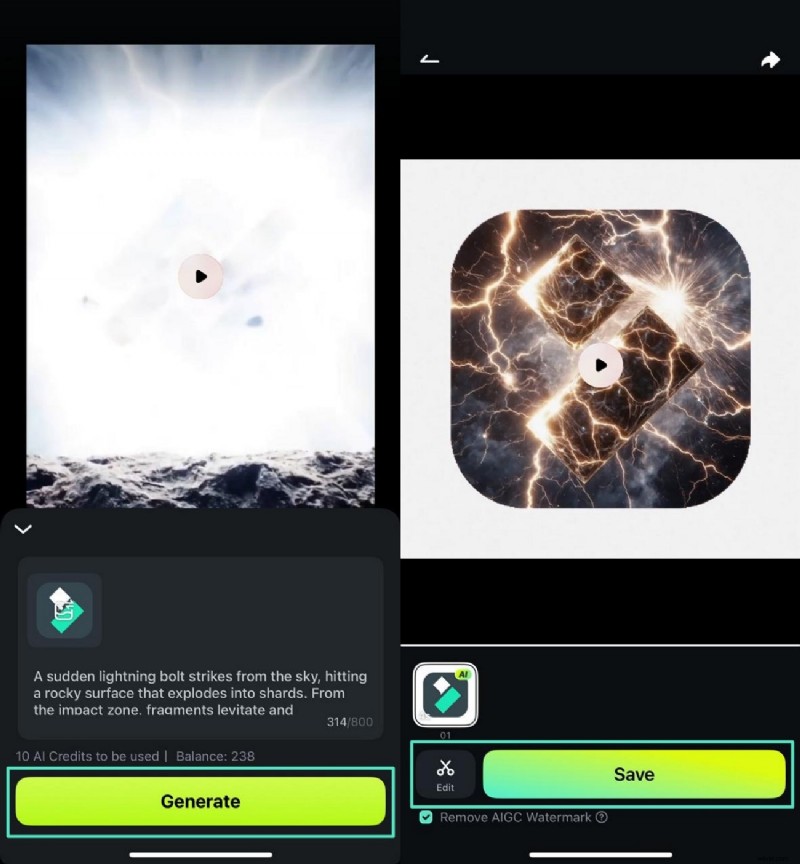
- Step 2. Import Your Logo and Generate Video. Next, import your logo image using the designated option and press the "Generate" button to execute the process. Once the video is generated, "Save" it as it is or press the "Edit" button for further enhancement.
- Step 3. Apply Visual Enhancements. In the editing interface of the app, access the toolbar at the bottom to access the "Effects" library. Apply your selected effect by tapping on the "Tick" icon on the right. You can repeat the procedure to apply other enhancements like filters and stickers.
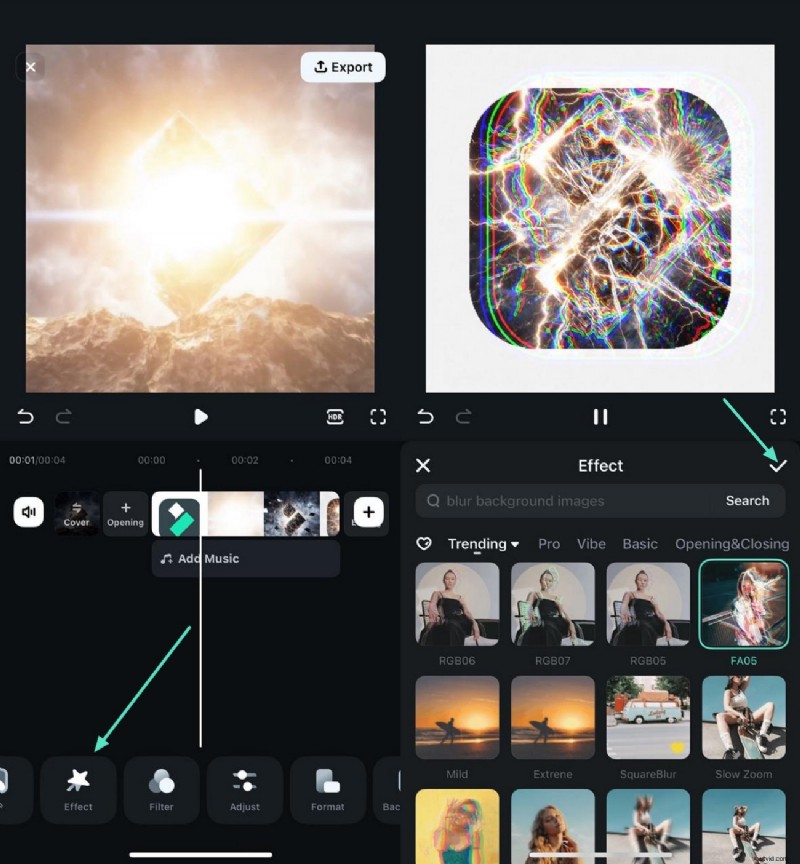
- Step 4. Export the Created Logo Video. Once all the enhancements are done, head to the top right corner and press "Export." Configure settings for the output and tap on "Export" to save the video to your phone.
Conclusion
All in all, this article covered all the details you need to know about editing a channel logo for your videos. The article also provided a comprehensive guide on how to create compelling logos for your channel using one of the reliable resources, Wondershare Filmora. The platform offers a huge set of functionalities to generate high-quality logos, which is available in multiple formats.