
Captured a video in the wrong orientation? Don’t worry. This guide explains how to rotate a video on Windows 10, Windows 11, or any PC quickly and reliably. Whether the clip is sideways or upside‑down, you’ll learn how to fix it permanently.
Table of Contents
Method 1: Rotate with Windows’ Built‑In Tools (Photos App for Win 10, Clipchamp for Win 11)
Using the free, pre‑installed applications that ship with Windows is the fastest way to rotate a video. The exact steps differ slightly between Windows 10 and Windows 11.
For Windows 10 Users: Using the Photos App
The native Photos app includes a simple video editor ideal for quick rotations.
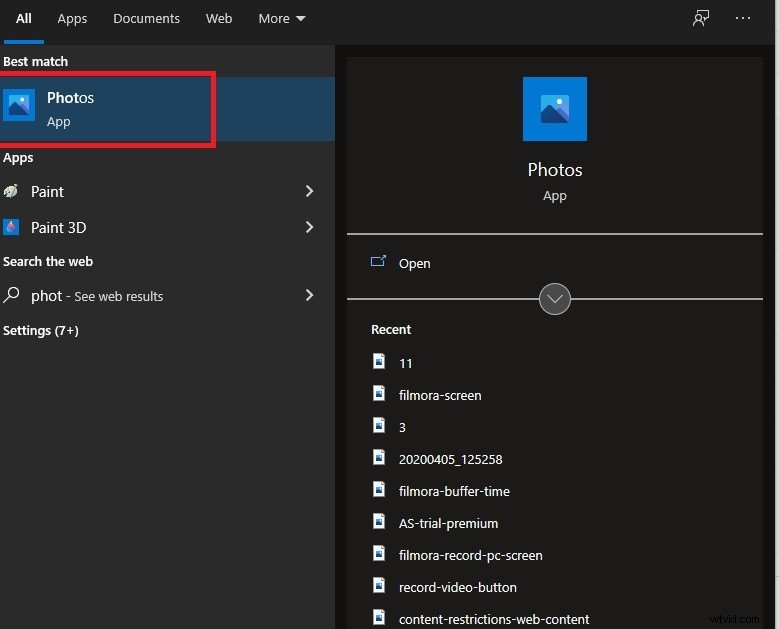
- From the Start menu, search for Photos and launch the app.
- Click Video Editor at the top and select New Video Project.
- Give the project a name, then click Add to import the video you want to rotate.
- Drag the clip onto the timeline and click the Rotate icon to rotate 90°. Click again for another 90° rotation.
- When satisfied, choose Finish Video to export the permanently rotated file.
For Windows 11 Users: Using Microsoft Clipchamp
Windows 11 ships with Clipchamp, a powerful video editor that makes rotating simple.
- Open Clipchamp from the Start menu and click Create a new video.
- Drag and drop your clip into the media library, then move it to the timeline.
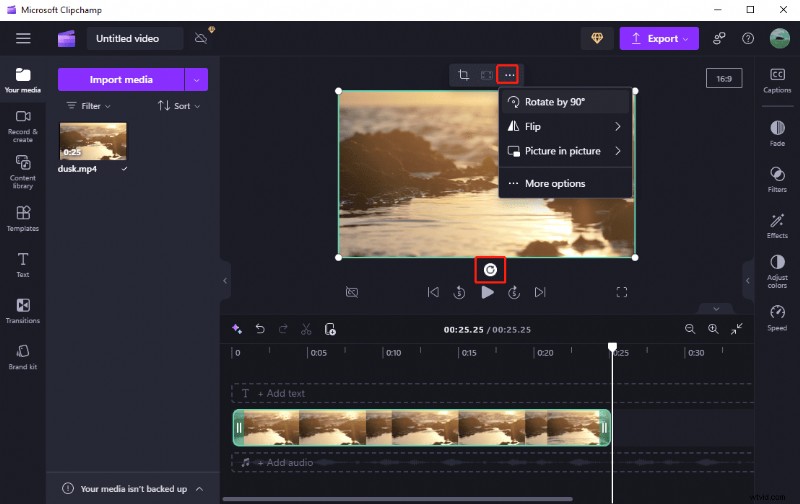
- Select the clip in the timeline. The floating toolbar will appear; click Rotate to turn the video 90° left each time.
- Once oriented correctly, click Export in the top‑right corner. Choose your desired resolution (e.g., 1080p) and export.
Method 2: Rotate to Any Angle with Filmora (Recommended)
For maximum flexibility and professional results, Wondershare Filmora is the industry‑standard choice. It offers a free trial and a comprehensive set of editing tools.
- Download and install Filmora, then import the clip into the timeline.
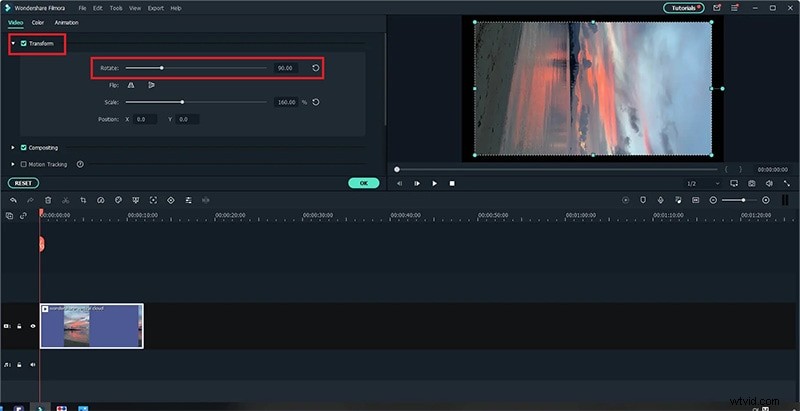
- Open the Transform panel and use the Rotate slider to set any angle from 0° to 360°.
- Optionally, adjust the Anchor Point to change the pivot of rotation. In the Properties panel, enter X and Y values or drag the anchor icon in the preview.
- Click OK, then Export to save the rotated video with full quality control.
Bonus: Rotating on Mobile with Filmora
Filmora’s mobile app allows you to rotate, flip, or mirror videos on the go.
- Install Filmora on iOS or Android.
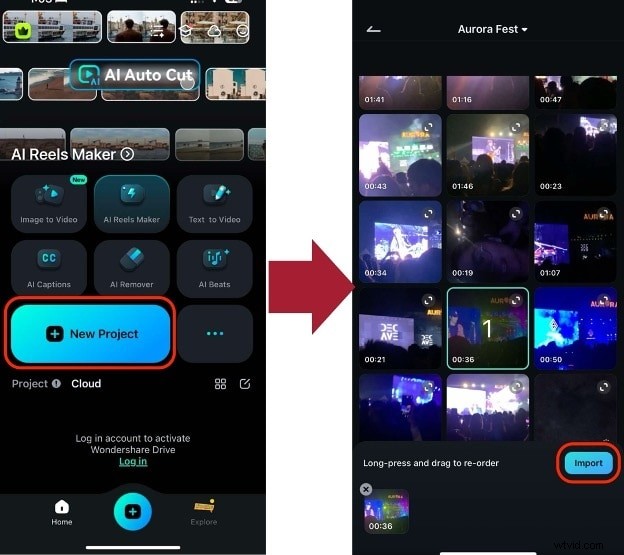
- Create a new project and import your video.
- Tap the Rotate icon in the toolbar and choose left, right, mirror, or flip.
- Export the final clip to your device.
Method 3: Rotate and Save with VLC Media Player
VLC is a ubiquitous player that can also rotate videos. The process involves a temporary view and a permanent export.
Part A: Temporary Rotation for Playback
- Open the video in VLC.
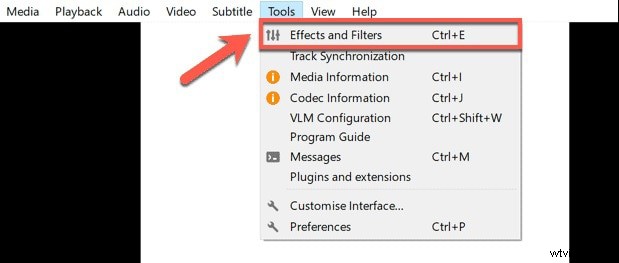
- Navigate to Tools > Effects and Filters.
- In the Video Effects tab, go to Geometry and check Transform.
- Select the desired rotation (e.g., 90°) or use the dial for custom angles.
- Click Save and close the dialog; the video will play in the correct orientation for this session.
Part B: Permanent Export
- From the VLC menu, choose Media > Convert / Save.
- Add the rotated video and click Convert / Save.
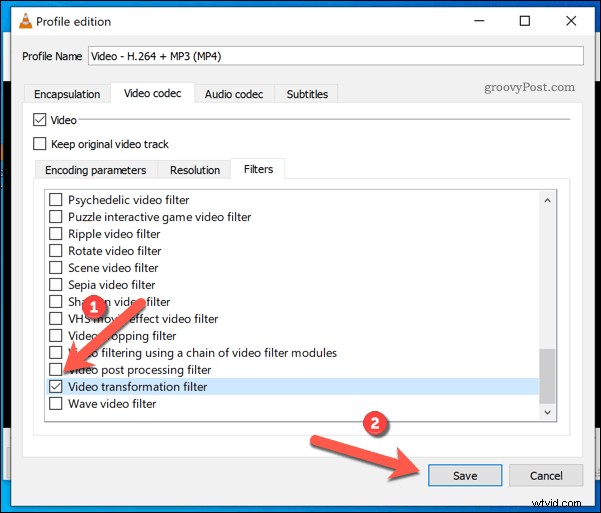
- Select a profile such as Video – H.264 + MP3 (MP4) for broad compatibility.
- Click the wrench icon to edit the profile. Under Video codec > Filters, enable Video transformation filter.
- Set a destination file name that differs from the original.
- Click Start; VLC will encode a new, permanently rotated file.
Method 4: Rotate Online for Free
If you prefer not to install software, online editors like Clideo offer quick, browser‑based rotation.
- Visit Clideo Rotate Video.
- Click Choose file and upload your clip from the computer, Google Drive, Dropbox, or a URL.
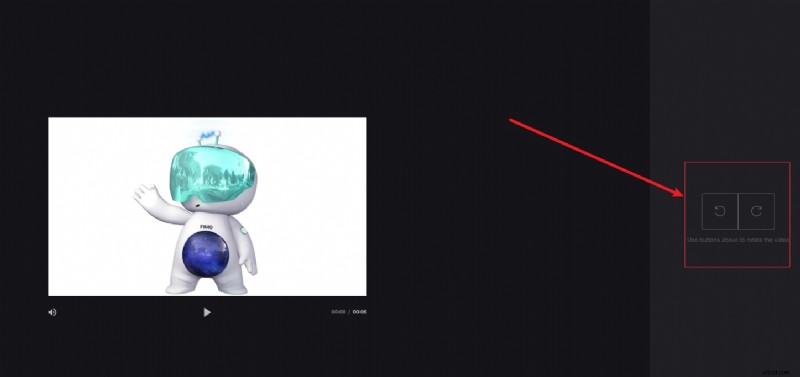
- Use the Rotate buttons to adjust the orientation.
- Click Export and then Download the final MP4.
Comparison of Key Features
| Feature | Windows Photos / Clipchamp | VLC Media Player | Wondershare Filmora (Recommended) |
|---|---|---|---|
| Rotation Angle | 90° increments only | Any angle (complex to save) | ✔️ Any angle (0–360°) with a slider |
| Ease of Use | Very easy | Medium (saving is complex) | ✔️ Very easy & intuitive |
| Output Quality Control | Basic | Variable (depends on settings) | ✔️ Excellent – full control, no quality loss |
| Permanent Save | ✔️ Yes (straightforward) | ✔️ Yes (requires extra steps) | ✔️ Yes (fast export) |
| Additional Features | ❌ Limited (trim, basic filters) | ❌ None (player only) | ✔️ Extensive – crop, effects, titles, audio, color grading, more |
FAQs
- How do I rotate a video in Windows 10? Use the Photos app: select the clip, click Edit & Create, then Rotate left/right and save a copy.
- Can I rotate a video in Windows Media Player? No, this feature isn’t available. Use Photos or a third‑party editor.
- How do I save the rotated video? In Photos, click Save a copy after rotating. In Filmora or VLC, use the export or convert functions.
- What if the video is upside down after rotation? Rotate in the opposite direction or use Filmora’s precise angle slider.
- Can I rotate without losing quality? Yes—use a professional editor like Filmora and export at the original resolution and format.
Conclusion: Choose the Right Tool for Your Needs
Quick 90° turns: use Windows Photos (Win 10) or Clipchamp (Win 11). For more advanced control and highest quality, Filmora is the clear winner, offering fine‑tuned angles, anchor point adjustments, and a full suite of editing features.
Try Filmora today and elevate your video editing experience.