
If you are a Mac user, then you might already be familiar with Final Cut Pro. Owned by Apple, it is one of the most popular post-production and video editing tools, known for its powerful features. Though keyframing and motion tracking is some of the major operations that users find hard to perform in Final Cut Pro. In this post, I’m going to let you know how to perform motion tracking in Final Cut Pro (for objects and texts).
- Part 1: How to Easily Track Objects in Final Cut Pro?
- Part 2: How to Do Text Tracking in Final Cut Pro?
- Part 3: Popular Motion Tracking Plugins for Final Cut Pro X
- Part 4: The Best Alternative to Final Cut Pro X - Wondershare Filmora for Mac
Part 1: How to Easily Track Objects in Final Cut Pro?
You might already know the concept of free motion tracking in Final Cut Pro X in which we focus on a single object as the video progresses.
To perform FCPX motion tracking, we can take the assistance of keyframing or any third-party plugin. Without much ado, let’s quickly perform motion tracking in Final Cut Pro with these two approaches.
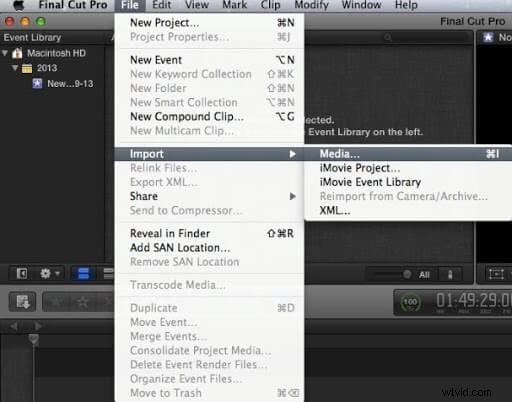
Step 1. Load a video on Final Cut Pro
To start with, simply launch Final Cut Pro on your Mac and drag-and-drop any video you wish to edit. You can also go to its Import menu to browse and load a video.
Once the video is added, you can drag and drop it to the timeline at the bottom. Furthermore, you can right-click and trim the video to only show the segment you wish to work on.
Step 2. Zoom and focus on the object
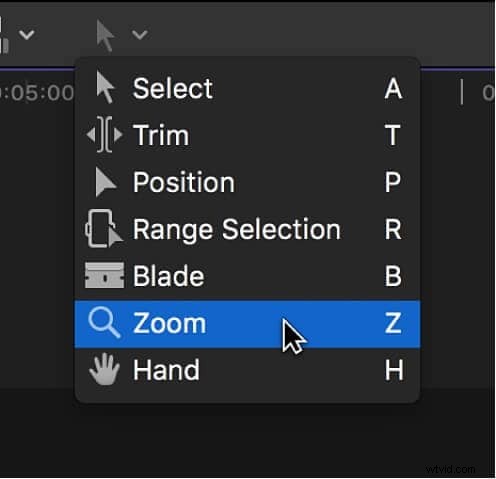
Now, you need to select an object on which you need to apply FCPX motion tracking. For this, I would recommend switching the cursor to zoom and expanding the video on the screen.
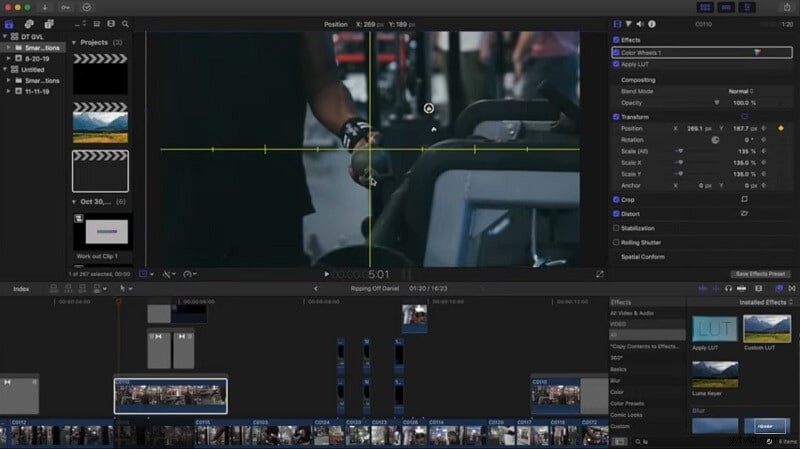
Afterward, using the inbuilt axis in Final Cut Pro, you need to focus on the object that you wish to track in the video. For instance, the moving ball has been set on focus here.
Step 3. Apply keyframing or use an FCPX motion tracking plugin
If you don’t want to use any FCPX effects tracker plugin, then you have to manually work on keyframing. While adding different frames on the timeline, make sure that you focus on the moving object.
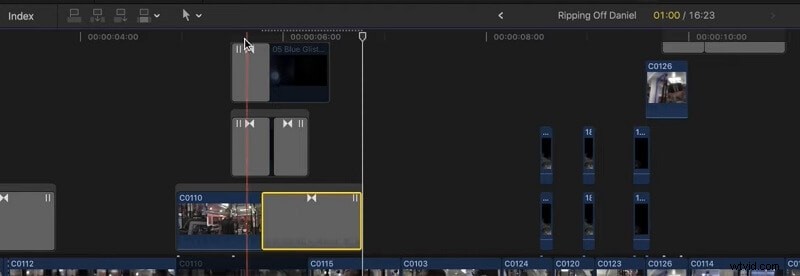
To make your job easier, you can choose any FCPX motion tracking plugin (free or paid option). For instance, FCPX Auto Tracker is one of the plugins that you can try. Once you have added it to the application, you can select an object, choose its perspective, and start motion tracking in Final Cut Pro.
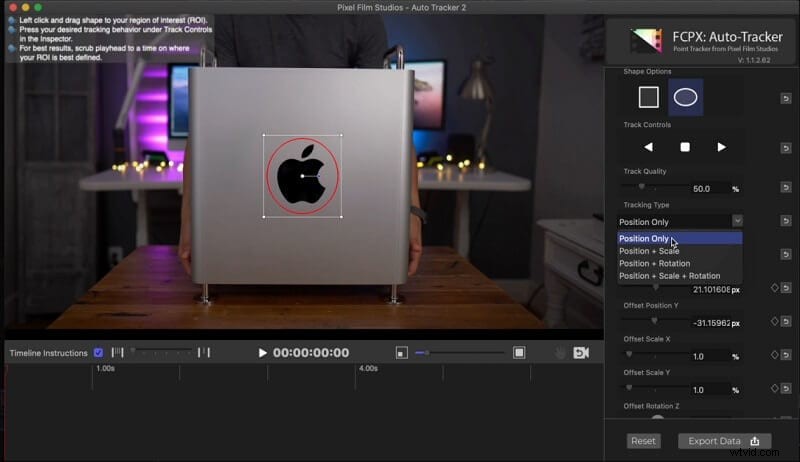
Part 2: How to Do Text Tracking in Final Cut Pro?
Just like tracking an object, you can also track a text filed in Final Cut Pro. The process is pretty simple – you can either use a Final Cut Pro motion tracking plugin or manually do it via keyframing. Let’s quickly have a look at how tracking of a text field is done in Final Cut Pro.
Step 1. Insert text to your video
At first, just load any video of your choice on Final Cut Pro and insert it into the timeline. Now, add a text field from the available objects, go to the sidebar to enter the text, and select its font. You need to keep the text field to the timeline for the designated video segment for motion tracking.
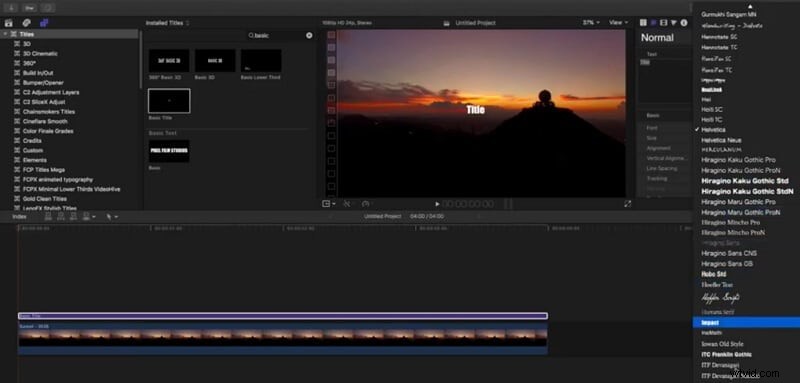
Step 2. Do motion tracking via keyframing
If you don’t want to use any plugin, then simply maintain different keyframes while focusing on the text field. This will take more time, but will certainly help you get customized results.
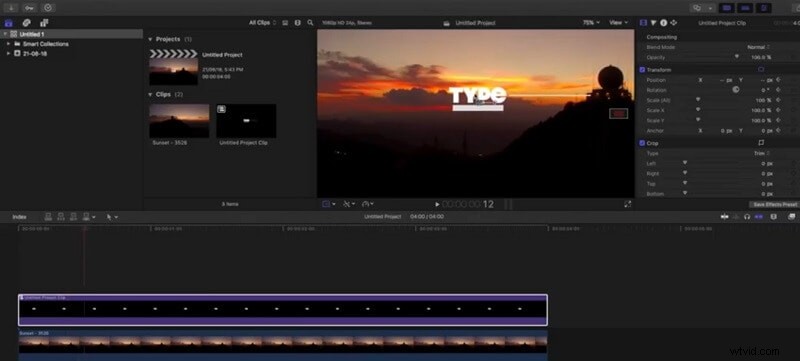
Step 3. Use any FCPX motion tracking plugin
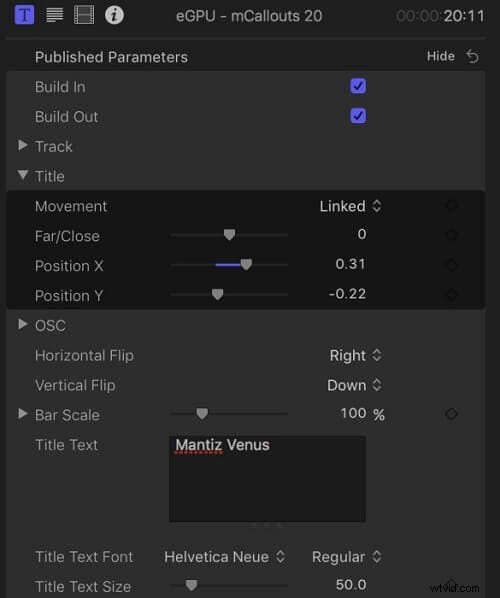
To make your job easier, you can take the assistance of any Final Cut Pro Motion Tracking plugin like mCallouts. There are all kinds of text fields that you can insert from the plugin to the video.
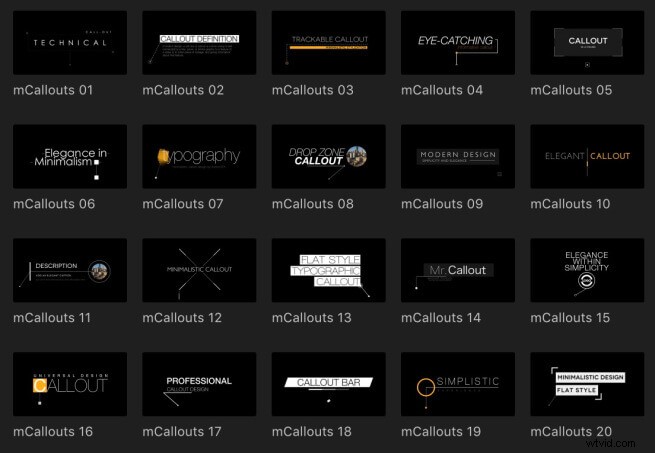
After adding the text field, you can go to the dedicated section of the FCPX motion tracking plugin. You can set the transition, the movement speed, position, and other details from here to track the text field in your video.
Part 3: Popular Motion Tracking Plugins for Final Cut Pro X
As you can see, the native method to implement motion tracking in Final Cut Pro can be extremely time-consuming. Therefore, you can consider using a Final Cut Pro motion tracking plugin to make the job easier. Here we list some useful plugins for your information.
1. FCPX Tracker Suite
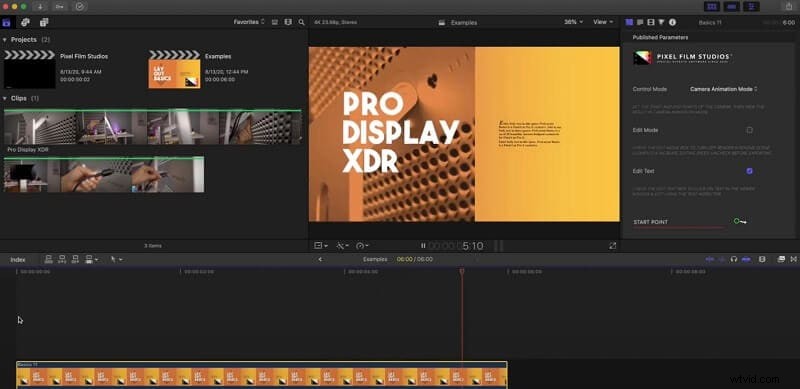
If you have extensive video editing needs, then you can try this complete suite. It provides more than 300 add-on editing features that are missing in Final Cut Pro as of now. You can use it to apply different motion tracking features for any object or text and select an appropriate transition.
2. FCPX Auto Tracker 2.2
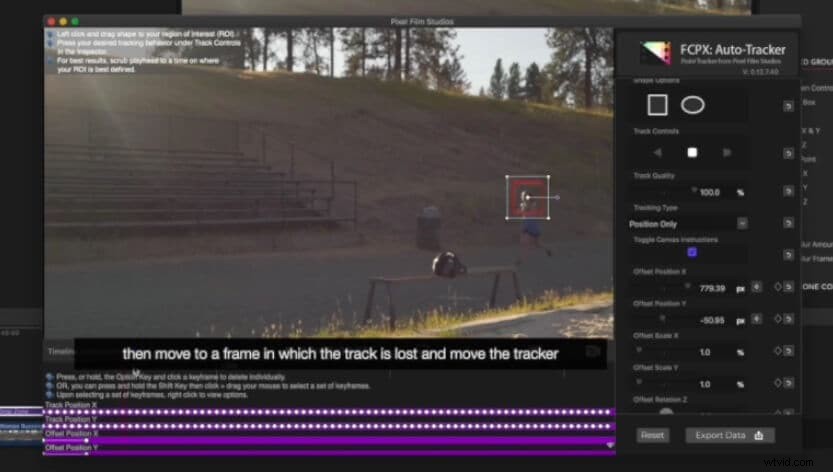
This is another popular motion tracking Final Cut Pro X plugin that you can try for free or get the entire product for $39.95. You can auto-lock any object in the video and select the transitioning speed. There are tons of additional features to track texts, adjust keyframes, and perform several other editing operations.
3. mCallouts by MotionVFX
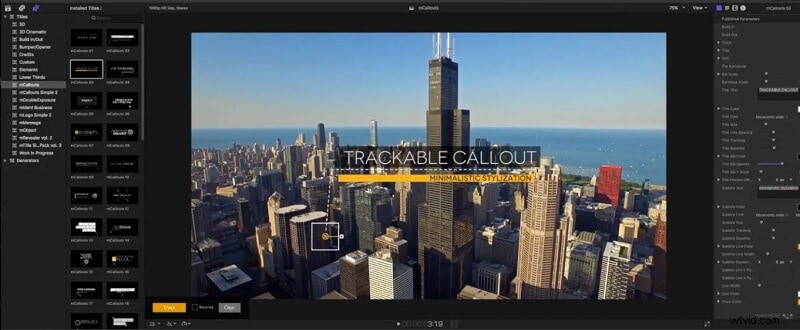
This is a complete post-production plugin that you can include in Final Cut Pro by paying a small amount. It will let you add different layers, select fonts, and apply transitions pretty easily. The FCPX effects tracker can also lock any object and apply motion tracking on it automatically.
Here is some of the recommendation. Click here for more free plugins.
Part 4: The Best Alternative to Final Cut Pro X - Wondershare Filmora for Mac
Since it can be tough to apply motion tracking in Final Cut Pro X, you can consider using Wondershare Filmora for Mac as its best alternative. It is one of the most advanced video editing and post-production tools that will meet every editing need of yours in one place.
- Filmora has an automatic motion tracking feature that is extremely easy to implement. You just need to select any object and apply motion tracking via its inbuilt tool.
- The application also has seamless keyframing features that you can implement to customize the flow of the video.
- There are hundreds of effects, presets, layers, texts, stickers, etc. that you can add to your video in no time.
- You can find options to work on the green screen, apply layers, perform color matching, and do other kinds of edits.
- There are also tools to include voiceovers, apply audio ducking, and even import royalty-free music from its native library.
This brings us to the end of this extensive post on applying motion tracking in Final Cut Pro. As you can see, you can either apply keyframing or use any FCPX motion tracking plugin free to meet your requirements. Since Final Cut Pro can be a bit complicated to use, you can consider using Wondershare Filmora for Mac. It is the best alternative to Final Cut Pro with more advanced features and an extremely user-friendly interface.