
In this article
We break down the core concepts of video transcoding, why it’s essential, and how to implement it effectively using Filmora.
Why Is Transcoding Necessary?
As video technology advances, high‑definition formats—1080p, 4K, and now 8K—have become the industry standard. While these formats deliver stunning clarity, they also generate massive file sizes and demand sophisticated compression schemes. This creates challenges for storage, transfer, and editing, especially on average‑sized hardware.
Transcoding—converting a file from one encoding to another—addresses these hurdles. By unifying disparate formats into one that is easier for your workflow, you reduce editing lag and free yourself to focus on storytelling rather than technical juggling.
For instance, the Sony'ILME-FX3 camera supports several recording modes. The table below shows each format’s characteristics and how they affect editing.
| File Format | Features |
|---|---|
| XAVC HS 4K | Uses the HEVC codec for higher compression efficiency. Delivers superior image quality at the same data rate as XAVC S, with Long‑GOP compression. |
| XAVC S 4K | 3840×2160 resolution, Long‑GOP compression. |
| XAVC S HD | 1920×1080 resolution, Long‑GOP compression. |
| XAVC S‑I 4K | 4K resolution with Intra‑compression. Ideal for editing because each frame is independent. |
| XAVC S‑I HD | 4096×2160 (DCI) resolution, Intra‑compression for optimal editing workflow. |
Intra‑compression processes frames individually, eliminating the need to reference neighboring frames during editing. This grants instant responsiveness and flexibility. Long‑GOP compression, while more storage‑efficient, ties frames together, causing decoding delays and stuttering in the timeline.
Transcoding: A Key Step to Improve Editing Efficiency
Transcoding isn't just a technical nicety; it's a workflow enhancer. Pay attention to these three scenarios where transcoding shines:
- Hardware‑Limited Systems: HEVC/H.265 files tax CPUs that lack hardware decoding. Converting to H.264 lowers the decoding load, smoothing the editing experience.
- High‑Compression Footage: XAVC HS 4K and similar Long‑GOP formats demand extensive cross‑frame calculations. Transcoding to an Intra format lets the editor work frame‑by‑frame, boosting performance.
- Variable Frame‑Rate (VFR) Content: Mobile recordings often switch frame rates to save space, which can cause sync glitches. Transcoding VFR to a constant frame rate (CFR) stabilizes the timeline and improves audio‑video alignment.
Choosing the Right Recording Format
When you record, think ahead about how you’ll edit. Below is a quick comparison of Long‑GOP and Intra formats to guide your decision.
| Long‑GOP | Intra | |
|---|---|---|
| Features | High compression, reduced file size, saves storage. | Independent frame compression, faster editing, preserves quality. |
| Advantages | Ideal for long recordings, limited editing. | Excellent for high‑quality outputs, complex scenes. |
| Disadvantages | Editing lag, requires powerful hardware. | Higher storage demand. |
| Use Cases | Interviews, meetings, press conferences. | Films, commercials, sports, nature documentaries. |
Transcoding vs. Proxy Files
Both techniques aim to make editing smoother, but they serve different purposes.
1. Transcoding
Transcoding converts the source file to a new format—often from a highly compressed Long‑GOP or HEVC to a more editor‑friendly codec like H.264. It improves compatibility, reduces decoding strain, and can lower hardware requirements. The resulting file is larger due to lower compression, but the workflow benefits outweigh the storage cost.
2. Proxy Files
Proxies are low‑resolution copies of the original footage. They preserve the source codec and file, merely down‑sampling resolution and bitrate. While editing, the proxy plays in place of the original, slashing CPU usage. When exporting, the software swaps back to the full‑quality source, ensuring the final product retains its original fidelity.
Quick Comparison
| Aspect | Transcoding | Proxy |
|---|---|---|
| Purpose | Format conversion for compatibility and speed. | Low‑res stand‑in to reduce system load. |
| File Handling | Creates a new file in a different codec. | Generates separate proxy files; original stays unchanged. |
| Editing Experience | Uses transcoded file throughout; final export is the same file. | Uses proxies during edit; final export uses original files. |
| Quality at Export | Matches transcoded file (potentially lower quality). | Preserves original high‑resolution quality. |
In short, transcoding is best when you need a universally compatible, editor‑friendly format. Proxies are ideal for handling very large or high‑resolution footage on modest hardware while keeping the final product at full quality.
How to Transcode Your Videos in Filmora
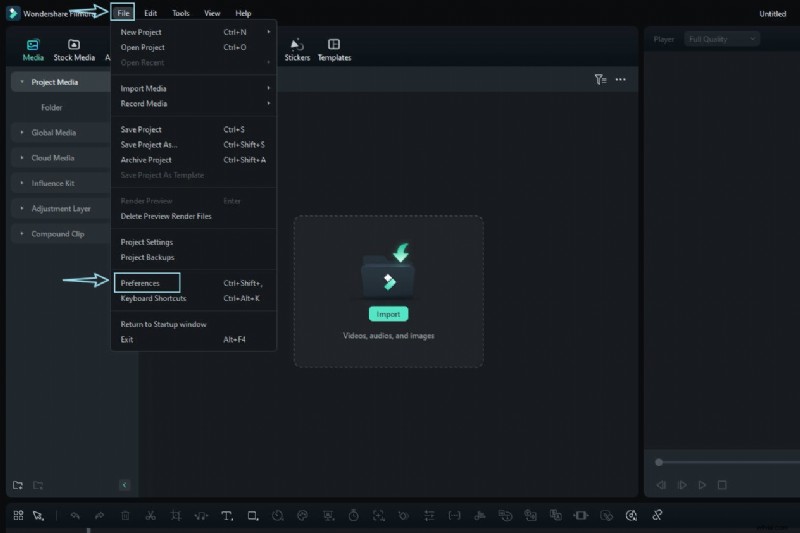
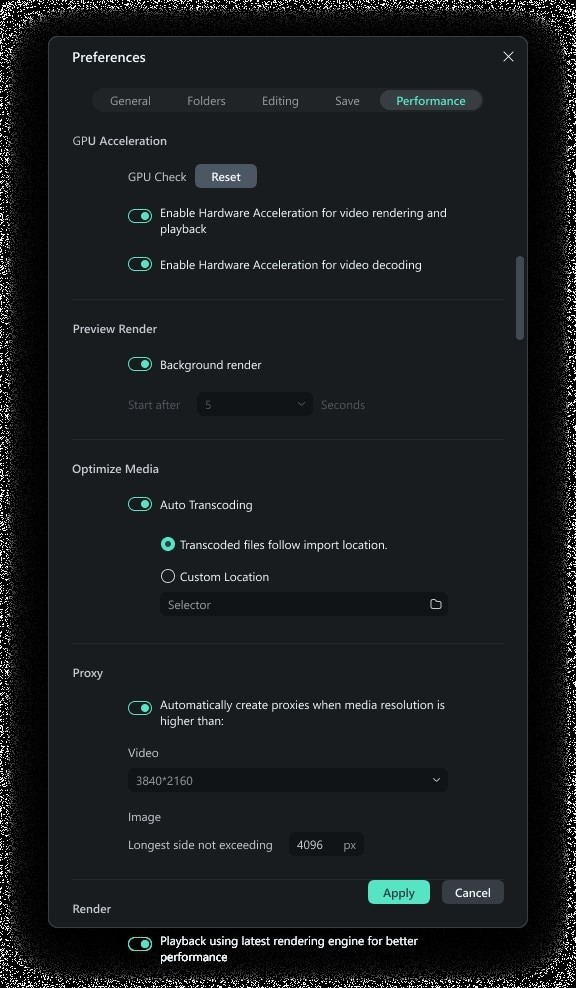
Filmora offers a simple auto‑transcoding feature that streamlines your workflow. Follow these steps:
- Open File > Preferences.
- Navigate to the Performance tab.
- Check Enable Auto Transcoding under Optimize Media.
- Choose whether transcoded files follow the import location or use a custom folder.
Images show the exact navigation path within Filmora’s interface.


Conclusion
Transcoding is an indispensable part of modern video production. It not only bridges format gaps but also frees creators from hardware bottlenecks and compression headaches, enabling smoother editing and higher creative output. By understanding the strengths and trade‑offs of each compression method, you can make informed recording choices that keep your workflow efficient and your final videos polished.
Filmora’s built‑in detection of Long‑GOP and VFR footage, coupled with its auto‑transcoding prompt, eliminates the most common editing pitfalls—delays, sync issues, and codec incompatibilities—so you can maintain a seamless creative flow and deliver professional‑grade videos.