
Struggling with dark or dull videos on your iPhone? Or recorded a video on your iPhone only to find it too dark to enjoy?
There are plenty of times when you might wonder how to brighten a video on an iPhone. Maybe you filmed at night, indoors with poor lighting, or outdoors on a cloudy day. Even great videos can sometimes turn out darker than expected, but luckily, you have many options to fix them.
Here, we'll walk you through three simple methods for how to make an iPhone video brighter: using Wondershare Filmora video editor, Photos App, and iMovie. You'll find the perfect solution to brighten up your videos and make them stand out.
In this article
-
- Key Features of Filmora Mobile
- How to Brighten a Video on iPhone Using Filmora
- Pros and Cons of Using Filmora
-
- Key Features of the Photos App
- How to Brighten a Video on iPhone Using the Photos App
- How to Brighten a Video While Recording on iPhone
- Pros and Cons of Using the Photos App
-
- Key Features of iMovie
- How to Brighten a Video on iPhone Using iMovie
- Pros and Cons of Using iMovie
-
- Key Features Comparison
Part 1. Make Your iPhone Video Brighter with Filmora
If you're looking for a quick and effective way how to brighten up a video on your iPhone, Filmora Mobile is the perfect tool. As one of the best video editors for iPhone, it combines simplicity with powerful editing features, making it easy to enhance your videos and bring out the details—even in dark footage.
Key Features of Filmora Mobile
- Brightness and Contrast Adjustment: Easily adjust the brightness, contrast, and exposure to fix dark videos.
- Filters and Effects: Add pre-set filters to enhance video tones and lighting quickly.
- Intuitive Interface: Simple controls for beginners while offering advanced tools for professionals.
- Social Media Ready: Supports various formats and aspect ratios for platforms like Instagram, TikTok, and YouTube.
Get Started for FreeFor Win 7 or later (64-bit) Get Started for FreeFor macOS 10.14 or later
How to Brighten a Video on iPhone Using Filmora
Step1Import Your Video
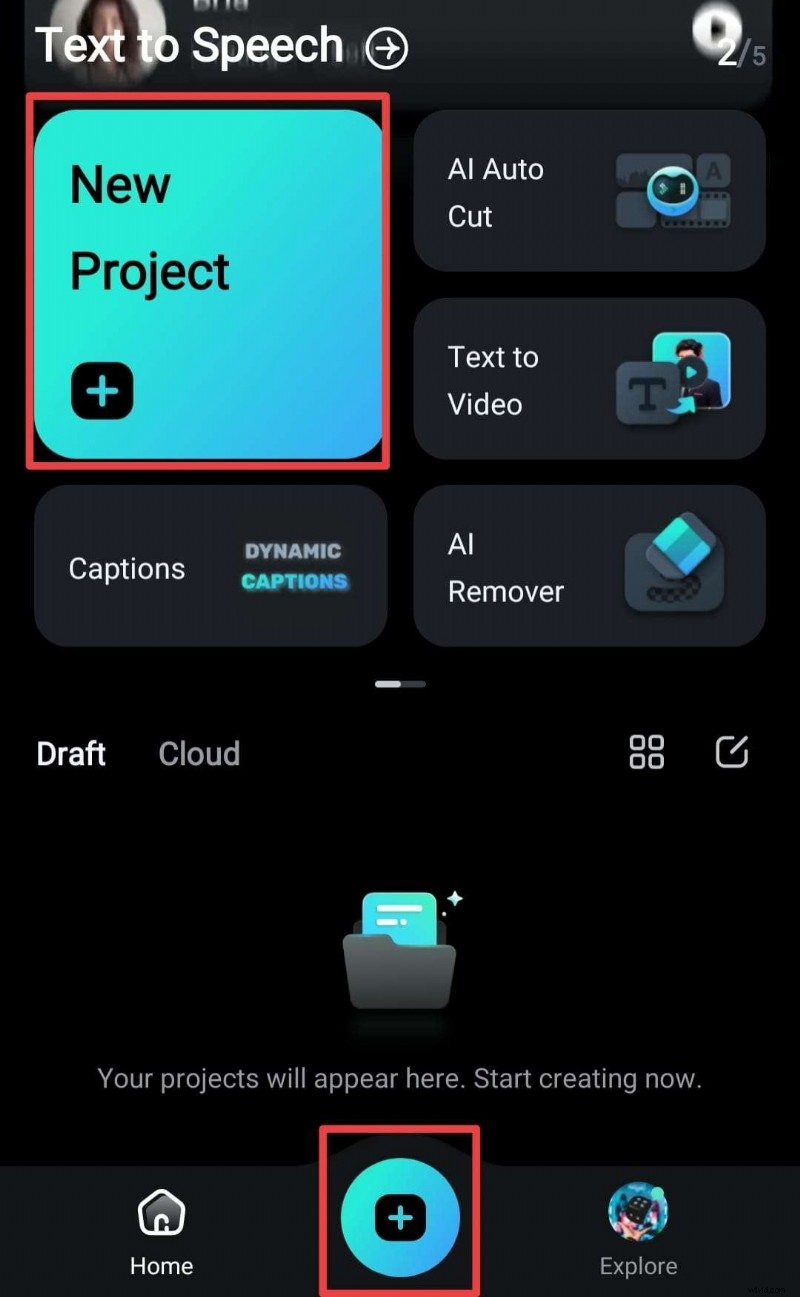
Open the Filmora app after installing, tap "New Project", and select the video you want to brighten from your camera roll.
Step2Access the Brightness Adjustment Tool
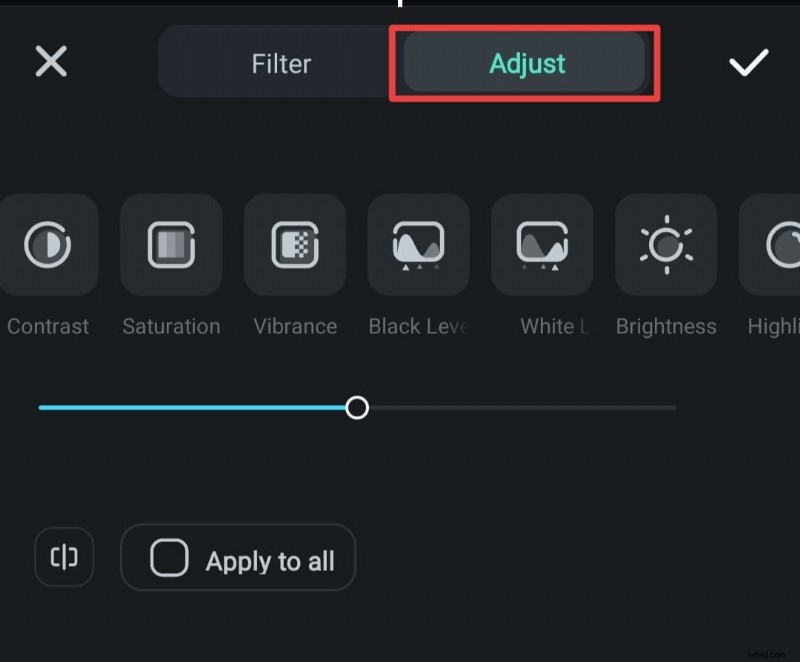
Tap the "Filter" option from the bottom bar. Then, select "Adjust" tools from the menu.
Step3Adjust the Brightness
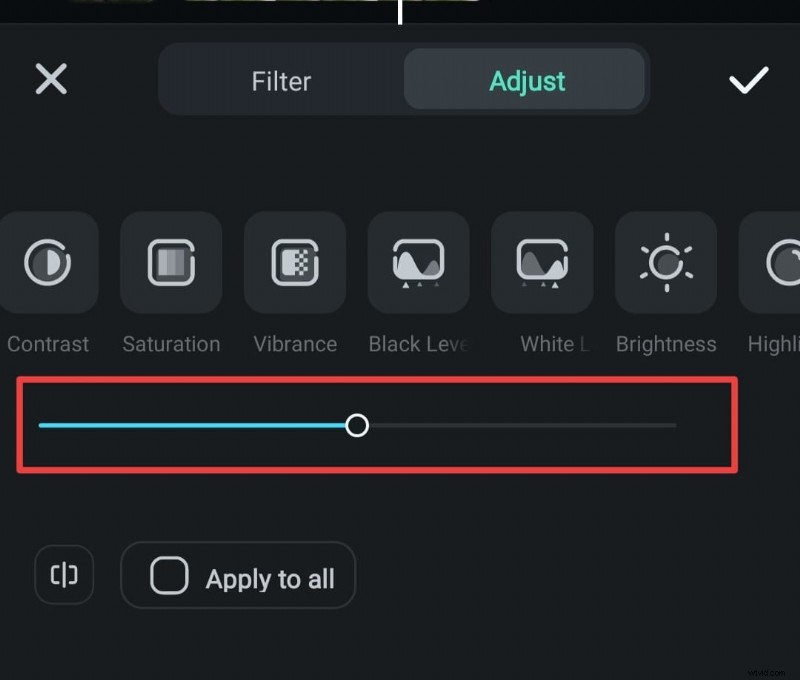
Drag the brightness slider to increase or decrease the brightness. For best results, fine-tune other settings like contrast and saturation to balance the video's overall look.
Step4Apply Filters (Optional)
Explore Filmora's pre-set filters to instantly enhance lighting and mood.

Step5Preview and Save
Play the video to see the changes by tapping the compare icon.
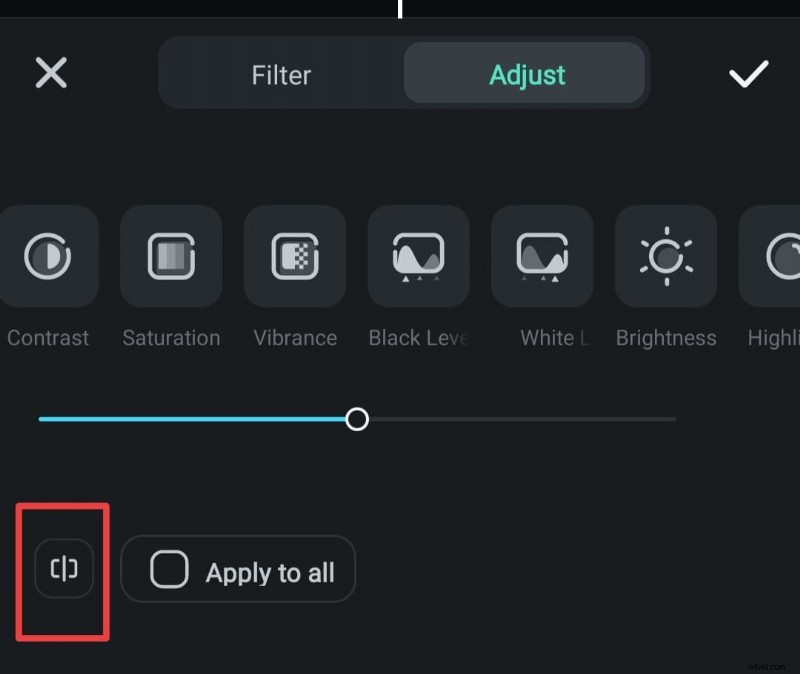
Once you're satisfied, tap "Export" to save the brightened video to your iPhone.
Get Started for FreeFor Win 7 or later (64-bit) Get Started for FreeFor macOS 10.14 or later
Pros and Cons of Using Filmora
Pros- Easy to use for beginners, with an intuitive interface.
- Advanced brightness and color adjustment tools.
- Additional features like filters, effects, and AI enhancements.
- Supports exporting videos in multiple formats and resolutions.
- Perfect for creating social media-ready content.
- Some advanced features may require a premium subscription.
- Videos with heavy edits might take longer to export.
Part 2. How to Brighten a Dark Video on iPhone with the Photos App
If you need a quick way to make a dark video visible on your iPhone without new apps, the built-in Photos app is the perfect solution. It's the simplest method to brighten a video on an iPhone after recording for free.
Key Features of the Photos App
- Built-In and Free: Comes pre-installed on all iPhones, so no downloads are needed.
- Basic Video Editing Tools: Adjust brightness, exposure, contrast, and other video settings.
- User-Friendly Interface: Simple controls for quick and easy edits.
- Non-Destructive Editing: You can always revert the video to its original version if needed.
How to Brighten a Video on iPhone Using the Photos App
Step 1. Open the Photos App
Unlock your iPhone and open the Photos app. Browse your albums and tap on the video you want to brighten.
Step 2. Enter Edit Mode
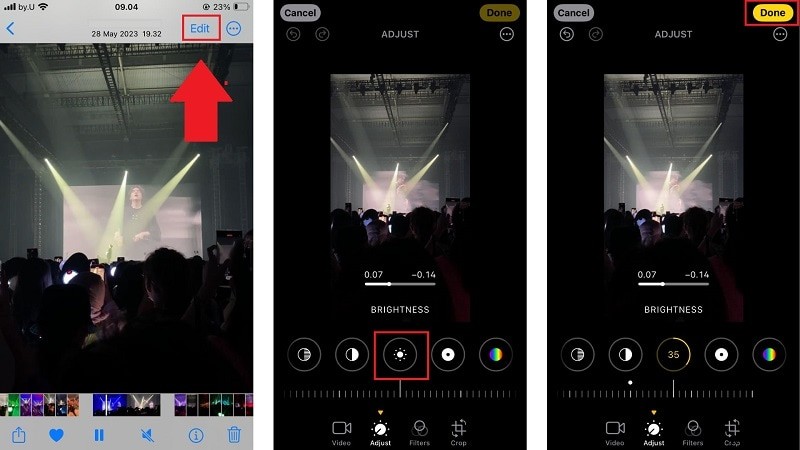
Tap the Edit button in the top-right corner of the screen. In the bottom menu bar, tap the Brightness icon (it looks like a sun). Use the slider at the bottom to increase brightness by dragging it to the right.

Note: You can also tweak settings like Exposure and Contrast for a balanced look.
Step 3. Save Your Changes
Once you're happy with the results, tap Done in the bottom-right corner. Your video will be saved with the new brightness settings.
How to Brighten a Video While Recording on iPhone
If you want to avoid dark footage altogether, you can manually adjust the brightness level while recording a video using your iPhone's Camera app. This helps you capture clearer and more vibrant videos in real time without needing to edit them later.
Step 1. Open the Camera App
Launch the Camera app and switch to Video mode. Make sure your subject is visible on the screen.
Step 2. Adjust the Exposure Before Recording
Tap on your subject to focus. When the yellow focus box appears, drag your finger up on the screen to increase brightness (exposure) or down to darken it. You'll notice a small sun icon ☀️ moving up or down as you adjust.
Tip: If lighting keeps changing, lock the exposure and focus by tapping and holding on your subject until "AE/AF Lock" appears at the top of the screen.
Step 3. Record Your Brightened Video
Once you're satisfied with the brightness level, tap the Record button to start filming. This ensures your footage stays consistently bright throughout the recording.
Pros and Cons of Using the Photos App
Pros- It comes pre-installed on all iPhones, no need to download or purchase anything.
- Simple and quick to use for basic brightness adjustments.
- Allows you to revert to the original video if needed.
- Completely free.
- Limited editing features compared to third-party apps.
- Doesn't offer advanced tools like filters or AI enhancements.
- Fine-tuning brightness may not completely restore very dark videos.
Part 3. How to Brighten a Video Using iMovie
iMovie, Apple's powerful yet free video editing app, is another great option for how to brighten a video on an iPhone after recording. Its intuitive interface and color enhancement features allow you to tweak lighting and apply filters for a polished look.
Key Features of iMovie
- Automatic and Manual Color Adjustments: Enhance lighting, skin tones, and overall video color.
- Built-In Filters: Apply pre-set filters to quickly brighten and improve video visuals.
- Seamless Integration with iOS: Works smoothly with your iPhone's video library and iCloud.
How to Brighten a Video on iPhone Using iMovie
Step 1. Open iMovie and Create a Project
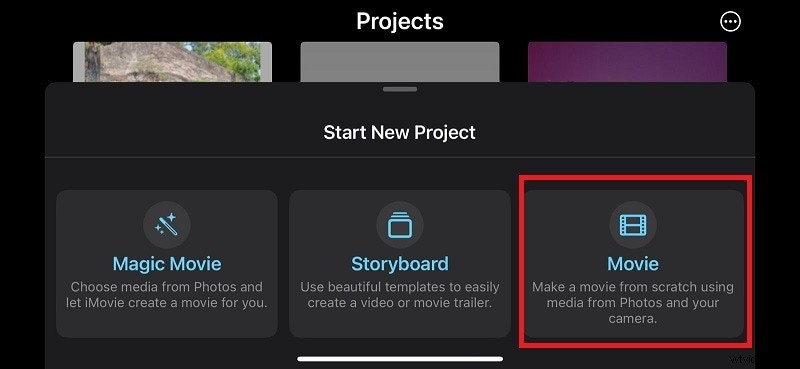
Launch the iMovie app on your iPhone. Then, tap the "+" icon to start a new project and select "Movie" from the options.
Step 2. Import Your Video
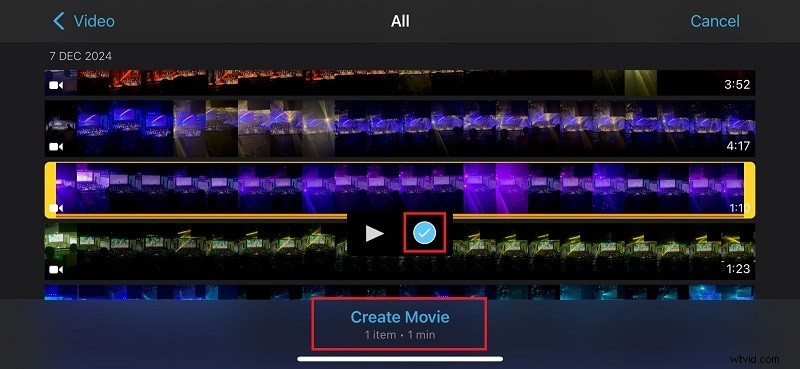
Browse your media and select the video you want to brighten. After that, tap "Create Movie" to add it to the timeline.
Step 3. Access the Filters Tool
Tap the video clip in the timeline to highlight it. At the bottom of the screen, tap the "Filters" button (it looks like three overlapping circles).
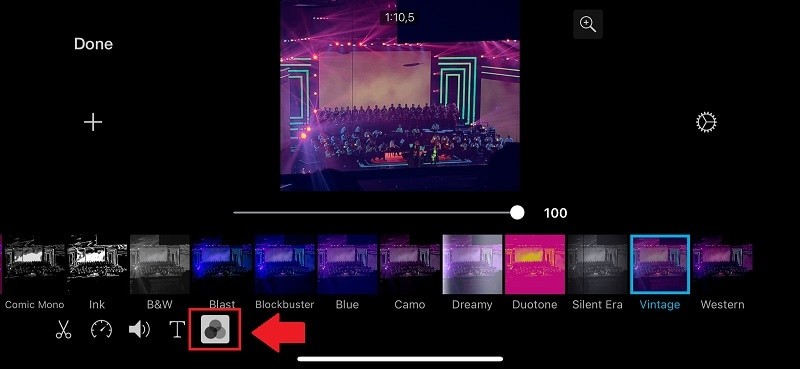
Scroll through the available filters and select one that brightens your video. A live preview will show the changes, so you can choose the filter that looks best. To remove filters, tap "None."
Step 5. Preview and Save Your Video
Once you're satisfied with the brightness, tap "Done" in the top-left corner. Export and save the brightened video to your iPhone.
Pros and Cons of Using iMovie
Pros- Free to use and pre-optimized for Apple devices.
- Easy-to-apply filters for quick video enhancements.
- Provides additional tools for color grading and visual improvements.
- Great for users looking to brighten and edit videos in one app.
- Limited manual control over brightness compared to advanced editors.
- Filters may not fully restore visibility in very dark videos.
- Requires time to explore all features for beginners.
Part 4. Comparison: Which Method is Best to Fix Your Dark Video?
With three excellent ways to brighten a video on your iPhone—Filmora Mobile, the Photos app, and iMovie—you might wonder which method is best for you. Let's compare their key features based on usability, functionality, and accessibility to help you decide.
Key Features Comparison
Usability
- Filmora: Balances ease of use and advanced features, making it ideal for both beginners and professionals.
- Photos App: Easiest for beginners, thanks to its intuitive interface and limited options, making quick edits straightforward.
- iMovie: Slightly more complex but still user-friendly, with added features for those wanting to explore video editing.
Functionality
- Filmora: Offers the most advanced tools, including AI-powered enhancements, filters, and professional editing options.
- Photos App: Limited to basic brightness and exposure adjustments without additional creative tools.
- iMovie: Provides intermediate functionality with basic filters and color adjustment tools.
Accessibility
- Filmora: Free to use with optional premium features for those who want more control.
- Photos App: Most convenient and cost-effective as it comes pre-installed and is entirely free.
- iMovie: Free to download but requires a learning curve for advanced edits.
| Feature | Filmora Mobile | Photos App | iMovie |
| Ease of Use | Beginner-friendly, intuitive | Easiest, no learning curve | Easy but requires exploring |
| Advanced Tools | Brightness, contrast, and AI tools | Basic brightness adjustments | Filters, basic color grading |
| Cost | Free (some features premium) | Free | Free |
| Platform Compatibility | iOS, Android | iOS | iOS |
| Ideal Use Case | For advanced brightening edits | Quick fixes for dark videos | Basic edits + filter adjustments |
If you need a quick and simple solution, the Photos app is perfect for basic brightness adjustments. For more creative control with added filters, iMovie is an excellent free option. However, if you're after professional-quality results, Filmora offers the best mix of advanced features and ease of use.
Conclusion
Knowing how to brighten a video on an iPhone is simple with the right tools. If you need quick adjustments, the Photos app is perfect for basic fixes. For more creative edits, iMovie offers filters and color controls.
But if you want the most advanced features, Filmora is the best video editor for professional-quality results. Whether you're looking to brighten a dark video on your iPhone or make your content stand out, these methods will help you achieve stunning results.
Now you can easily make an iPhone video brighter and share videos that shine!