
Emojis have become an essential part of digital communication, allowing us to convey emotions quickly and vividly. If you’re looking to enhance your texting experience, installing a dedicated emoji keyboard can be a game‑changer.
Part 1. Free Emoji Apps for Android
Android users have a wealth of options. Below are five of the most popular and feature‑rich keyboards that let you access a wide range of emojis for free.
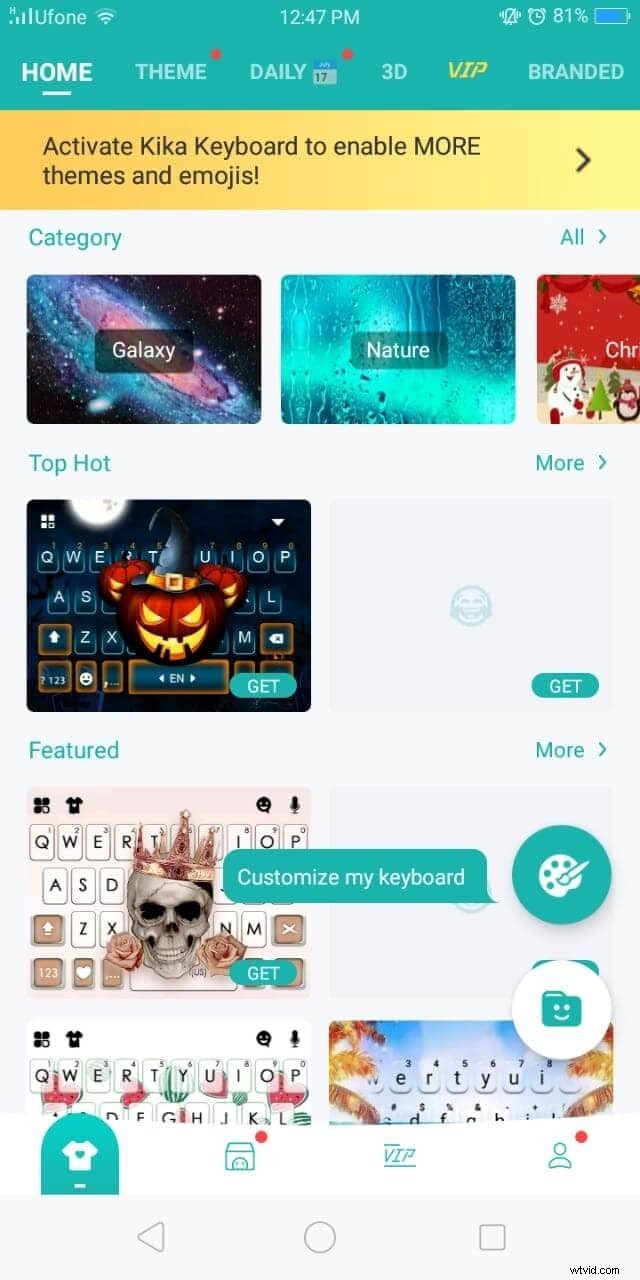
#KiKa Keyboard
KiKa offers a sleek, highly customizable interface. Change the background, font, or size to match your style, and the built‑in AI will predict words and emojis as you type. It works across text messages, social media, and email.
- Open Google Play and download KiKa.
- Launch the app to start using emojis.
#Emoji Keyboard
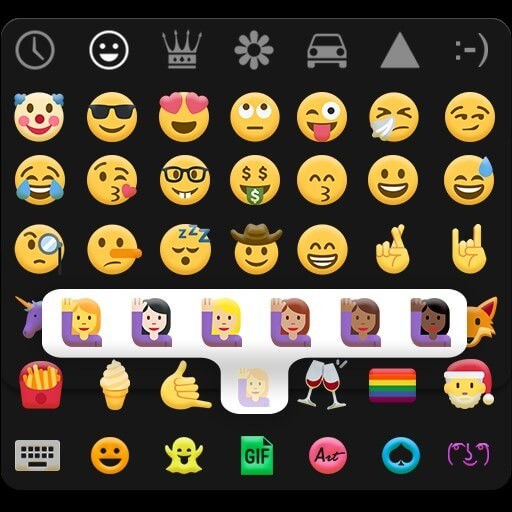
With over 5,000 emojis, this keyboard lets you choose themed backgrounds or even use your own photo. Fast typing, animated gestures, and custom fonts make conversations more engaging.
- Install Emoji Keyboard from Google Play.
- Launch it to access the emoji library.
#Bitmoji
Create a personalized avatar that mirrors your appearance. Use it as stickers, or let the app generate animated emojis that reflect your mood.
- Download Bitmoji from Google Play and sign in.
- Go to Settings > Languages & Input > On‑screen keyboard.
- Enable Bitmoji Keyboard.

#Ginger Keyboard
Ideal for both personal and professional use, Ginger offers grammar and spell‑check alongside a library of over a thousand emojis. Themes are available for free or in the store.
- Download Ginger Keyboard from Google Play.
- Follow the sign‑in steps.
- Activate the keyboard in your device settings.
#WhatSmiley
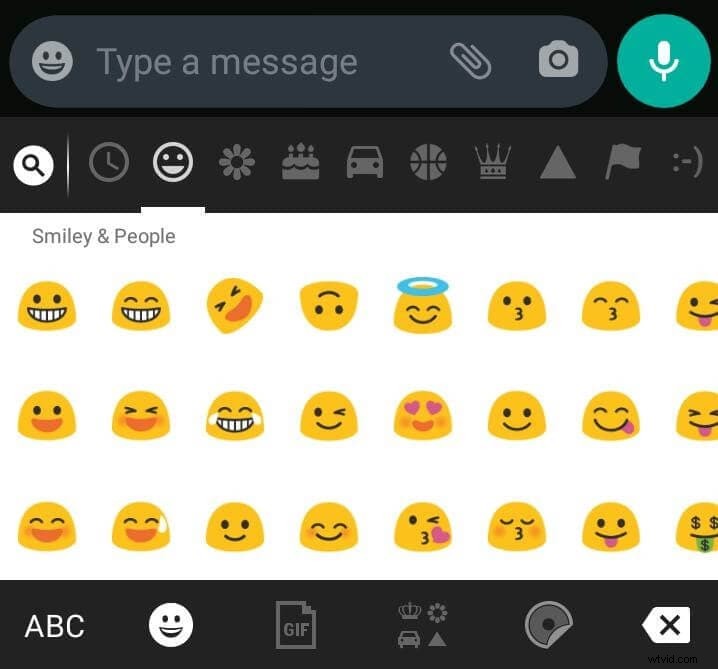
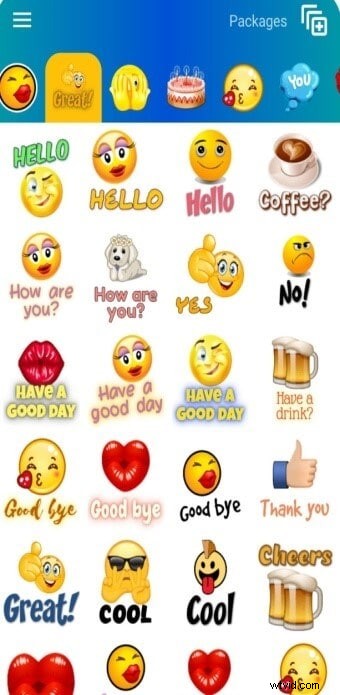
With 2,400+ emojis, WhatSmiley keeps its collection fresh and customizable. Add emojis to any app, change background colors, and enjoy frequent updates.
- Install WhatSmiley on your phone.
- Select an emoji and choose the app to share it.
Part 2. Free Emoji Options for iPhone
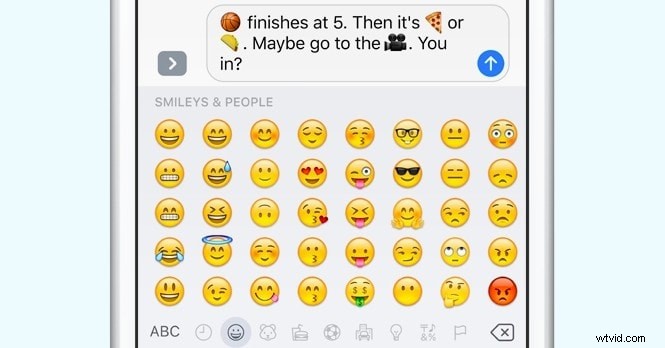
iPhone users benefit from a built‑in emoji keyboard, but if you want more variety, third‑party apps are available.
#Built‑In Keyboard
Enable it via Settings > General > Keyboard > Keyboards > Add New Keyboard > Emoji. Once added, you can switch to it whenever you type.
#Emoji Keyboard App
This free, ad‑free app expands your emoji repertoire with the latest stickers and offers the option to order custom packs.
- Download Emoji Keyboard from the App Store.
- Open the app and start typing.
Part 3. Add Emojis to Your Video Using Wondershare Filmora
Step 1: Install Filmora
Download Filmora from the official website or app store. The free version offers robust AI‑powered editing tools.

Step 2: Import Your Video
Start a new project, click Import, and drop the video into the timeline.
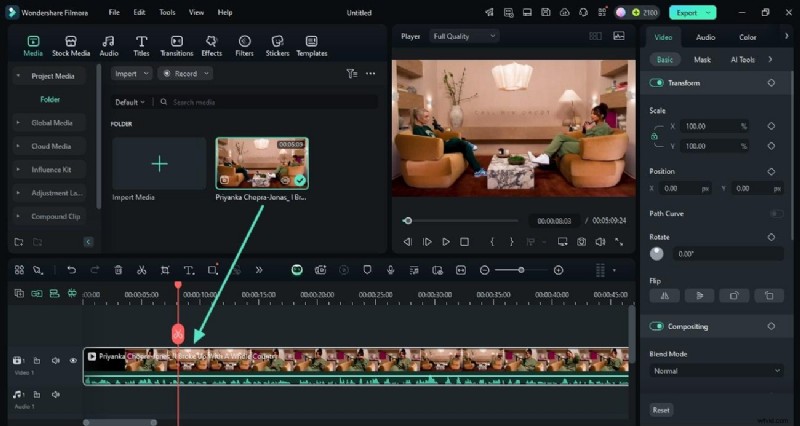
Step 3: Access Stickers and Emojis
Navigate to the Stickers tab on the left panel. Select the Emoji section, choose an icon, and drag it onto the timeline.

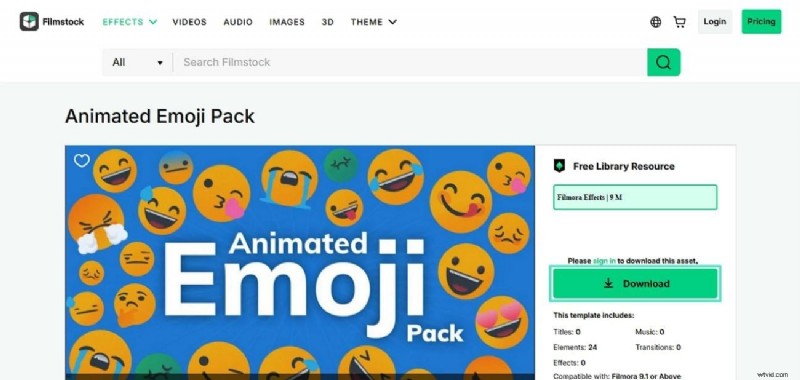
Step 4: Download Additional Packs
Visit Filmstock on your PC, find the emoji pack you like, click Download, and then import it into Filmora’s Stickers library.
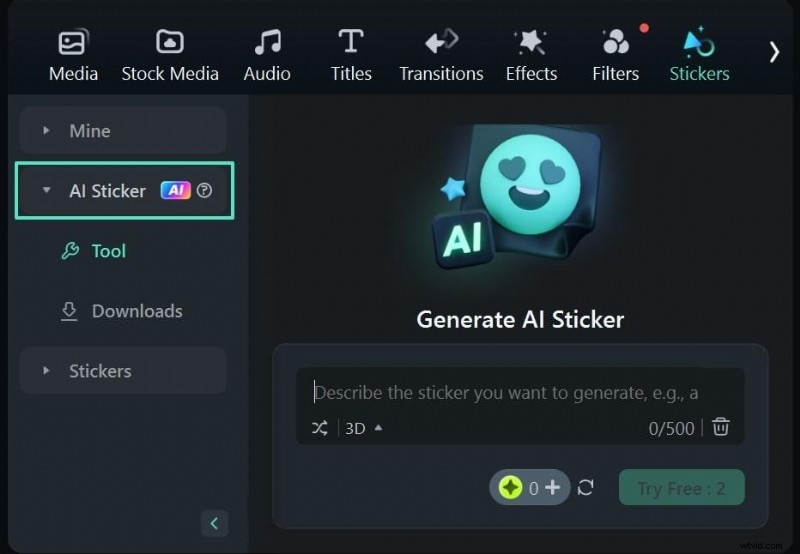
Step 5: Use AI Stickers
Filmora’s AI Sticker feature lets you generate custom emojis by typing a prompt. Try it, preview, and insert the result.
Step 6: Export Your Video
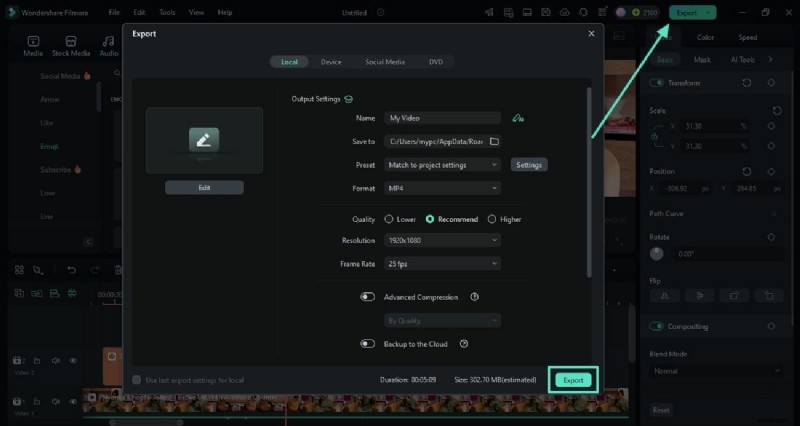
Click Export, choose your format and quality, and save the finished product to your device.
Using Filmora on Mobile
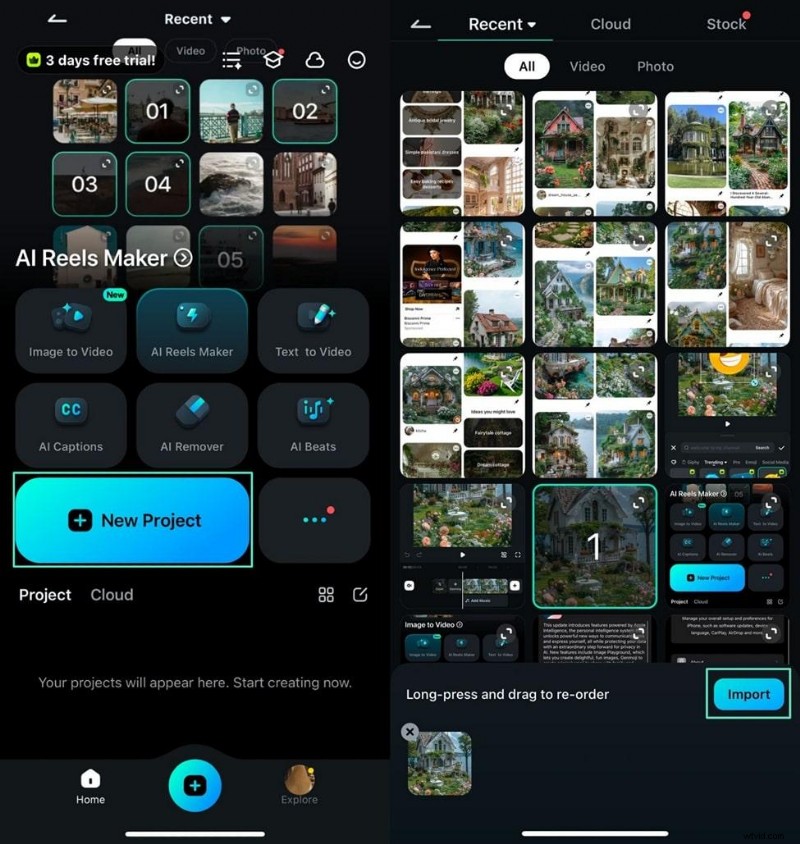
The mobile version follows a similar workflow: import your clip, tap Sticker, select an emoji, adjust size and position, and export.
Conclusion
Emojis transform ordinary text into expressive, engaging conversations. With the free apps listed above and the powerful editing features of Filmora, you can add personality to both your messages and videos. Enjoy the colorful world of emojis and let your creativity shine.